
Create and Apply Credit Memos
Last updated on Aug 28, 2026
A Credit Memorandum (Credit Memo) reduces the amount a customer owes on a previously issued invoice. The recommended method for creating a credit memo is directly from the original invoice in Maxio that you wish to credit against. This method automatically prompts you to balance associated transactions, helping to avoid out-of-balance conditions.
Important: The Credit Memo and the related Transaction must be on the same contract to associate them.
WARNING: Creating a credit memo by generating an invoice with negative line items, or by creating one in your general ledger and syncing it into Maxio, causes an out-of-balance condition that you must resolve manually. Use the Create Credit Memo action from the original invoice instead to avoid this.
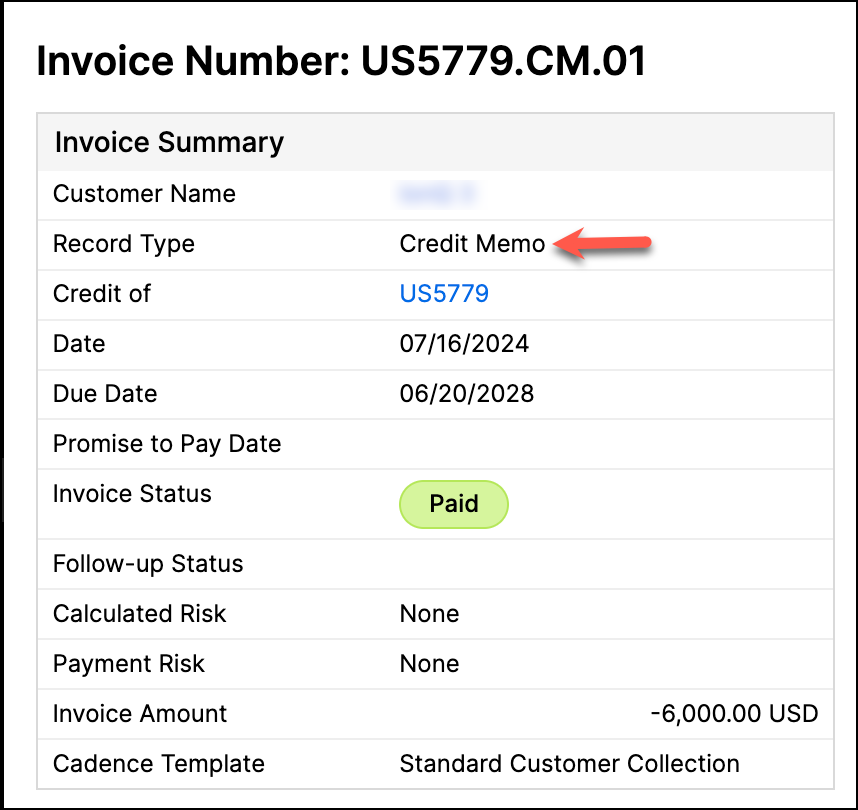
In Maxio, a credit memo is identified by its Record Type, labeled Credit Memo.
Create a Credit Memo
-
Navigate to the invoice list and locate the invoice for which you want to create a credit memo.
-
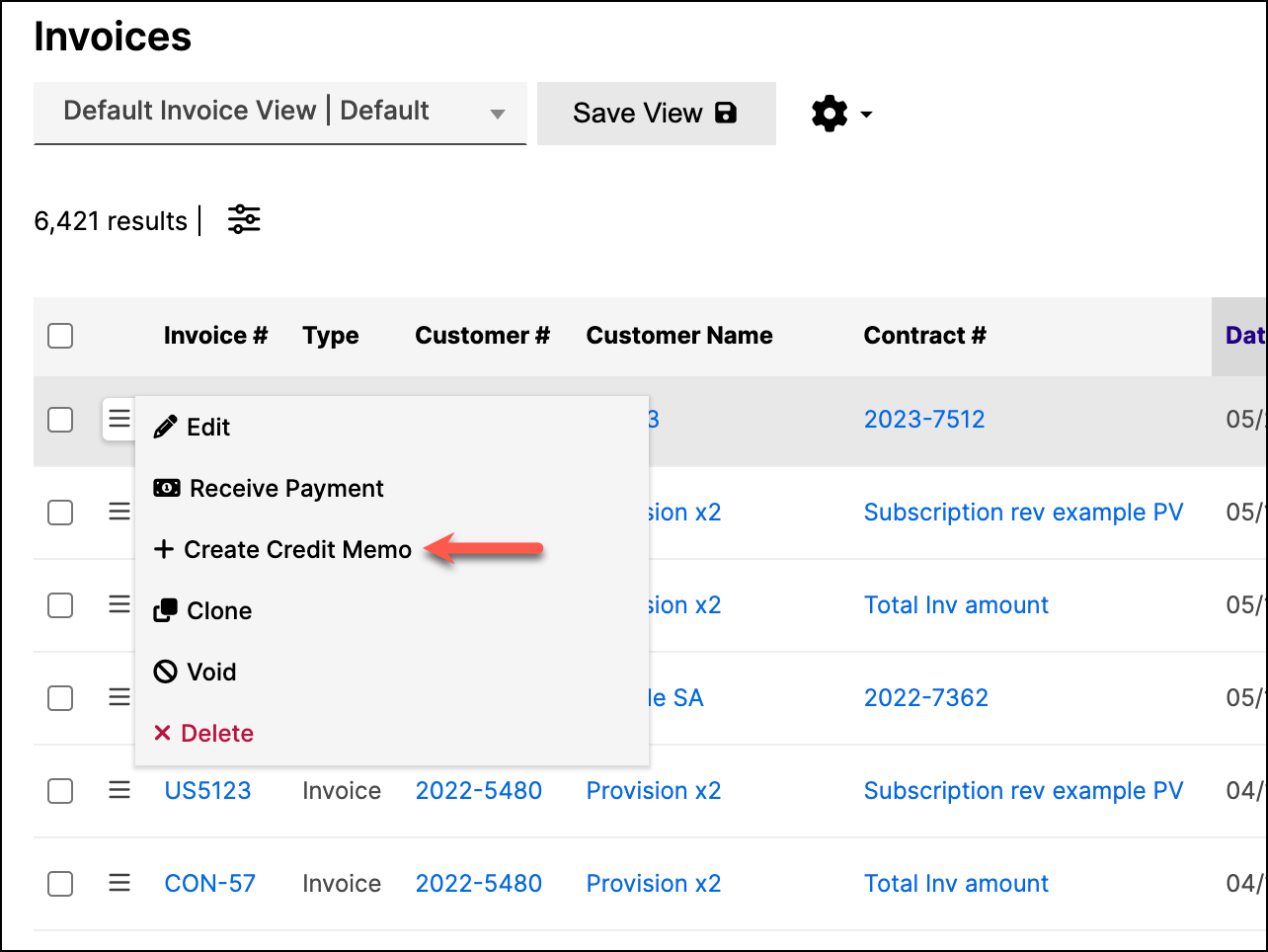
Select Create Credit Memo from the action menu to the left of the invoice. Alternatively, open the individual invoice view and select Create Credit Memo from the invoice drop-down menu.

-
On the Create Credit Memo confirmation screen:
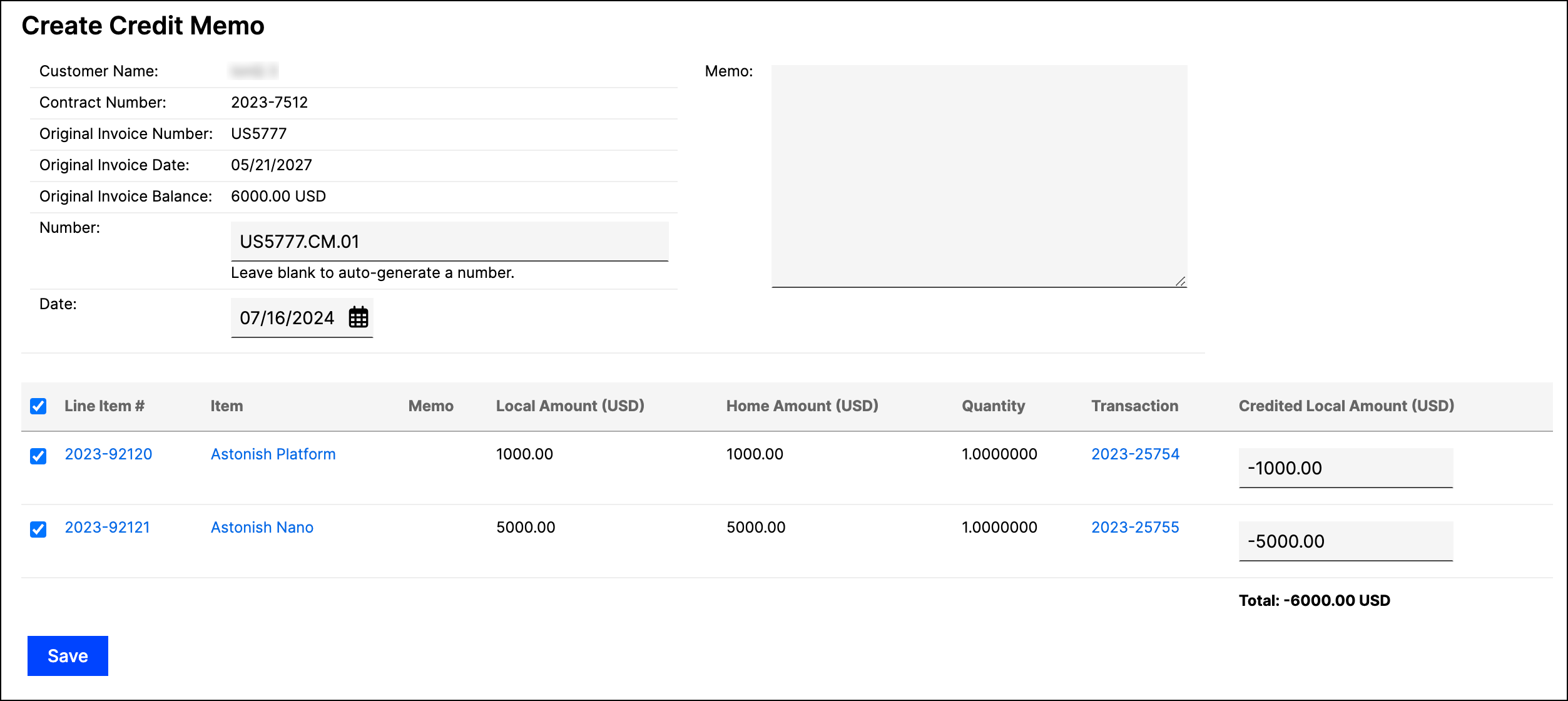
- Adjust the credit memo number if needed. By default, the system appends a suffix like .CM.01 to the original invoice number, allowing the credit memo to appear next to the related invoice in a sorted list. If you create another credit memo against the same invoice, the suffix increments (.CM.02, and so on).
- Modify the credit memo date if required.
- Select the invoice line items you want to credit. You can also credit zero-dollar line items if needed.
-
Review your selections to ensure accuracy and confirm the creation of the credit memo.
Alternative methods to create Credit Memos
The recommended method is creating a credit memo directly from the original invoice, but you can also use either of these alternative methods:
- Generate a Credit Memo using Negative Transactions: When creating an invoice in Maxio, the record type is assigned as a credit memo if the sum of the invoice line items is negative. This credit memo will not be linked to the original invoice.
To apply the credit memo, use the Receive Payment screen. The credit memo will then be available for application to the invoice. - Creating a Credit Memo in the General Ledger: You can create a credit memo in your connected GL and sync it to Maxio. However, similar to the first method, this method does not link the credit memo to the original invoice. Manual application is required.
Balancing Transactions with Credit Memos
A credit memo reduces the amount a customer owes for one or more specific transactions. Creating a credit memo often results in an out-of-balance condition, as the invoice total may no longer align with the revenue or transaction amounts.
Using the Create Credit Memo action automatically prompts you to balance affected transactions by recasting revenues and adjusting transaction amounts to match the credited invoice line item totals. Revenue adjustments respect the Close Period and create adjustments in the first open month.

Apply a Credit Memo
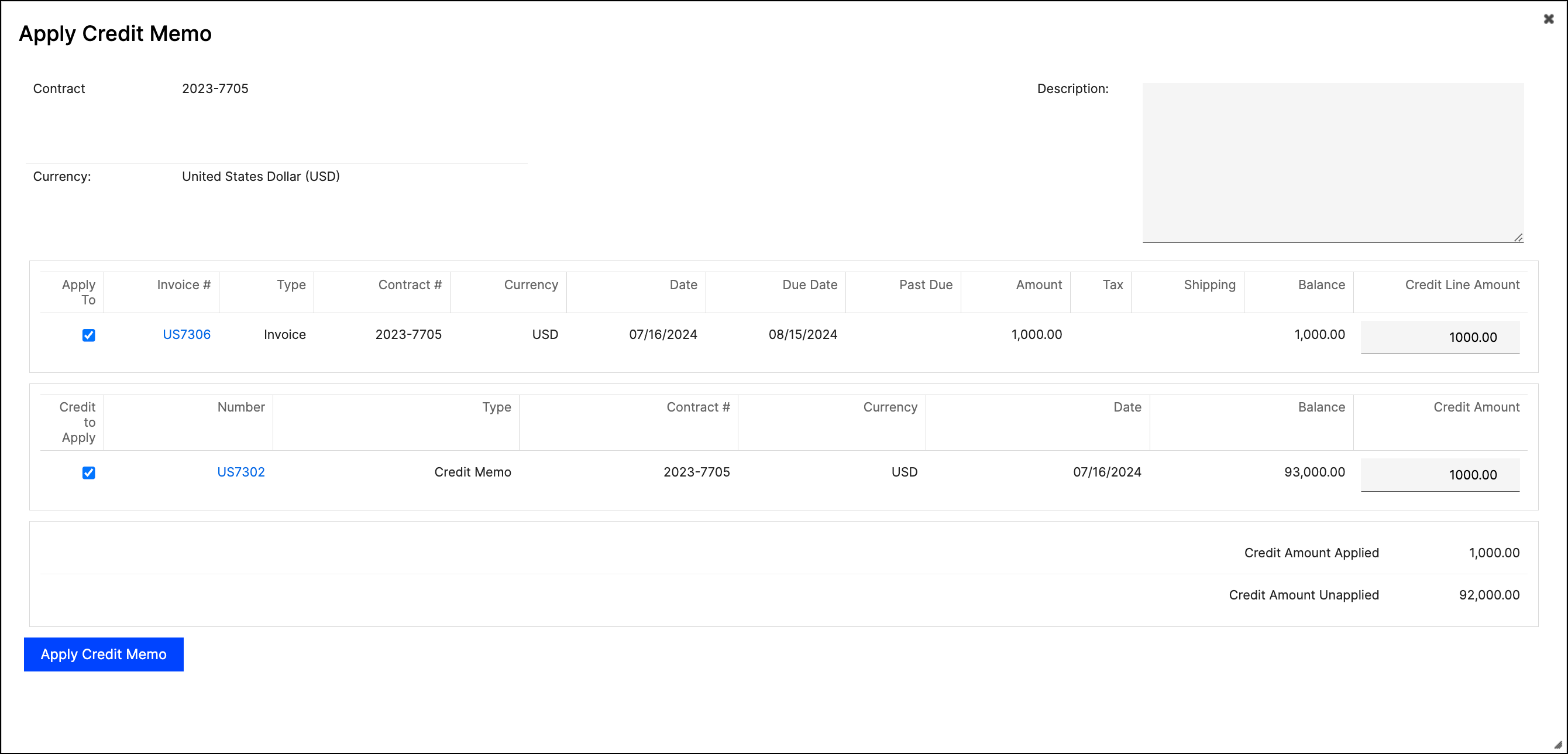
When an unapplied credit memo is available on a contract, you can apply it using the menu icon from any invoice list or the actions dropdown on the Invoice Detail page.
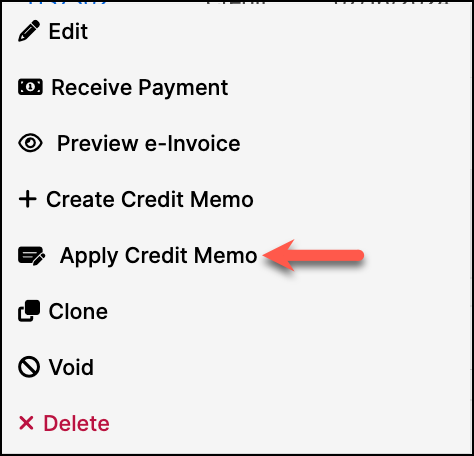
On the application screen, the Apply To checkbox is checked for the given invoice. Select the credit to apply and enter the credit amount. Once completed, click Apply Credit Memo.
AvaTax sales tax considerations
Credit memos created using alternative methods are not linked to the original invoice. When handling sales taxes, ensure the tax date on the credit memo matches that of the original invoice. This ensures accurate tax refunds and reporting.
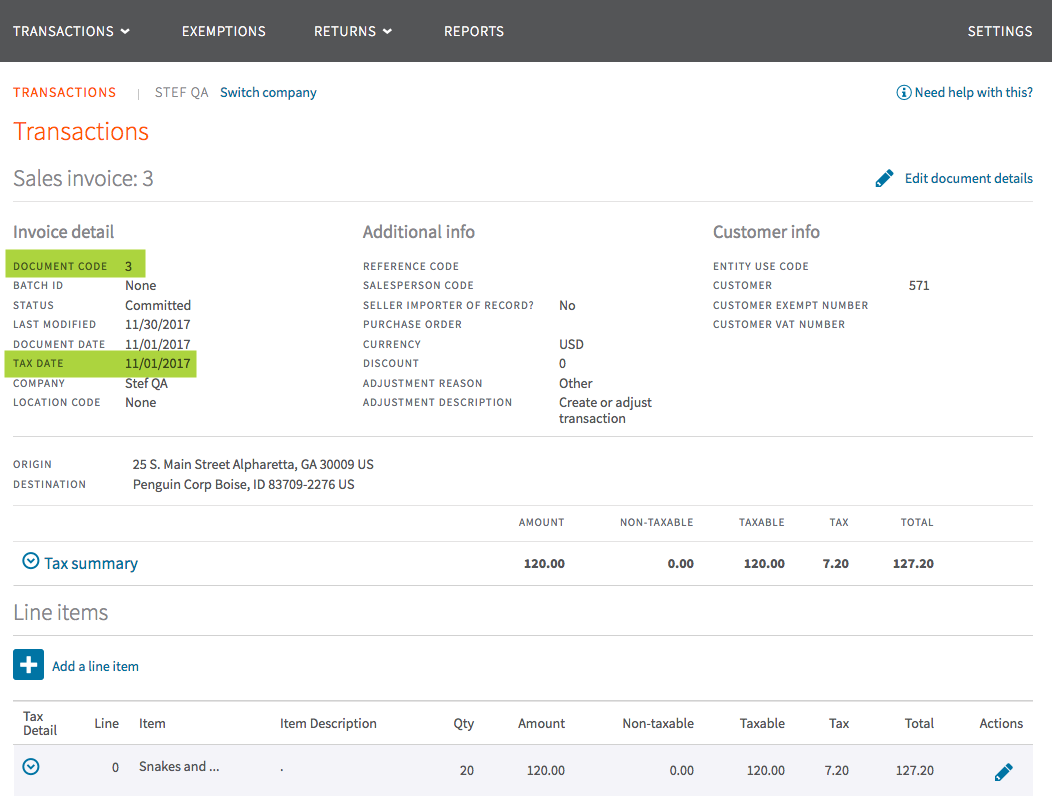
Using the Create Credit Memo action with Maxio's AvaTax integration ensures that the tax date of the original invoice is used, providing accurate computations and reporting of sales tax.
Example: Invoice 3 has an invoice date of 11/01, and the corresponding AvaTax transaction record uses the same tax date.
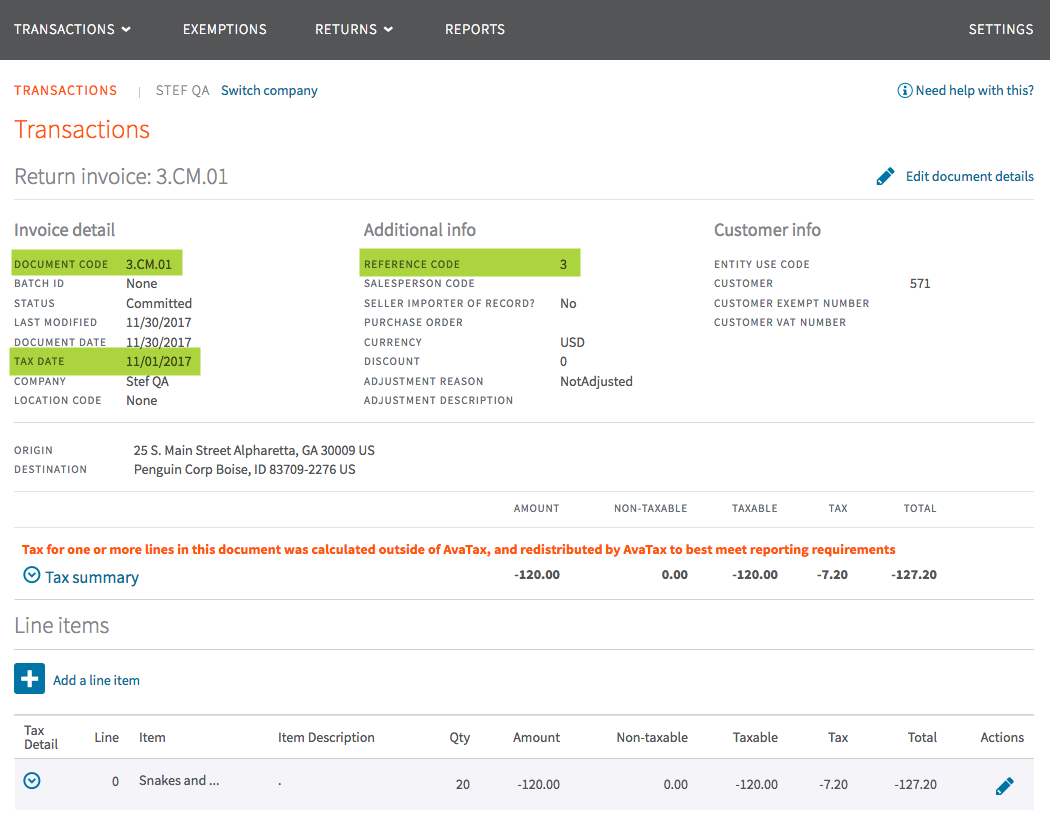
Credit Memo 3.CM.01, created on 11/30, references the original invoice and uses the same tax date for accurate tax reporting.
Partial Credit Memos
To create a partial credit memo, you can:
- Create a negative transaction in Maxio for the desired amount.
- Create the partial credit memo in your GL and sync it to Maxio.
Still need help?
Reach out and our support team will take it from here.