
Set a Promise to Pay Date on an Invoice
Last updated on Aug 24, 2026
You can assign a Promise to Pay date to an Invoice when a Customer commits to paying by a specific date. Setting a Promise to Pay date temporarily pauses the associated Cadence, which helps your team manage Collections outreach and prevent unnecessary follow-up emails. Cadence steps scheduled before that date are skipped, and the cadence automatically resumes afterward if the balance is still unpaid.
This feature is a part of the Cadences functionality. Cadences is a feature of Maxio Platform's Collections functionality that generates and sends emails to customers to remind them to pay their outstanding invoices.
To assign a Promise to Pay date
-
Navigate to the Invoice for which the Customer has promised payment, and open the edit screen.
-
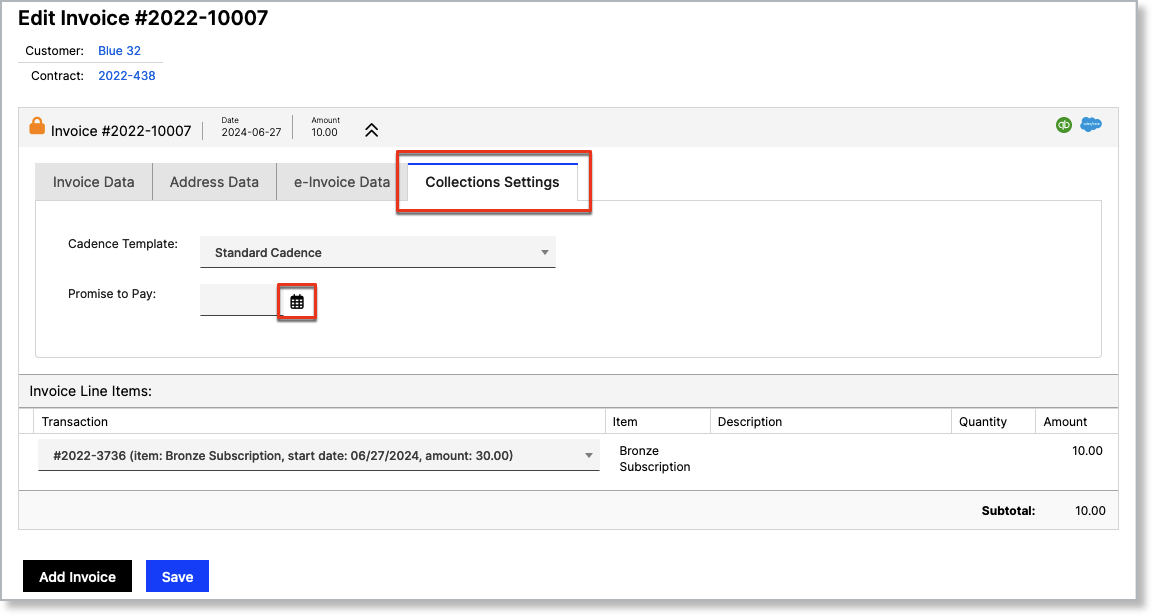
Open the Collections Settings tab.
-
Select a Promise to Pay date using the calendar selector.
-
Save your changes to apply the Promise to Pay date.
How Promise to Pay affects Cadences
When a Promise to Pay date is set, any Cadence steps scheduled before that date are paused. These pending steps appear grayed out when viewing the Invoice's Cadence. The Cadence will resume after the Promise to Pay date if the Customer has still not paid the Invoice.

Related information
To learn more about Cadences and Collections automation, see the Cadences Overview help article.
To learn more about Invoices, see the Invoices Overview help article.
An Invoice with an expired Promise to Pay date appears in the Attention Needed widget on the Cadences screen. See Use Cadences to Manage Collection Emails.
Still need help?
Reach out and our support team will take it from here.