
Track Payment Risk with Collection Notes
Last updated on Aug 24, 2026
Use Collection Notes to capture why a customer has not paid, record follow-up plans, and classify each invoice by payment risk. Centralizing this context helps you prioritize high-risk A/R, pause or adjust cadences, and explain how much revenue is at risk across your portfolio.
Collection Notes are part of Maxio's Advanced AR Management functionality, which you can learn more about in Extend Maxio with Add-ons. If you would like to add Collection Notes to your account, reach out to our support team to discuss any questions you may have and the next steps to enabling this add-on module.
Create a Collection Note
Complete the following steps:
-
Navigate to the Invoice that requires a Collection Note.
-
Hover over the Collection Notes drop-down in the upper-right corner and select Add Note.
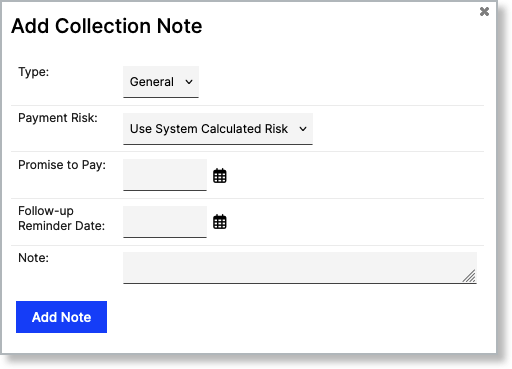
The following dialog appears:
-
Add the following information about the Collection Note:
- Type
Specify the category of collection note you are creating such as call or email. - Payment Risk
Select a risk category. If you choose a manual risk category, the Invoice will revert to the calculated risk level after the Promise to Pay/Follow-up Reminder dates. This is discussed further below. - Promise to Pay
Enter a date the customer has promised to pay by. This will pause any cadences until that date. - Follow-up Reminder Date
Enter a date that you plan to follow-up with the user about their payment. - Note
Anything else relevant to the Collection Note.
- Type
-
Click the Add Note button.
Using Collection Notes
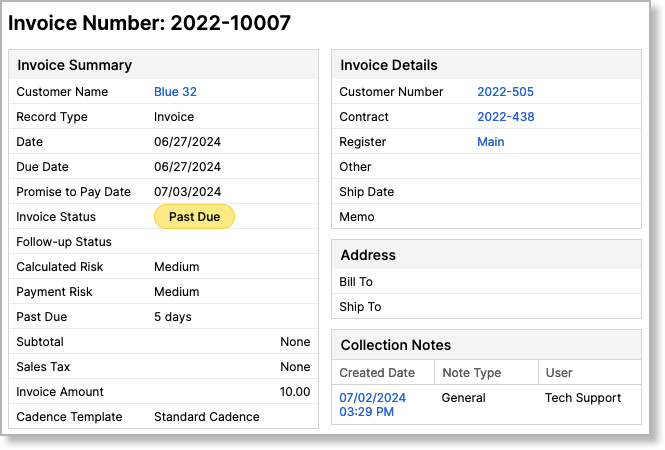
As previously mentioned, the main use of Collection Notes is to record the context and payment risks of invoices. The information that you record in a note appears in the Invoice Summary for reference when viewing an Invoice.
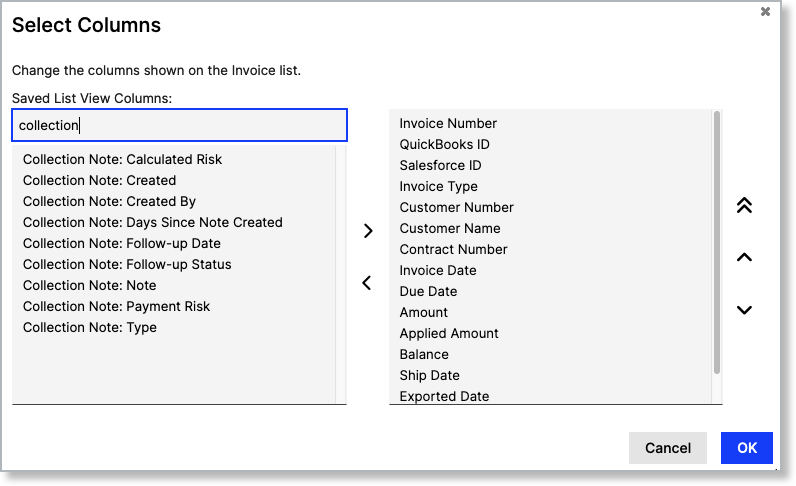
There are also a number of columns available for the Invoice list that are related to Collection Notes. You can use these to pull up a prioritized list of invoices based on payment risk.
Payment Risk
Maxio Platform always calculates the system-generated risk for invoices, which appears as "Calculated Risk" on an invoice. However, we know you're likely going to want to focus on the high-risk invoices first. As you work to collect payment on those invoices, you can change the payment risk by using Collection Notes.
When creating a note, you can enter a different risk level and the system will use this to calculate the payment risk for the invoice. Even better, you can temporarily set a different risk level by leveraging reminders and promise to pay dates. If you set a risk level on the note, and the invoice still isn't paid as of the reminder or promise to pay date, Maxio Platform automatically changes the payment risk back to the calculated risk. This ensures you're always able to focus your collection efforts on the highest-risk invoices first.
Still need help?
Reach out and our support team will take it from here.