
Run a Xero Sync
Last updated on Aug 24, 2026
Manually trigger a Xero sync and understand the three possible outcomes once it completes. This covers day-to-day sync monitoring, not initial setup or configuration.
Run a manual sync
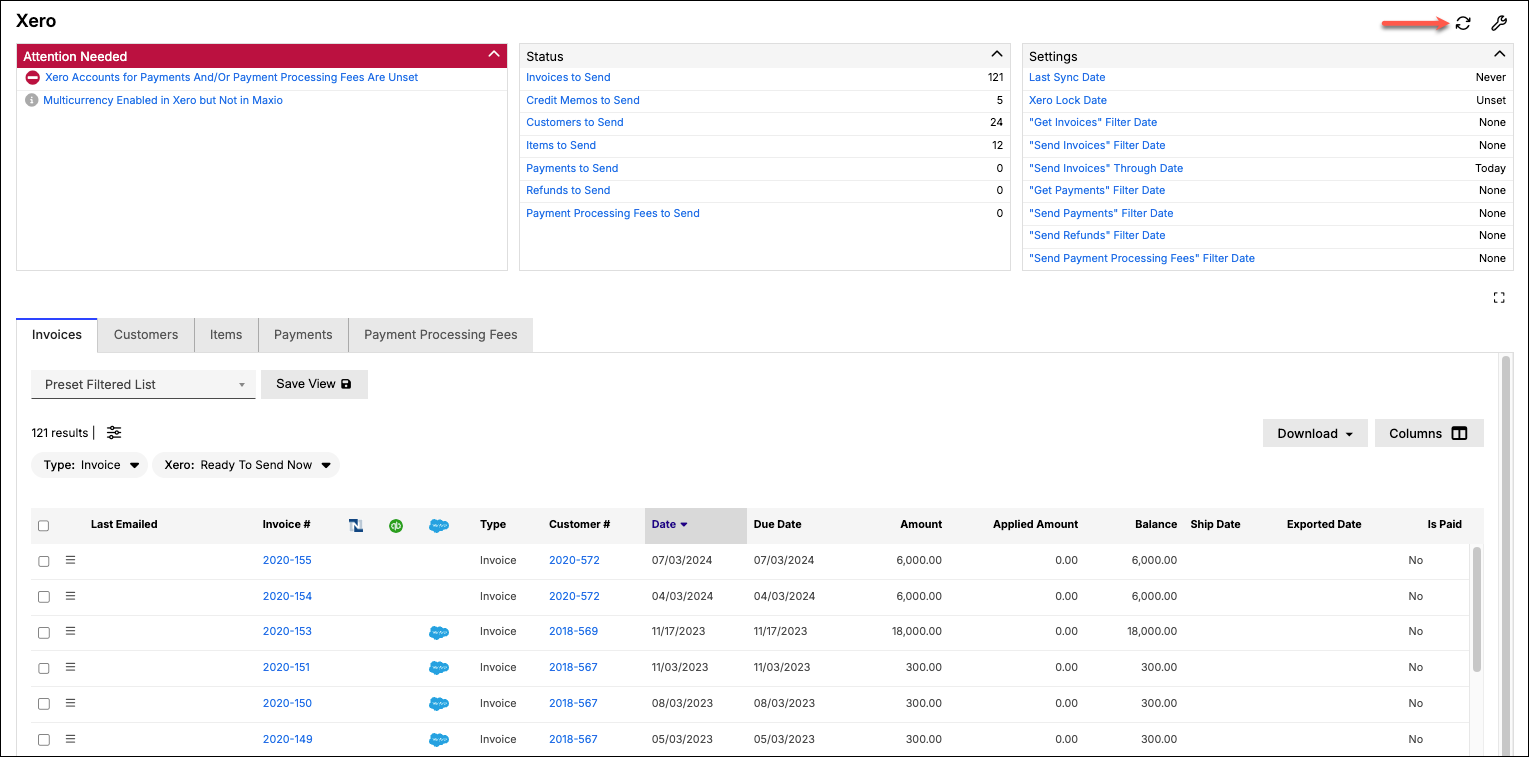
Click the Sync icon in the top-right corner of the Xero screen in Maxio Platform to send information between the two systems.
WARNING: You must sync your Xero account at least once every 30 days. Xero Transaction logging does not store certain records (e.g., deleted Invoices) for more than 30 days. If you wait longer than 30 days between syncs, certain information in Xero will be permanently lost and you will be unable to sync it to Maxio Platform.
Understand sync outcomes
When complete, a banner will appear at the top of the page. There are three possible outcomes:
- Successful Sync, no Errors: With a successful sync, you will see a success banner at the top of the page and no warning or error indicators.
- Successful Sync, with Errors: With a successful sync with errors, some of the data has synced but records with issues have not. In this case, the banner will indicate a successful sync but there will be one or more error messages contained in the Sync Issues tab, which help you pinpoint and reconcile data errors.
- Unsuccessful Sync: You may see an error such as "Sync failed with error:" followed by details about what went wrong. In this situation, Maxio Platform was unable to complete the sync with Xero. Wait a few minutes and try again. If you're still having trouble, contact support@maxio.com.
Related information
For the full list of what syncs between Maxio and Xero, see Sync Data Between Maxio and Xero.
Still need help?
Reach out and our support team will take it from here.