
Validate Addresses with AvaTax
Last updated on Aug 24, 2026
Address validation ensures Customer, Contract, and Invoice addresses are accurate before AvaTax calculates Sales Tax. By validating or correcting addresses, individually or in bulk, you reduce tax errors, prevent commit failures, and maintain clean data across your billing records. You can use this feature even if you have Commit Sales Tax disabled in your AvaTax integration settings.
Important: Address validation requires Enable Address Validation to be turned on in your AvaTax integration settings.
Automatic validation on save
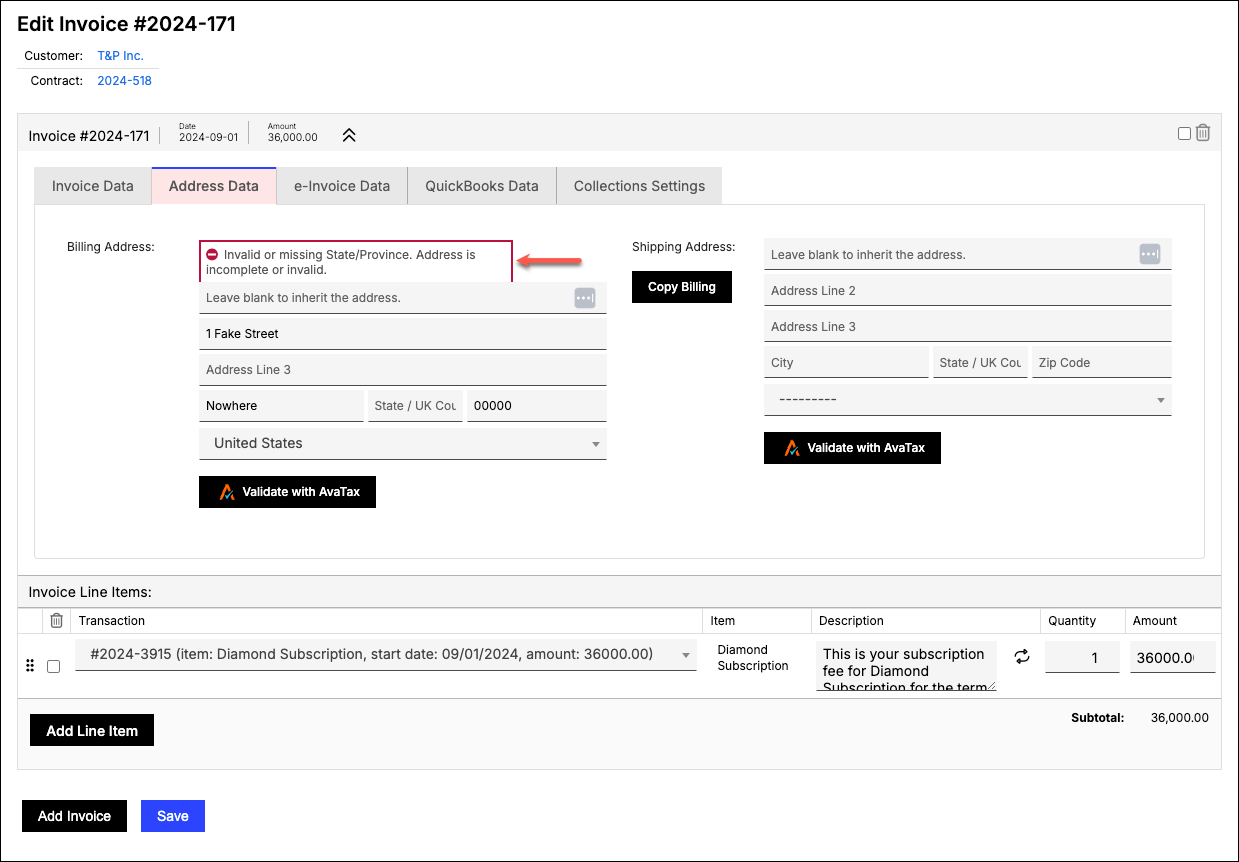
When Enable Address Validation is on, Maxio won't let you save a Customer, Contract, or Invoice with an invalid Billing or Shipping address. If you try, an alert message appears above the invalid address and the record isn't saved until you correct it.
Manually validate an address
You don't have to wait for Maxio to catch an invalid address on save. You can check an address on demand, any time.
To manually validate an address
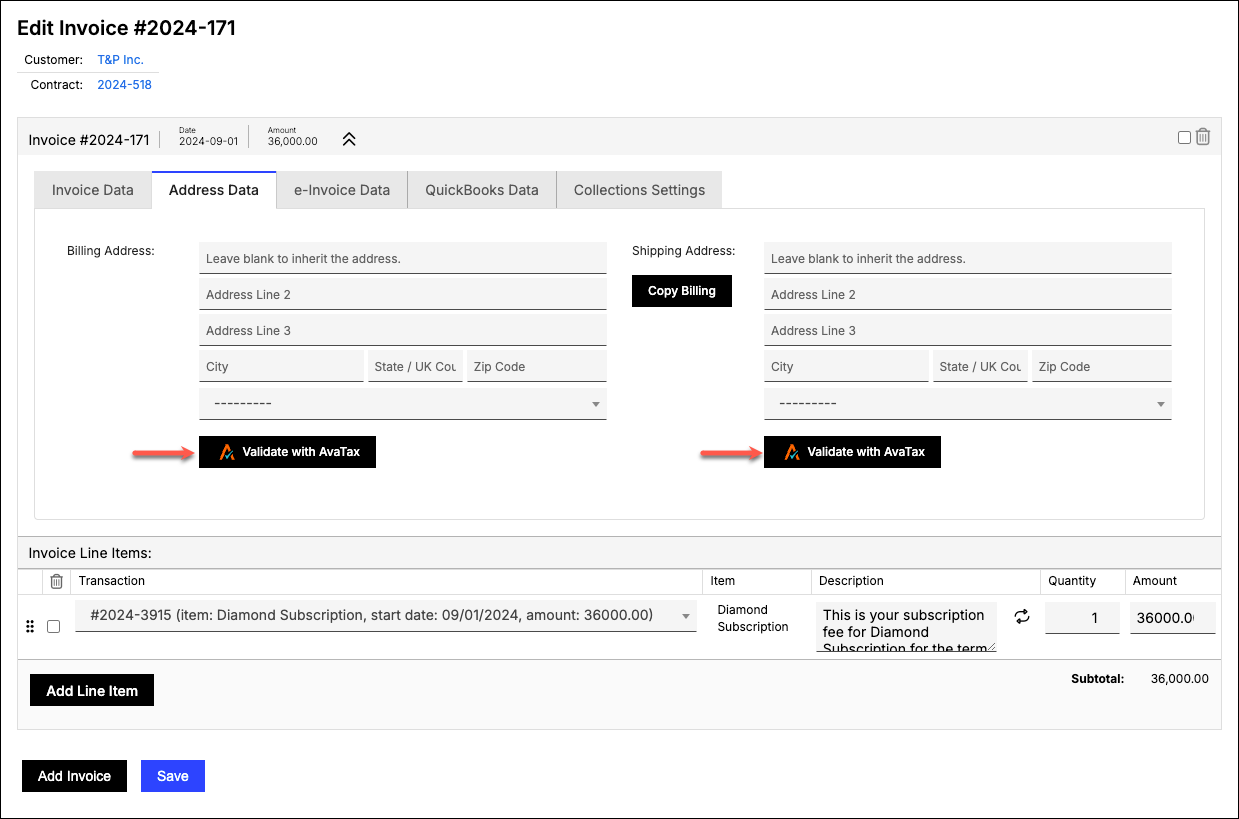
- Click Validate with AvaTax on a Customer, Contract, or Invoice.
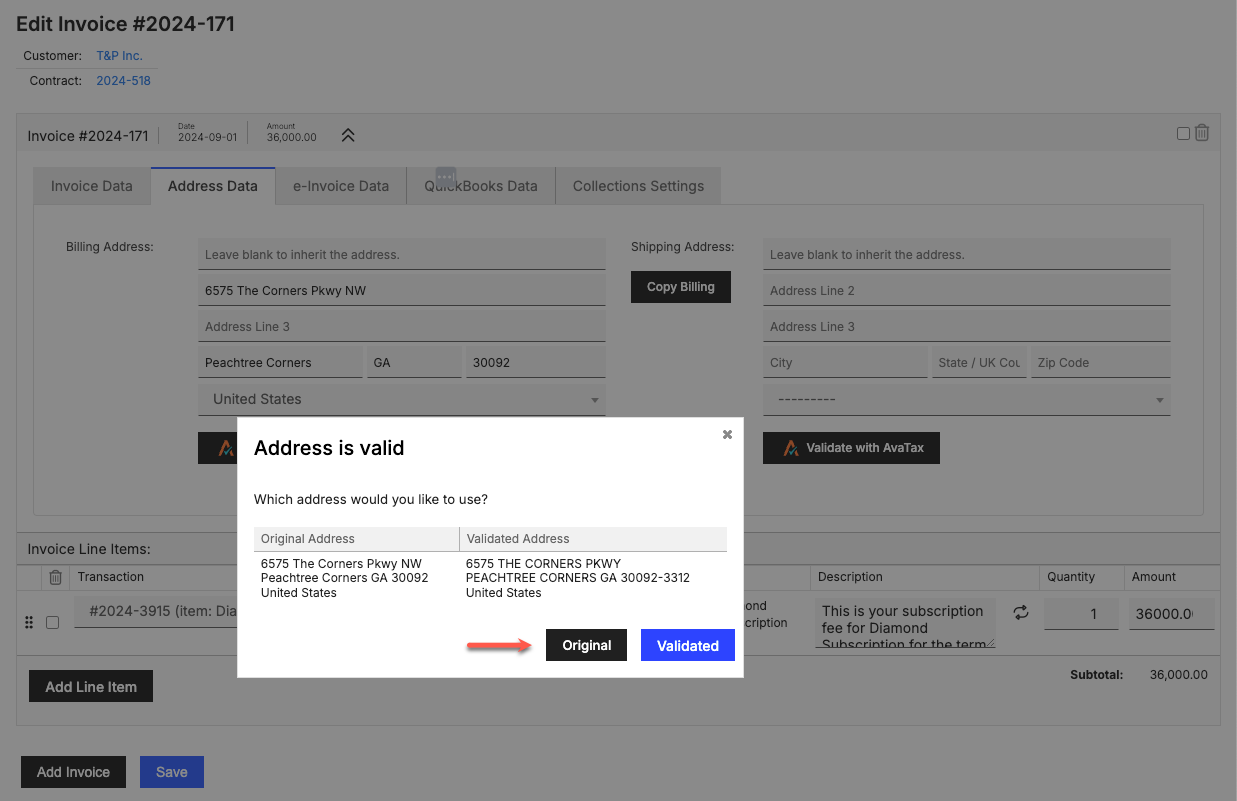
- If the address is valid, choose either your original entry or its AvaTax-validated equivalent as the final address.
Validate addresses in bulk
Enabling AvaTax doesn't retroactively validate your existing Customers' addresses.
To validate existing Customer addresses in bulk
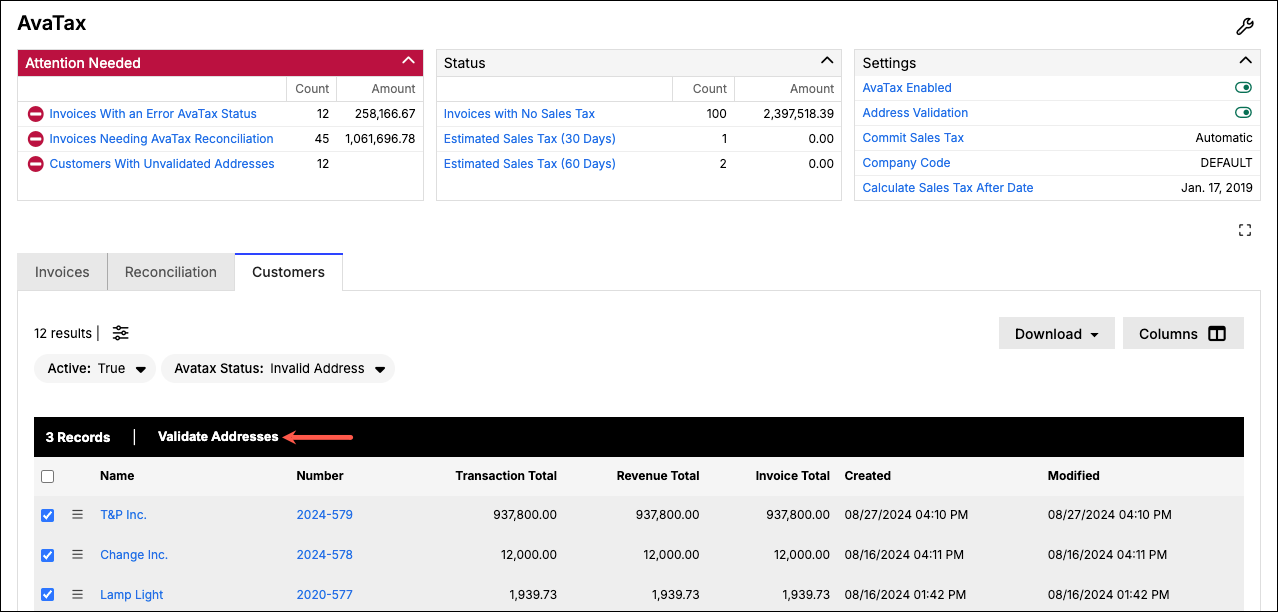
- Go to the Customers tab on the AvaTax landing page.
- Select the Customers you want to validate.
- Choose Validate Addresses as the bulk action. Since this makes a real API call to Avalara for every Customer checked, Maxio warns you before continuing.
- Click Yes to confirm.
Related information
To update your Merchant Address or Address Validation setting, see Configure the AvaTax Integration.
Still need help?
Reach out and our support team will take it from here.