
Assign SSP Lists to Contracts
Last updated on Aug 28, 2026
Assign SSP lists to individual contracts or groups of contracts to support accurate revenue allocation within Advanced Revenue. Choose the correct SSP List, generate revenue, and review Performance Obligation allocations across your contract portfolio.
Advanced Revenue is a Maxio feature that lets you re-allocate revenue across your contract population using flexible, fixed, and dynamic formulas.
Assign to an individual contract
You can generate revenue for one contract at a time directly from that contract's page.
To assign an SSP List to an individual contract
-
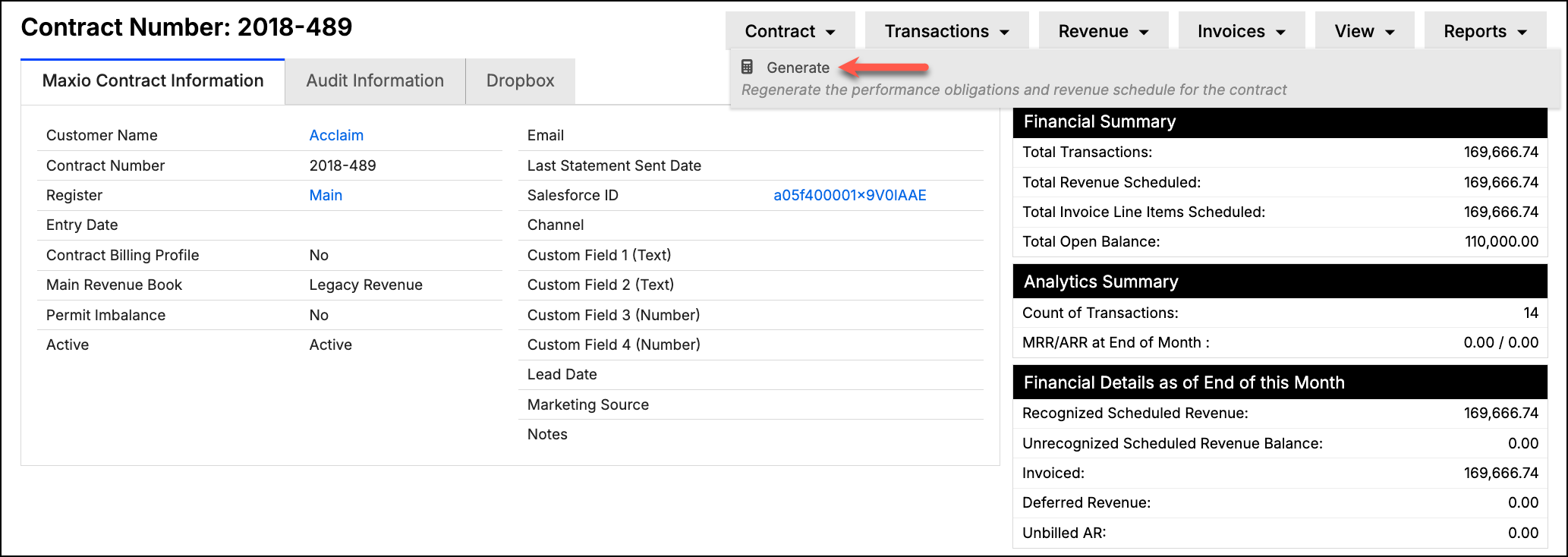
Navigate to the contract. In the upper right-hand corner of the page, select Revenue > Generate.
-
On the Build Revenue page, select the SSP List you want to use for each revenue arrangement and confirm the Action is set to Generate Revenue. Click Submit.
-
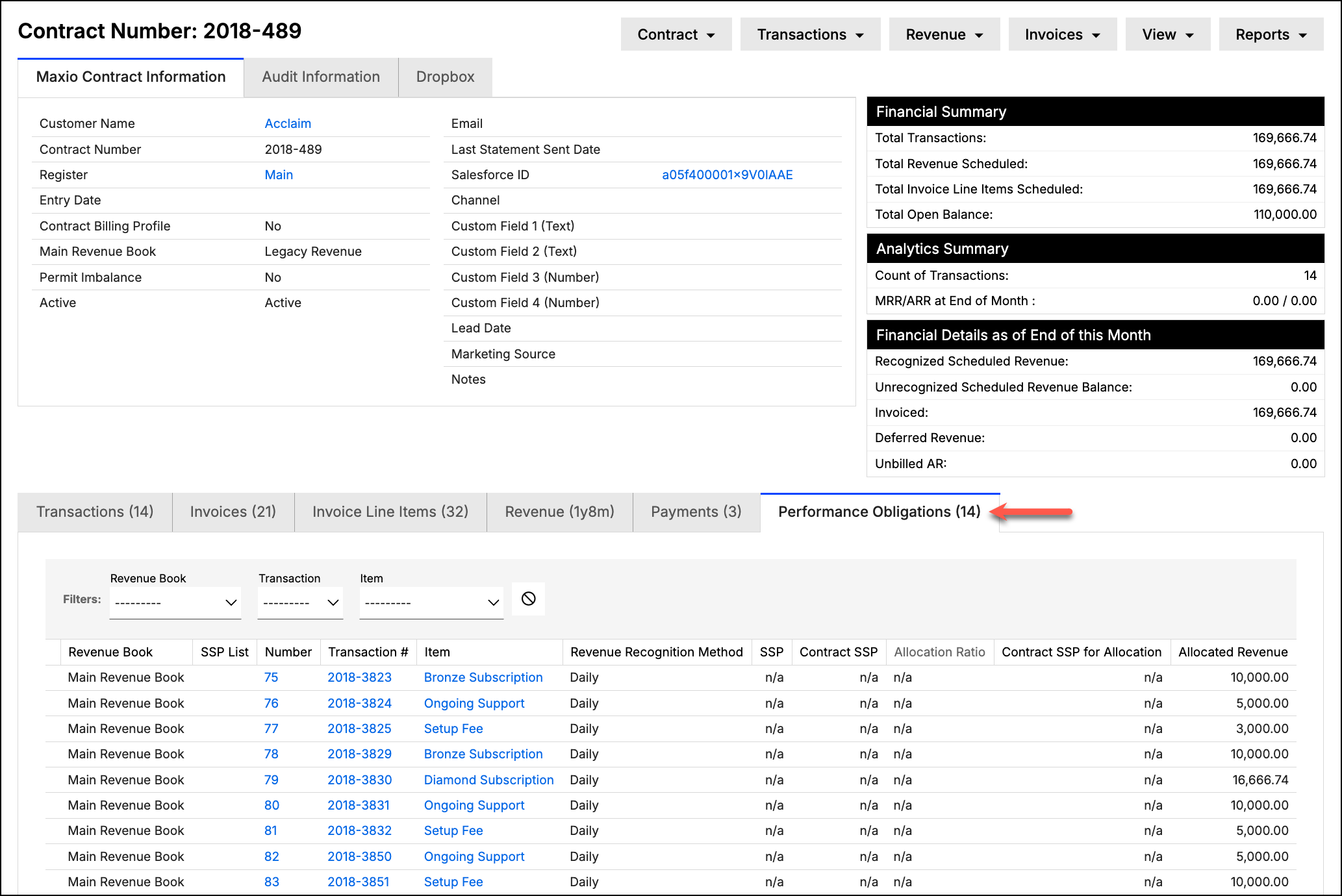
Navigate back to the contract and select the Performance Obligations tab to view the allocated revenue by performance obligation:
Assign to multiple contracts
You can also generate revenue for a group of contracts at once from a RevenueBook's contract list.
To assign SSP Lists to multiple contracts
-
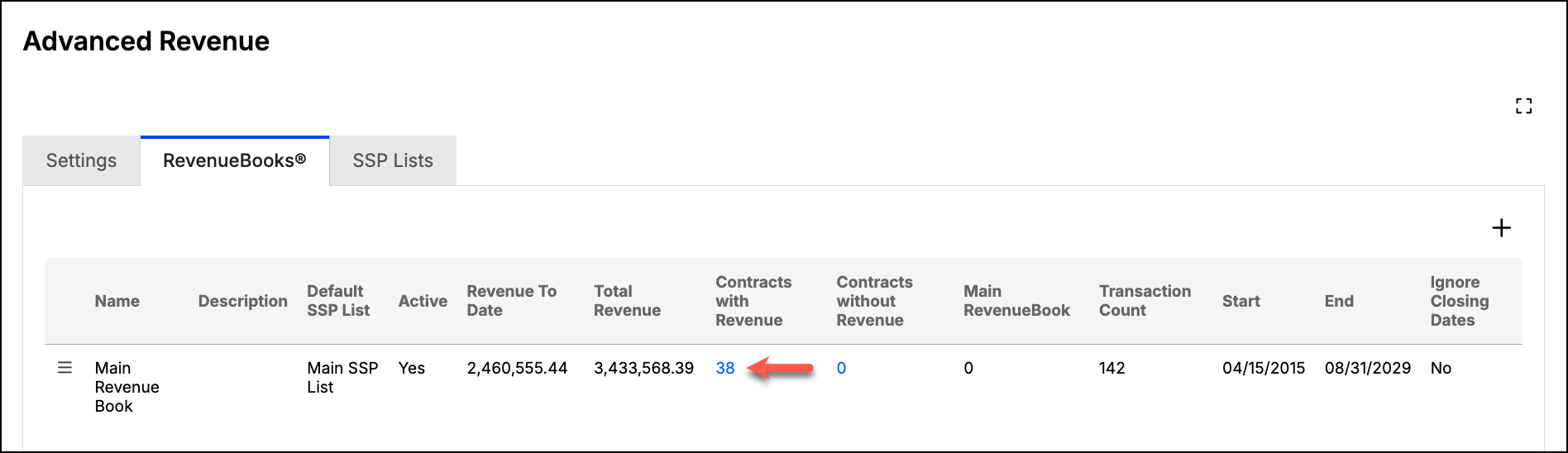
Navigate to Admin > Advanced Revenue > RevenueBooks, and select the number under Contracts without Revenue for the RevenueBook you want to generate revenue for:
-
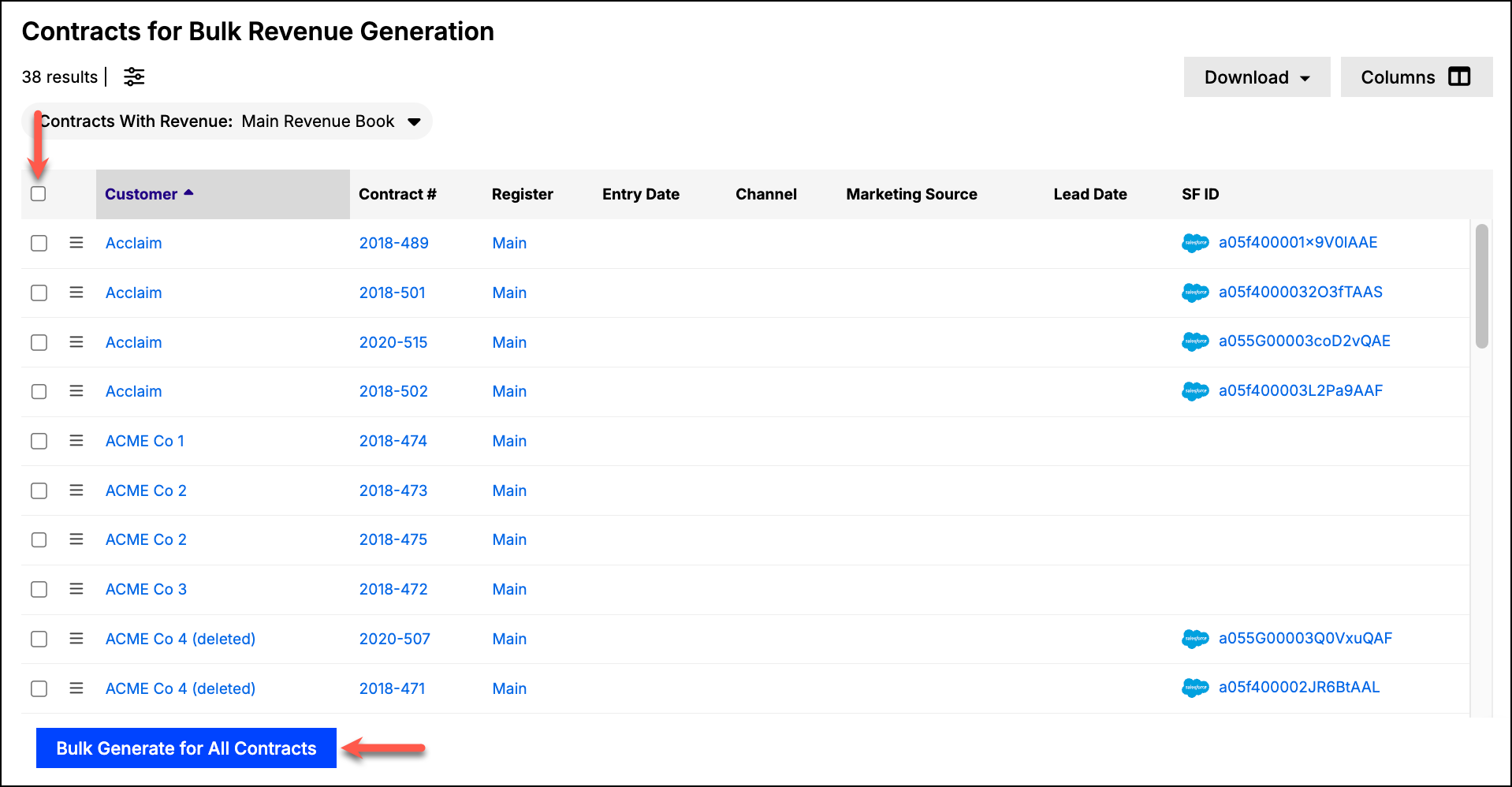
Select the contracts you would like to generate revenue for:
-
In the Bulk Generate/Delete Revenue dialog, select the Revenue Book, the Action you want to perform, and the SSP List to apply to the selected contracts. (Optional) Check Set as Main Revenue Book if this should become the contracts' default RevenueBook. Click Ok when you are ready to generate revenue:
-
Navigate back to any of the contracts you just generated revenue for to view the allocated revenue by performance obligation.
Related information
To learn more about how RevenueBooks and SSP Lists work together, see Understand RevenueBooks.
Still need help?
Reach out and our support team will take it from here.