
Create Invoice Line Item Replacement Rules
Last updated on Sep 19, 2026
Enhanced Transaction Generation allows you to replace generic Invoice Line Items, such as those synced from Stripe, with more specific Items that support accurate Transaction creation and revenue reporting. By defining matching rules, Maxio can identify incoming Invoice Line Items and substitute them with the correct Items during sync, ensuring proper downstream analytics and revenue schedules. For where a line item's description text comes from in the first place, and which field wins when several could supply it, see How do Invoice Line Item descriptions work?.
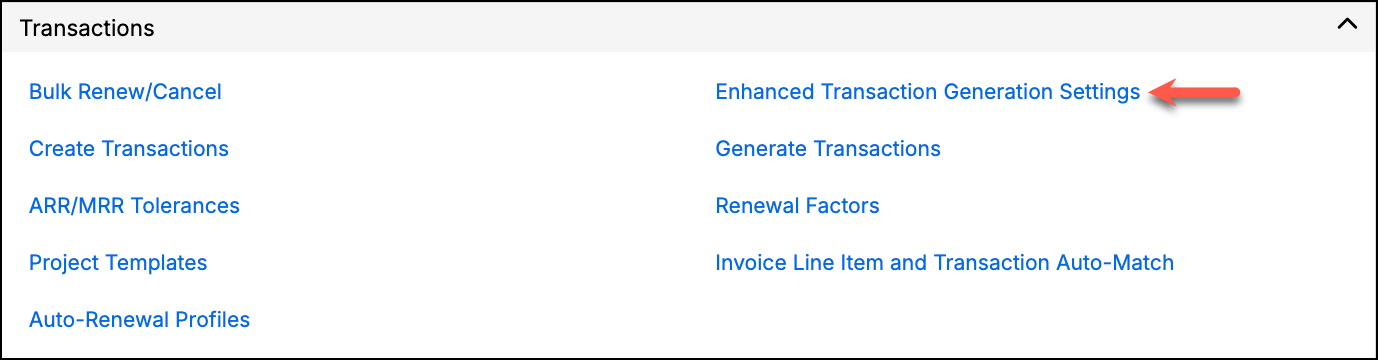
Maxio Admin Setting for Transactions
How replacement rules work
A few things to know about how replacement rules work:
- Rules replace Items used in Invoice Line Items synced from Stripe, based on the matching properties you define.
- Once an Item is replaced, the modified Invoice Line Item can be used by the Transaction Generation function to create accurate Transactions and revenue during the sync process.
- There is no limit to the number of rules you can create.
- Transactions are created for the new Item based on the transaction generation profile within Item Settings.
Important: If more than one rule could match the same Invoice Line Item, Maxio applies the most specific rule, based on how many optional criteria it sets (Item, Amounts, and Description outranks Item and Amounts, which outranks Item and Description, which outranks Item alone). This means you can safely create a general rule for an Item alongside a narrower rule for specific cases; the narrower rule always takes priority.
Create a replacement rule
Rules can be created, edited, and deleted from the Enhanced Transaction Generation Settings screen.
-
Click New Rule to create a new rule.
-
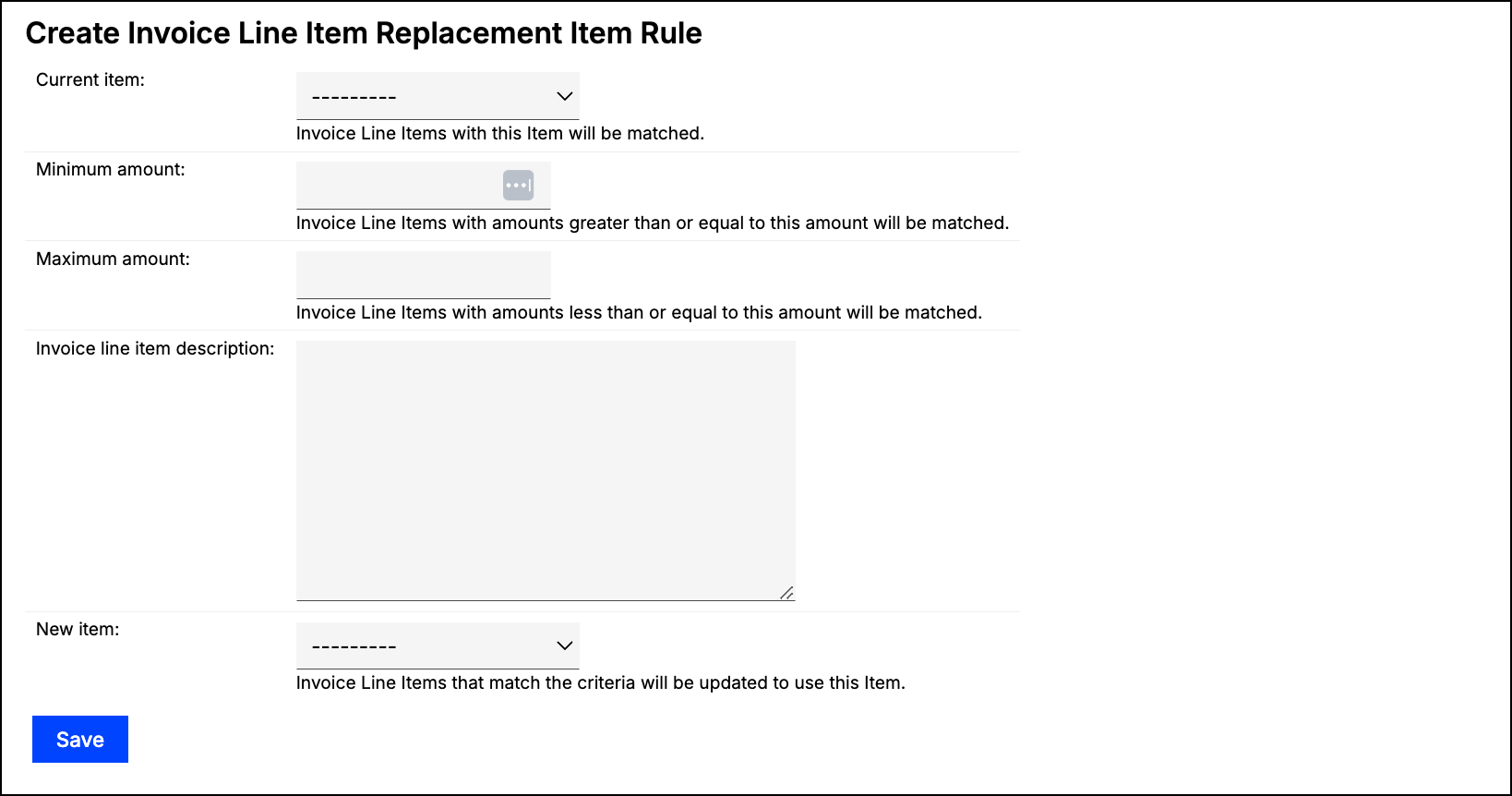
On the Create Invoice Line Item Replacement Item Rule screen, address the following fields:
- Current item - Invoice Line Items with this Item will be matched.
- Minimum amount - Invoice Line Items with amounts greater than or equal to this amount will be matched. This field is optional.
- Maximum amount - Invoice Line Items with amounts less than or equal to this amount will be matched. This field is optional.
- Invoice line item description - Only Invoice Line Items with this exact description will be matched. This field is optional.
- New item - Invoice Line Items that match the criteria will be updated to use this Item.
The optional fields (Minimum amount, Maximum amount, Invoice line item description) can be used in any combination: none, only minimum/maximum amount, only description, or minimum/maximum amount and description. The matching will be as specific as you choose by using these fields.
-
Click Save.
Still need help?
Reach out and our support team will take it from here.