
Edit or Delete Transactions
Last updated on Aug 24, 2026
Editing a Transaction can also regenerate its revenue schedule and invoices, so a single edit can update more than the field you changed. Check Show Advanced Settings at the top of the screen to see additional fields. Deleting a Transaction is permanent, and Maxio blocks it in some cases, like when the Transaction or its revenue and invoices fall within a locked or closed period.
This article is related to Maxio Platform's Transactions object and associated functionality. The Transaction is a specific type of financial record that represents a Contract element in Maxio Platform.
Edit Transactions
You can edit a Transaction on its own, or edit several Transactions at once. You may need to edit a Transaction to do the following:
- Change the selected Item (when permitted)
- Change the MRR/ARR manually
- Change the Start and End Dates, which normally also means regenerating the revenue schedule and invoices
- Change the revenue recognition schedule
- Change the invoice schedule
When viewing a Transaction, you can edit it by selecting Edit from the Transaction drop-down menu.
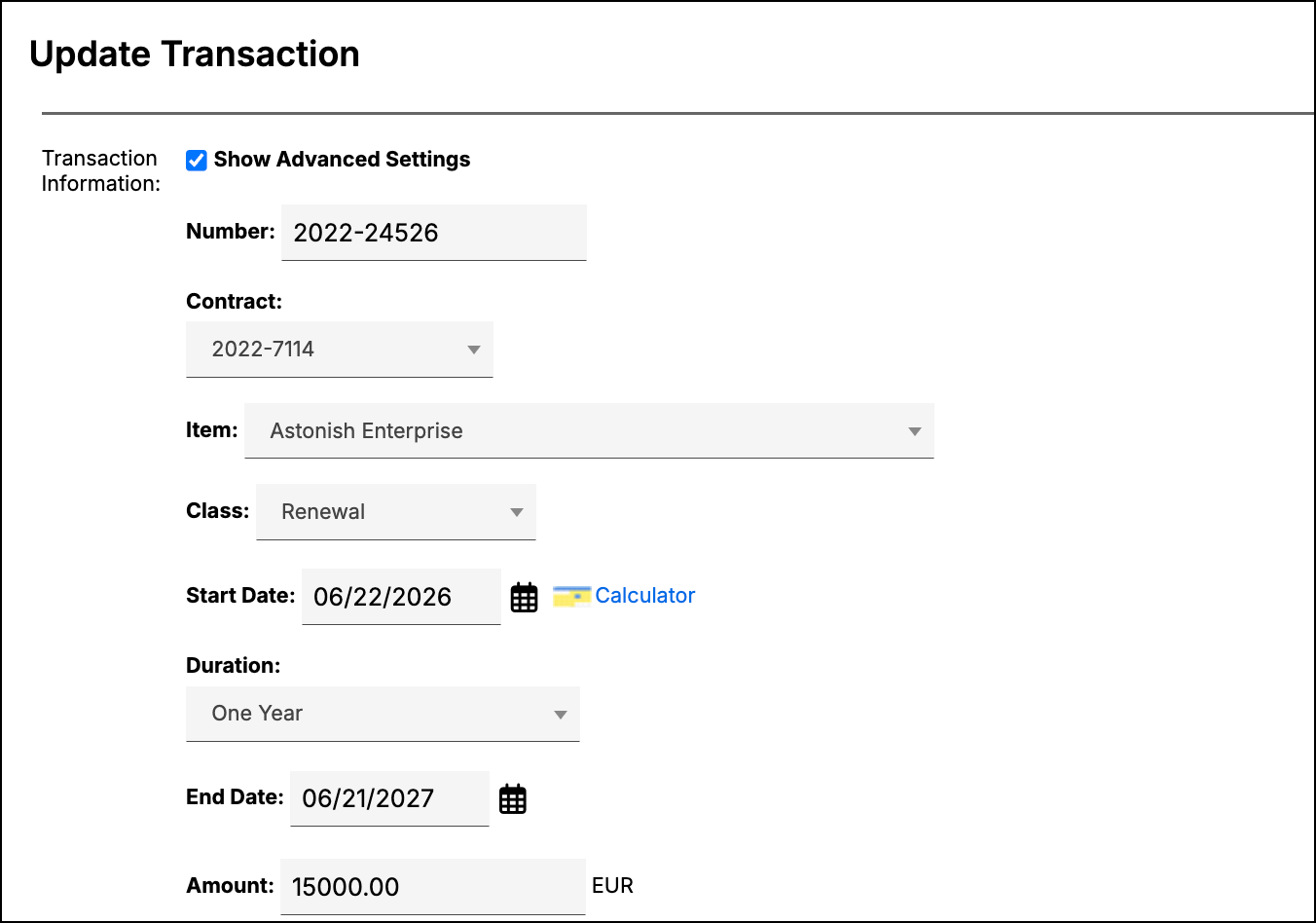
You can also edit multiple Transactions at once: select them from a Transactions list and click Edit, or select Edit from the Transactions drop-down menu when viewing an individual Contract or Customer.
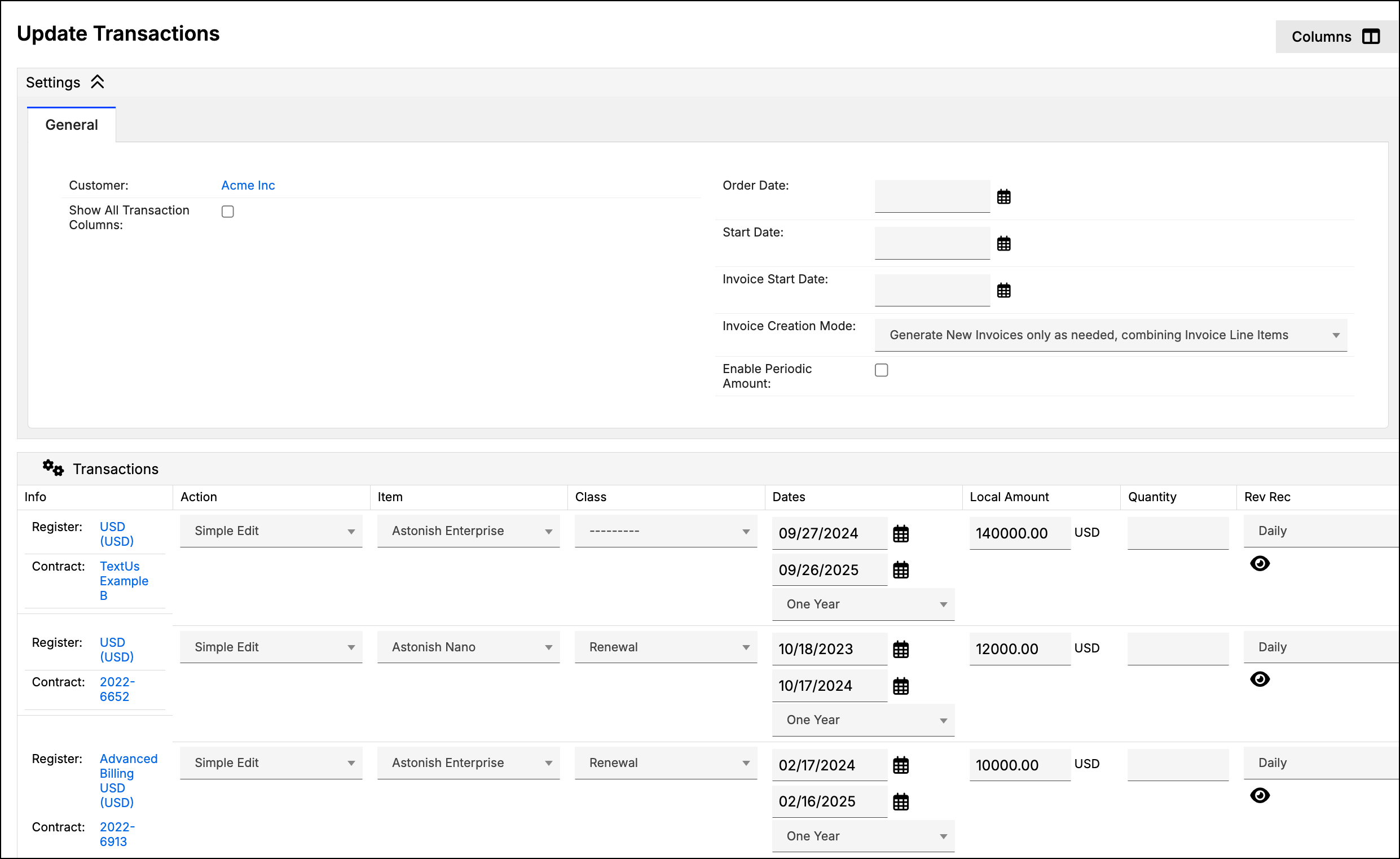
For another way to edit multiple Transactions at once, see Use Bulk Edit to Update Multiple Records.
Regenerate Revenue/Invoices
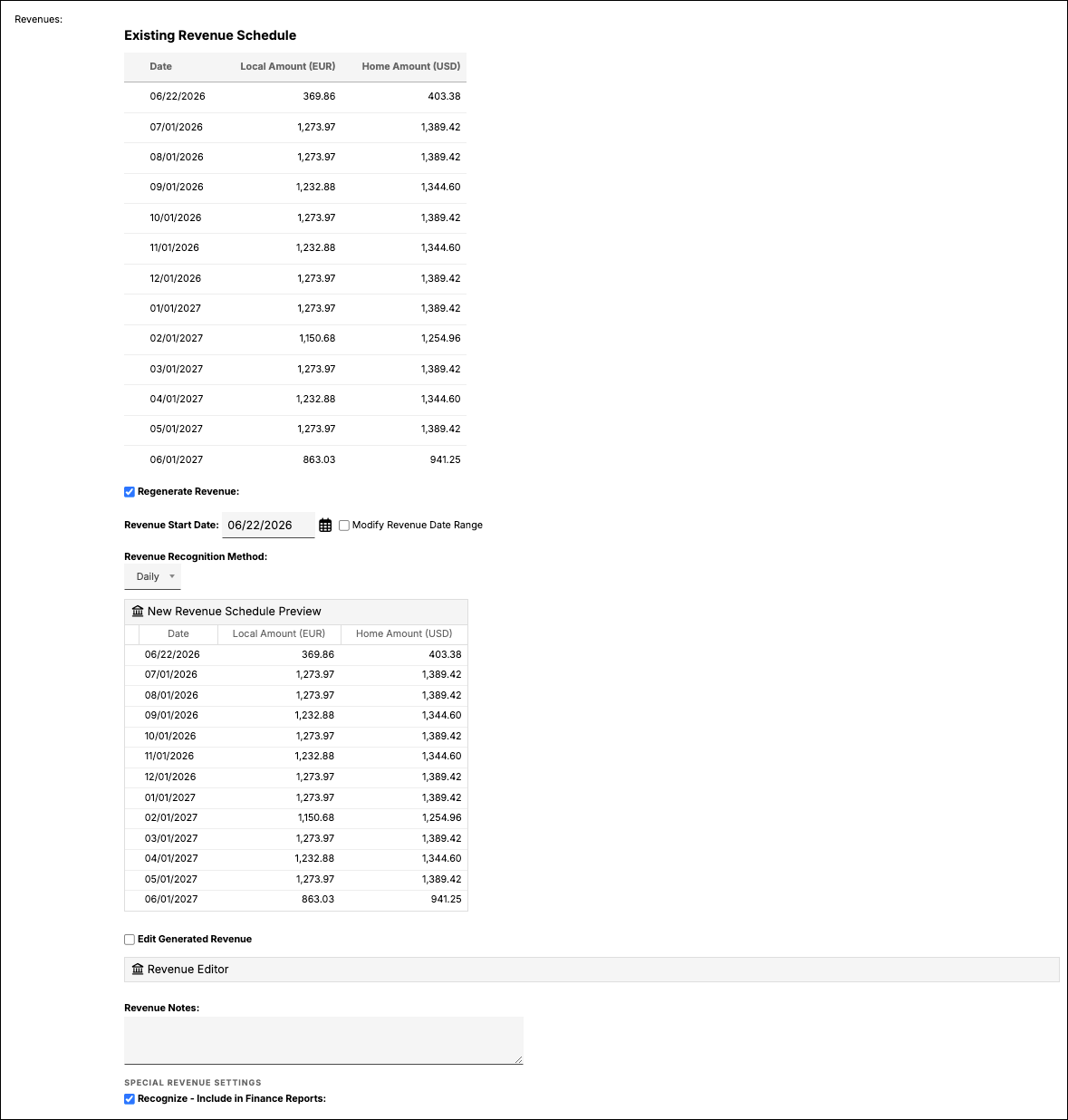
Maxio can automatically regenerate a Transaction's revenue and invoices after you make changes to it. For example, if you change a Transaction's Amount, select Regenerate Revenue to generate an updated revenue schedule. For the full regeneration steps, see Edit and Regenerate Transaction Revenue Schedules.
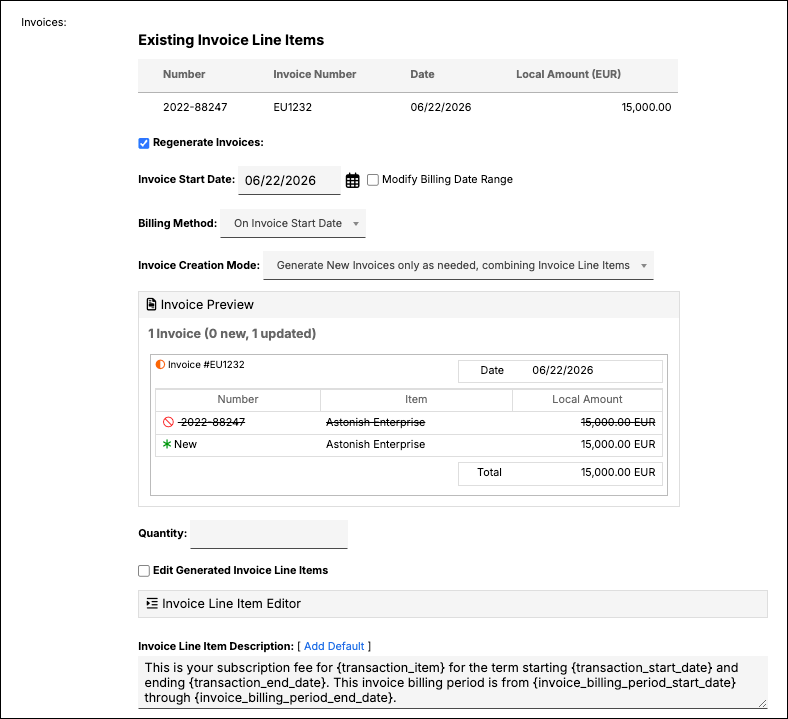
Regenerate Invoices works the same way for a Transaction's invoices.
Delete Transactions
WARNING: Deleting a Transaction is permanent and can't be undone.
When you delete a Transaction, Maxio also deletes its unsynced Invoice Line Items and all of its revenue. If your account has a GL integration enabled, synced Invoice Line Items aren't deleted; they remain on the Contract.
You can't delete a Transaction if its Start Date is on or before your Transaction Lock Date. You also can't delete a Transaction if any of its revenue entries or Invoice Line Items have a date on or before your Closing Date, or, if enabled, your QuickBooks Closing Date or Xero Lock Date.
Related information
For a broader look at how Transactions work, see Understanding Transactions.
Still need help?
Reach out and our support team will take it from here.