
Setting Up Plan Price Points
Last updated on Sep 19, 2026
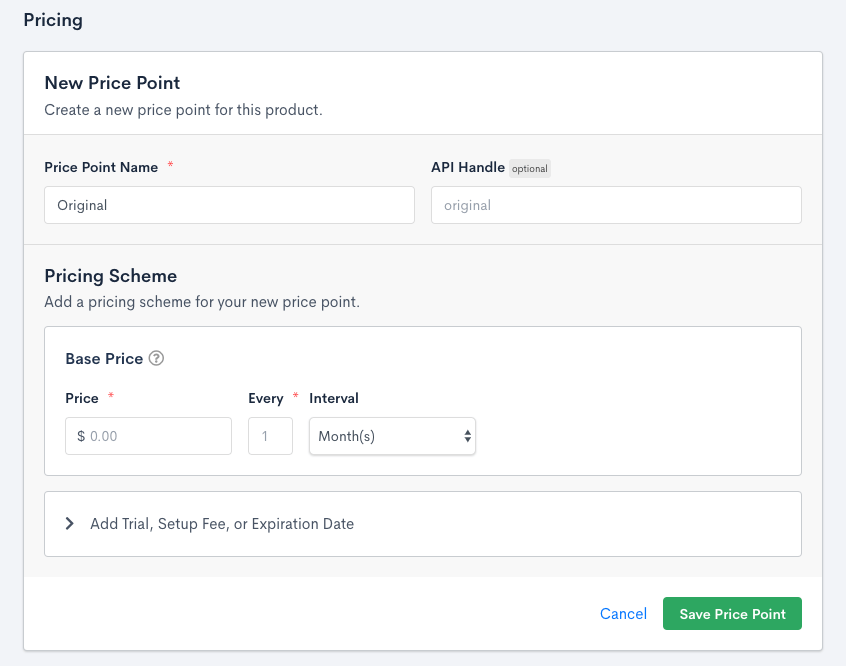
A Plan can have more than one Plan price point, so you can charge different amounts at different frequencies for the same Plan, without creating a separate Plan for every pricing variation. You can select a default price point that's used when one isn't explicitly specified.
Attributes that are stored on a price point are:
- Price
- Recurring period
- Trial period and trial options
- Setup fee (initial charge) and options
- Expiration
Plan price points can serve as list price references for discount tracking. When list and sales price tracking is enabled, you can assign a catalog price point as the list price on a subscription item to automate discount calculations. See Track List and Sales Prices on Subscriptions.
Recurring period and price
Plan pricing is defined in the Plan creation and edit screens. In addition to pricing, this is also how you define your recurring period intervals, trials, and expirations.
The recurring period is defined as a number of days or months. You also define a price that's charged at the beginning of each active period (unless there's a trial period). Subscriptions renew according to the period until they're cancelled, expired, or otherwise terminated.
Out of all of the pricing option fields, the recurring period and price are the only ones that are absolutely required.
If you decide on creating a $0 Plan, you can show or hide these line items in statements and invoices.
Trial period
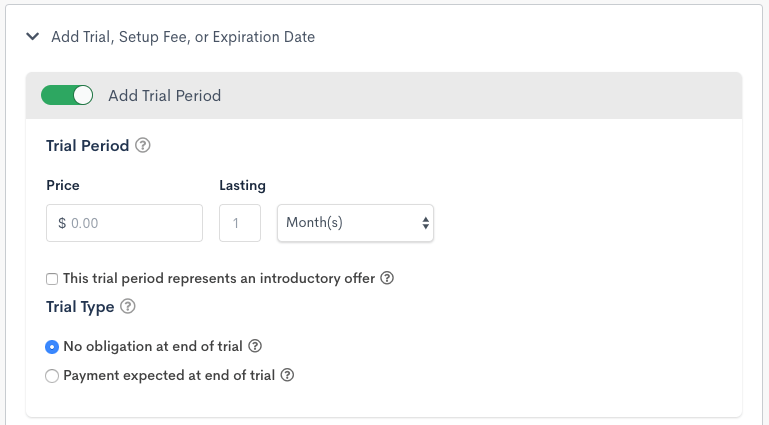
A trial period may be defined in terms of number of days or months, and can be given a price or be marked as free (0 units of your currency). As mentioned, you have the option of charging a setup fee either before or after the trial.
The trial period for a subscription continues for the duration defined here. During this time it's in the trialing state.
If this trial period represents an introductory offer, Advanced Billing displays additional information on receipts and includes an identifier in the statement descriptor for the first charge after the trial period.
Trial type
The Trial Type controls how a trial is handled when it ends and there's no credit card on file.
- No obligation at end of trial: At the end of the trial, if a card is on file, the card is charged and the subscription transitions to the active state if the payment succeeds, or to unpaid if the payment is declined.
If no card is on file at the end of the trial, the following takes place:
- If the subscription has a balance greater than 0, the subscription transitions to
trial_ended. - If the subscription has a balance of 0, or a negative balance:
- If the balance covers the cost of the Plan, the subscription transitions to the
activestate. - If the balance doesn't cover the cost of the Plan, the subscription transitions to
trial_ended.
- If the balance covers the cost of the Plan, the subscription transitions to the
- Payment expected at end of trial: At the end of the trial, if a card is on file, the card is charged and the subscription transitions to the active state. If no card is on file at the end of the trial, the subscription transitions to the
past_duestate. Advanced Billing sends normal dunning emails and statements according to your other settings.
If your site uses a site-level Subscription Activation setting to control what happens when a trial ends without a payment method, that setting takes priority over the Trial Type described here. See your Settings for the current configuration.
You can subscribe to the subscription_state_change webhook to be notified when a subscription's state changes. This makes it easy to reach out to potential customers when their trial has ended.
Initial/setup fee
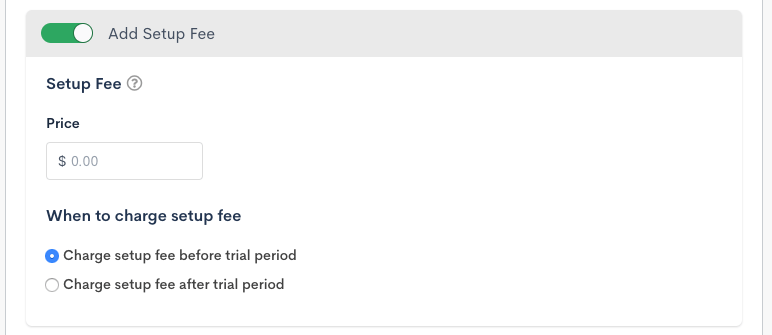
The "Initial/Setup fee" field lets you specify an up-front fee or startup fee that's charged once. The setup fee is normally charged at signup, but if your Plan has a trial period, the setup fee may be charged at the end of the trial.
An initial/setup fee can be charged before or after the trial period. If you're charging your subscribers a setup fee, you must require a payment method upon signup.
A subscription whose next billing date isn't the current timestamp doesn't get charged the initial/setup fee. Use Add Charge if you want to include additional fees on the subscription.
When to charge the setup fee
You can select when to charge the setup fee when using it with a trial period.
- Charge the setup fee before the trial period: Advanced Billing attempts to collect the setup fee before creating the subscription.
- Charge the setup fee after the trial period: Advanced Billing attempts to collect the setup fee at the end of the trial period.
Billing expiration/lifetime
An expiration interval can be defined as a number of days or months, and is counted from the day that a subscription is first created for this Plan.
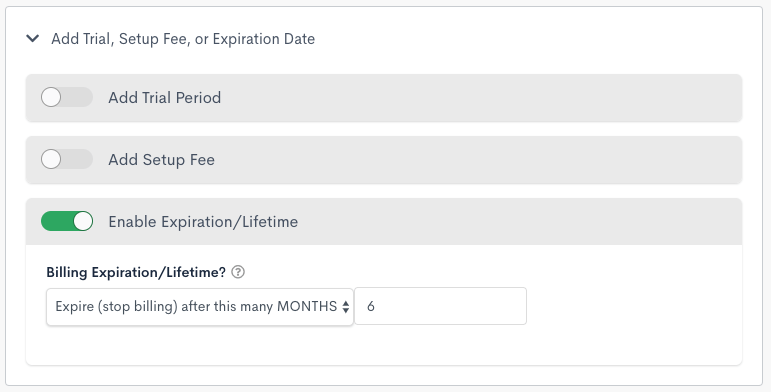
The subscription automatically transitions to the expired state at the time of the first renewal assessment (as defined by the recurring period or end of the trial period) that occurs on or after the end of the expiration interval.
Since recurring charges are assessed in advance, no new charges are assessed at the beginning of the period in which the subscription expires. Another way to say this: if the expiration date falls on or before the subscription's next renewal date, the subscription isn't charged, and it expires instead.
Expiration examples
Example 1
There's a Plan called "Small Plan" which costs $10 per month and expires after 10 months. If John signs up for Small Plan on Jan 1, his subscription expires on Nov 1 (10 months after Jan 1). His last assessment is on Oct 1, which is his 10th payment and pays his account through Nov 1. On Nov 1, no payment is collected because the subscription becomes expired that same day. John made 10 payments amounting to $100.
Example 2
The expiration date is calculated from the day the subscription is created, without regard for trial periods. So if the Small Plan costs $10 a month, has a 1-month free trial, and expires after 10 months, John's subscription starting on Jan 1 still expires on Nov 1, with his 9th and final payment occurring on Oct 1.
What if the trial period doesn't match the Plan's recurring period? For example, what happens if the Small Plan costs $10 per month, has a 14-day free trial, and expires after 10 months? In this case, John's subscription, which begins on Jan 1, is first charged on Jan 14. His expiration date is still set to Nov 1, 10 months from his signup. He's charged on the 14th of every month, up to and including Oct 14, for a total of 10 payments. He's paid through Nov 14. At the time of renewal on Nov 14, his subscription transitions to expired, since this represents the first renewal on or after the target expiration date.
Multi-currency
If the site has more than one currency defined, you'll see a "Multi-Currency Pricing Conversion" panel at the bottom. When creating a brand new Plan, the Plan price point defaults to using the site's exchange rate. Once you've created the Plan, on the next step, you can edit that and choose whether to stay with the site exchange rate or define your own pricing for each currency.
Site level exchange rate: the exchange rate set when you added a currency. It can be the Advanced Billing handled conversion or a specific conversion rate you provided.
Defined converted prices: also called Definitive Pricing, explicit prices you can set while editing the price point. You may provide converted prices to have a "nice" or "rounded" price. For example, instead of a converted price being €24.59, you may add a definitive price of €25.
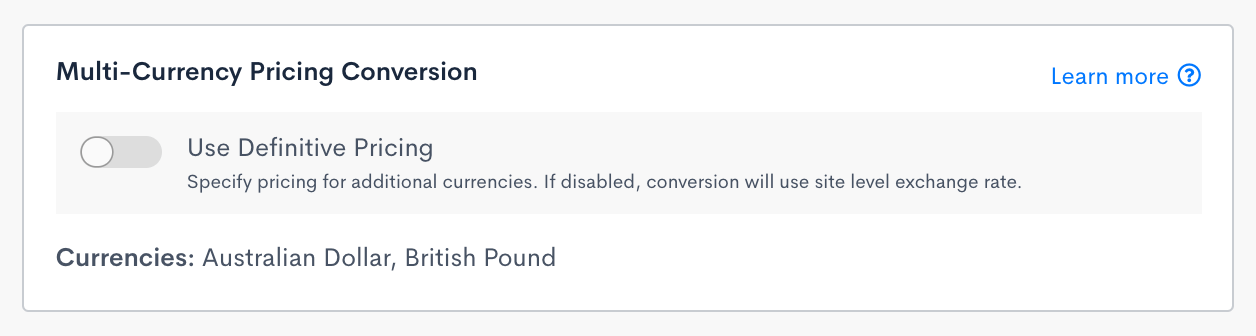
If you choose to define your own prices, you're presented with a modal that lets you add pricing for each currency. Pricing must follow the same structure as the primary pricing. If you've defined a trial and a setup fee, each currency must also have a trial and setup fee. Once you've defined pricing for each currency and select "Done" on the modal, the price point is updated to use the new pricing going forward.
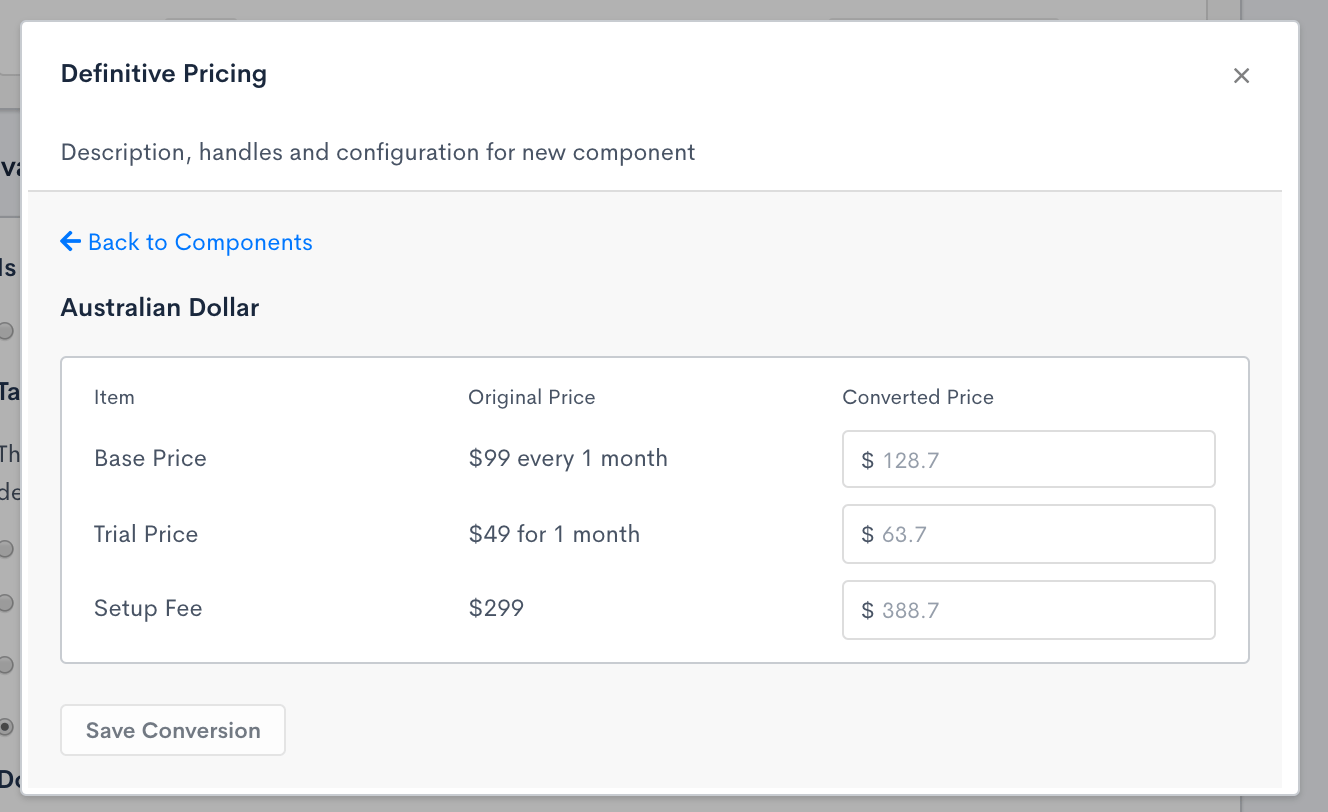
Once a price point has subscribers for a given currency, those currency prices can't be updated again, and the choice of using the exchange rate or defined prices is also locked in. To edit that, you'll have to create a new price point to move the subscribers to it.
Before there are subscribers on the price point, if you edit the primary currency pricing (for example, remove or add a trial fee), you're prompted for how to handle your other currency prices. You'll see two options:
- Save price point and revert pricing conversion to site level exchange rate.
- Redefine converted prices now instead of reverting, and then save price point.
Related information
Once your Plan price points exist, see Manage Plan Price Points for how to set a default price point, edit pricing, move subscriptions, and archive price points you no longer need.
To show or hide $0 line items on the Invoice, see Control What Appears in Invoice Line Items.
Still need help?
Reach out and our support team will take it from here.