
Understand Bank Account Verification Pages
Last updated on Sep 19, 2026
When using ACH/eCheck with Stripe, a bank account verification page URL is generated for each bank account added to a Customer. Verification confirms the Customer controls the account, and it must be completed before the account can be charged. This verification method is specific to Stripe; other ACH-capable gateways use their own verification mechanisms.
How the customer receives the page
By default, this URL is included in an email sent to the Customer when a bank account is added.
Below is an example of a bank account verification page a Customer uses to verify their bank account.
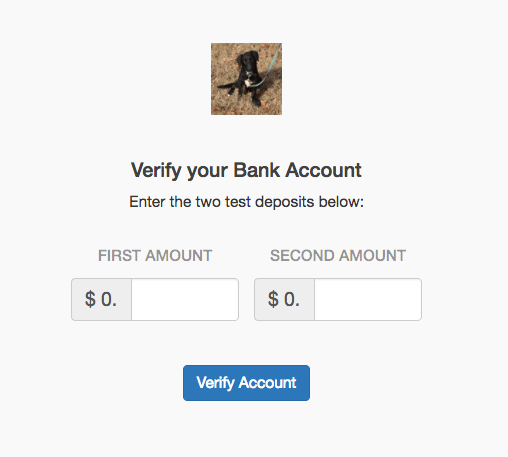
The page asks for the two micro-deposit amounts Stripe places into the account. These deposits should appear within two business days of when verification begins. The Customer finds the amounts on their bank statement and enters them to complete verification.
Resend the verification email
If the Customer needs the URL again, resend the email from the Payment Details tab by selecting Send Bank Account Verification Email from the bank account's actions menu. This is the same button used to send the original email, so it works whether the Customer never received it or deleted it before verifying.
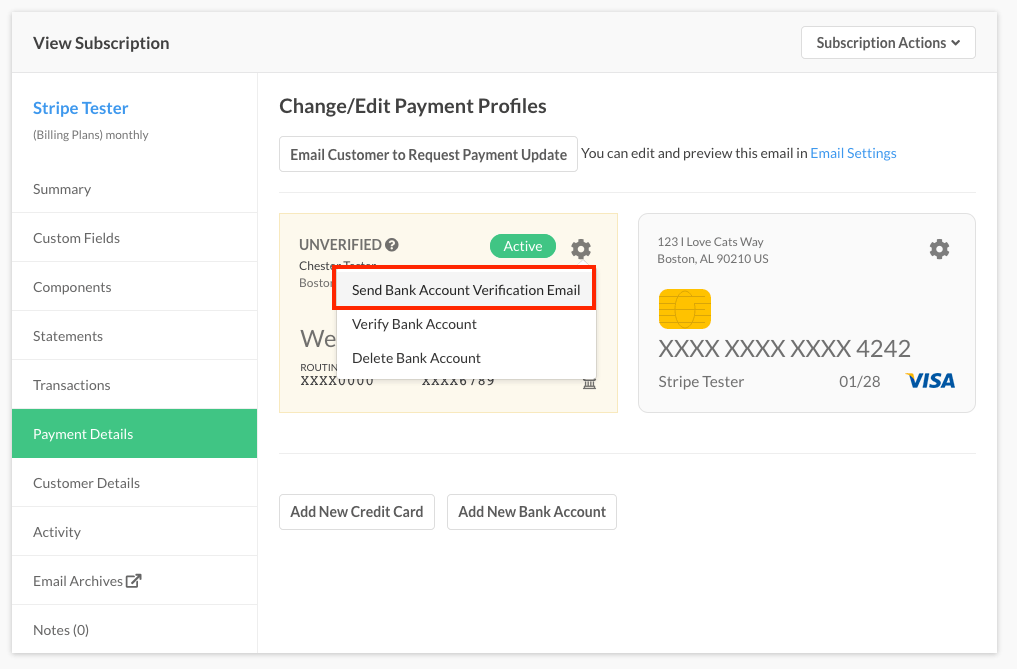
Verify a bank account on the Customer's behalf
Instead of waiting for the Customer to enter the deposit amounts themselves, select Verify Bank Account from the same actions menu and enter the two amounts yourself. This performs the same verification check as the hosted page, so it's useful when a Customer reads you the amounts over the phone or email instead of visiting the page directly.
Generate the URL yourself
Alternatively, generate the URL by following the instructions in Generate Self-Service Page URLs. Use this when you'd rather deliver the link through your own channel than rely on the automatic email.
Related information
See Understand Self-Service Pages for how subscribers update their credit card or PayPal payment method.
See Understand Public Pages for the other types of public-facing hosted pages.
See Configure Email Settings for the automatic email this page's URL is delivered in.
Still need help?
Reach out and our support team will take it from here.