
Set Up Auto-Renewal
Last updated on Aug 27, 2026
Turn on Auto-Renewal while creating a Subscription, or add it to an existing one afterward.
During subscription creation
This path turns on Auto-Renewal at the same time you create the Subscription, so it's active from the first term.
In the Term Setting step of Subscription creation
- Turn on Set Auto-Renewal Cycle.
- Set the Renewal Term Length.
- Select an Auto-Renewal Profile.
- Choose a Renewal Factor.
After subscription creation
Use this path to turn on Auto-Renewal for a Subscription that's already active.
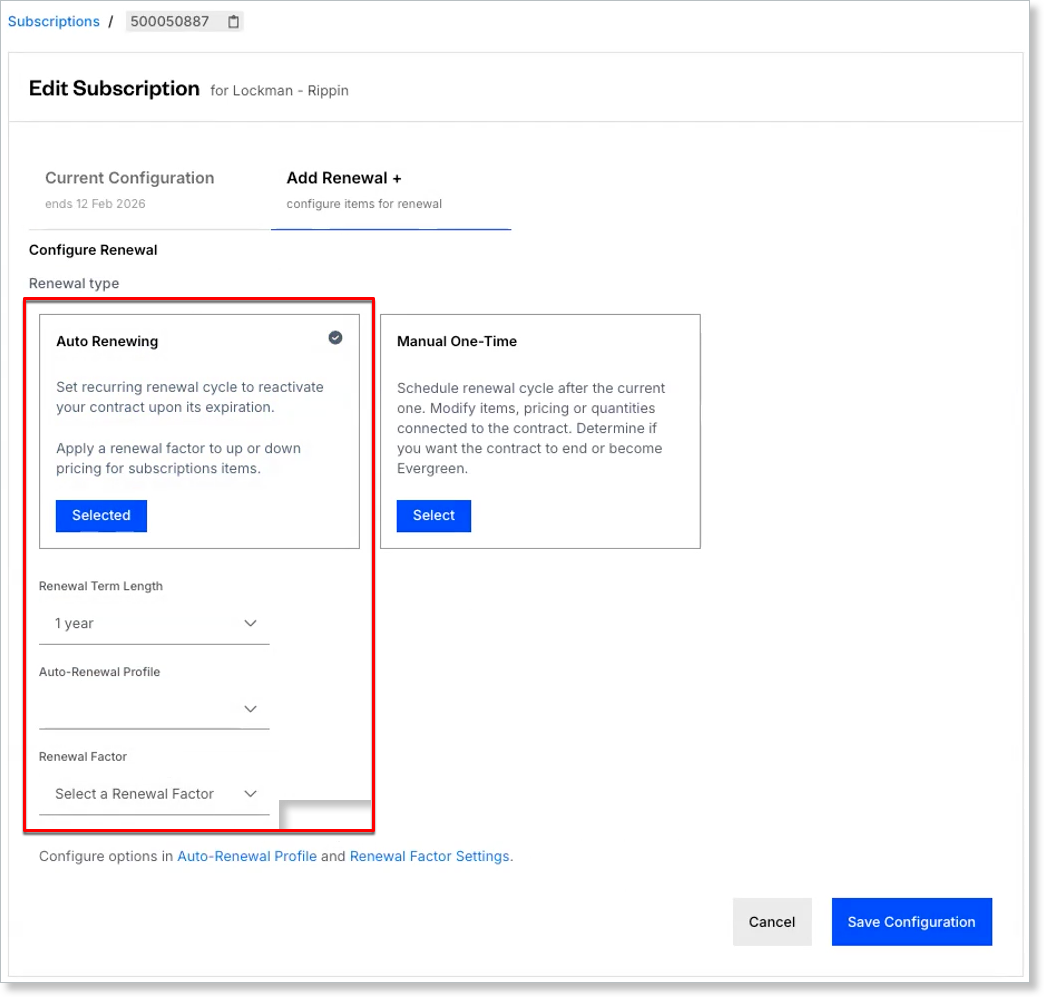
To add Auto-Renewal to an existing Subscription
- Select Add Renewal +, then choose Auto Renewing.
- Set the Renewal Term Length and Auto-Renewal Profile.
- If needed, define the Renewal Factor.
Related information
For how Auto-Renewal behaves once it's set up, including what happens to pricing at each renewal, see Understand Auto-Renewal.
Still need help?
Reach out and our support team will take it from here.