
Configure Numeral Tax Calculation Data
Last updated on Sep 8, 2026
Numeral calculates tax using information from your Maxio site, product catalog, customer records, and Numeral account. Use this article to prepare the data Numeral needs before you create taxable subscriptions or invoices.
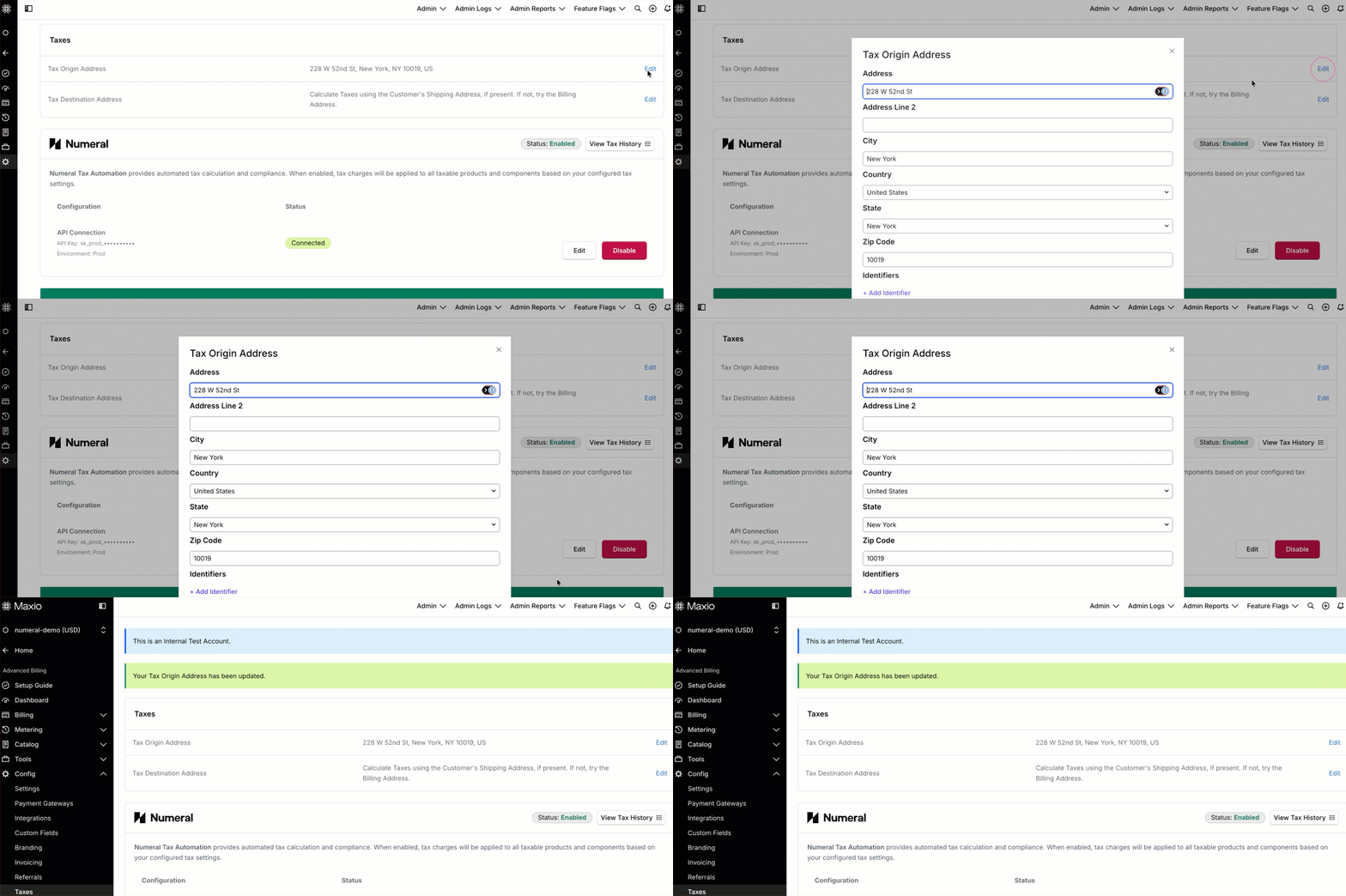
Configure the tax origin address
Your tax origin address represents where your business operates from. Numeral uses the origin address to determine sourcing rules for each transaction.
Set the tax origin address in your site's tax settings. Without a valid origin address, Numeral calls will fail.
Configure taxable products and components
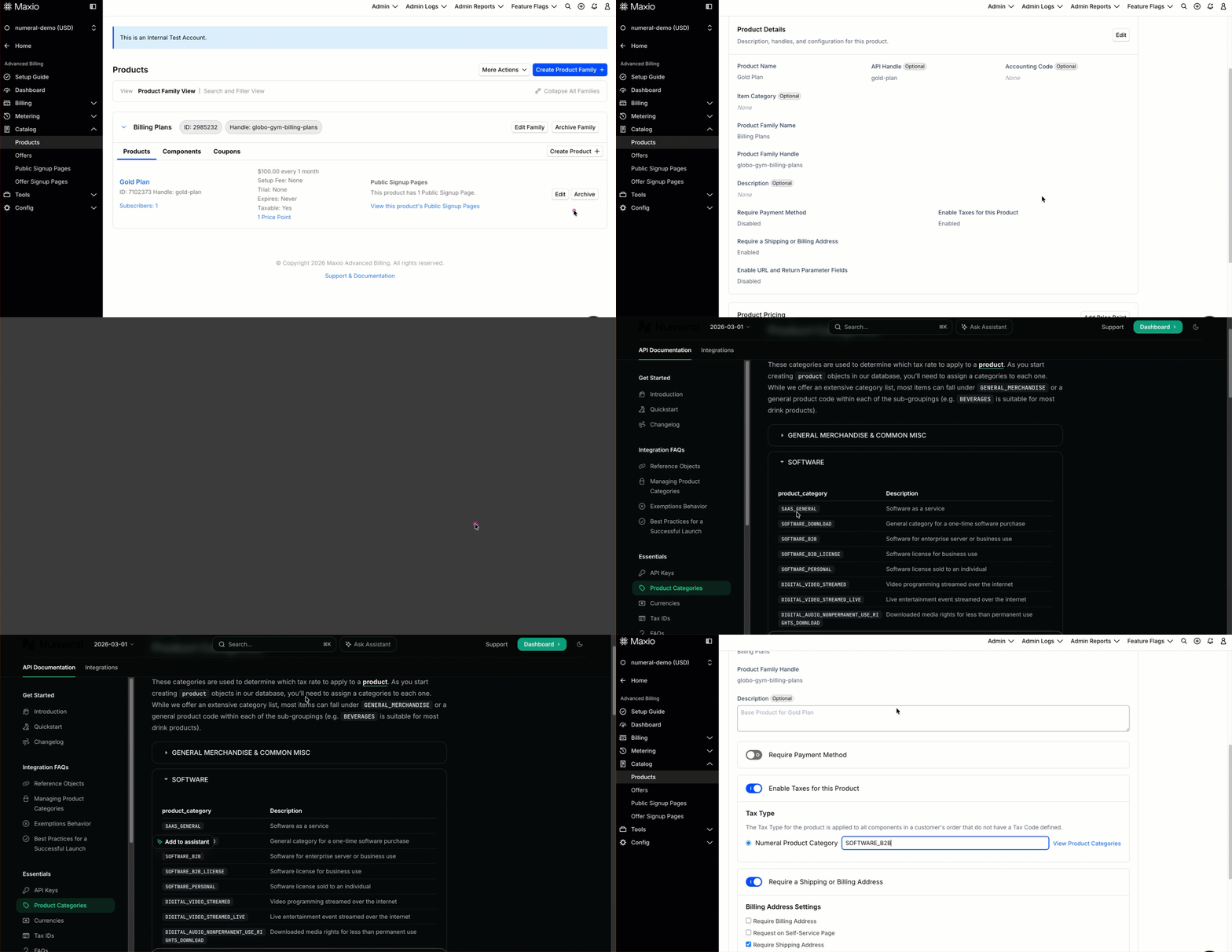
Define items, products and plans in Maxio as usual. Mark products or components as taxable when sales tax should apply.
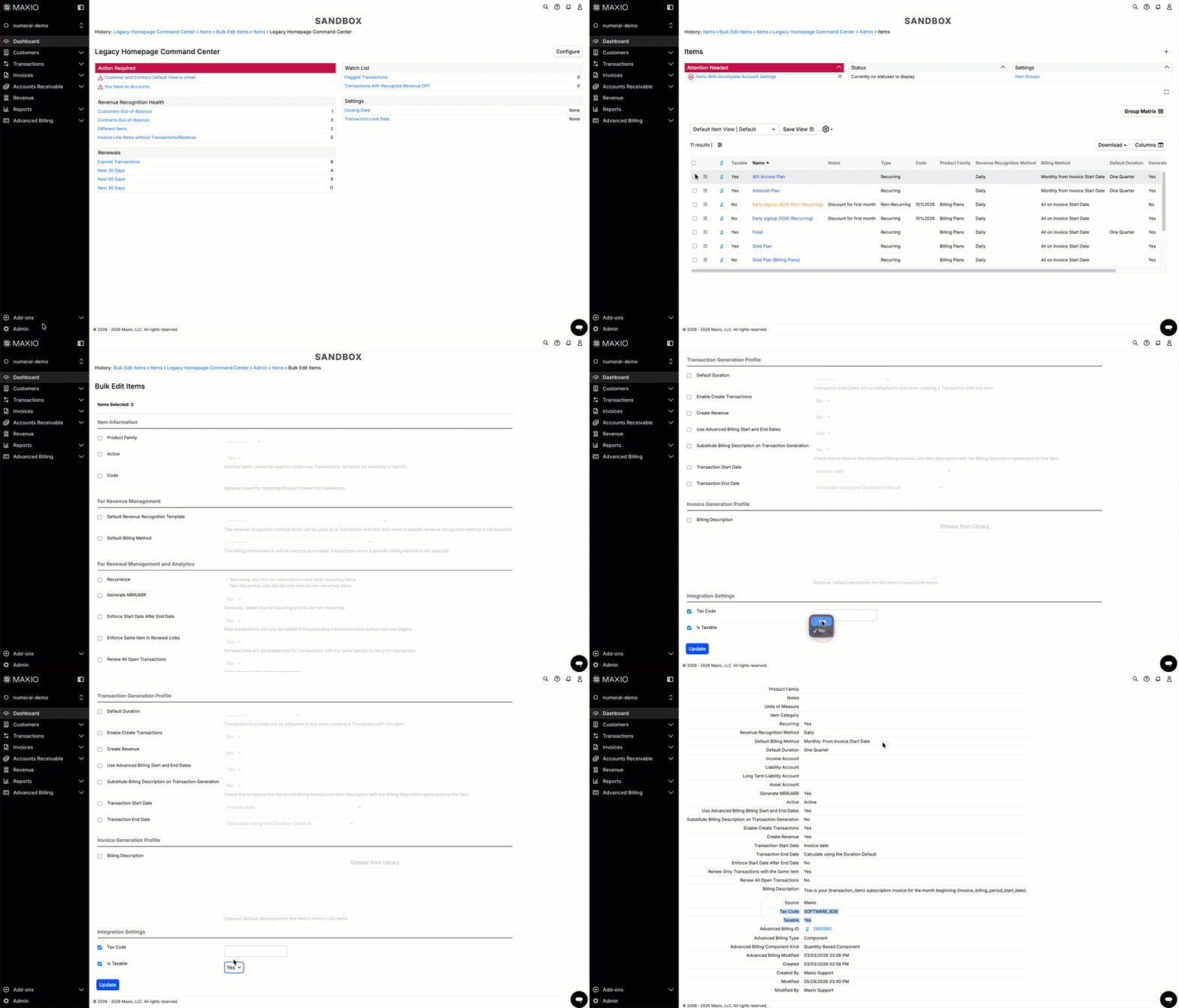
If a Numeral product tax code is present on a taxable product or component, Maxio sends it as the product tax code for the line item.
Assign product tax codes
Product tax codes map Maxio products and components to the correct taxability category in Numeral, such as SaaS, digital goods, or professional services. Numeral uses the code to determine whether and at what rate the line item is taxable in each jurisdiction.
| If the product is... | Then... |
|---|---|
| Fully taxable everywhere you sell | A product tax code is optional, but recommended for cleaner reporting. |
| Partially taxable and varies by state | A Numeral product tax code is required to apply the correct rate. |
| Exempt from tax | A Numeral product tax code is required to apply the exemption correctly. |
Enter the code directly on the product or component's Numeral Product Category field in Maxio. Numeral publishes the valid category values in its own product categories reference; Maxio sends whatever value is set on each invoice line.
Numeral tax codes can be up to 255 characters.
Collect customer address details
Customer shipping and billing addresses are captured in Maxio. Your site's tax address option determines which address Maxio sends to Numeral.
- For shipping-based tax settings, collect a complete shipping address.
- For billing-based tax settings, collect complete billing address details on the payment profile or signup form.
- For mixed address settings, keep both shipping and billing addresses complete.
Address fallback behavior
For mixed address options, Maxio picks which address to send before it ever calls Numeral, based on which address type has data on file for the customer. If the first-priority address is missing, Maxio automatically falls back to the other address type. This selection isn't a retry after Numeral rejects a request. It happens before Numeral is called at all.
- Shipping then billing: Maxio uses the shipping address when it has data, and falls back to the billing address otherwise.
- Billing then shipping: Maxio uses the billing address when it has data, and falls back to the shipping address otherwise.
- Shipping Address Only: Maxio uses customer shipping address.
- Billing Address Only: Maxio uses payment billing address.
For best results, keep customer shipping and billing addresses complete and standardized.
Apply customer exemptions
Tax exemption is typically used for resellers, government agencies, non-profits, or other entities that qualify under jurisdictional rules. Exemption status is managed in Numeral and respected on Maxio invoices.
When configuring an exempt customer in Numeral:
- Set the exemption category on the customer record, such as wholesale, government, or non-profit.
- Confirm the customer's billing or shipping address matches the address used in Maxio so Numeral can match the transaction to the exempt customer.
Numeral can override an applied exemption in certain scenarios, such as when a customer is exempt in one region but subject to tax in another. This is expected behavior and is determined by Numeral at the time of calculation.
Still need help?
Reach out and our support team will take it from here.