
Clear Item Data
Last updated on Sep 19, 2026
Clear Data removes all of the financial records that use an Item, while leaving the Item itself in place. It is typically used only during initial implementation.
WARNING: Clear Data permanently deletes data and cannot be undone. It also ignores Closing Dates, so records inside a closed period can be deleted. Make a backup before using this function.
Before you start
Clear Data is off until Maxio turns it on, and is restricted once it is.
- The function must be enabled for your account. The account setting is Enable Clear Item Data, and only Maxio can turn it on. Contact support@maxio.com to request it.
- Clear Data requires Admin permissions.
What Clear Data deletes
The action deletes:
- All Transactions that use the Item, which in turn includes all Revenues associated with them
- All Invoice Line Items associated with the Item
Data in any connected GL is not affected. Customers and Contract records are not deleted.
The Item itself remains in Maxio, and is always set to Inactive and to not sync, whether or not it originally came from a GL.
Clear an Item's data
Clearing is confirmed by typing a phrase, so the action cannot be triggered accidentally.
To clear an Item's data
-
Go to Admin > Items and select the Item.
-
Choose Clear Data from the menu.
-
Read the message that appears, then type the confirmation phrase.
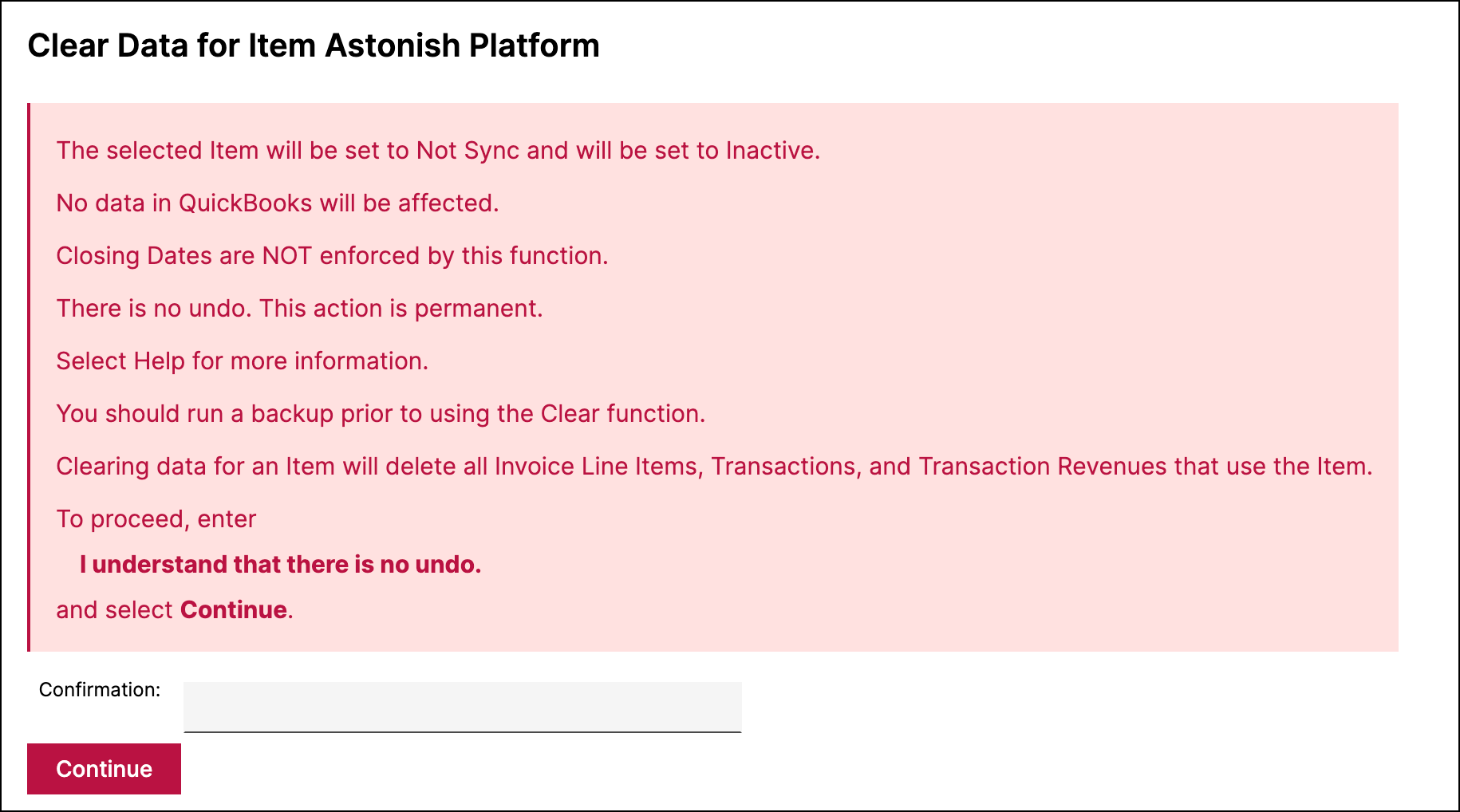
-
Select continue.
Related information
For the other irreversible Item action, see the Recast Item MRR/ARR help article.
Still need help?
Reach out and our support team will take it from here.