
Set Up HubSpot Integration
Last updated on Sep 19, 2026
The HubSpot integration hands work off from Sales to Finance by letting HubSpot deals create Sales Orders in Maxio. Those Sales Orders carry the financial information Maxio uses to create Customers, Contracts, Transactions, revenues, and Invoices, which removes manual re-entry and reduces silent failures.
What you need before you start
These steps cover the Maxio only and Maxio + Advanced Billing workflows. For the Advanced Billing only workflow, see the Understand the HubSpot Integration help article instead.
Working with the integration requires Admin permissions.
- Works with production HubSpot accounts and with HubSpot accounts used for testing, as long as the account supports the required HubSpot features and permissions.
- Available on HubSpot Starter, Professional, and Enterprise plans.
Connect to HubSpot
The integration must be enabled for your account before you can configure it. Contact support@maxio.com if you do not see the HubSpot option in the side navigation pane or in the Integrations section of the Admin menu.
Connect to HubSpot using the Maxio connection wizard
Click the HubSpot link in the side navigation pane, then follow the prompts to connect HubSpot and review the default settings shown during setup.
Connect to HubSpot manually
Connecting manually takes you through Maxio's settings screen and HubSpot's own authorization flow, so you need to be signed in to both systems in the same browser before you start.
To connect to HubSpot manually
-
Log in to your Maxio account and, in a separate tab or window of the same browser, log in to HubSpot. You must be logged in to both systems in the same browser to connect them, and you must use a HubSpot admin account.
-
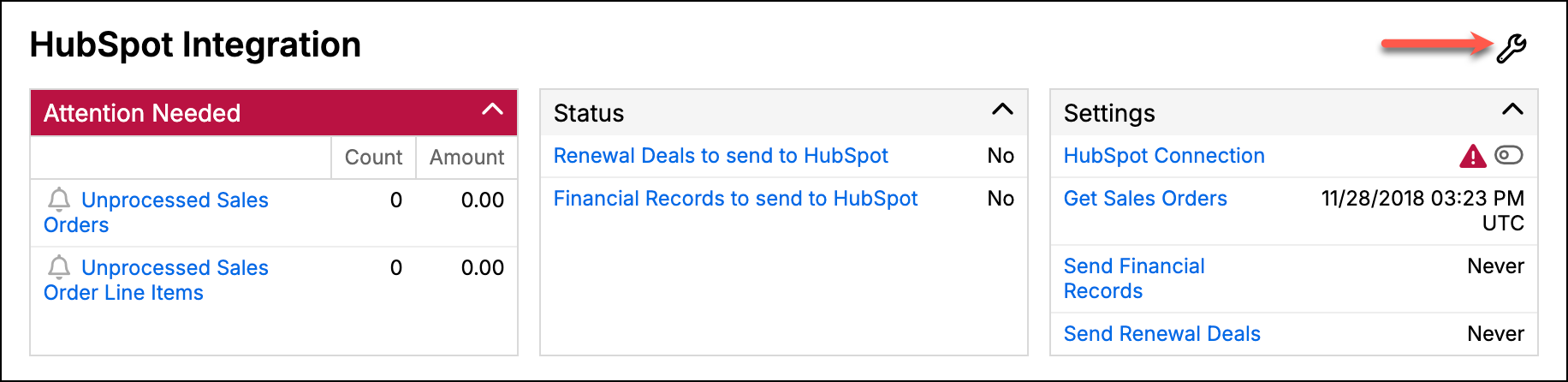
From the Admin page in Maxio, click the HubSpot link in the Integrations section, then click the wrench icon in the top-right corner. This opens HubSpot Integration Settings.
-
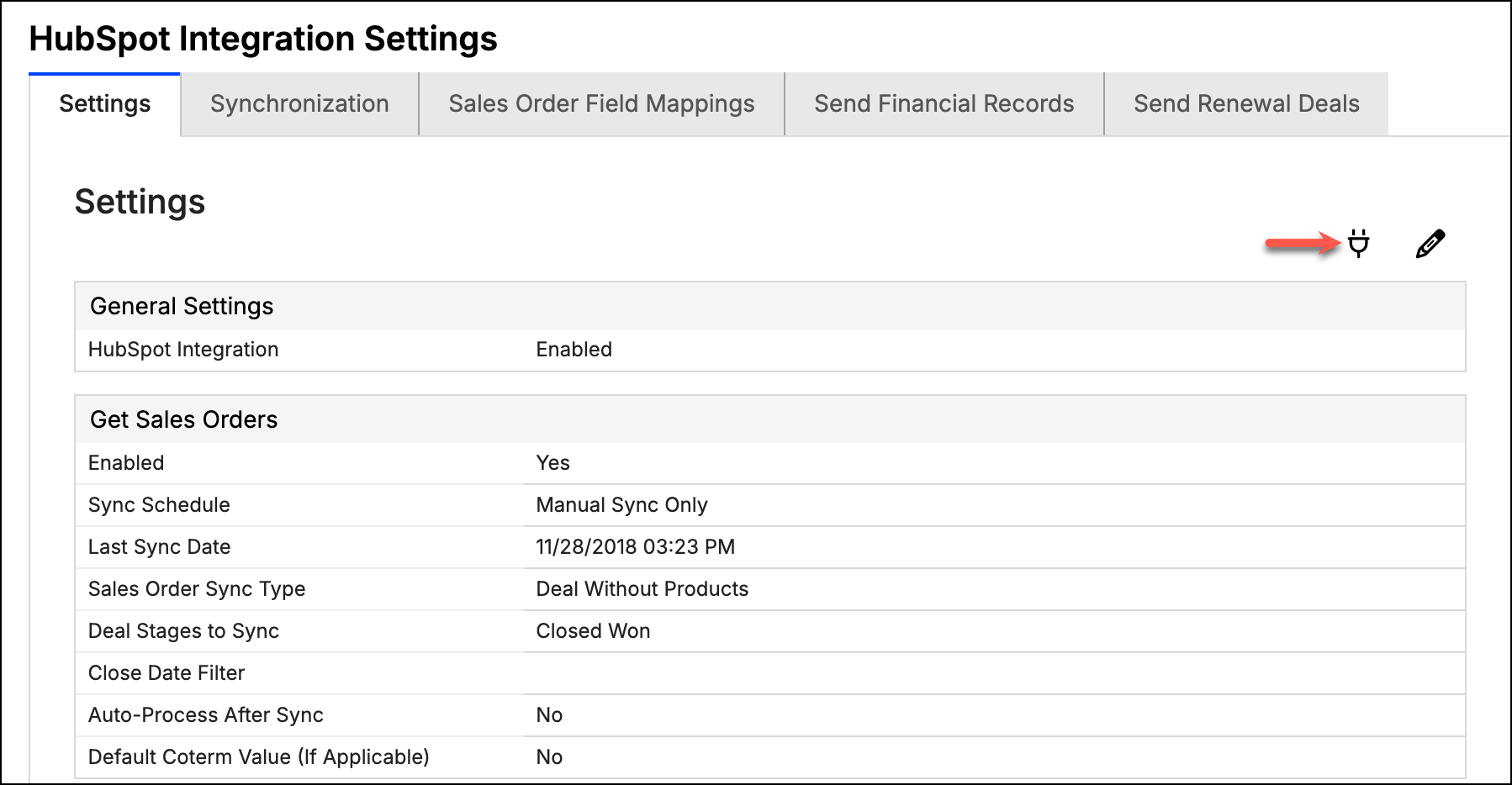
On the Settings tab, click the plug icon to connect to HubSpot.
-
Log in to HubSpot if you have not already. If you have multiple HubSpot accounts, select the one you want to connect.
-
When HubSpot asks whether to grant Maxio access to your HubSpot data, click Grant access.
Maxio returns you to the settings screen with a banner confirming the connection.
What each settings tab holds
The settings screen carries a tab for each part of the integration, and a tab appears only once the matching sync step is enabled:
- Settings - Connection status and every configurable setting.
- Synchronization - Sync now, download the most recent sync log, and disconnect.
- Company Metadata Field Mappings - Mappings for the Get Company Metadata sync.
- Sales Order Field Mappings - Mappings for the Get Sales Orders sync.
- Send Financial Records - The financial records sent back to HubSpot.
- Send Renewal Deals - The renewal deals generated in HubSpot.
The integration runs as four sync steps: Get Company Metadata, Get Sales Orders, Send Financial Records, and Send Renewal Deals. Each has its own Enabled checkbox and Sync Schedule.
Configure integration settings
To pull Deals in from HubSpot, enable and configure the Get Sales Orders sync.
The HubSpot account used for the connection needs the permissions and feature access your workflow relies on. Depending on your HubSpot plan, seats, and permissions, you may need to update your HubSpot access before deals will sync.
To configure the Get Sales Orders sync
-
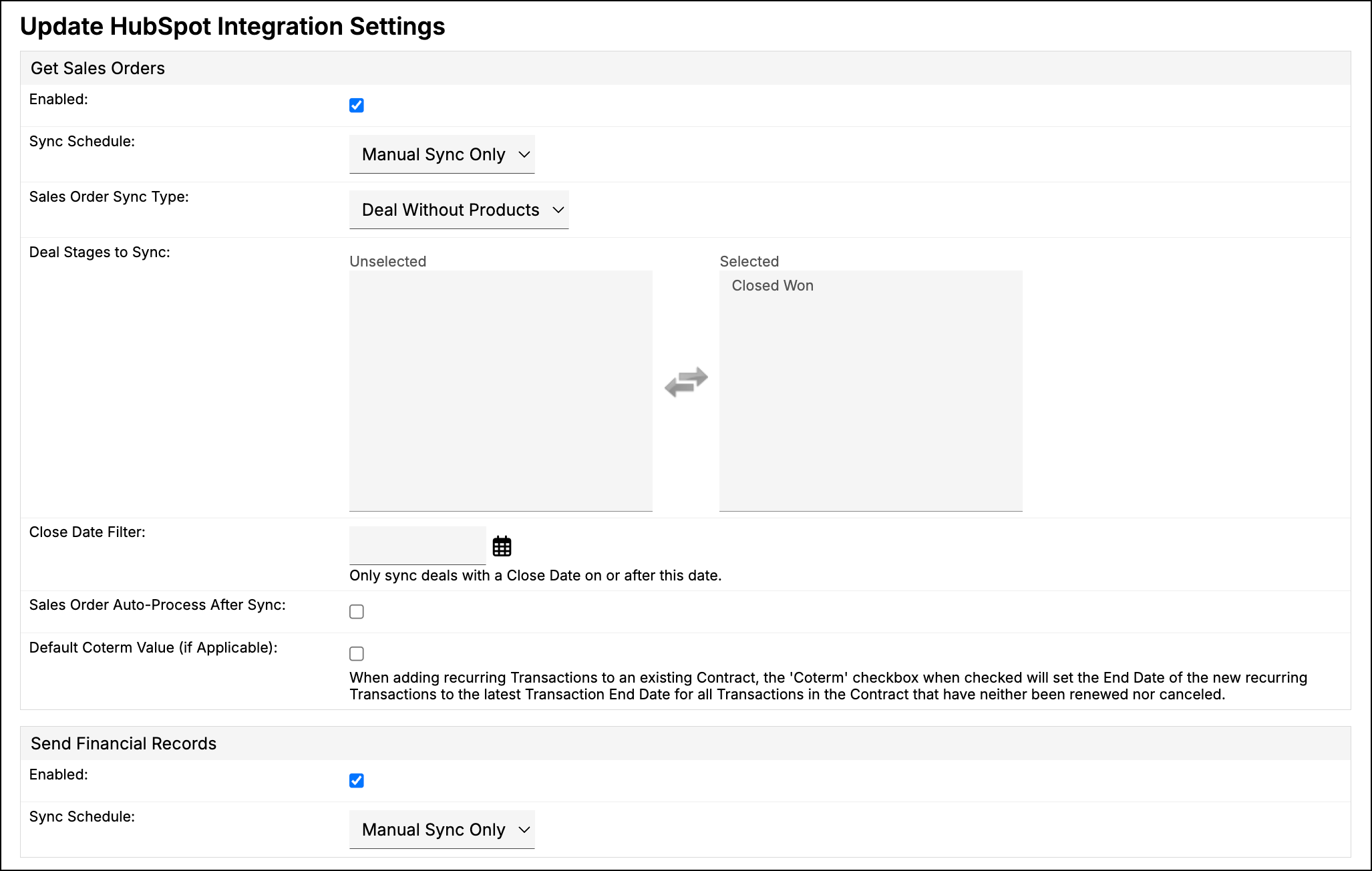
Click the pencil icon in the top-right corner of the Settings tab. This opens Update HubSpot Integration Settings.
-
In the Get Sales Orders section, check Enabled.
-
Complete the remaining settings, using the descriptions below.
-
Click Save.
Get Sales Orders settings
| Setting | Description |
|---|---|
| Sync Schedule | How often the sync runs.
|
| Sales Order Sync Type | Which HubSpot records Maxio pulls order information from. Choose the option that matches how you use HubSpot deals.
This setting can only be changed while disconnected from HubSpot, so changing it means disconnecting and reconnecting the integration. |
| Deal Stages to Sync | The stages a deal must be in for its information to sync into Maxio. You can select up to 10 stages, including stages from different pipelines. Defaults to Closed Won. |
| Close Date Filter | Only syncs deals with a Close Date on or after this date. |
| Sales Order Auto-Process After Sync | Processes synced Sales Orders automatically instead of leaving them in the queue for you to process. Available only with Deal With Products; selecting it alongside Deal Without Products is rejected with the message Must be using products to enable Auto-processing. |
| Default Coterm Value (if Applicable) | Sets the starting value of the Coterm checkbox on Transactions this integration creates. When Coterm is checked and recurring Transactions are added to an existing Contract, their End Date is set to the latest Transaction End Date among the Contract's Transactions that have been neither renewed nor canceled. |
| Group Renewals Across Contracts | Groups renewals from more than one Contract into a single renewal deal in HubSpot. |
| Let HubSpot Update Non-Null Records | Allows the Get Company Metadata sync to overwrite Maxio Customer fields that already hold a value, rather than filling in only empty ones. |
Set the last sync date
Last Sync Date limits which records reach the order queue: deals last modified before this date do not sync. It is set on its own screen rather than with the settings above. On the Synchronization tab, open the Get Sales Orders step to reach Update Step: Get Sales Orders, then enter a date, and optionally a time.
WARNING: Do not leave Last Sync Date blank without understanding the consequences. With no date, Maxio may pull a broad set of deals from HubSpot, including historical ones, limited only by your deal stage and close date filters. Take care whenever you clear or move this date.
Deals must also satisfy your other filters, such as Deal Stages to Sync and Close Date Filter, to reach the order queue.
Important: The date must fall within the last 29 days, because of a limit in HubSpot's API. Outside that recent-modified window, Maxio may fall back to a broader deal retrieval process, though your deal stage and close date filters still apply.
You cannot change Last Sync Date while a sync is running. Maxio reports Cannot update Sync Step settings while a sync is in progress and leaves the value as it was.
Map Sales Order fields
The Sales Order Field Mappings tab appears once HubSpot is connected and the Get Sales Orders sync is enabled. Click the pencil icon to configure or update your mappings, or the eraser icon to reset them to the defaults listed below. If the tab shows no mappings at all, use the eraser icon to repopulate the default set.
Each Maxio field draws its value from one of two source types:
- HubSpot - A HubSpot Deal, Company, or Line Item property. Maxio reads the property from each HubSpot record during synchronization.
- Input - A static text, number, or boolean value that Maxio applies to every Sales Order synchronized through the integration. An Input never reads anything from the HubSpot record, so enter a value the destination Maxio field accepts.
To configure a mapping
- Open the Sales Order Field Mappings tab.
- Click the pencil icon.
- Locate the Maxio field you want to configure.
- Select HubSpot or Input as the source type.
- If you selected HubSpot, select the HubSpot property to map. If you selected Input, enter the static value to apply.
- Save the mapping configuration.
To turn a static mapping back into a dynamic one, select HubSpot as the source type and choose a HubSpot property.
What the defaults map
The eraser icon restores exactly this set.
| Maxio object | Maxio field | HubSpot object.field | Notes |
|---|---|---|---|
| Sales Order | Name | Deal.dealname | - |
| Sales Order | Order total | Deal.amount | - |
| Sales Order | Customer name | Company.name | - |
| Sales Order | Customer domain | Company.website | - |
| Sales Order | Customer billing street | Company.address | - |
| Sales Order | Customer billing city | Company.city | - |
| Sales Order | Customer billing state | Company.state | - |
| Sales Order | Customer billing zip code | Company.zip | - |
| Sales Order | Customer billing country | Company.country | - |
| Sales Order | Close date | Deal.closedate | - |
| Sales Order Line Item | Transaction start date | Deal.closedate | - |
| Sales Order Line Item | Transaction order date | Deal.closedate | - |
| Sales Order Line Item | Transaction item name | LineItem.name | Included only with Deal With Products. |
| Sales Order Line Item | Transaction item code | LineItem.hs_product_id | Included only with Deal With Products. |
| Sales Order Line Item | Transaction amount | LineItem.amount with Deal With Products, Deal.amount with Deal Without Products | The default source differs by Sync Type. |
| Sales Order Line Item | Transaction quantity | LineItem.quantity | Included only with Deal With Products. |
| Sales Order Line Item | Transaction notes | LineItem.description | Included only with Deal With Products. |
If a recently created field does not appear in the mapping drop-downs, sync with Maxio again, since the list reflects the last sync.
Test every use case you rely on, including HubSpot's discount functionality. Some HubSpot deal, product, or line-item values are calculated differently depending on your HubSpot configuration. If you use multi-year transactions, check your HubSpot setup and mappings to confirm line-item totals reach Maxio as expected. When a mapping uses an Input source, confirm the static value is in the format the mapped Maxio field expects, such as a valid number or boolean.
Pick stages from custom pipelines
Custom pipelines let you segment sales or expansion teams. When several HubSpot pipelines use similar or generic stage names, pipeline context tells you which stages to select.
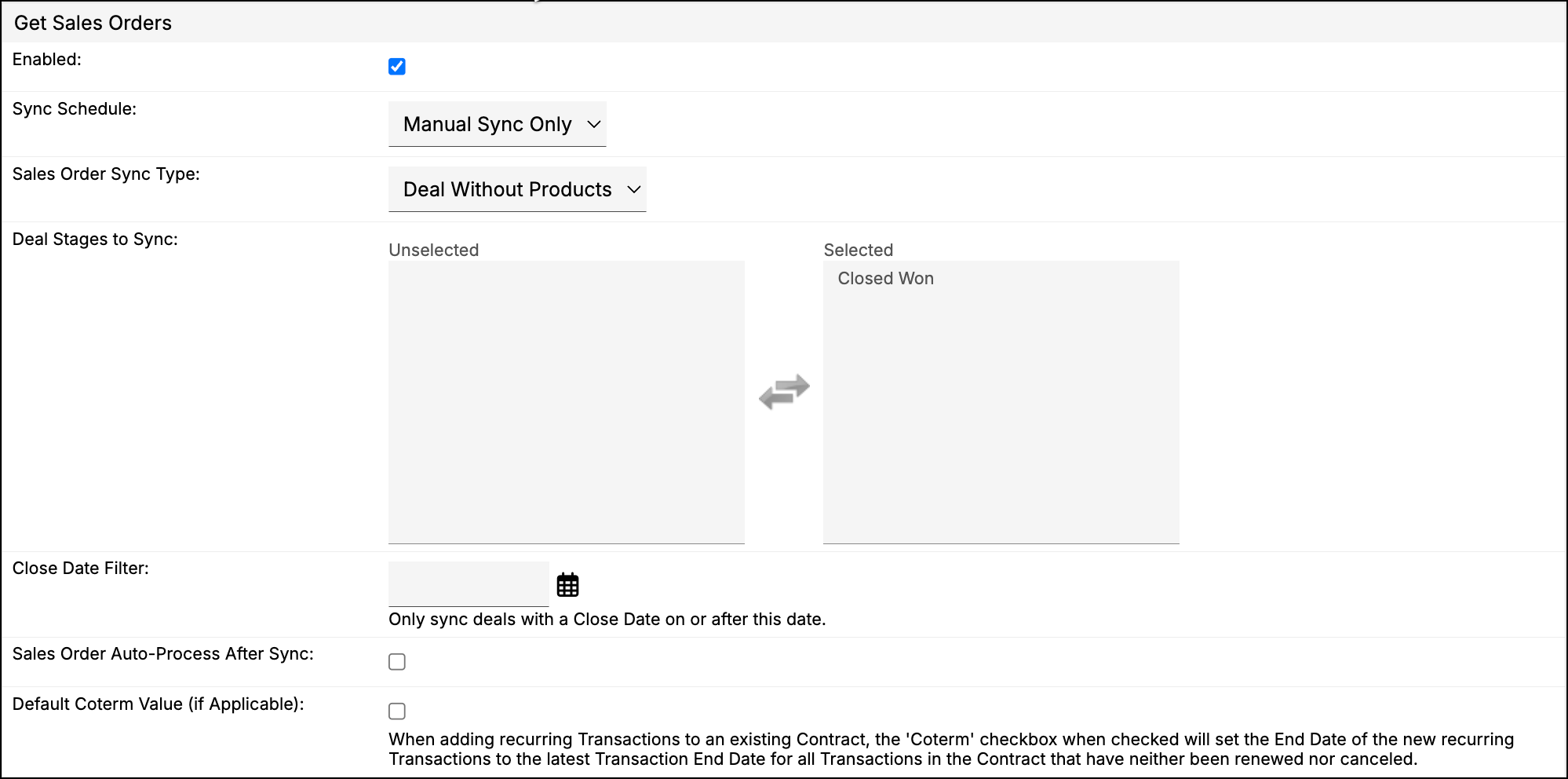
On the Settings tab, go to the Get Sales Orders section and open Deal Stages to Sync. Each available stage is listed with its pipeline, so you can pick the right one.
Disconnect from HubSpot
Click the Disconnect icon in the top-right corner of the Synchronization tab. To reconnect, follow the manual connection steps above.
Related information
Once the integration is connected, Sync and Process Sales Orders covers how deals become Sales Orders in Maxio, and Create Renewal Deals in HubSpot covers how renewals are created and kept in step.
To control which financial records your HubSpot users can see, see Push Financial Records to HubSpot.
Still need help?
Reach out and our support team will take it from here.