
Manage Subscriptions
Last updated on Sep 1, 2026
Learn how to manage your Advanced Billing subscription to our application with the following documentation. As you read onward, you’ll understand how to switch your plan, understand the status of your account and update your card.
Account
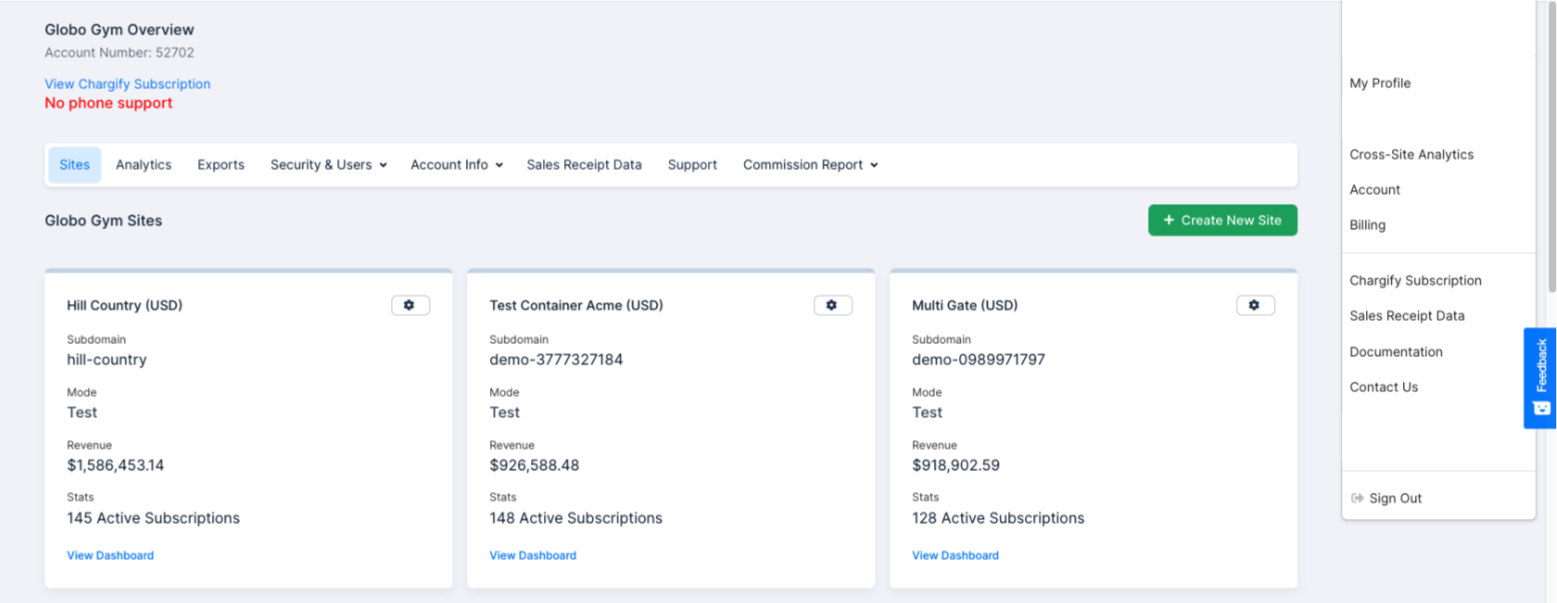
Locate your account information by clicking on the dropdown menu to the right of the page. Here you’ll find access to a host of other account editing options.
Account Info → Merchant Info
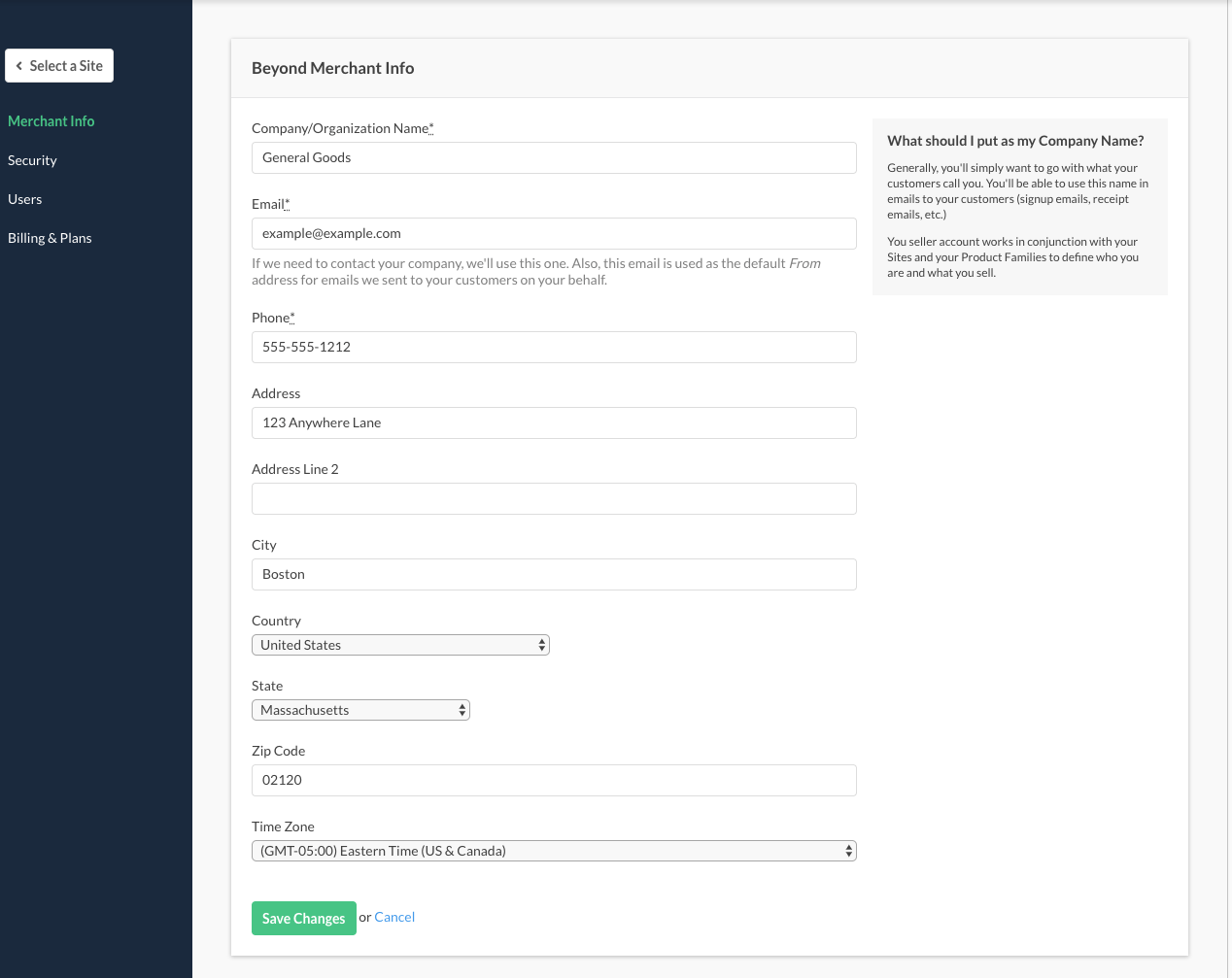
Enter your company name and all contact information. Information from this window can be used in email templates as well (signup emails, receipt emails, etc.)
Your seller account works in conjunction with your sites and your product families to define who you are and what you sell.
Account Info → Billing & Plans
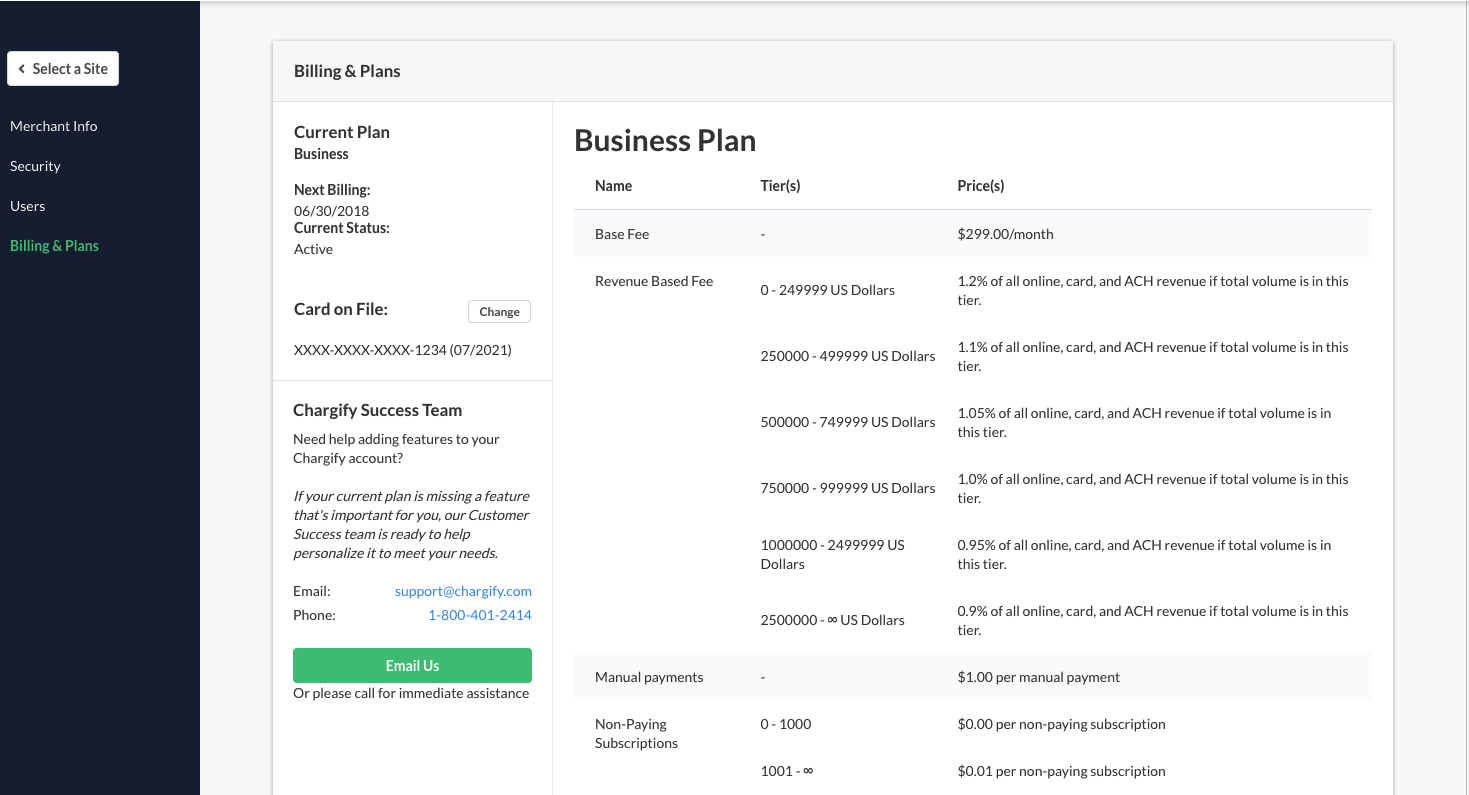
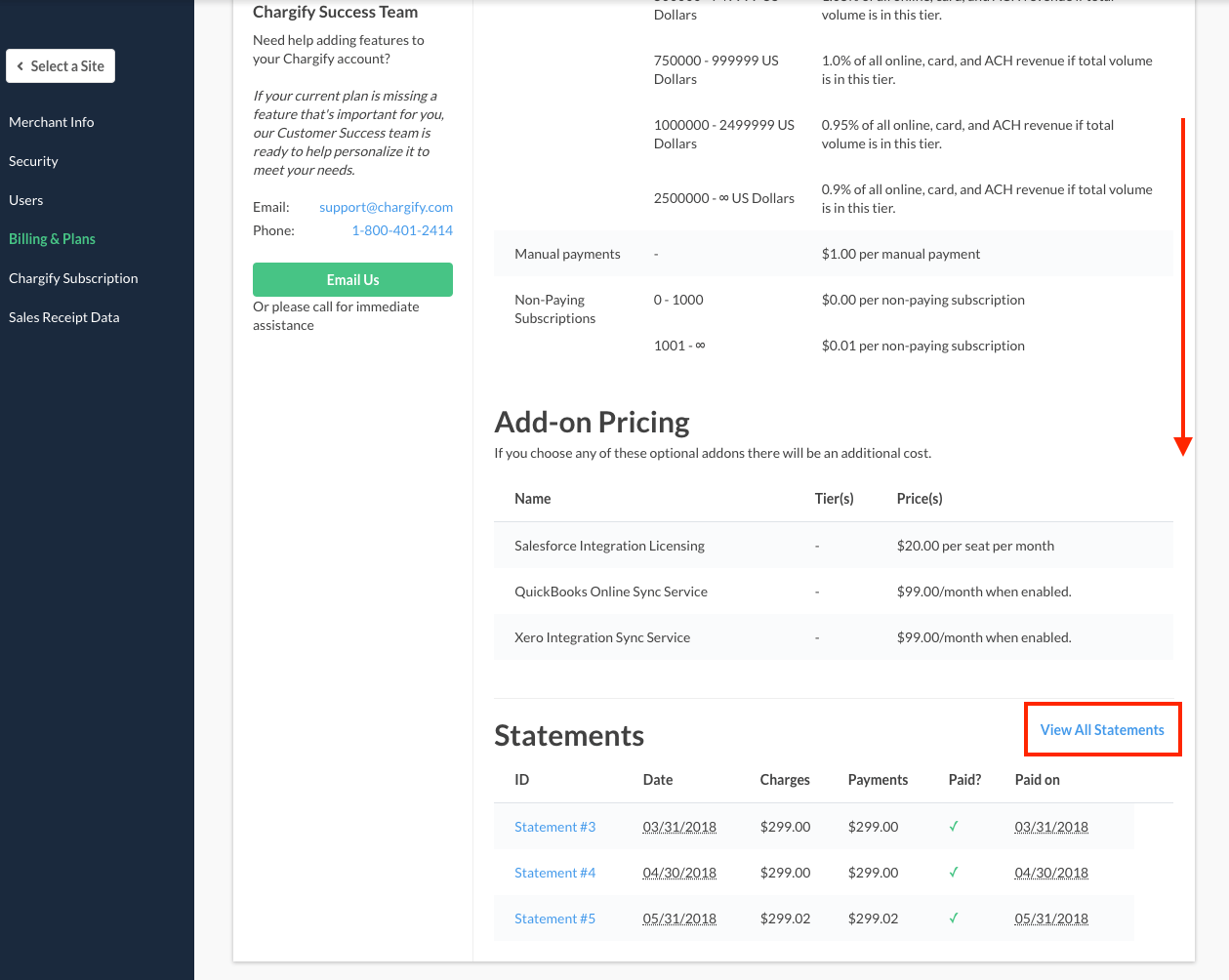
The Billing & Plans section contains a host of useful information related to your subscription to the Advanced Billing application.
Next billing
Advanced Billing displays the next billing date in which your card will be charged for your subscription.
Some Advanced Billing plans include a revenue-based fee. Both the rate and the revenue floor it applies above depend on your plan — for example, plans carrying the 1.2% fee charge it on online, card, and ACH revenue above $30,000, so billing $35,000 incurs 1.2% of $5,000.
This charge is transacted against the card on file approximately a month from the renewal date, because a month of transactional data must accumulate before the percentage-based fee can be calculated.
Current status
Your current status for your Advanced Billing subscription can be viewed here.
- Active: Your account is in good standing.
- Past due: Remit the amount due on your account to avoid cancellation.
- Canceled: Contact support@maxio.com for further assistance.
Card update
Elect to update the card on file, by selecting change next to the current card on file.
Invoices
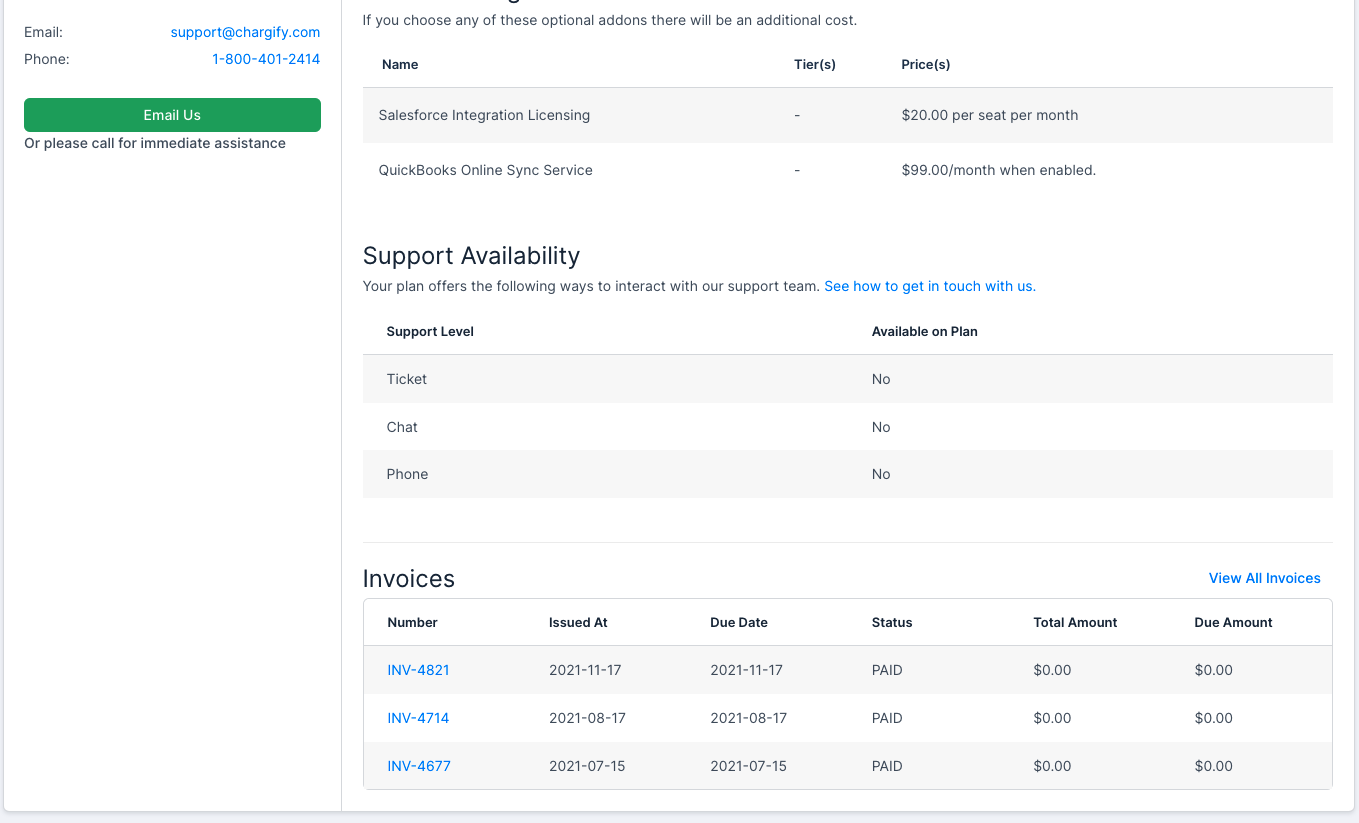
View all your Invoices for your Advanced Billing account.
Statements
View all your statements for your Advanced Billing account.
Delete your account
To delete your account, you must contact Support to facilitate cancellation.
WARNING: Once your account is deleted, the data cannot be retrieved. We recommend exporting data prior to closing your account. For more information, see the data retention rules in Understand Merchant Limits.
Once your Advanced Billing subscription is canceled — you won’t be billed anymore. We will no longer bill your customers. All of your account data will be deleted (subscriptions, customers, statements, payment profile, products, etc.).
Again, there is no undo for this action.
Still need help?
Reach out and our support team will take it from here.