
September 2025 Product Release
Last updated on Aug 27, 2026
Maxio released the following updates and new features during September 2025.
Billing
Automatically issue Invoices to the Billing Portal using Cadence actions BETA
You can now configure a cadence action to automatically issue invoices to the Billing Portal. This eliminates the need to email invoices, streamlining your AR workflow and improving visibility. (Released: 8 September 2025)
Learn more
- Why it matters:
- Automating invoice issuance helps reduce manual effort, supports bulk AR operations, and ensures timely customer access to outstanding balances.
- Where to find it:
-
- From Maxio, go to Accounts Receivable > Cadences.
- Under Settings, click Cadence Templates.
- Click + (plus sign) to open Create Cadence Templates.
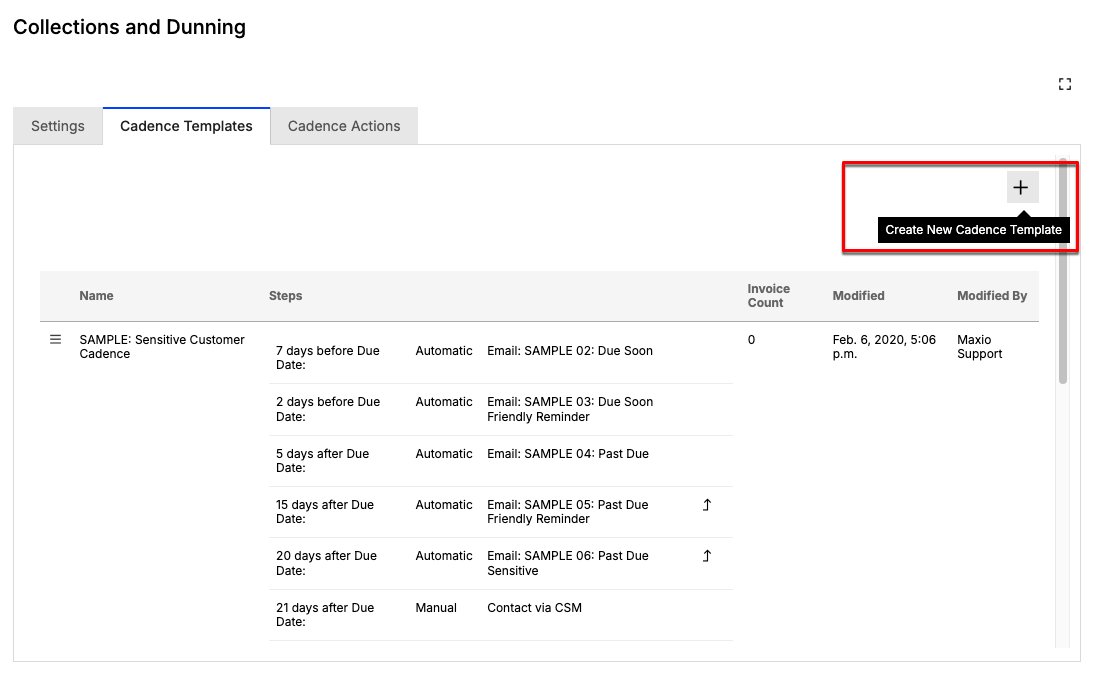 4. Configure the cadence steps, as needed.
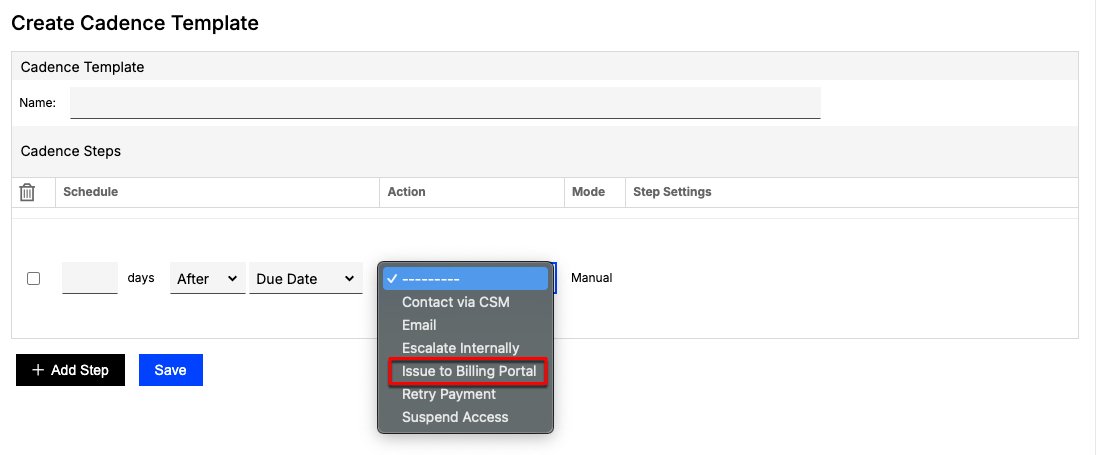
You can assign the Issue to Billing Portal action to a specific step in the cadence.
5. Under Action, click the down arrow and select Issue to Billing Portal.
4. Configure the cadence steps, as needed.
You can assign the Issue to Billing Portal action to a specific step in the cadence.
5. Under Action, click the down arrow and select Issue to Billing Portal.
Reopen canceled Invoices directly from the UI General Access
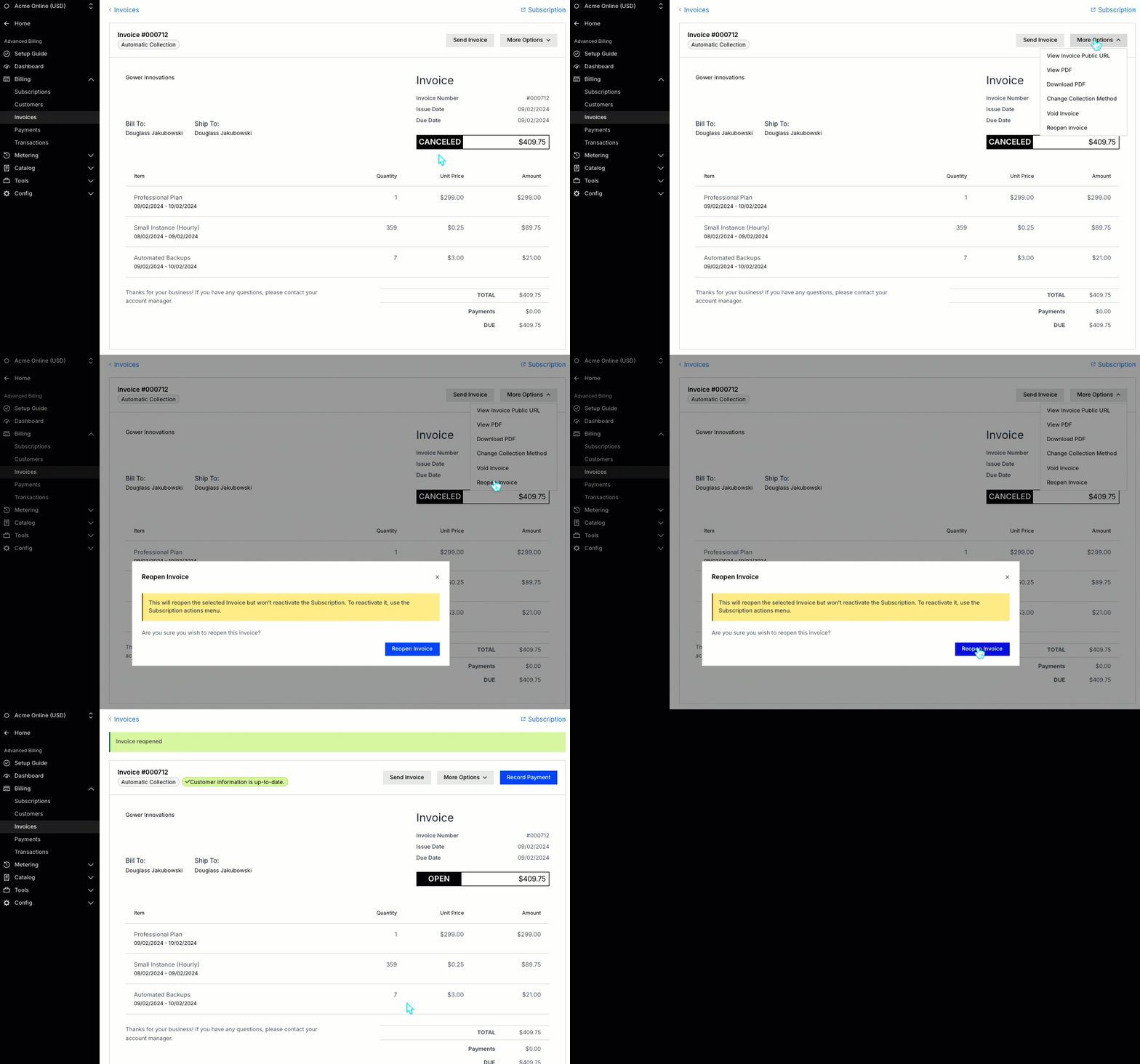
Users can now reopen canceled invoices directly from the Maxio user interface to ensure accurate AR balances and support collections workflows. This feature is especially helpful for UI-only users who previously relied on API access to manage canceled invoices. (Released: 12 September 2025)
Learn more
- Why it matters:
- This update helps ensure accounts receivable balances are accurate and enables better support for collections workflows without requiring API access.
- Where to find it:
- Go to the Invoice details page of the invoice in canceled state. From More Options, click Reopen Invoice.
Selling
HubSpot deal calculation setting prevents unwanted manual changes BETA
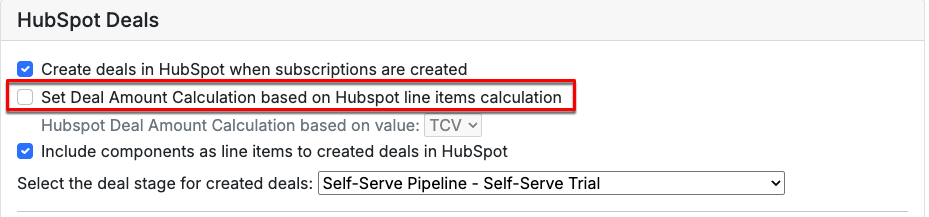
You can now prevent the HubSpot deal amount calculation from switching to manual when updating a Subscription preview. This ensures the deal value is always calculated using line items unless you specifically enable manual calculation. (Released: 23 September 2025)
Learn more
- Why it matters:
- This update helps maintain accurate deal values in HubSpot, reducing the risk of incorrect reporting and ensuring the total term value is always reflected unless you choose otherwise.
- Where to find it:
- Go to Settings Integrations HubSpot and, under HubSpot Deals, look for the Set Deal Amount Calculation box.
Accounting
Filter Transactions by Project Template General Access
Along with filtering by Project name, you can now also filter Transactions by Project Template, so you can group data by standardized workflows like Onboarding or Support. You can use this filter in exports too, and it supports multiple selections. (Released: 25 September 2025)
Learn more
- Why it matters:
- This feature lets you group Transactions by reusable workflows like Onboarding, Implementation, or Support, reducing the need to rely on inconsistent project names and improving reporting accuracy.
- Where to find it:
- This filter is only available with the Projects module. Go to the Transactions list and apply the Project Template filter. Exported reports reflect the selected templates.
New filter for identifying Contracts needing Performance Obligation revenue regeneration General Access
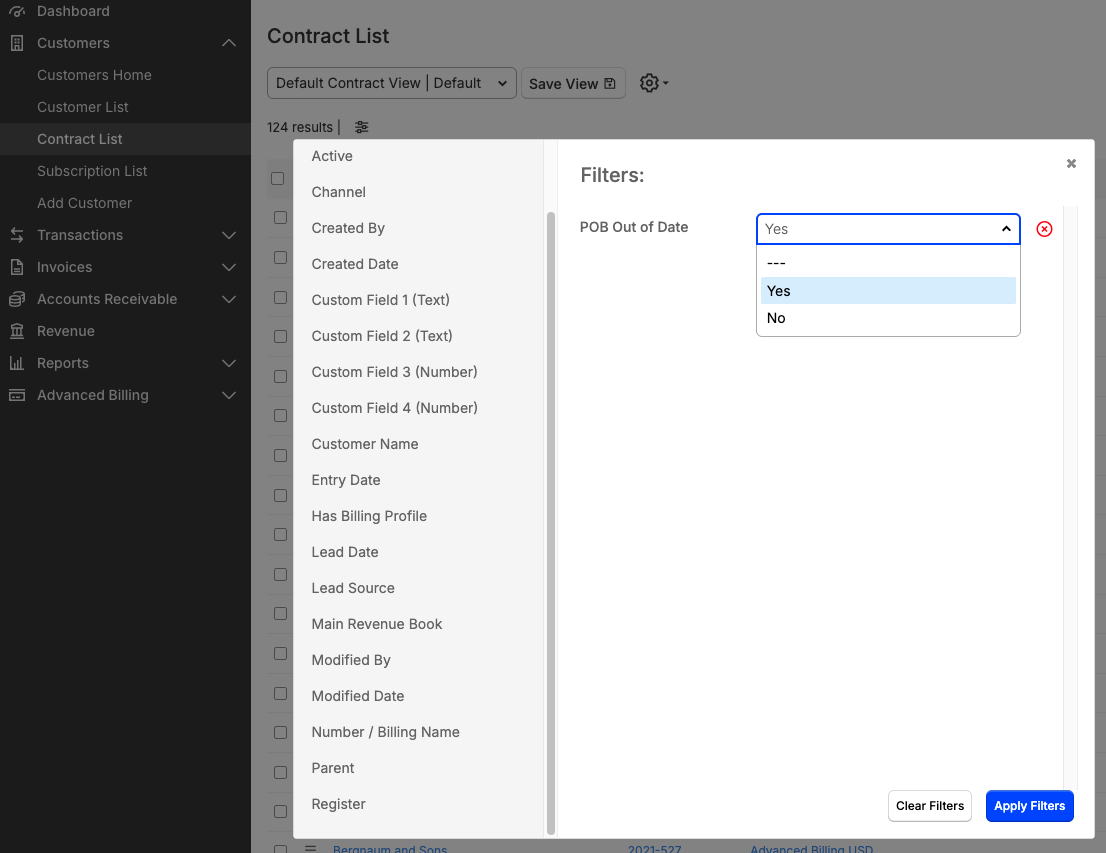
You can now use a new filter on the Contract object to quickly identify Contracts that require Performance Obligation (POB) revenue to be regenerated. This enhancement helps users find Contracts where new transactions have triggered the need for POB revenue updates, streamlining revenue management workflows. (Released: 11 September 2025)
Learn more
- Why it matters:
- This feature saves time and reduces manual effort by allowing users to easily filter and locate contracts that need POB revenue regeneration, improving data accuracy and operational efficiency.
- Where to find it:
- From Maxio, go to Customers > Contract List > Filters, and apply the POB Out of Date filter to identify contracts needing POB revenue regeneration.
Specify a default Cadence template at the Contract level BETA
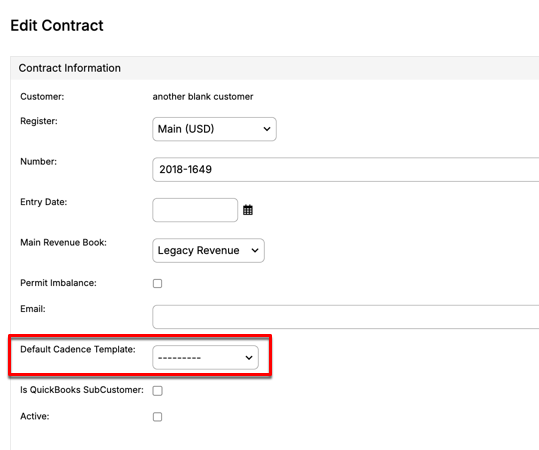
You can now set a default cadence template directly on each Contract. This template is used for new Invoices created under that Contract, taking priority over the Customer-level default. The Account Settings label has also been updated for clarity. (Released: 10 September 2025)
Learn more
- Why it matters:
- This update gives you more control and flexibility by allowing cadence templates to be set at the Contract level, ensuring the correct schedule is always applied without manual adjustments.
- Where to find it:
- From Maxio Core, go to Customers > Contract List and select a Contract. Look for the Default Cadence Template field.
Payments
One-time credit card payments for India-based buyers BETA
Merchants can now process one-time credit card payments without requiring tokenization for buyers with billing address in India, enabling better compliance with Reserve Bank of India (RBI) regulations and improving payment approval rates. This update supports one-time Transactions through the Maxio Payments gateway. (Released: 4 September 2025)
Learn more
- Why it matters:
- This update helps merchants comply with RBI mandates while improving credit card approval rates by removing the tokenization requirement for one-time Transactions for buyers with India-based billing addresses.
- Where to find it:
- Contact your Maxio Support to become an early adopter. Applies automatically when Customers with India-based billing address use India-issued credit cards for Subscription purchases through the Maxio Payments gateway.
Still need help?
Reach out and our support team will take it from here.