
Export to Google Sheets and Share
Last updated on Aug 24, 2026
Export lists and reports directly to Google Sheets for collaborative analysis. Connect your user, set an optional default Google Drive folder for your exports (created by Maxio), then export from reports or Report History. Team collaboration becomes much easier with multiple people referencing and working on the same set of data.
Setup and configuration
To use the Google Sheets integration, you need the Report User role. You can also find the integration listed in the Add-on Store (Sidebar > Add-ons). Connecting requires a Google Account.
Connect to Google Sheets
Each user who wants to export to Google Sheets connects their own Google account individually.
To connect to Google Sheets
- Click your username in the upper-right corner of Maxio Platform, then select Profile.
- On your profile page, click Google Sheets Integration.
- Review the disclosure and click Enable. Enabling the integration consents to Maxio exporting your report data to Google. Exported reports and lists may contain sensitive information, including customer names and contact information, and once exported that data is governed by Google's terms of service and privacy policy.
- If you're already logged into one or more Google accounts, choose the account you want to connect to Maxio Platform. If you're not logged into a Google account, you're prompted to log in.
- Click Allow to grant Maxio Platform access to your Google account. The integration requests permission to see, edit, create, and delete only the specific Google Drive files you use with the integration, and to view metadata for those files.
Granting Maxio Platform access authorizes a connection between your personal Google account and your personal Maxio Platform user only. Each user who wants to use the integration must connect their own Google account separately.
You're then returned to Maxio Platform, where a banner message confirms that you're connected to Google Sheets.
Configure integration settings
You can optionally set a default Google Drive folder for your exports.
To configure Google Sheets integration settings
Important: Maxio Platform creates the export folder itself at the time of your first export, so don't enter the name of a folder you already created in Google Drive. Google's security policy only allows Maxio Platform to access folders and files that Maxio Platform creates.
- Click the pencil icon in the top-right corner of the Settings tab. This opens the Update Google Sheets Settings page.
- (Optional) Specify a folder where exports from Maxio Platform are stored.
- Click Save.
Exporting lists to Google Sheets
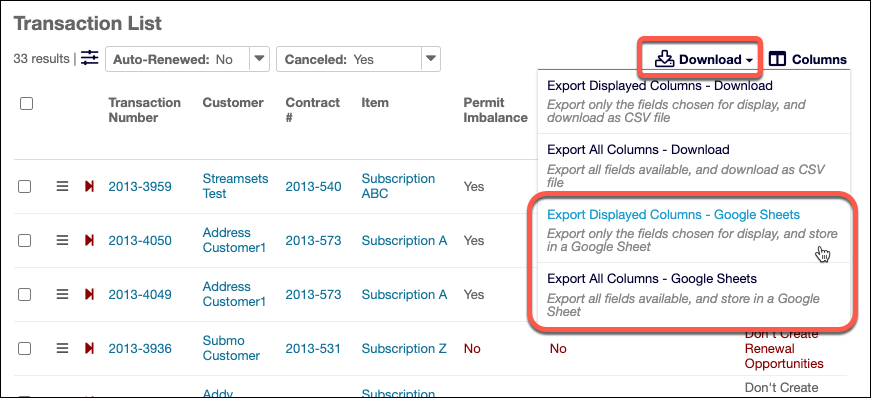
Once your list has had any desired filters applied, if applicable, hover over Download and choose one of the following options:
- Export Displayed Columns - Google Sheets. This option exports only the fields chosen for display.
- Export All Columns - Google Sheets. This option exports all available fields regardless of what is displayed.
Exporting reports to Google Sheets
You can export a report once it has run by hovering over Export, then clicking Google Sheets.
You can also export reports from the Report History screen. Hover over the hamburger menu and click Google Sheets.
Still need help?
Reach out and our support team will take it from here.