
Pipedrive Integration Setup and Use
Last updated on Aug 28, 2026
The Pipedrive integration facilitates the handoff between Sales and Finance by allowing Pipedrive deals to create sales orders in Maxio Platform. Maxio processes these sales orders into Customers, Contracts, and Transactions, which then drive your revenue and invoicing schedules. This integration is designed to eliminate manual data entry, provide more accurate financial records, and decrease silent failures. If quotes and approvals happen outside your CRM, Setup RevOps.io Integration covers the equivalent handoff from RevOps.io.
Setup and configuration
The Pipedrive integration must be enabled in your account before it can be configured. Contact support@maxio.com if you do not see the Pipedrive option on the sidebar within your Maxio Platform account.
Connect to Pipedrive
Connecting Maxio Platform to Pipedrive grants Maxio access to your Pipedrive data, so it can sync deals and organizations. You must be logged into both systems within the same browser to complete the connection.
To connect to Pipedrive
- Log in to your Maxio Platform account and, in a separate tab or window of the same browser, log in to Pipedrive.
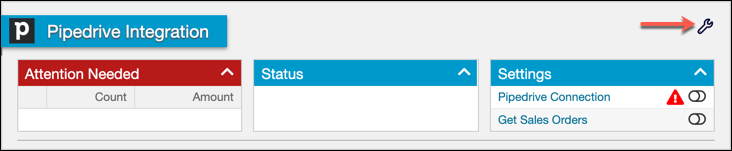
- Open the Pipedrive screen in Maxio Platform and then click the wrench icon in the top-right corner. This opens the Pipedrive Integration Settings.
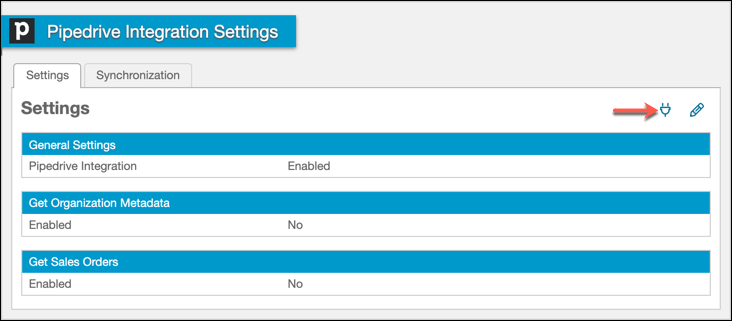
- Click the Connect to Pipedrive button.
- You may need to log into Pipedrive at this point if you have not already done so. Also, if you have multiple Pipedrive accounts, select the one to which you'd like to connect.
- A page displays asking if you wish to grant Maxio Platform access to your Pipedrive data. Click Allow and Install.
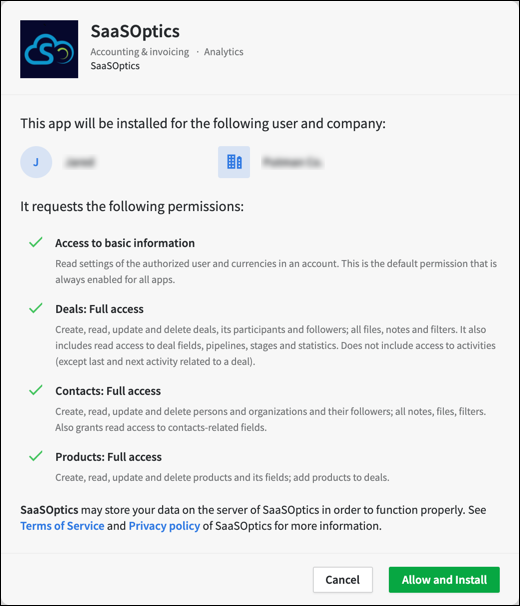
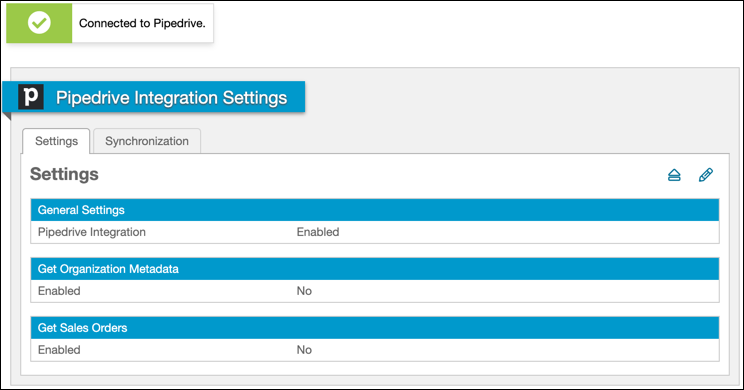
You are then returned to Maxio Platform, where you will see a banner message confirming that you are now connected to Pipedrive.
Configure integration settings
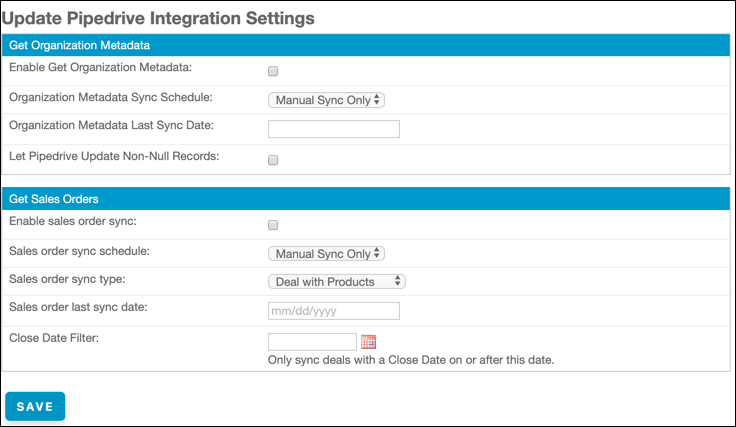
Maxio Platform syncs with Pipedrive through three independent, individually schedulable steps: Get Account Metadata, Get Sales Orders, and Send Financial Records. Enable and configure whichever steps you need from the Update Pipedrive Integration Settings page.
To configure the Pipedrive sync steps
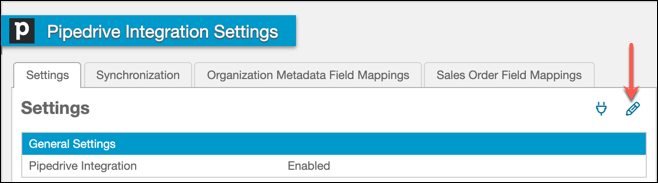
- Click the pencil icon in the top-right corner of the Settings tab. This opens the Update Pipedrive Integration Settings page.
- Enable the steps you want to run by checking the corresponding Enabled check boxes:
- Get Account Metadata: Enables a one-way sync of organization data from Pipedrive into the matching Customer in Maxio Platform, based on the Pipedrive ID stored in Maxio and the field mappings you define on the Organization Metadata Field Mappings tab. This lets you ensure Maxio Platform Customer field values stay updated as they change in Pipedrive.
- Get Sales Orders: Receives deals from Pipedrive and converts them into sales orders you can process into Customers, Contracts, and Transactions in Maxio Platform.
- Send Financial Records: Enables the outbound side of the integration. This step must be enabled and scheduled before you can configure Send Customers, which sends Customer data from Maxio back to Pipedrive. See Customer data sync overview below.
- Set a Sync Schedule and configure the other settings for each enabled step, according to the descriptions in the next section.
- Click Save at the bottom of the screen.
Setting descriptions
Get Account Metadata settings
| Setting | Description |
|---|---|
| Sync Schedule |
|
| Let Pipedrive Update Non-Null Records | (Optional) Set this to treat Pipedrive as the source of truth for the fields mapped in the Organization Metadata field mappings. With this enabled, a field in Maxio Platform is overwritten by any change made to it in Pipedrive. With this disabled, a field that already has a value in Maxio Platform is never overwritten by a sync, but a field that is blank in Maxio Platform is populated the next time Pipedrive syncs a value into it. |
Get Sales Orders settings
| Setting | Description |
|---|---|
| Sync Schedule |
|
| Sales Order Sync Type | Determines how Maxio Platform pulls order information from Pipedrive.
If you select Deal With Products but a closed-won deal has no product on it, that deal still syncs into the order queue, but as an empty sales order with no line items to process. |
| Close Date Filter | Enter a date that limits the closed deals that sync into Maxio Platform. Only deals closed as Won on or after this date are brought into the order queue. Note that this is the date the deal was marked as Won, not the Expected Close Date. |
| Sales Order Auto-Process After Sync | (Optional) Automatically processes a synced sales order into a Customer, Contract, and Transaction, without requiring you to process it manually. This option is only available when Sales Order Sync Type is set to Deal With Products. |
| Default Coterm Value (if Applicable) | (Optional) Sets the default state of the Coterm checkbox when this sync adds a recurring Transaction to an existing Contract. When checked, Coterm sets the new Transaction's end date to match the latest end date among the Contract's other non-renewed, non-canceled Transactions. |
Send Financial Records settings
| Setting | Description |
|---|---|
| Sync Schedule | Same four choices as Get Sales Orders above (Manual Sync Only, Nightly Sync, Hourly Sync, or Every 15 Minutes). This schedule controls how often Maxio checks for Customer updates to send to Pipedrive once Send Customers is configured and enabled. |
View or update the last sync date
Each sync step tracks its own Last Sync Date, the cutoff Maxio uses to decide which records still need to sync. This date is not on the Update Pipedrive Integration Settings page. To view or change it, go to the Synchronization tab and click Settings next to the sync step you want to update.
Important: It is extremely important not to clear or leave a step's Last Sync Date blank without understanding the consequences. If a step's Last Sync Date is blank, all of its matching records are pulled from Pipedrive, including historical data or records you do not wish to sync to Maxio Platform. Exercise great caution if you choose to clear or adjust this field.
Disconnect from Pipedrive
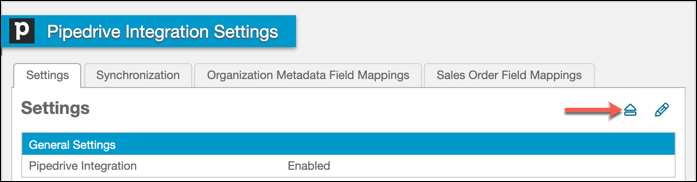
If you need to disconnect from Pipedrive, click the Disconnect icon in the top-right corner of the Settings tab in the Pipedrive Integration Settings. Disconnecting revokes Maxio's access token with Pipedrive. You must go through the connection process again before you can sync.
Syncing and processing sales orders
Complete a sync with Pipedrive, monitor it, and then process the resulting sales orders into financial records.
Initiate a manual sync
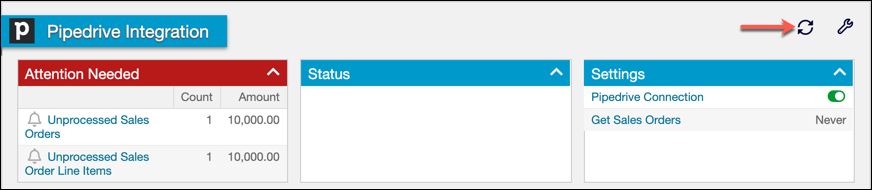
Click the Sync Now button on the main Pipedrive page to sync every enabled step immediately. You can also do this from the Synchronization tab in the integration settings. Doing so syncs in any deals and converts them into sales orders.
Monitor and troubleshoot a sync
The Synchronization tab also has a few tools for keeping an eye on your syncs:
- Click the download icon to download the most recent Pipedrive sync log, for use in diagnosing issues.
- If you're connected to multiple Pipedrive accounts and run into a Get Sales Orders sync issue, a superuser can click the reset icon to reset the saved Pipedrive account filter ID.
- Any records Maxio could not sync are listed in the Attention Needed panel on the main Pipedrive page.
Use Find Objects By Pipedrive ID on the main Pipedrive page to look up which Maxio record a given Pipedrive ID corresponds to.
Process a sales order
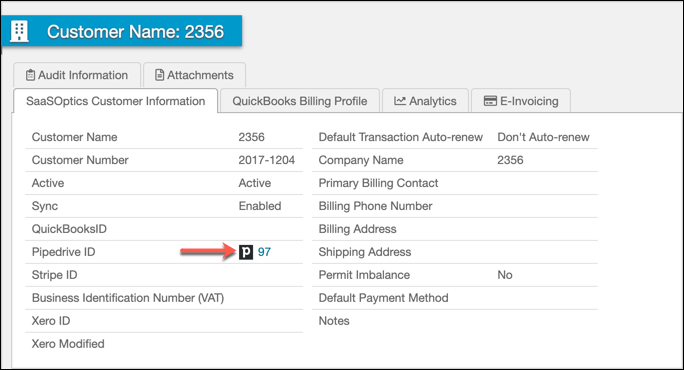
Complete the steps in Processing Sales Orders to process a synced sales order. Once a sales order has been successfully processed, the records created or updated are assigned Pipedrive IDs. You can click the ID number to view the corresponding record in Pipedrive.
Occasionally, an old deal may sync into Maxio Platform that you do not wish to process, due to Pipedrive's API. You should Clear and exclude Sales Orders to remove them from your queue.
Customer data sync overview
Once Send Financial Records is enabled and scheduled (see Configure integration settings above), a Send Financial Records tab appears in the Pipedrive Integration Settings. It lists Send Customers, the outbound sync that sends mapped Customer data from Maxio back to existing Organizations in Pipedrive. This creates a more complete handoff between Sales and Finance, giving Sales teams visibility into live Customer details and financial metrics directly within Pipedrive.
To configure Send Customers
- From the Send Financial Records tab, click Configure next to the Send Customers row.
- Choose how Send Customers should run:
- Do not send: Turns Send Customers off. This is the default setting.
- Send updates only: Sends only Customers modified since the last time this sync ran.
- (Optional) Set a Clear Last Sync Timestamp Schedule (Manual Clear Only, Nightly Clear, or Weekly Clear) to periodically reset the "last sent" timestamp, so previously-sent Customers are resent on the next sync.
- From the Send Financial Records tab, click Details next to the Send Customers row to open the field mapping screen and choose which Maxio fields are sent to Pipedrive.
What syncs from Maxio to Pipedrive
Administrators choose exactly which Maxio fields are sent through the field mapping screen. A mapping can point at a real Maxio field, or at a static text value you type in yourself. Commonly mapped fields include:
- Customer details: Name, Maxio ID, Email, and Status (Active/Inactive)
- Billing details: Billing Country and other fields from the Customer's Billing Profile, such as Company Name and Default Payment Terms
- Revenue and MRR/ARR fields: Total Local MRR at EOM, Total Local ARR at EOM, and their prior-month equivalents
- Financial summaries: Total Open Balance and Total Invoice Line Items Scheduled Local Amount
Maxio custom fields and Pipedrive custom fields are also supported as mapping sources and targets.
These mappings update the Pipedrive Organization record associated with each Customer. Updates occur only when Send Customers is set to Send updates only and the Customer has a valid Pipedrive CRM ID stored in Maxio.
Important notes
A few details affect what actually reaches Pipedrive:
- The Get Account Metadata sync primarily updates Maxio from Pipedrive. Outbound updates from Maxio occur only when Send Customers is explicitly configured and enabled.
- Only mapped fields are included in the sync. There are no default "baseline" fields.
- Data visibility within Pipedrive depends on your CRM's layout and permissions. Maxio cannot make fields read-only or automatically label them as "from Maxio."
- Sends perform an update (PATCH) on the existing Organization, ensuring the same record is refreshed each time rather than duplicated.
Still need help?
Reach out and our support team will take it from here.