
Configure Get Account Metadata for Salesforce
Last updated on Aug 26, 2026
Get Account Metadata syncs Salesforce Account data into Maxio, one-way, based on the field mappings you define. Use it to keep your Maxio Customer and Billing Profile records aligned with the corresponding Salesforce Account.
Control when data updates
Maxio Platform updates Customer data based on the rules below. Note the important impact of the Let Salesforce Update Non-Null Records setting, discussed in Setup the Salesforce Integration for Maxio Core.
| Salesforce data | Maxio Platform data | Action |
|---|---|---|
| Does not contain data | Contains data | Do not update Maxio Platform |
| Contains data | Does not contain data | Update Maxio Platform |
| Does not contain data | Does not contain data | Do not update Maxio Platform |
| Contains data | Contains data | Depends on the Let Salesforce Update Non-Null Records setting:
|
Map fields
Click the pencil icon to configure the field mappings for Get Account Metadata. Select the Salesforce field you want to map to each Maxio Platform field from the drop-down menu, then click Save.
Custom fields in Salesforce are appended with a "__c" suffix. In the image below, for example, Account.Active__c is a custom field.
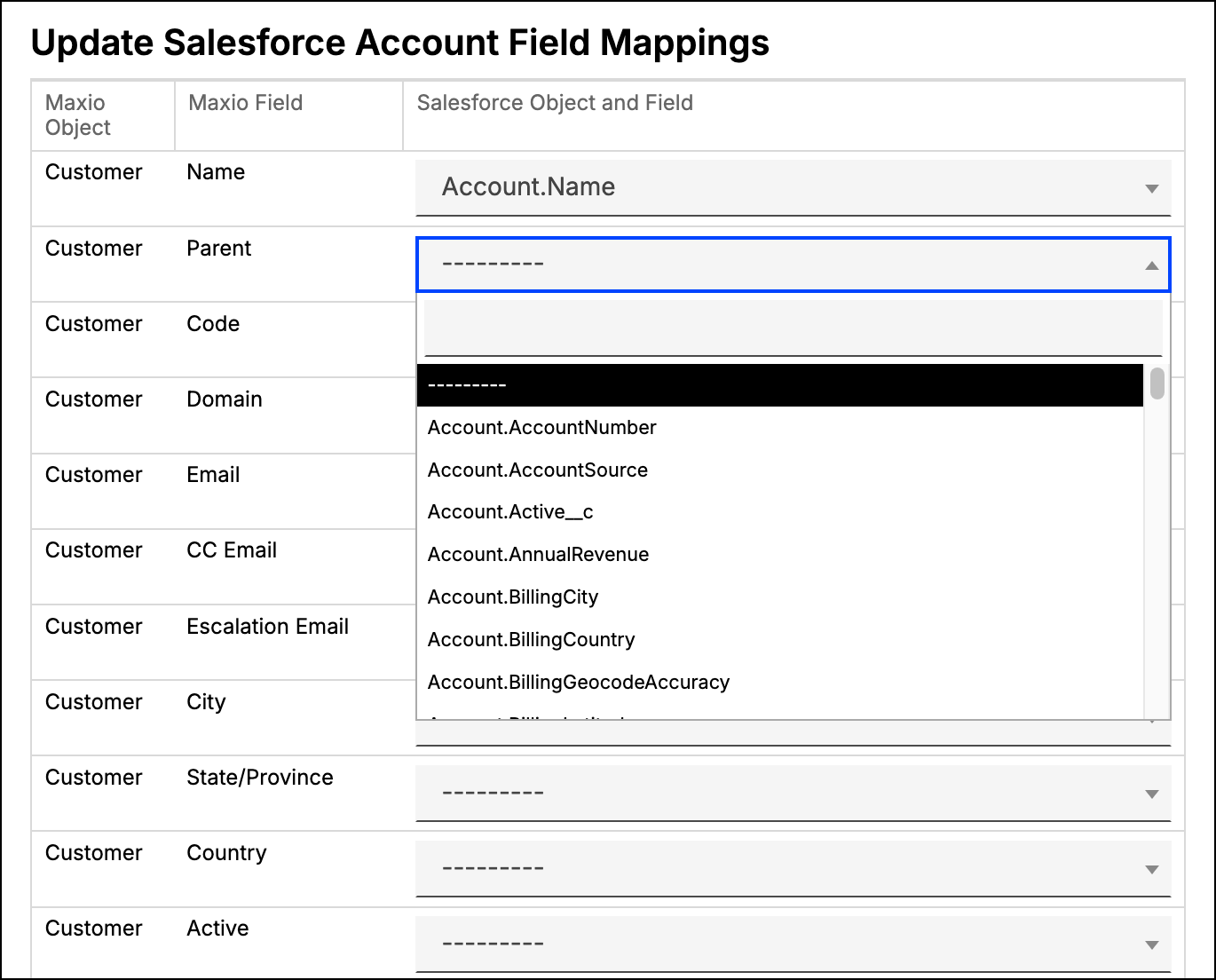
Important: If you map a Salesforce field whose type doesn't match the Maxio Platform field (for example, a Salesforce picklist mapped to a Maxio Platform number field), that value won't sync. Maxio Platform doesn't show an error. It treats the mismatched value the same as if Salesforce sent no data at all.
Choose which fields to map
Get Account Metadata can map to these Maxio Platform Customer fields: Name, Parent, Code, Email, CC Email, Escalation Email, Notes, City, State/Province, Country, Domain, Active, Owner Salesforce ID, Salesforce Price Book ID, and Advanced Billing ID. If Xero is enabled for your account, Sales Tax Rate is also available. Maxio Platform also lists whatever custom Customer fields your account has configured. The number and type of custom fields vary by account.
Only Domain ships with a default mapping already applied, to Account.Website. Every other field is available to map, but nothing is pre-filled for it.
A few fields have their own requirements:
- Email, CC Email, and Escalation Email must be valid email addresses. Separate multiple addresses with commas or semicolons.
- Salesforce Price Book ID requires a custom look-up field in Salesforce.
Get Account Metadata can also map fields on your Customer's Billing Profile: Name, First Name, Last Name, Company Name, Email, Business Identification Number, Tax ID, Billing Addr1, Billing Addr2, Billing Addr3, Billing City, Billing State/Province, Billing Zip/Postal Code, Billing Country, Shipping Addr1, Shipping Addr2, Shipping Addr3, Shipping City, Shipping State/Province, Shipping Zip/Postal Code, and Shipping Country.
Important: Tax ID is only available if e-Bill and Billing Portal invoicing is enabled for your account.
Related information
See Understand the Salesforce Integration for Maxio Core for an overview of every module this integration includes.
Still need help?
Reach out and our support team will take it from here.