
Disconnect and Reconnect to Salesforce
Last updated on Aug 24, 2026
Disconnect and reconnect your Maxio Platform account to restore a broken Salesforce connection. Connecting the two systems authorizes Maxio Platform to access your Salesforce account, and changes to Salesforce users or permissions can cause that authorization to fail. When it does, you'll see sync issue warnings until you disconnect and reconnect.
Disconnect from Salesforce
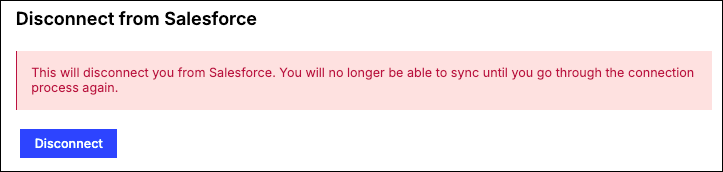
Disconnecting revokes Maxio Platform's access to your Salesforce account. Nothing syncs again until you reconnect.
To disconnect
-
Navigate to the Salesforce integration settings and click the Disconnect icon.

-
Click Disconnect on the next page to confirm.
-
Your Maxio Platform account is now disconnected from Salesforce.
Reconnect to Salesforce
Reconnecting authorizes Maxio Platform to access your Salesforce account again, using the same connection screen as the initial setup.
To reconnect
-
While staying logged into Maxio Platform, open a new browser tab and log into your Salesforce account.
-
Return to Maxio Platform and click Connect to Salesforce (plug icon).

-
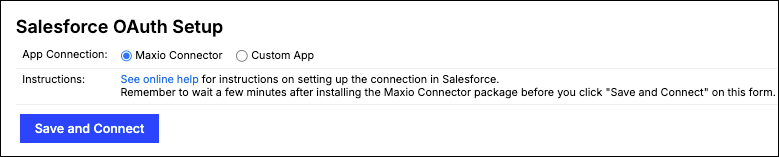
On the "Salesforce OAuth Setup" screen, select your Salesforce Environment (Production or Sandbox), and make sure Maxio Connector is selected for App Connection.
-
Click Save and Connect.
-
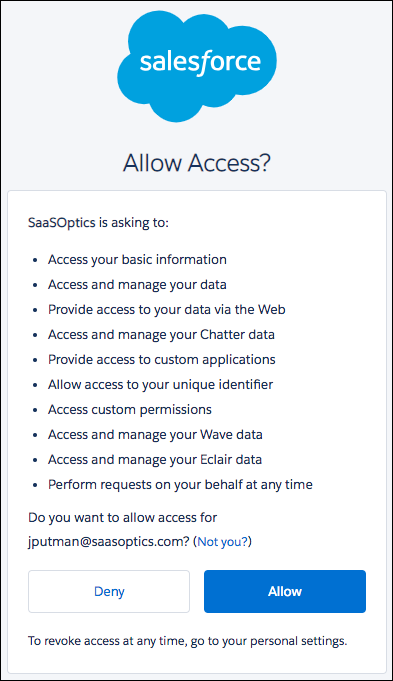
Click Allow on the screen that appears. Maxio Platform is now reconnected to Salesforce.
Related information
For full details on the initial connection, see Setup the Salesforce Integration for Maxio Core.
Still need help?
Reach out and our support team will take it from here.