
Delete Invoices
Last updated on Aug 24, 2026
You can delete eligible Invoices in Maxio to maintain accurate billing records and prevent clutter in your Invoicing workspace. Invoice deletion is restricted for Invoices that are:
- In a closed period.
- Synced with an external system (a general ledger, Stripe, Recurly, or Advanced Billing).
- Locked for sales tax purposes, typically once the sales tax has been filed or reported to a tax agency. Committing sales tax alone does not block deletion; only the later locked status does.
- Linked to an open e-Bill.
If your account uses committed invoice sequencing, a committed Invoice also can't be deleted.
If the Invoice has an associated e-Bill, Maxio automatically removes it when you delete the Invoice. You don't need a separate step.
Invoices without Invoice Line Items
If you encounter empty Invoices, you can purge them without affecting revenue reporting. Since these Invoices have no Line Items, they can't be linked to a Transaction, so no revenue is tied to them. Purging an empty Invoice does not delete the Invoice in your GL if a record already exists there.
To purge empty Invoices
WARNING: This is a bulk action that purges every empty Invoice in your account at once, and it cannot be undone.
-
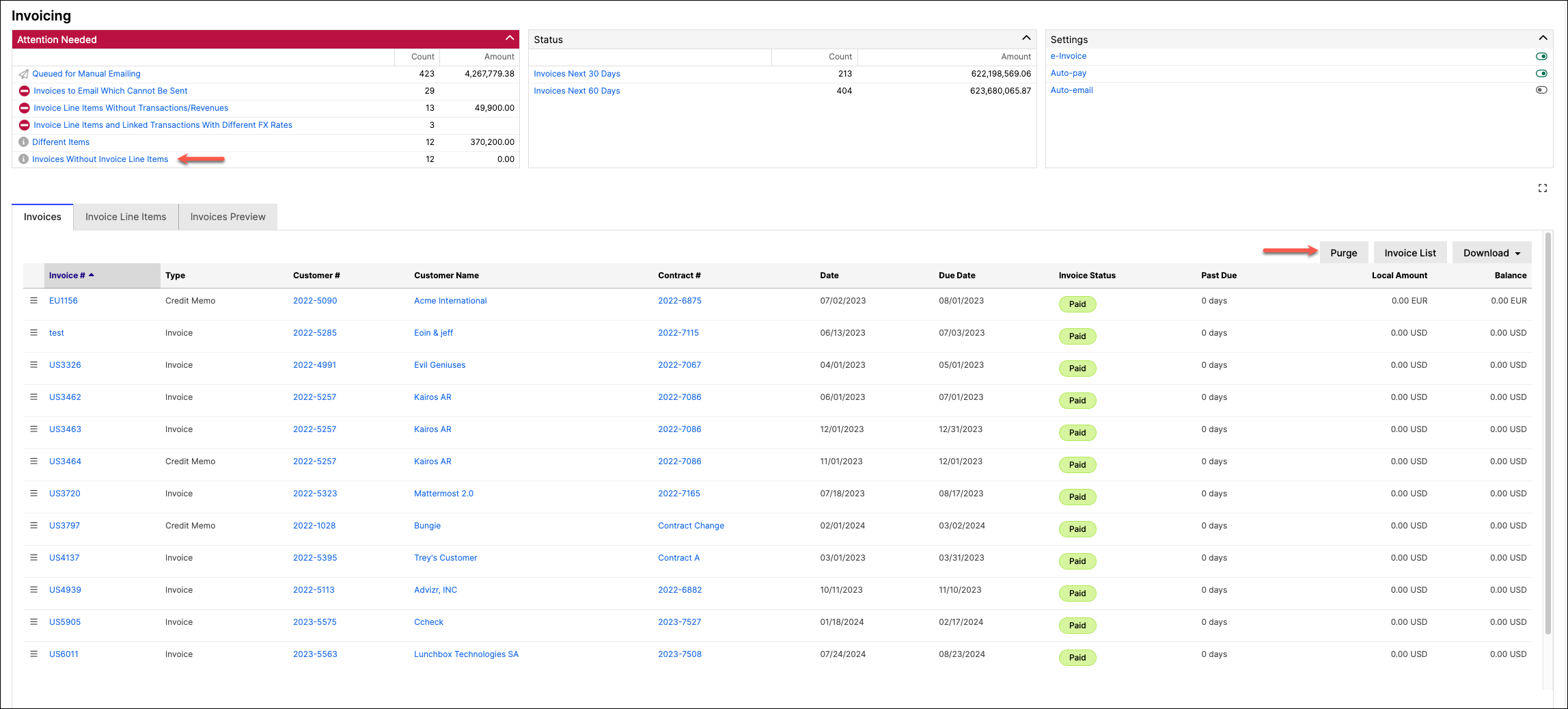
From the Invoicing home page, under Attention Needed, click Invoices Without Invoice Line Items.
-
In the Invoices tab, click Purge.
-
Confirm that you want to delete the Invoices.
Still need help?
Reach out and our support team will take it from here.