
Export Invoice as PDF
Last updated on Aug 29, 2026
Exporting Invoice PDFs in Maxio lets you download, share, and archive billing records for pending Invoices, sent Invoices, and bulk Invoice selections.
Important: Exporting an Invoice PDF requires Bookkeeping User or Admin User permissions. Report User accounts can't export Invoices.
For Invoices that are pending
A pending Invoice is an Invoice that has not been sent. There are a couple of ways to export pending Invoices.
Exporting a single PDF from the Invoice view
You can download a PDF copy of an individual pending Invoice using the Preview and Send Invoice option from the Invoice details page.
To export a single pending Invoice
-
Open the Invoice.
-
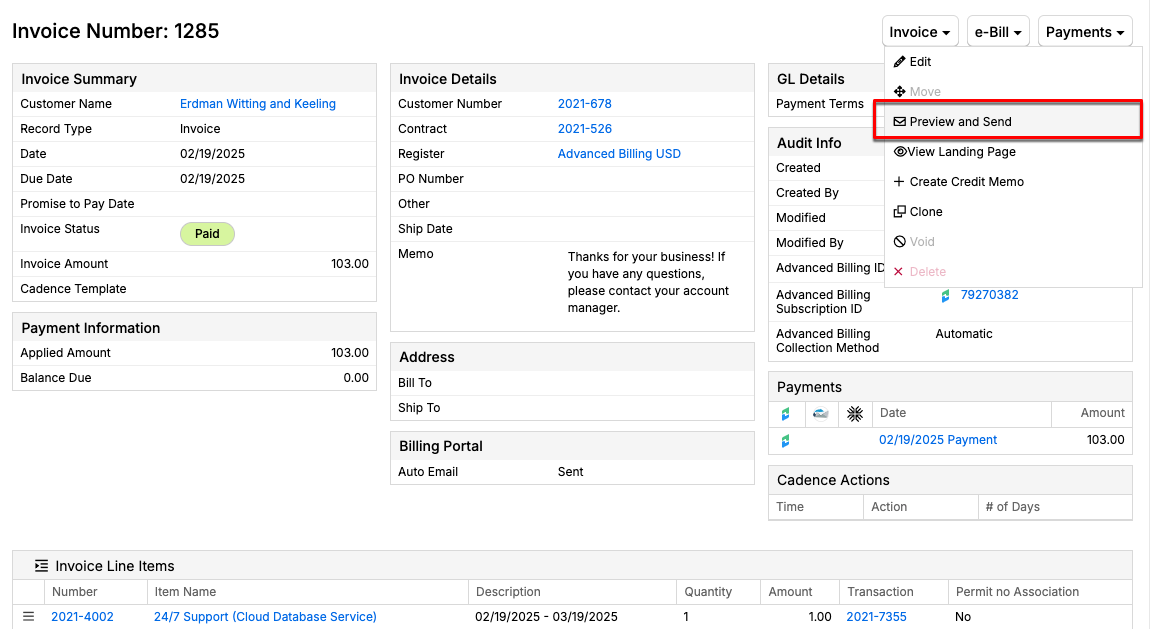
Hover over the Invoice action in the upper right of the screen, then click Preview and Send.
-
From the preview popup, click the Preview Invoice PDF tab, then click the download icon.
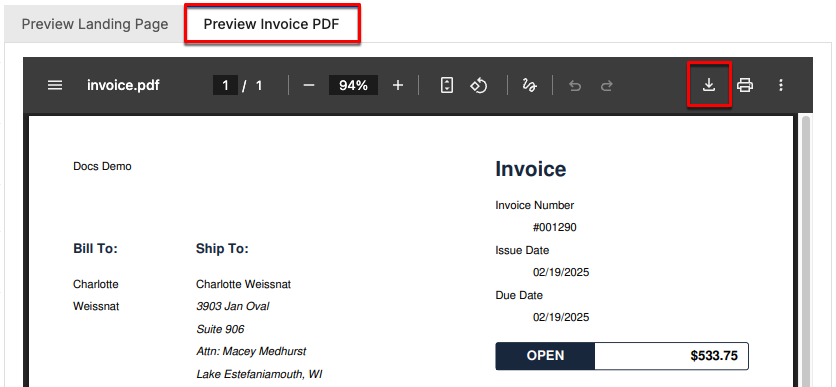
This downloads a PDF copy of the Invoice.
Exporting multiple Invoices in bulk
The bulk export feature lets you download multiple Invoice PDFs directly from the Invoice List. Exported files typically include the originally issued version of each Invoice. If no PDF exists, Maxio regenerates the Invoice using current data, which may differ from the original document.
To export Invoices in bulk
-
Go to the Invoice List in your account.
-
Select the Invoices you want to export.
-
Click Export Invoices PDFs.
-
A
.zipfile downloads that contains the selected Invoices. When available, the files include the originally issued PDFs, otherwise regenerated PDFs are provided.
For Invoices already sent
Maxio provides two different PDF downloads for an Invoice that's already been sent: a live copy generated from the Invoice's current data, or the archived copy that was actually sent to the Customer.
Important: The Preview and Send dialog's PDF always regenerates from the Invoice's current data, even for an Invoice that's already been sent. If the Invoice was edited afterward, this PDF can differ from what the Customer received. To get the exact PDF that was sent, use the standalone Invoice PDF link described below instead.
To download a live copy of the Invoice PDF
-
Navigate to and open the Invoice.
-
Hover over the Invoice action in the upper right of the screen, and select Preview and Send.
-
Click the Preview Invoice PDF tab. This opens a live-generated PDF version of the Invoice.
-
Click the download icon in the toolbar.
To download the exact PDF that was sent
- Navigate to and open the Invoice.
- Click the Invoice PDF icon on the Invoice screen. This appears once an e-Bill has been sent for the Invoice.
This downloads the archived PDF that was actually sent to the Customer.
Related information
For more information on Invoice fields, see How Invoices Work.
To attach the Customer's existing files or Dropbox files when sending an Invoice email, see Attach Files to Invoice Emails.
Still need help?
Reach out and our support team will take it from here.