
How Advanced Contract Changes Affect Billing and Revenue
Last updated on Aug 24, 2026
Advanced Contract Changes in Maxio provide a guided process for modifying active transactions, including changing amounts, dates, or items. This overview explains the difference between simple edits (single element) and multi-edits (multiple changes such as mid-term upgrades), and introduces the intuitive three-step workflow with offsetting transaction billing for accurate financials.
Types of Contract changes
You can make the following contract changes in Maxio.
Simple Edits:
Multi-Edits:
With each type of change we show you a preview of the impact to your Transaction amount, revenue, ARR, MRR, and invoices:
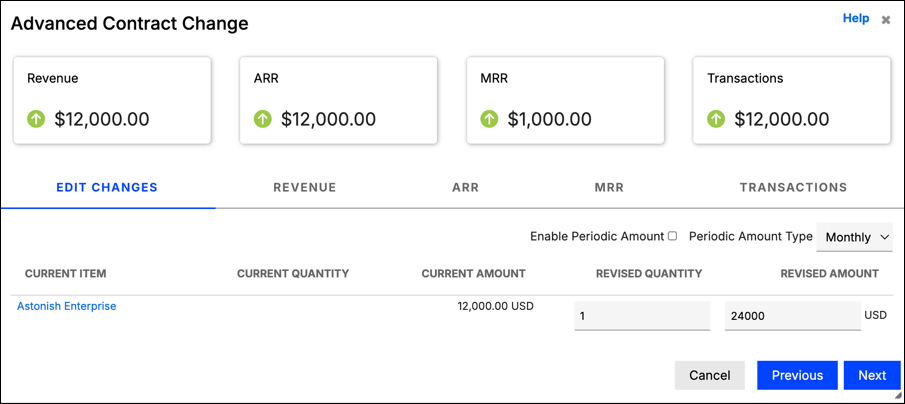
You may need to leverage Advanced Contract Changes when processing:
- Renegotiated contract amounts (ex: $1,200 to $2,400 per month rate)
- Offering a contract concession or extension (ex: 3 free months)
- Swapping one item for another (ex: subscription A for B)
- Early terminations (ex: cancelling the last 6 months)
- Contract cancellations (ex: cancelling the entire contract)
Our contract change functionality is separated in two main types of changes:
A simple edit changes a single element: an amount, a date, an item, an early termination, or a cancellation. A multi-edit changes two or more of them at once. For example, six months into a 12-month agreement a customer upgrades from $1,200 to $2,400 per month, which changes both the original transaction's dates and its amounts.
With each type of change, you'll be guided through a simple and intuitive three-step process:
- Select the type of change. Determine whether the change is a simple or multi-edit. The type you select determines the fields displayed in step 2.
- Enter the change. Enter the change using the provided fields. The original Transaction is offset by a negative Transaction, and a new Transaction is created to reflect the entered changes. No new Transaction is created for early terminations and reversals.
- Select the billing method. Select the billing method for the new or updated invoices to be issued. You can generate a revised billing schedule on this final step; if you need a custom or non-standard billing method, update the created invoices after you submit the changes.
Offsetting Transaction billing
The offsetting Transaction Invoice Schedule feature provides a more intuitive way of creating offsetting Credit Memo(s) and avoids creating incorrect financials and inconvenient manual editing.
The Invoice schedule for the offsetting Transaction (which is created from an Advanced Contract Change) now aligns with the billing schedule of the original Transaction. This works with both standard and customized billing schedules.
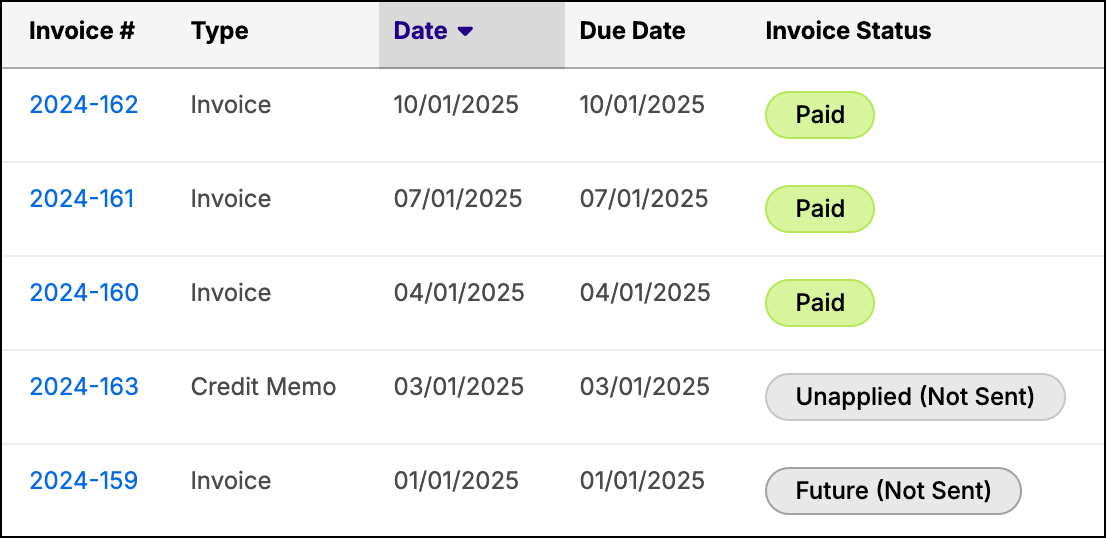
For example, a Transaction, spanning from 1/1 to 12/31 for $12,000, is invoiced quarterly. As of 2/28, it is early terminated. The original Invoice schedule looks like this:
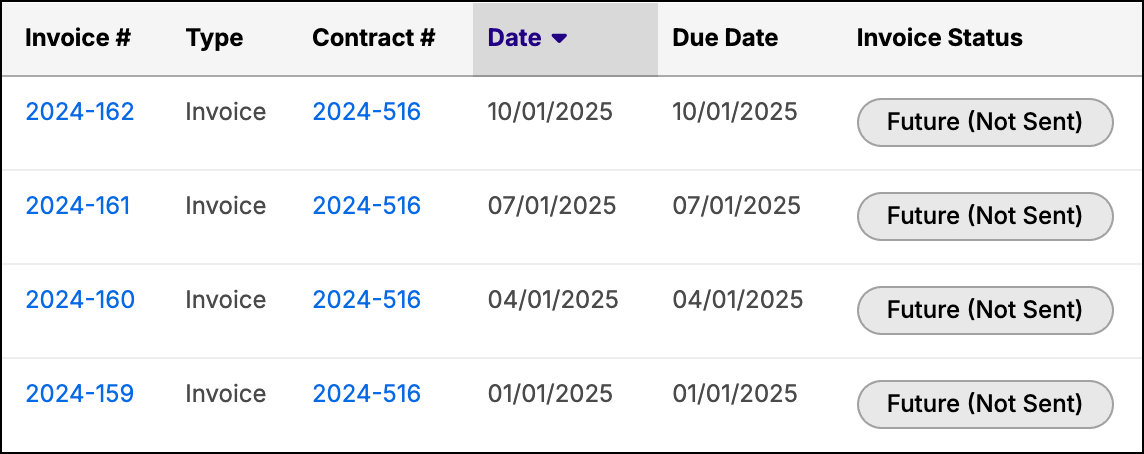
Once advanced contract changes are applied, the Invoice schedule then looks like this:
Related information
For answers to common questions about how Advanced Contract Changes behaves, see Troubleshoot Advanced Contract Changes and FAQs.
Still need help?
Reach out and our support team will take it from here.