
Manage Accrued Expenses
Last updated on Aug 26, 2026
Managing accrued expenses, prepaid expenses, and monthly expense recognition in spreadsheets or standalone ERPs can be time consuming and error prone. The Maxio Expense Module helps you identify, manage, and classify accrued expenses at the end of each reporting period so you can close your books faster and reduce manual journal entries. The examples below show how this works in practice using a single annual Subscription billed as a Prepaid Expense.
The two examples below use the following scenario:
- Bill Type = Prepaid Expense to be recognized over the term of the Subscription
- Bill Amount = $12,000
- Start Date = January 1, 2021
- End Date = December 31, 2021 (12 months)
- Paid Date = April 1, 2021
Example A: Receive the Bill on January 1
Step 1 - Record the Bill
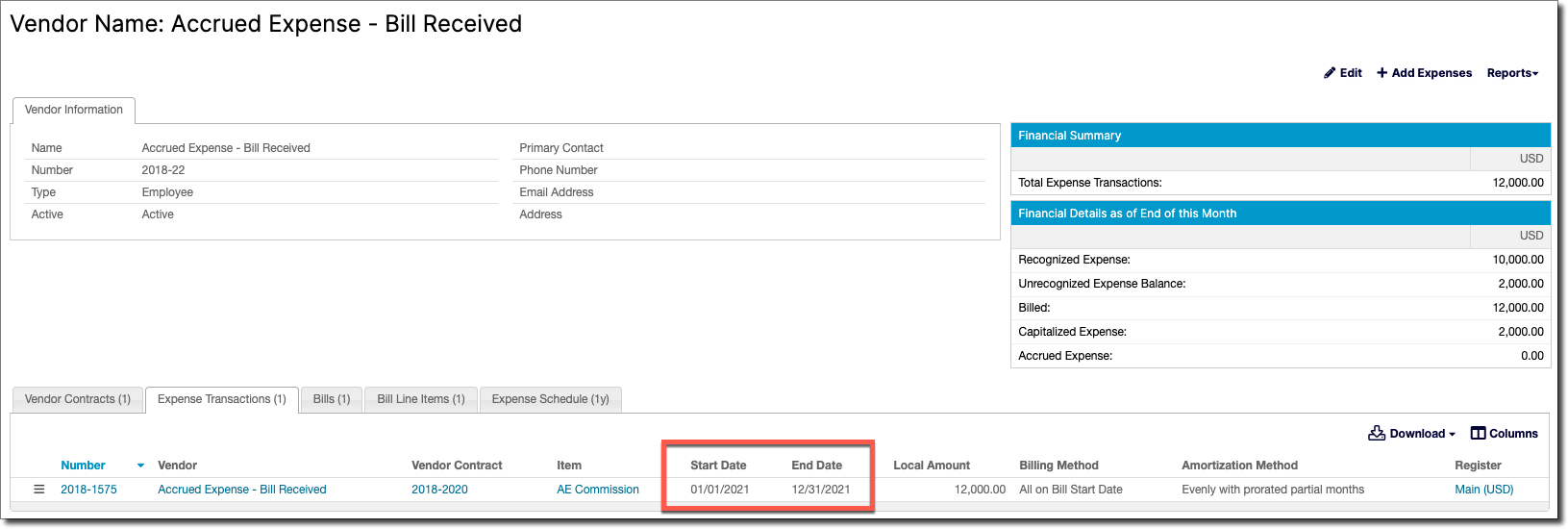
When you receive the bill on January 1, you record the bill in your general ledger (GL) or ERP to ensure you have an accurate Accounts Payable balance. This means your asset and liability accounts increase by the full bill amount. Additionally, you enter this bill with the applicable information for recognition purposes in Maxio:
| Accounting (Jan 1) | Account Balances |
|---|---|
| Debit: Prepaid Expenses $12,000 Credit: Accounts Payable $12,000 | Prepaid Expense: $12,000 Accounts Payable: $12,000 |
Step 2 - Record your monthly Expense
At the end of January, you need to record your expense for the month. This means you decrease your capitalized expense balance by the monthly recognition amount of $1,000 on the $12,000 bill.
| Accounting (Jan 31) | Account Balances |
|---|---|
| Debit: Recognized Expense $1,000 Credit: Prepaid Expenses $1,000 | Prepaid Expense: $11,000 Accounts Payable: $12,000 Recognized Expense: $1,000 |
You also need to consider the impact of a grossed up balance sheet. A grossed up balance sheet means you have both an asset and a liability recorded for the same Transaction. In Step 1, you recorded $12,000 to Prepaid Expenses (asset) and $12,000 to Accounts Payable (liability). Per GAAP, you need to account for these and gross down your balance sheet when you report your financials.
Companies have different approaches to grossing down the balance sheet. For this reason, Maxio does not automate the journal entries for accrued expenses. The Expense Module gives you flexibility and all the account balances you need to properly record journal entries for accrued expenses in a manner that fits your business.
Step 3 shows you one approach to grossing down your balance sheet using the balances provided by Maxio.
Step 3 - Gross down your balance sheet
To gross down your balance sheet and account for your accrued expenses, you can use the combination of Unpaid Bills to Date and Accrued Expense on the Advanced Expense Summary report:
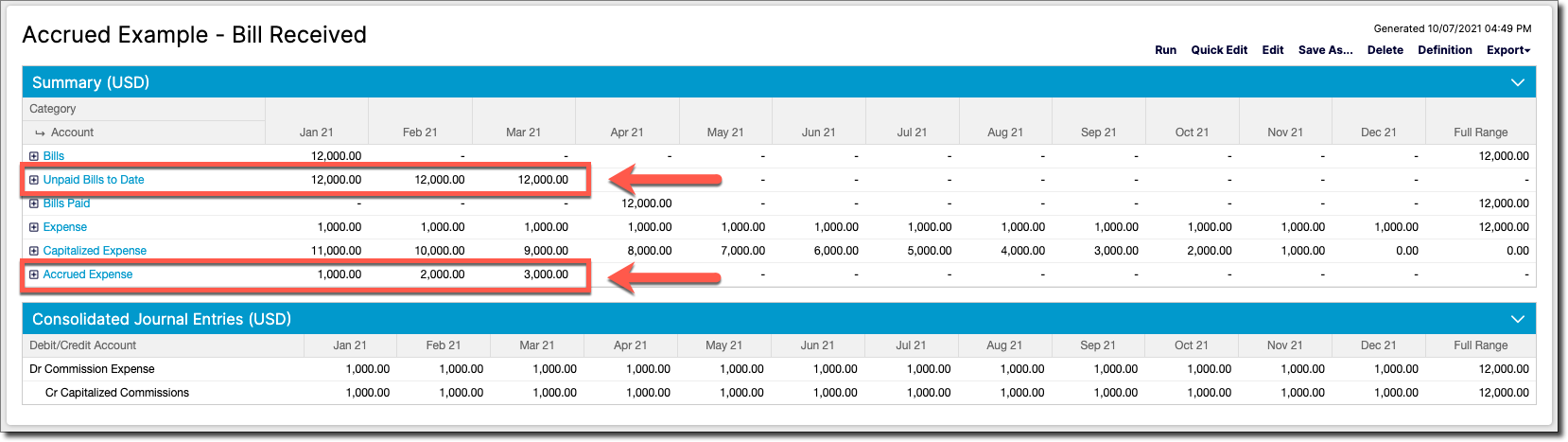
Using these balances, at the end of January record a reversing journal entry in your GL to lower the Prepaid Expense and Accounts Payable balances:
| Accounting (Jan 31) | Account Balances |
|---|---|
| Gross down using unpaid bill balances: Debit: Accounts Payable $12,000 Credit: Prepaid Expense $12,000 Record accrued expense: Debit: Prepaid Expense $1,000 Credit: Accrued Expense $1,000 | Prepaid Expense: $0 Accounts Payable: $0 Accrued Expense: $1,000 Recognized Expense: $1,000 |
Step 4 - Reverse your gross down entries
You can automate this step in most GL and ERP systems. After reversing the entries, your account balances should be as follows:
| Accounting (Jan 31) | Account Balances |
|---|---|
| Gross down using unpaid bill balances: Debit: Prepaid Expense $12,000 Credit: Accounts Payable $12,000 Record accrued expense: Debit: Accrued Expense $1,000 Credit: Prepaid Expenses $1,000 | Prepaid Expense: $11,000 Accounts Payable: $12,000 Accrued Expense: $0 Recognized Expense: $1,000 |
In the example above, Steps 3 and 4 should be repeated for February and March using the balances from the Advanced Expense Summary. At the end of March, your account balances should be the following:
| Account Balances @ March 31 (Grossed Up) | Account Balances @ March 31 (Grossed Down) |
|---|---|
| Prepaid Expense: $9,000 Accounts Payable: $12,000 Accrued Expense: $0 Recognized Expense: $3,000 | Prepaid Expense: $0 Accounts Payable: $0 Accrued Expense: $3,000 Recognized Expense: $3,000 |
Step 5 - Pay your Bill
You pay a bill in Maxio using the Record Payment action. Once your bill has been paid, you no longer need to account for accrued expenses.
| Accounting (Apr 1) | Account Balances @ April 30 |
|---|---|
| Debit: Accounts Payable $12,000 Credit: Cash $12,000 | Prepaid Expense: $8,000 Accounts Payable: $0 Accrued Expense: $0 Recognized Expense: $4,000 |
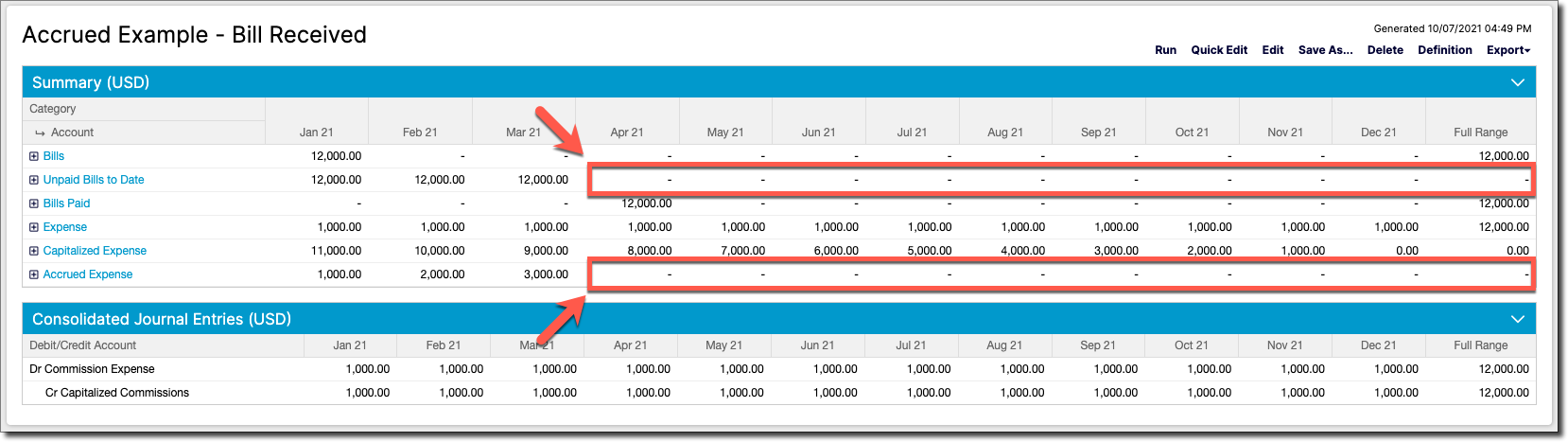
Example B: Receive the Bill on April 1
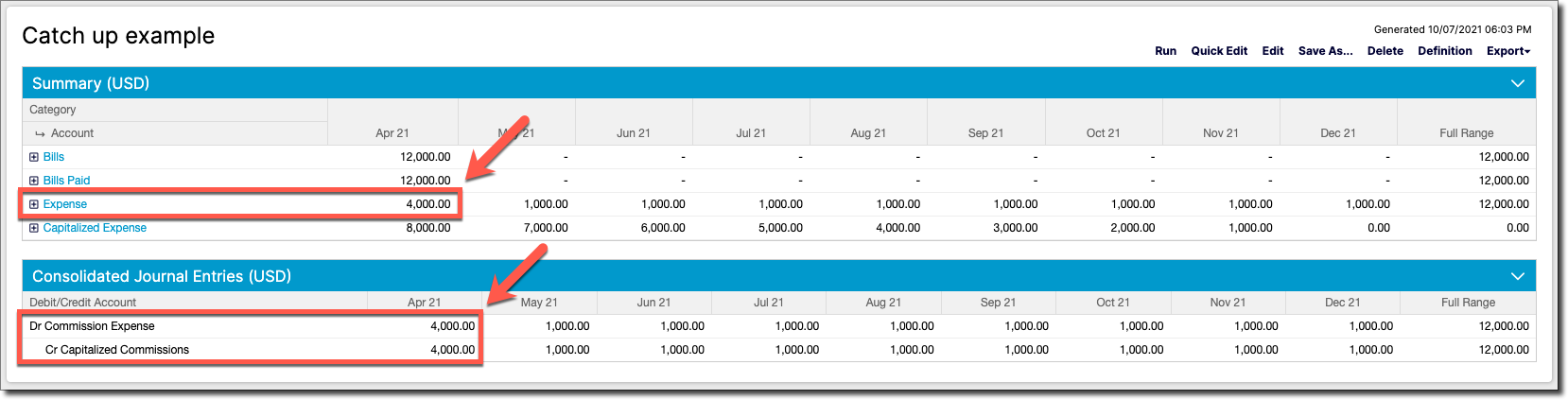
In Example B, you do not receive or enter the bill in any system until April 1. This is also the date you pay the bill. Maxio makes it easy to record a cumulative catch up if you need to account for prior periods because a bill was received late and you have already closed your books.
Record the Bill
This is the only step needed for Example B.
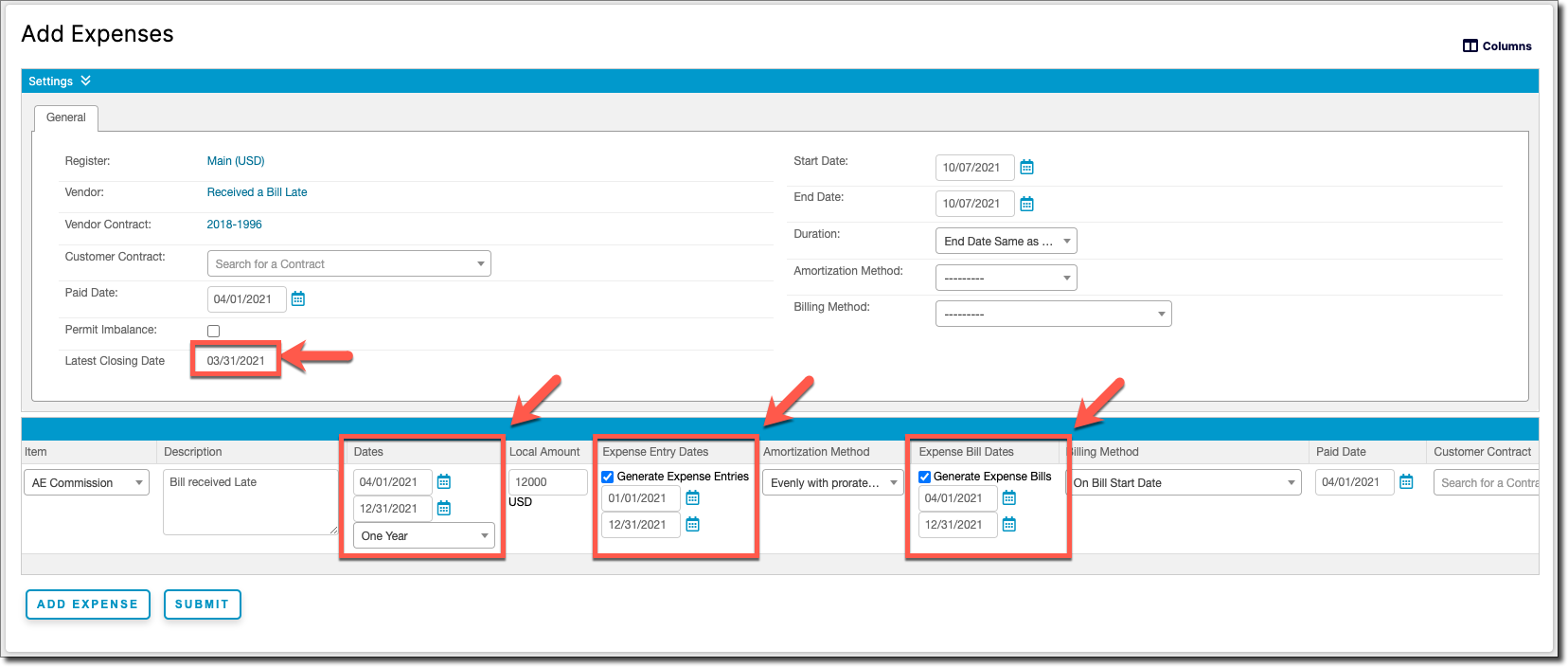
An Expense Transaction's own Start Date and End Date are the default source for both its recognition schedule and its bill schedule. When you need to, Maxio lets you override either schedule independently of that default and of each other:
- Expense Transaction Dates: The Start Date and End Date entered on the Expense Transaction itself. Both the recognition schedule and the bill schedule use these dates unless you override them below.
- Expense Entry Dates: Override the default to control when the expense is recognized on your income statement, independent of when it's billed.
- Expense Bill Dates: Override the default to control the start date and frequency of the associated bills, independent of when the expense is recognized.
In the screenshot below, you can see how you can enter the recognition schedule independent of the bill dates:
The resulting entries show a cumulative catch up in April (your first open period) and allow you to ensure your records are appropriately accounted for going forward:
Still need help?
Reach out and our support team will take it from here.