
Clear Intacct Sync Dates
Last updated on Aug 24, 2026
Clear sync stamps to reset Maxio's record of the last successful sync, forcing the next sync to re-fetch all relevant records rather than just what's changed since then. This doesn't duplicate records already in Maxio or Intacct. Use this when an earlier sync was unsuccessful, or didn't pull all the data you expected due to incomplete mappings at the time.
Clear sync stamps for all steps
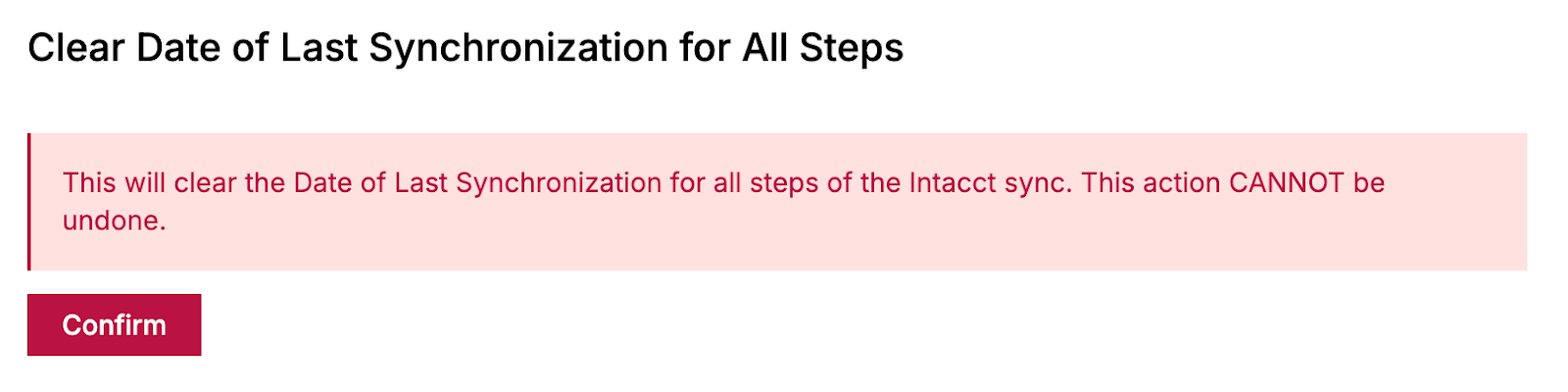
WARNING: This action cannot be undone. It also forces the next sync to become a full, unfiltered re-sync across every step, which can take significantly longer for accounts with a large volume of records.
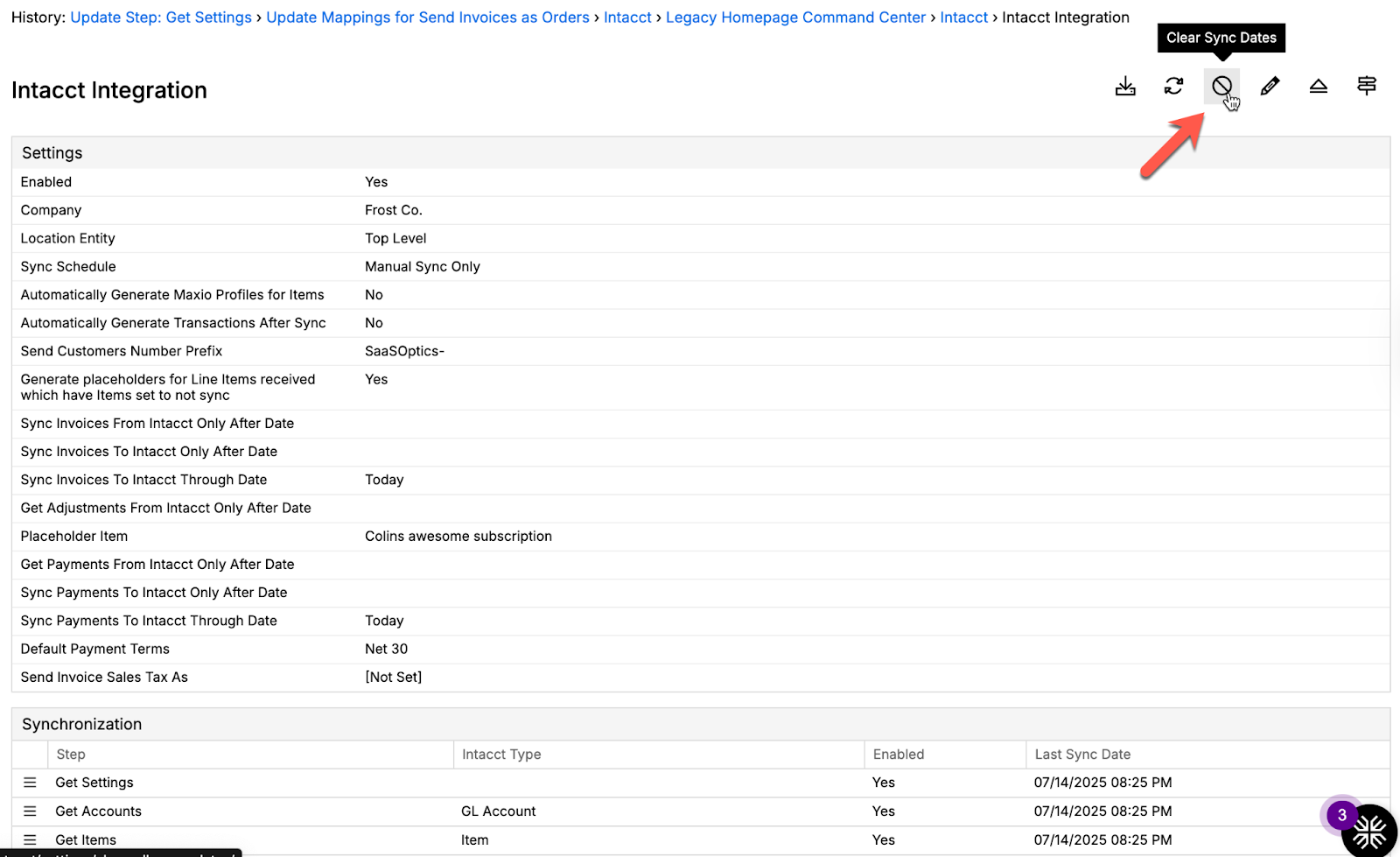
- Navigate to Intacct home > Integration settings.
- In the upper-right corner, click the clear sync dates button.
- Review the warning message and click Confirm.
Clear the sync stamp for a specific step
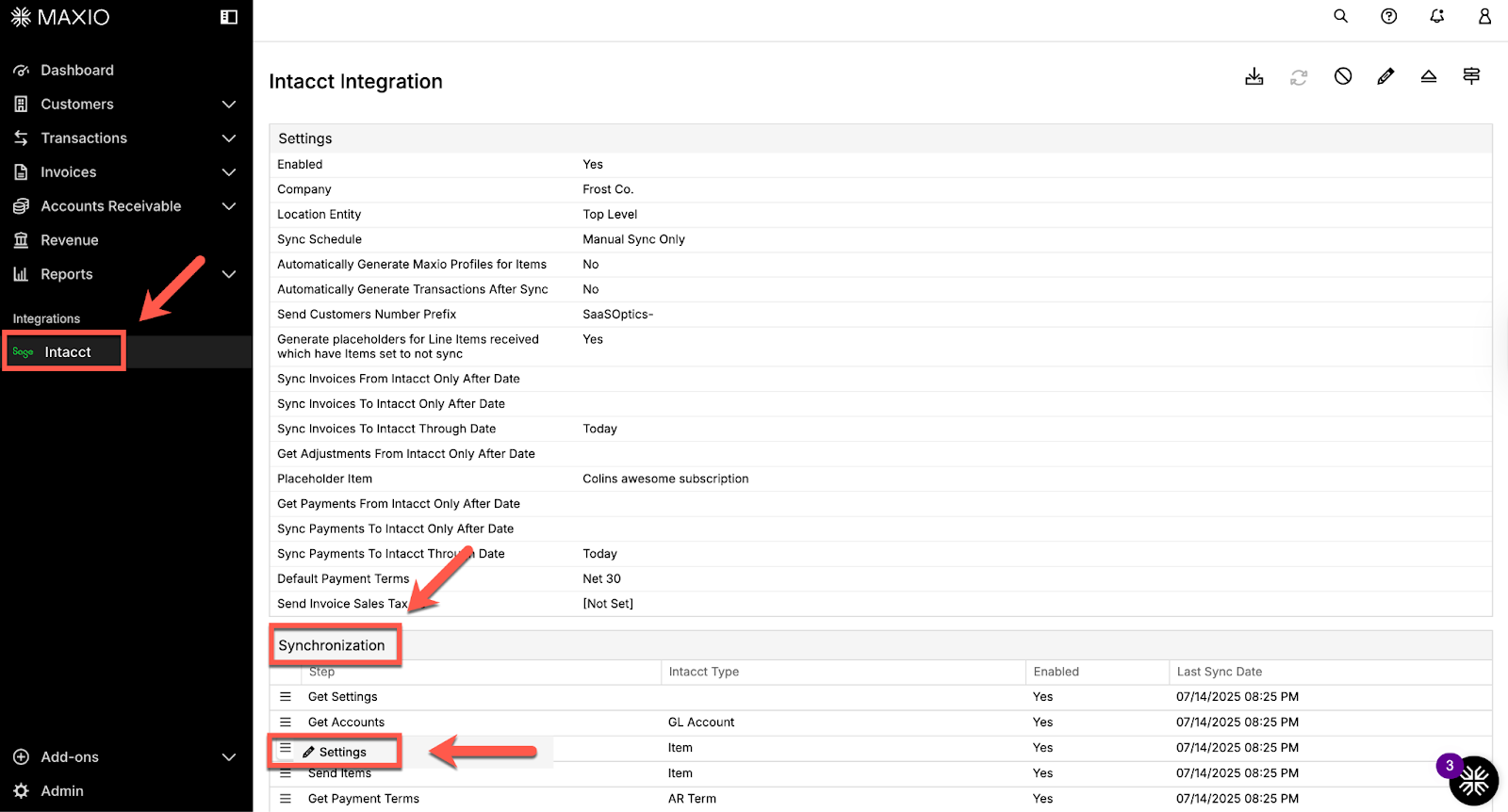
- Navigate to Intacct home > Integration settings.
- Navigate to the sync step you want to re-run.
- Hover over the menu icon and click Settings.
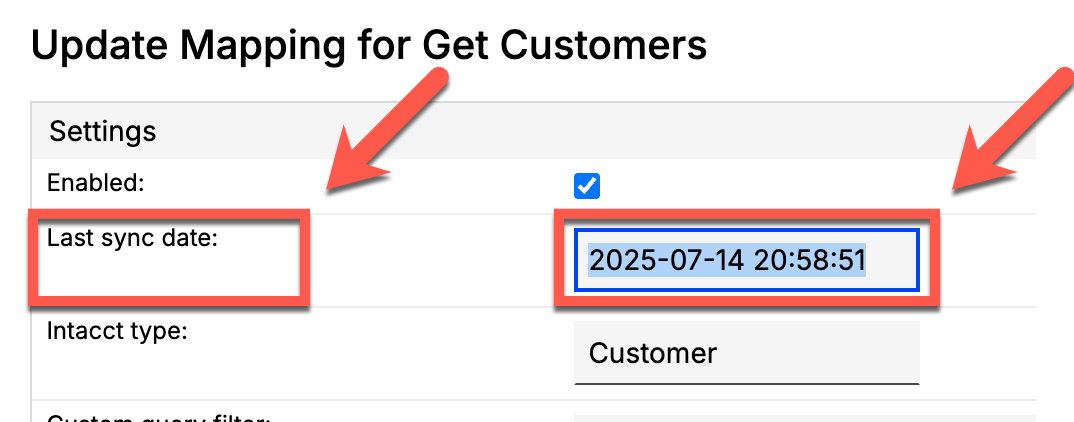
- Locate the Last sync date field, delete the date, and click Save.
- Re-run the sync.
Related information
To configure sync filters and settings, see Configure the Intacct Integration.
To trigger a sync after resetting your sync stamps, see Monitor and Run Intacct Syncs.
For common sync errors and how to resolve them, see Troubleshooting and FAQs.
Still need help?
Reach out and our support team will take it from here.