
Configure the Intacct Integration
Last updated on Aug 28, 2026
Control how Maxio exchanges data with Intacct by configuring the sync entity, filters, and sync settings. These settings determine which customers, invoices, and payments are sent or received, and help align Intacct data with your Maxio workflows.
Complete this after connecting a Maxio account to Intacct. If your account isn't connected yet, follow Setup the Intacct Integration first.
Configure sync
From the Intacct Integration page, Intacct > Integration Settings (wrench icon), click Edit (pencil icon) to configure these settings.
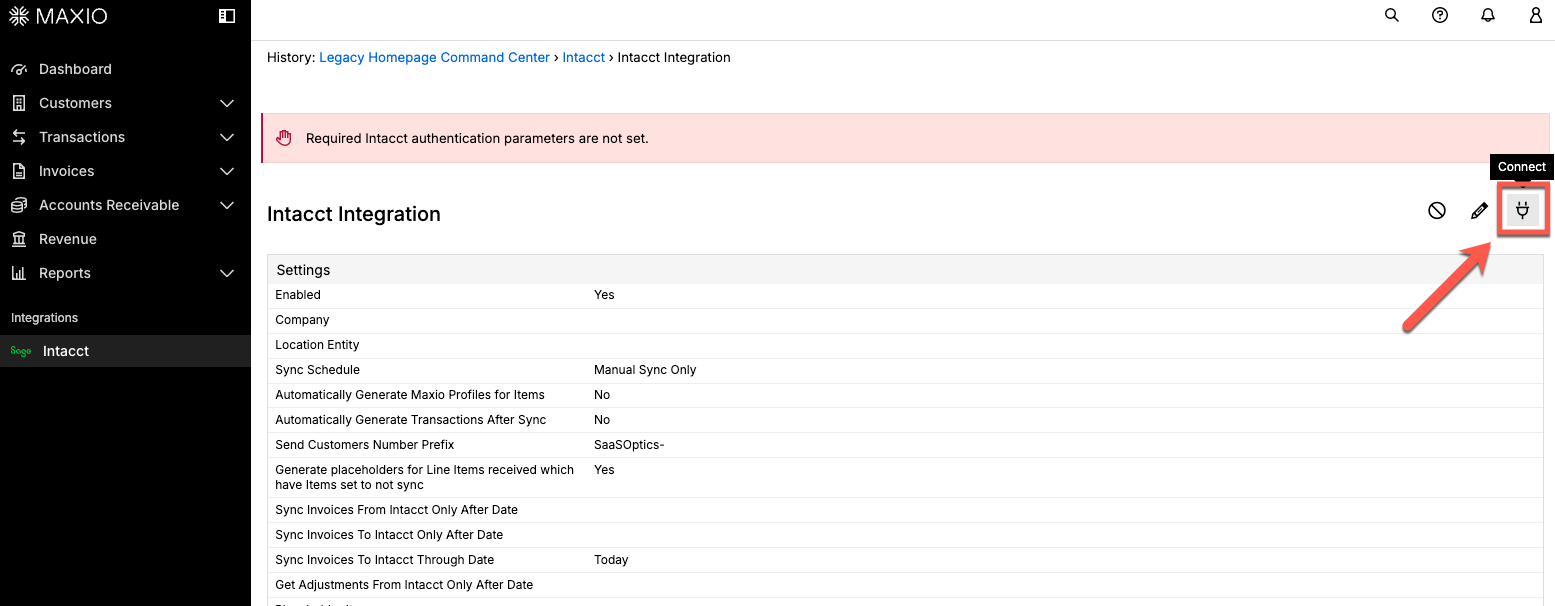
Step 1 - Set the entity
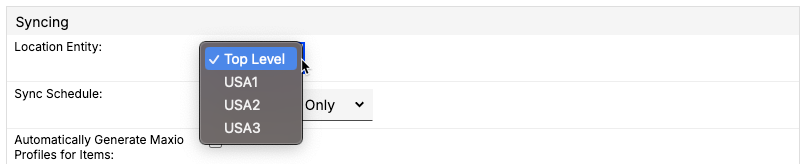
There is a one-to-one relationship between a Maxio instance and an Intacct entity. Once a Maxio entity has synced records (customers, invoices, items) to an Intacct entity, this cannot be changed. Set the entity after establishing the initial connection to Intacct, and before you sync any records. Once records have synced, you can no longer set the entity and will need a new instance of Maxio to make further adjustments.
Step 2 - Configure filters and settings
Once the entity is set, configure the filters and settings below in any order.
Filters
Filters control whether a record syncs for the first time, based on when it was created in Intacct or Maxio. A record that has already synced keeps updating on later syncs regardless of these dates.
| Setting | Description |
|---|---|
| Sync Invoices From Intacct Only After Date | When populated, the integration only syncs invoices from Intacct that were created after this date. |
| Sync Adjustments From Intacct Only After Date | (V2 only) When populated, the integration only syncs adjustments from Intacct that were created after this date. |
| Sync Invoices To Intacct Only After Date | When populated, the integration only syncs invoices from Maxio to Intacct that were created after this date. |
| Send Invoices To Intacct Through Date | When populated, the integration only syncs invoices from Maxio to Intacct through this date. |
| Sync Credit Memos To Intacct Only After Date | When populated, the integration only syncs credit memos from Maxio to Intacct that were created after this date. |
| Send Credit Memos To Intacct Through Date | When populated, the integration only syncs credit memos from Maxio to Intacct through this date. |
| Sync Payments From Intacct Only After Date | (V2 only) When populated, the integration only syncs payments from Intacct that were created after this date. |
Settings
| Setting | Description |
|---|---|
| Location Entity | (Required) The entity records sync with. Can only be set before the first sync. See Step 1 - Set the entity above. |
| Sync Schedule | (Required) Choose how often Maxio automatically syncs with Intacct.
|
| Automatically Generate Maxio Profiles for Items | For new items only, creates a Maxio profile based on default Maxio settings within the Admin item presets, and automatically enables the item to sync invoices. |
| Automatically Generate Transactions After Sync | When enabled, transactions are generated from synced invoice line items, but only for items that also have Enable Create Transactions turned on in their own item settings. |
| Send Customers Number Prefix | Prefixes a set of numbers/characters on all outgoing Maxio customer numbers. Defaults to Maxio-, but can be changed to anything (for example, "Acme-"). |
| Generate placeholders for line items received which have Items set to not sync | When enabled (default), an invoice line item whose item is set to do not sync still syncs, but with its amount zeroed to $0 -- the original item is kept, not replaced. If unchecked, these line items are ignored, and invoices containing only these items are also ignored. |
| Placeholder Item | (V2 only) Item to use for invoice and adjustment line items received from Intacct with no associated item, if Use Placeholder Item for Invoices Without Item or Use Placeholder Item for Adjustments Without Item is enabled. |
| Use Placeholder Item for Invoices Without Item | (V2 only) If enabled, an invoice line item received from Intacct with no item is assigned the Placeholder Item instead. |
| Use Placeholder Item for Adjustments Without Item | (V2 only) If enabled, an adjustment line item received from Intacct with no item is assigned the Placeholder Item instead. |
| Default Payment Terms | Sets the default payment terms used for new customers synced from Intacct. Doesn't change payment terms for customers that already exist in Maxio. |
| Send Invoice Sales Tax As | Select an item to represent sales tax in Intacct. The item must be marked Is sales tax. If left blank, invoices sync without a sales tax line item -- unless AvaTax auto-commit is enabled, in which case the sync halts instead until an item is set. |
| Continue on Error | Controls what happens if a sync error occurs during a run.
|
Related information
To reset sync stamps and force a full re-sync, see Clear Intacct Sync Dates.
To map invoices and credit memos to the correct receivables account on the Intacct side, see Configure Order Entry Transaction Definitions for Intacct.
Still need help?
Reach out and our support team will take it from here.