
Configure the NetSuite Integration
Last updated on Aug 26, 2026
Control how Maxio exchanges data with NetSuite by configuring sync schedules, item behavior, and record mappings. These settings determine which customers, invoices, payments, and refunds are sent or received, and help align NetSuite data with your Maxio workflows.
Complete this after connecting a Maxio Platform account to NetSuite. If your account isn't connected yet, follow Setup the NetSuite Integration first.
Configure sync
The integration between NetSuite and Maxio Platform allows for many different options for syncing between the two platforms. Some of the first options to edit and troubleshoot will be in the Update Settings section of the NetSuite Integration.
This can be found in NetSuite > Integration Settings > Update Settings.
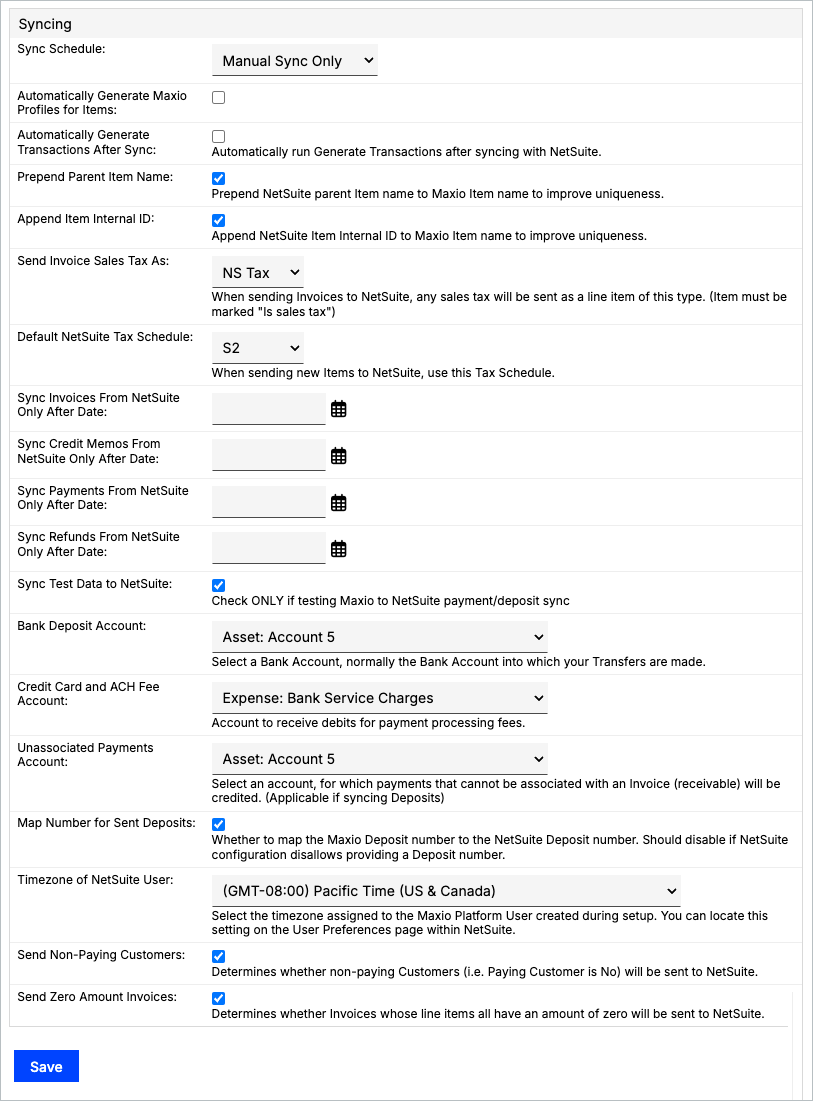
| Setting | Description |
|---|---|
| Sync Schedule | Choose from one of four times for Maxio Platform to automatically sync with NetSuite.
|
| Automatically Generate Maxio Profiles for Items | Creates Maxio Platform profiles for items in the NetSuite. This will be based on the default Maxio Platform settings within the Admin item presets. |
| Automatically Generate Transactions After Sync | Enabling this will execute the Transactions step as part of the integration. Transaction will be created based on NetSuite if the items are configured to do so. |
| Prepend Parent Item Name | Adds the parent item name from NetSuite to improve uniqueness amongst items of the same name. |
| Append Item Internal ID | Adds the item internal ID from NetSuite to improve uniqueness amongst items of the same name. |
| Send Invoice Sales Tax As | Select an item to represent the sales tax in NetSuite. If left blank, any invoice with sales tax will not sync to NetSuite. |
| Default NetSuite Tax Schedule | Select a default tax schedule to be assigned when creating new items. |
| Sync Invoices From NetSuite Only After Date | Sets a date that will sync all future invoices into Maxio Platform. |
| Sync Credit Memos From NetSuite Only After Date | Sets a date that will sync all future credit memos into Maxio Platform. |
| Sync Payments From NetSuite Only After Date | Sets a date that will sync all future payments into Maxio Platform. |
| Sync Refunds From NetSuite Only After Date | Sets a date that will sync all future refunds into Maxio Platform. |
| Sync Test Data to NetSuite | Check ONLY if testing Maxio Platform to NetSuite payment/deposit sync. |
| Bank Deposit Account | Typically, this is the Bank Account into which your Transfers are made. Chart of Accounts are listed in alphabetical order. This option is visible only if Send Deposits is enabled. |
| Credit Card and ACH Fee Account | Select the account to receive debits for payment processing fees. Chart of Accounts are listed in alphabetical order. This option is visible only if Send Deposits is enabled. |
| Unassociated Payments Account | Select the account for which payments that cannot be associated with an Invoice (that is, receivable) will be credited. Chart of Accounts are listed in alphabetical order. This option is visible only if Send Deposits is enabled. |
| Map Number for Sent Deposits | Enable to map the Maxio Platform Deposit number to the NetSuite Deposit number. This option is visible only if Send Deposits is enabled. Keep disabled if the NetSuite configuration disallows the use of a Deposit number. |
| Consolidate Deposit Fee Lines | Combines deposit fee line items into a single line when sending deposits to NetSuite. This option is visible only if Send Deposits is enabled. |
| Timezone of NetSuite User | Select the timezone assigned to the Maxio Platform User created during setup. You can locate this setting on the User Preferences page within NetSuite. This helps ensure that the integration pulls in the correct records. |
| Send Non-Paying Customers | Determines whether non-paying Customers (not the Paying Customer) will be sent to NetSuite.
|
| Send Zero Amount Invoices | Determines whether Invoices whose line items all have an amount of zero will be sent to NetSuite.
|
| Do Not Send Empty Addresses | Controls what happens when a billing or shipping address is blank in Maxio Platform.
|
| Continue On Error | Controls what happens if a NetSuite sync error occurs during a run.
|
Sync test data
From NetSuite > Integration Settings > Update Settings, enable the Sync Test Data to NetSuite option to sync Test payments from Maxio Platform to NetSuite. Only check this box if you are testing the Maxio Platform to NetSuite payment/deposit sync.
Clear sync dates
This action clears the date of the last synchronization for all NetSuite sync steps.
WARNING: This action cannot be undone. It also forces the next sync to become a full, unfiltered re-sync across every step instead of an incremental one, which can take significantly longer for accounts with a large volume of records.

Related information
If your account uses multi-currency, see Set Up Multi-Currency for the NetSuite Integration for the additional custom field and mapping setup it requires.
For common sync errors and how to resolve them, see Troubleshooting and FAQs.
Still need help?
Reach out and our support team will take it from here.