
Monitor and Run NetSuite Syncs
Last updated on Aug 24, 2026
Use the NetSuite integration dashboard in Maxio to monitor sync status, review alerts, and manually trigger syncs. This covers day-to-day workflows once the integration is configured, not initial setup.
View the NetSuite dashboard
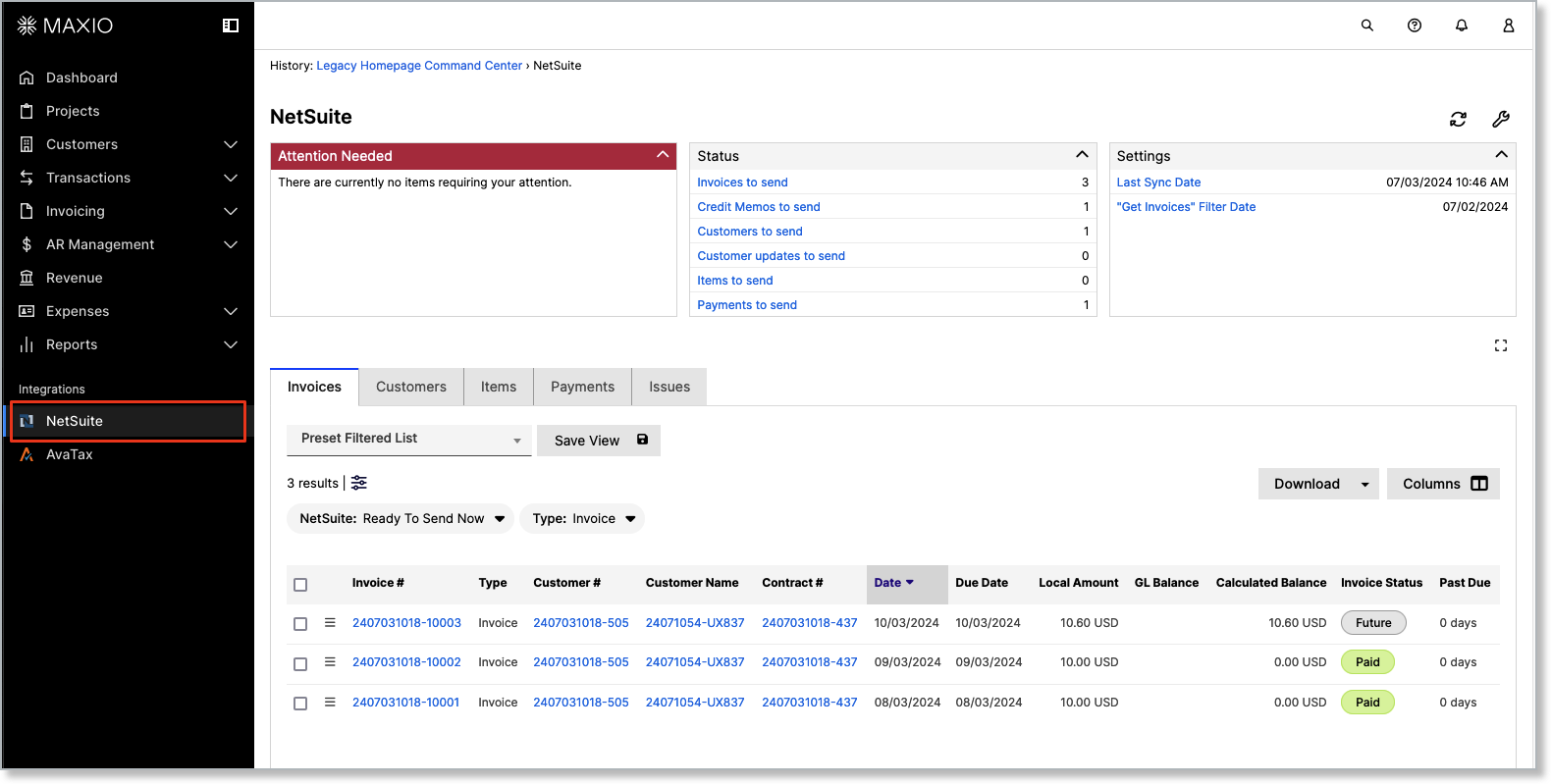
Once the integration is set up, using it day-to-day requires minimal effort beyond your normal workflows of creating customers, contracts, and payment methods. To view the dashboard, go to the left navigation panel, then under Integrations, select NetSuite.
Monitor sync status and alerts
The dashboard shows any alerts, pending items to send, and the last sync times. You can also view customer, invoice, and payment information, filtered to show whether records have or haven't synced to NetSuite.
Run a manual sync
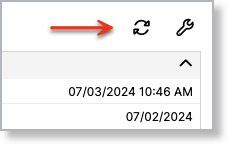
To manually trigger a sync, select the Sync Now action in the top right corner of the NetSuite page.
Related information
To test the Maxio Platform to NetSuite payment/deposit sync without sending live data, see the Sync test data section of Configure the NetSuite Integration.
To learn more about syncing options and steps, continue to Configure the NetSuite Integration.
For common sync errors and how to resolve them, see Troubleshooting and FAQs.
Still need help?
Reach out and our support team will take it from here.