
Sync QuickBooks Online Expenses
Last updated on Sep 19, 2026
The QuickBooks Online Expenses integration lets Expense information flow between your Maxio account and your QuickBooks Online account. When enabled, QuickBooks Online remains your primary financial reporting system, but Maxio becomes the primary interface for entering new Vendors, Bills, Bill Payments, and Expense Items. These records then sync into QuickBooks Online so you can complete other accounting processes there, such as making journal entries manually.
How Maxio and QuickBooks Online organize Expense data
The two systems organize this data differently. In QuickBooks Online, Vendors have Bills or Expenses. In Maxio, Vendors have Vendor Contracts; Vendor Contracts have Expense Transactions; and Expense Transactions have Items, Expense Schedules, and Bill Line Items, which are organized into Bills. The Vendor Contract is a container holding Expense Transactions, their Expense Schedules, and Bills with their Bill Line Items. QuickBooks Online has no equivalent Vendor Contract record.
Maxio and QuickBooks Online share management of most of this data, but Maxio alone manages Vendor Contracts, Expense Transactions, and Expense Schedules.
Key financial records
| Record Type | How It Syncs |
|---|---|
| Expense Items | Maxio receives Expense Items from QuickBooks Online's Products and Services list. Before an Expense Item can be used to create Expense Transactions or Bill Line Items, it needs a Maxio Profile, which determines the Item type, default settings, and Account selection. |
| Vendors | Vendor information syncs bidirectionally between the two systems. |
| Bills | Bills are typically created in Maxio by combining Bill Line Items from one or more Expense Transactions within a single Vendor Contract. Once a Bill syncs to QuickBooks Online, editing options in Maxio become limited: any change to amounts, Items, dates, or other fields that affect the Bill's economics must be made in QuickBooks Online and synced back as a new Expense Obligation to process. Synced Bills and Bill Line Items show the QuickBooks Online logo. |
| Bill Payments | Create a Bill Payment in Maxio by entering a payment date on the Expense Transaction, or through the Record Payments function. Any change to amounts, Items, dates, or other fields that affect the Bill Payment's economics must be made in QuickBooks and synced back to Maxio. |
Important: Until every QuickBooks Online Expense Item has a Maxio Profile, no part of your QuickBooks Online sync runs, not just Vendor and Bill data. This blocks the entire sync, including Customers and Invoices, until every Expense Item has a Profile.
You can also create Expense Items in Maxio and sync them to QuickBooks Online; you'll need to select the GL account the Item points to there.
What data is exchanged
During a sync, QuickBooks sends the following to Maxio:
- Expense Items used on Bill and Expense Line Items. Only Items linked to an Expense account in QuickBooks Online appear on Maxio's Expense Item list.
- Vendors created in QuickBooks Online.
- Bill Payments recorded in QuickBooks Online.
- Bills and Expenses created in QuickBooks Online, as Expense Obligations you process in Maxio to create the actual Bill (and Bill Payment, for Expenses). See Recommended workflow below.
Maxio sends the following to QuickBooks Online:
- Vendors created in Maxio.
- Bills created in Maxio.
- Bill Payments created in Maxio.
- Expense Items created in Maxio.
The following never syncs, including but not limited to:
- Journal Entry adjustments.
- Employee and Payroll information and transactions.
- Inventory information.
Syncing regularly with QuickBooks Online
Select the Sync button in the top-right corner of the QuickBooks Online screen in Maxio to send information between the two systems. The Expenses sync is part of the overall QuickBooks Online sync of all Revenue objects.
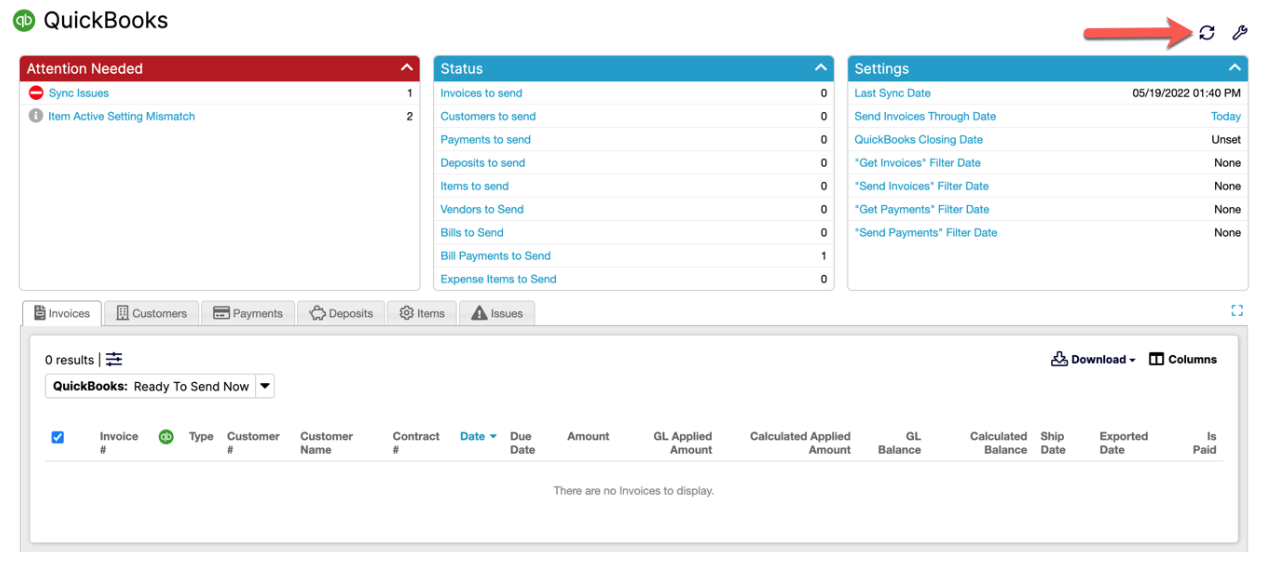
Important: Sync with QuickBooks Online Expenses regularly. The longer you wait between syncs, the more your Get Bills and Get Expenses sync steps have to fetch and reconcile at once, and the harder it becomes to catch a sync issue close to when it happened.
Recommended workflow
To get the most out of the QuickBooks Online Expenses integration:
- Create Vendors, Vendor Contracts, Expense Transactions, and Bills in Maxio.
- Receive Bill Payments in Maxio.
- Sync from Maxio to QuickBooks Online. This sends your Vendor, Bill, and Bill Payment information to QuickBooks Online.
- Make journal entries manually in QuickBooks Online, using information from Maxio's Advanced Expense Summary report.
If the Bill originates in QuickBooks Online instead:
- Sync to Maxio.
- Navigate to Expense Obligations.
- Process the Expense Obligation in Maxio to create the Bill, and its Bill Payment if applicable.
Related information
For an overview of how Maxio and QuickBooks share data more generally, see Understand the QuickBooks Integration.
For the settings that control this sync behavior, see Configure QuickBooks Online Expenses Integration Settings.
Still need help?
Reach out and our support team will take it from here.