
Troubleshoot AvaTax Alerts
Last updated on Sep 9, 2026
AvaTax alerts help you quickly identify issues such as invalid addresses, missing merchant data, tax discrepancies, or error statuses that block invoicing or tax commits. Understanding these alerts enables you to correct data, reconcile differences, and keep your tax workflows running smoothly. Your AvaTax landing page shows all of them together in an Attention Needed panel.
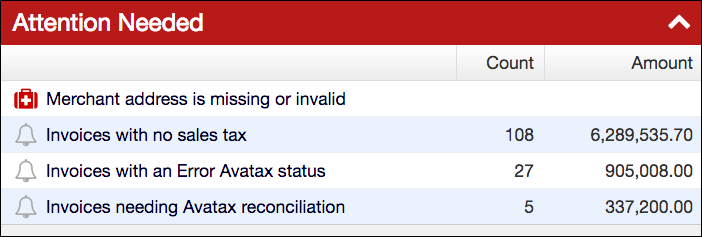
Merchant Address is missing or invalid
This alert means your AvaTax integration settings have a missing or invalid Merchant Address. Without one, Avalara can't accurately calculate Sales Tax, so you won't be able to estimate or commit Sales Tax on any Invoice until you fix it. Newly created Invoices won't show a Sales Tax estimate, and the Estimate and Commit Sales Tax options won't appear in the Invoice's drop-down menu.
WARNING: If Commit Sales Tax is enabled, don't ignore this alert. Sales Tax won't be added to your Invoices until you enter a valid Merchant Address.
Update your Merchant Address in your AvaTax integration settings.
Invoices have no Sales Tax
This alert flags Invoices that don't have a Sales Tax amount at all, meaning Sales Tax was never calculated for them. This can include Invoices created before AvaTax was enabled, or Invoices dated after your Commit or Update Sales Tax Only After Date setting that haven't been estimated yet. Invoices in an excluded Register aren't included.
Click Re-estimate Sales Tax on the affected Invoices, individually or in bulk, to calculate their Sales Tax.
Invoices have an Error AvaTax status
When AvaTax is enabled, your Invoice list shows an alert for any Invoices with an error condition affecting their connection to Avalara. This alert covers three AvaTax statuses: Error, Invalid Address, and Connection Error. Click the alert to open your Invoice list filtered to Error status.
An Invoice with an Error or Invalid Address status:
- Won't sync to your enabled general ledger integration until the issue is resolved.
- Can't be emailed, individually or in bulk, until the issue is resolved.
- Can still be committed or re-estimated manually, but the action will fail again until the underlying issue is resolved.
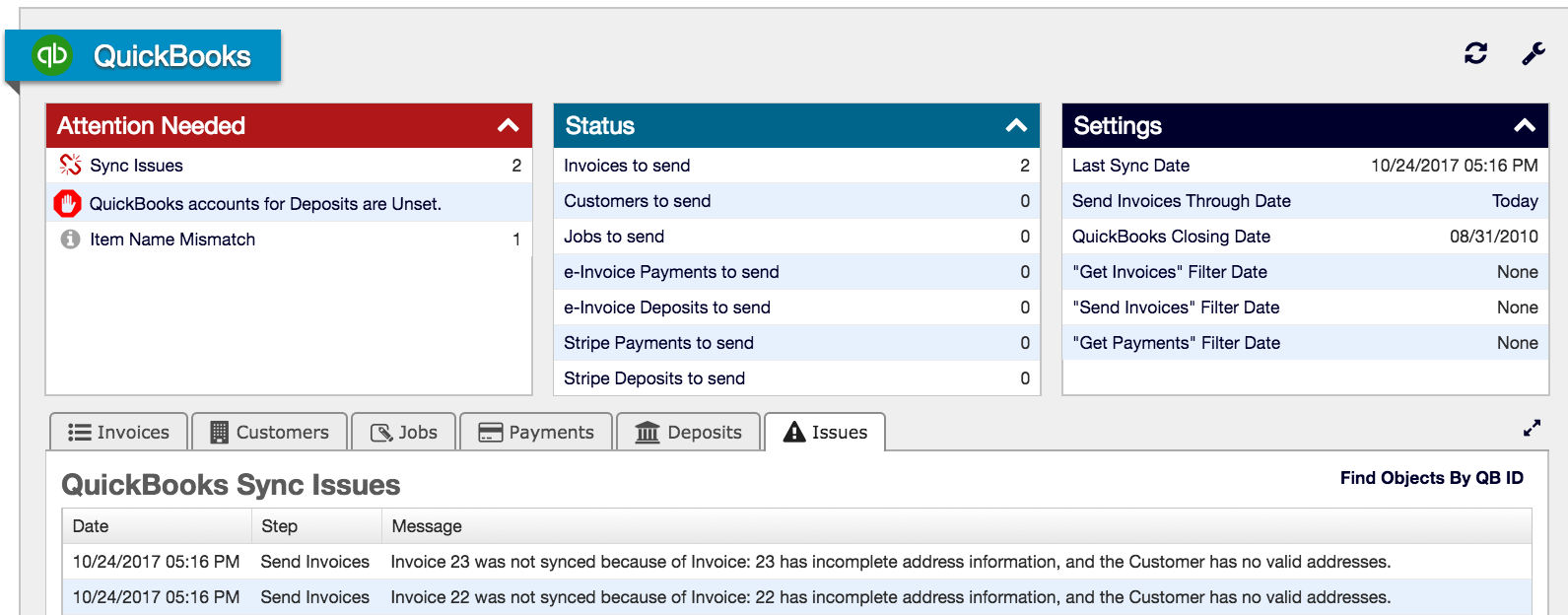
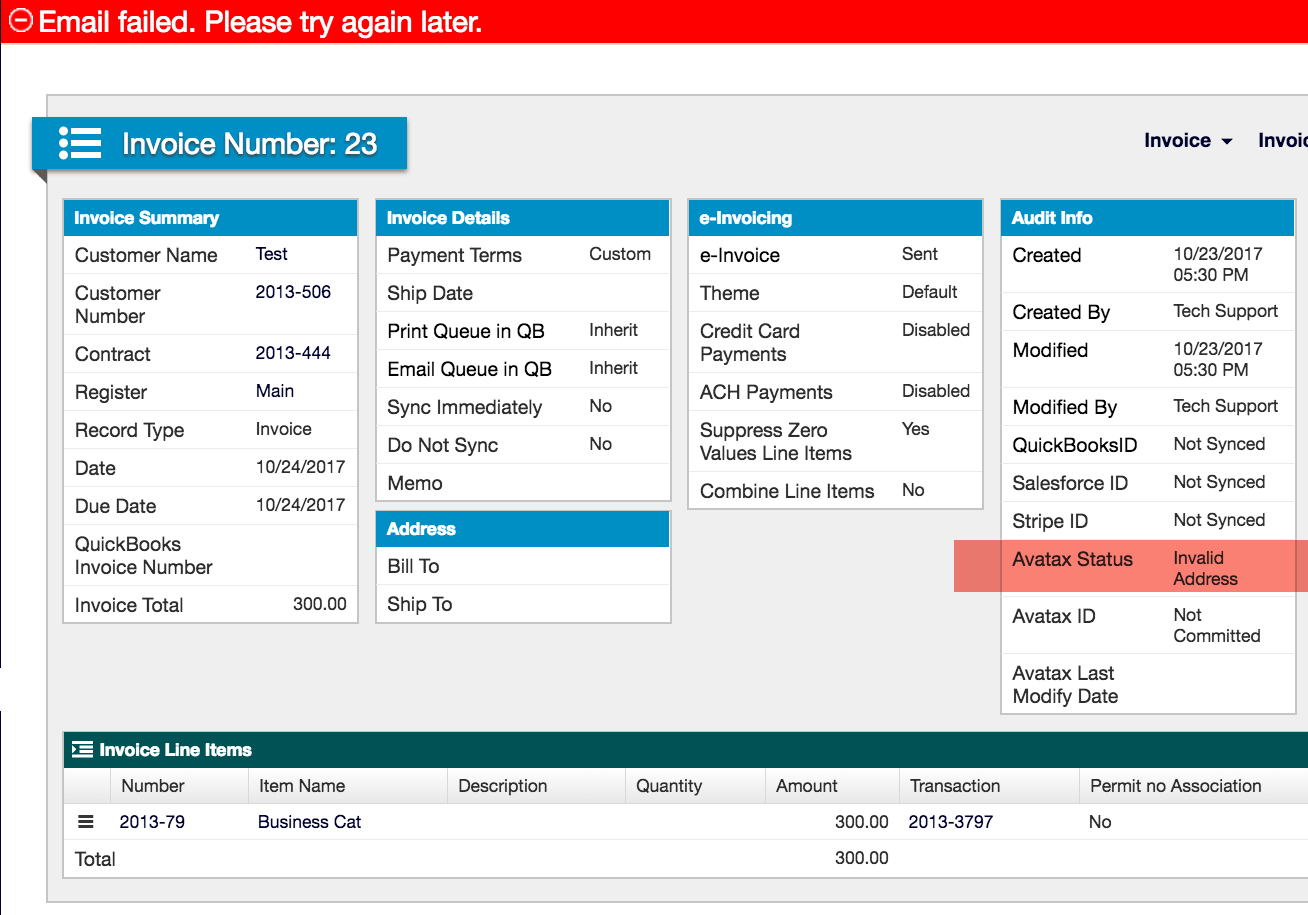
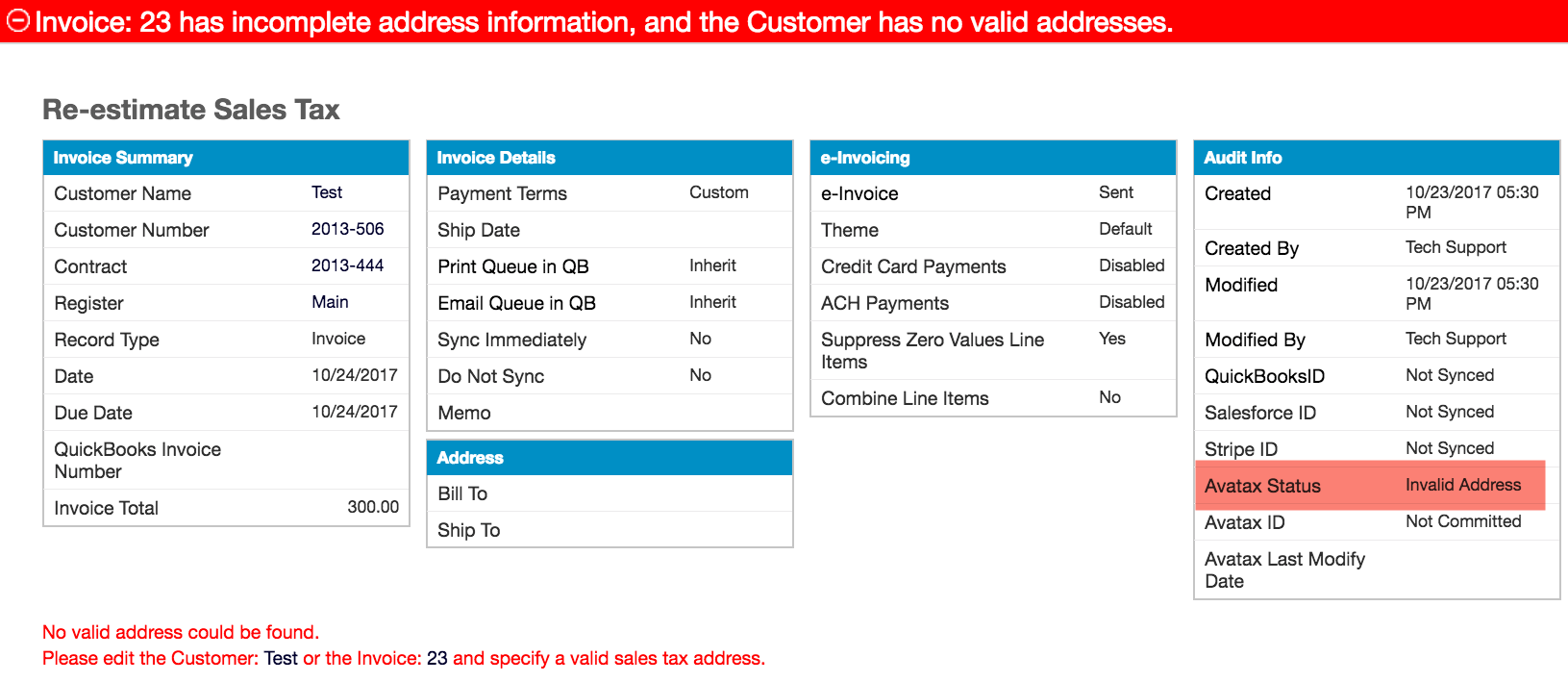
For Invoices with a missing or invalid address, enter a valid address. For Invoices with an Error status, contact Maxio Support if you can't determine the cause.
Customers have unvalidated addresses
This alert flags Customers who have some address information on file that's never been validated with AvaTax. Enabling AvaTax doesn't retroactively validate your existing Customers' addresses, so this commonly affects Customers created before AvaTax was enabled.
To resolve it, validate the affected Customers' addresses in bulk. See Validate Addresses with AvaTax.
Invoices need AvaTax reconciliation
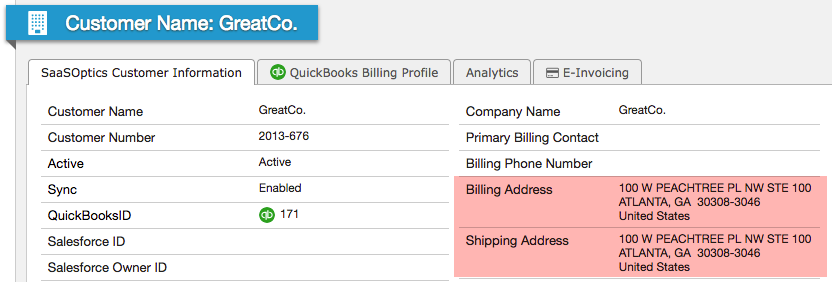
Maxio flags an Invoice as needing AvaTax reconciliation when its Sales Tax amount doesn't match Avalara's committed Tax amount for that transaction. This most commonly happens when an Invoice's amount changes in Maxio without being re-committed to Avalara, or when Sales Tax was never applied in Maxio. It can also happen when the Customer's address differs between Maxio and Avalara, since that changes the tax jurisdiction Avalara uses to calculate tax.
Beyond a plain amount mismatch, Maxio can flag an Invoice as Missing in AvaTax (committed in Maxio, but not found in Avalara), Adjusted in AvaTax (changed directly in Avalara after being committed), Sales Tax Out of Date, or Missing in Maxio (exists in Avalara, but not in Maxio). A "Missing in Maxio" row has no corresponding Maxio Invoice for you to correct, so instead of the steps below, you clear it directly — see Clear a "Missing in Maxio" alert.
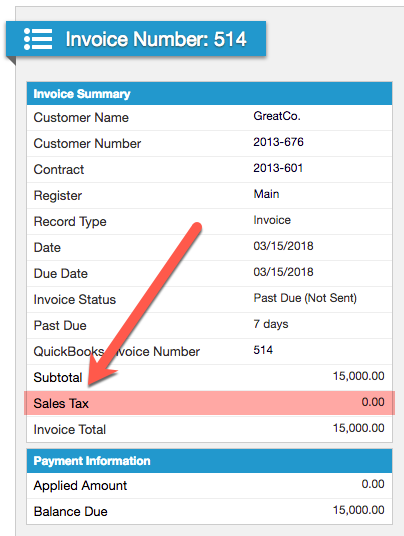
Example: Invoice #514 for GreatCo. was flagged as needing AvaTax reconciliation. In Maxio, the Invoice shows an Invoice Total of $15,000 and $0 in Sales Tax.
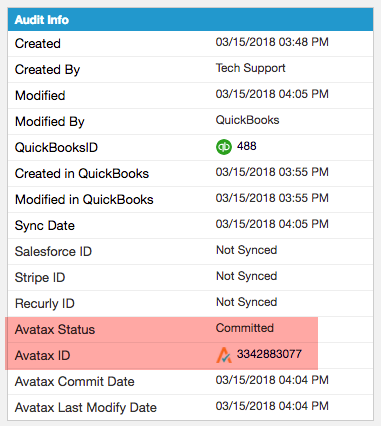
The Invoice also shows an AvaTax Status of Committed, with an AvaTax ID you can click to view the corresponding record in Avalara.
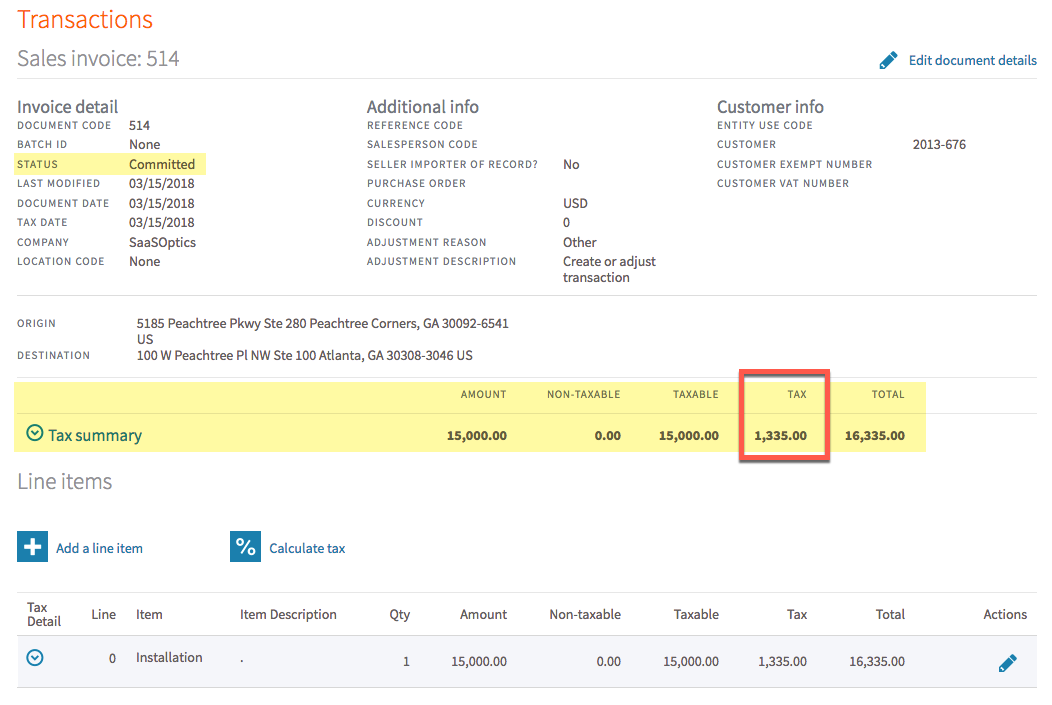
That Avalara transaction shows a Tax amount that isn't $0, which is why Maxio flags the mismatch.
Correct Invoices needing AvaTax reconciliation
Once you've identified the discrepancy, correct it before re-committing Sales Tax.
To correct an Invoice needing AvaTax reconciliation
- Go to Integrations > AvaTax > Reconciliation tab and check the Invoice's Reconciliation Status to identify the type of discrepancy.
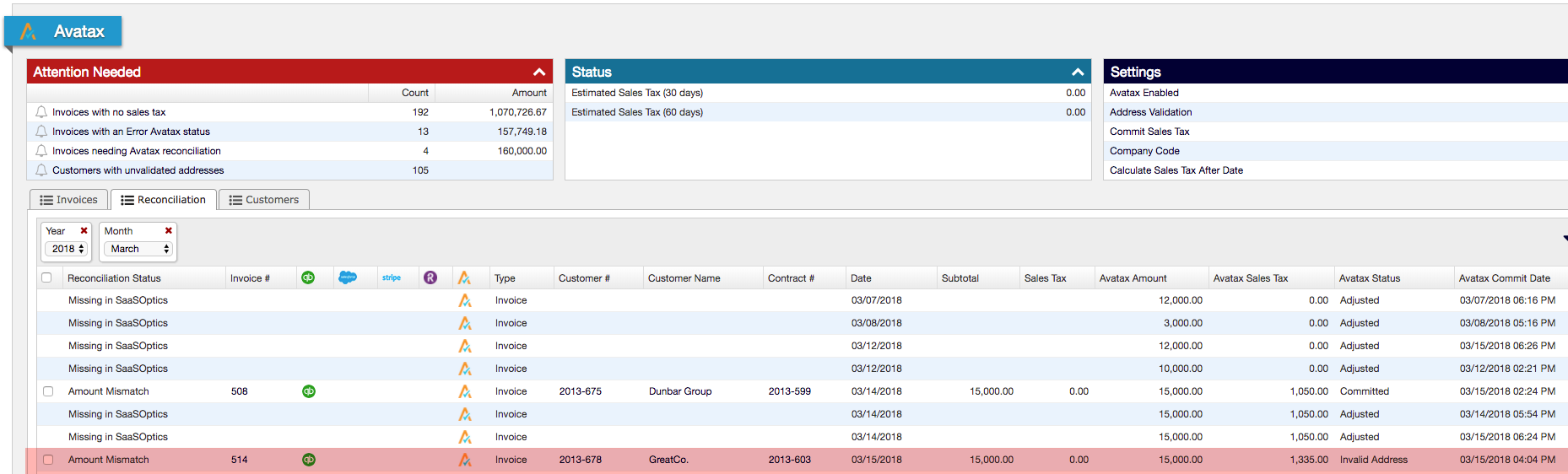
If your Invoice's Reconciliation Status is a plain amount mismatch and doesn't indicate incorrect information elsewhere, skip to step 5.
- If the Customer has different addresses in Maxio and Avalara, or other incorrect information, correct it in both systems.

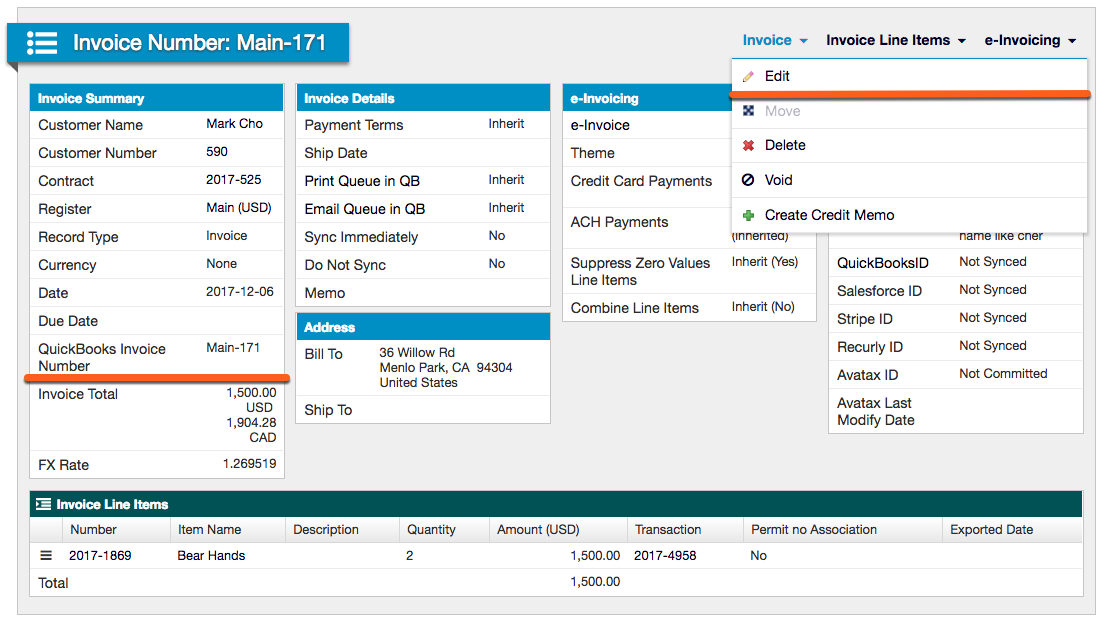
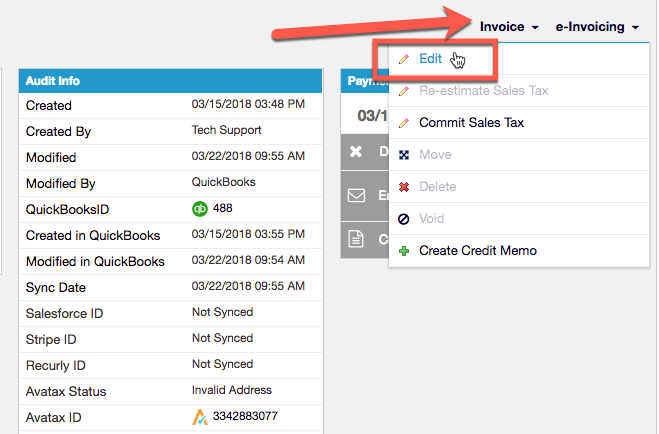
- To update the address in Maxio, click the Invoice, hover over its name in the top right, then select Edit.
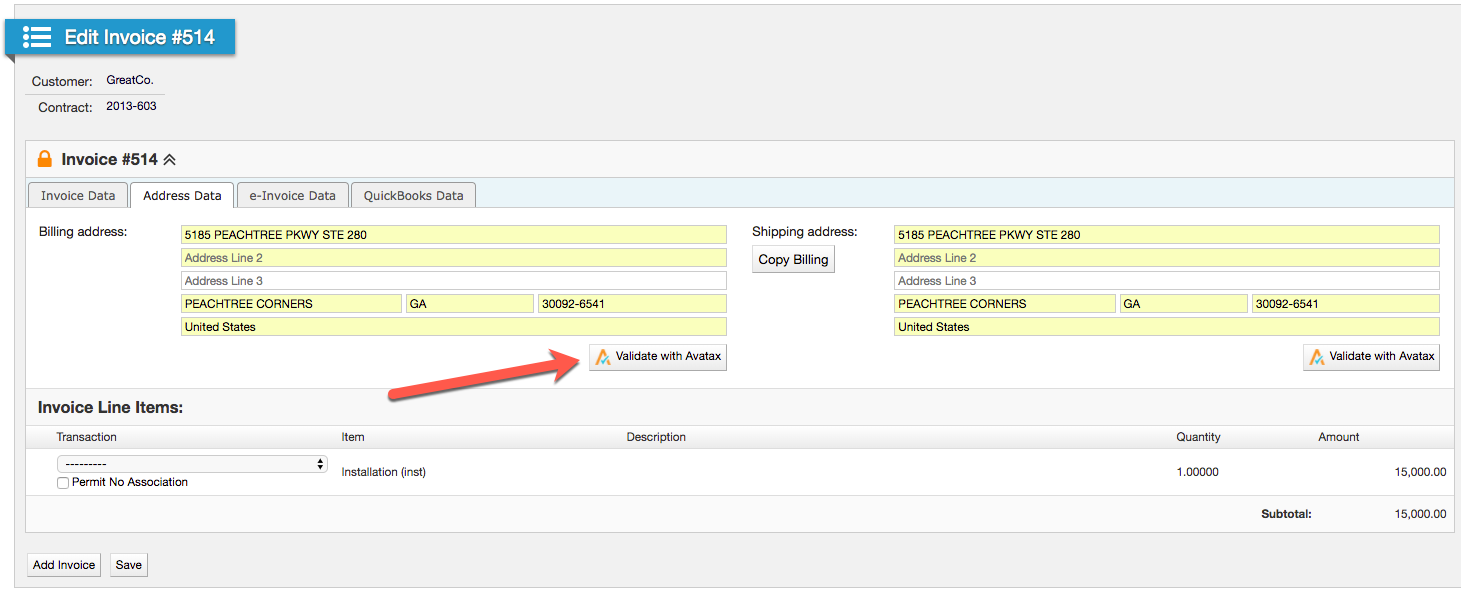
- Go to the Address Data tab, update the address, click Validate with AvaTax, then click Save.
- Back on Invoices Needing AvaTax Reconciliation, select Recalculate Sales Tax if Maxio has the wrong amount, then Commit Sales Tax. You can do this in bulk for multiple Invoices.
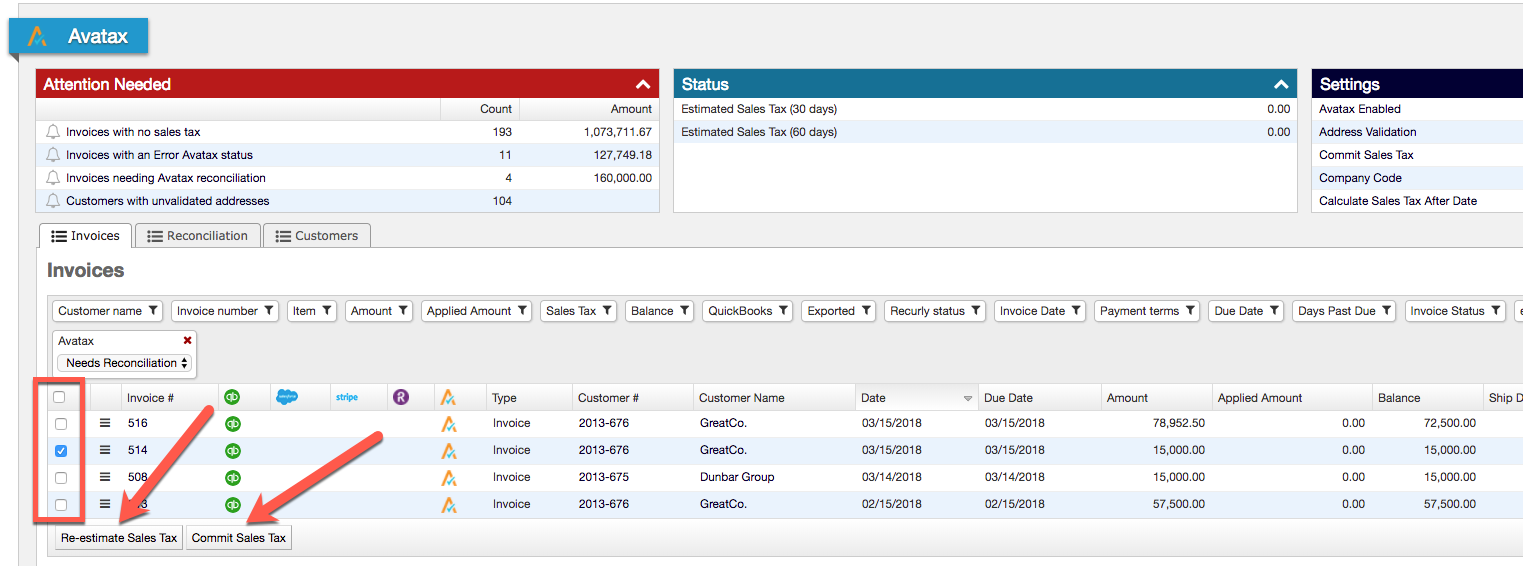
- Go to Integrations > AvaTax > Synchronization tab and click the sync icon to sync with Avalara.

This reconciles the Sales Tax difference and clears the Invoice from your reconciliation list.
Clear a "Missing in Maxio" alert
A "Missing in Maxio" alert means Avalara has a transaction that no longer has a matching Invoice in Maxio — for example, an Invoice that was committed to AvaTax and later deleted from your books. Since there's no Maxio Invoice behind the alert, there's nothing to recalculate or re-commit. Once you've confirmed in Avalara that the transaction is void, canceled, or otherwise no longer relevant, you can clear the alert directly from the Reconciliation tab so it stops appearing.
Clearing an alert only dismisses that one AvaTax transaction — it doesn't affect any other reconciliation alert, and a new "Missing in Maxio" alert for a different transaction still appears normally.
To clear a "Missing in Maxio" alert
- Go to Integrations > AvaTax > Reconciliation tab.
- Select the checkbox next to each Invoice with a Reconciliation Status of Missing in Maxio. You can select more than one to clear them together.
- Open the bulk action dropdown and choose Acknowledge.
- A prompt warns that this can't be undone. Click OK to confirm.
The alert disappears from the list, and Maxio records who cleared it and when.
Related information
To commit or re-estimate Sales Tax, see Commit Sales Tax to AvaTax and Estimate Sales Tax on Invoices.
Still need help?
Reach out and our support team will take it from here.