
Create and Configure RevenueBooks
Last updated on Sep 2, 2026
You create and configure a RevenueBook from the Advanced Revenue admin area, and can set which RevenueBook is a contract's default when it carries more than one. See Understand RevenueBooks for what a RevenueBook controls and how it relates to your contracts and SSP lists.
Create a RevenueBook
You create and manage RevenueBooks from the Advanced Revenue admin area.
To create a RevenueBook
-
Navigate to Admin > Advanced Revenue.
-
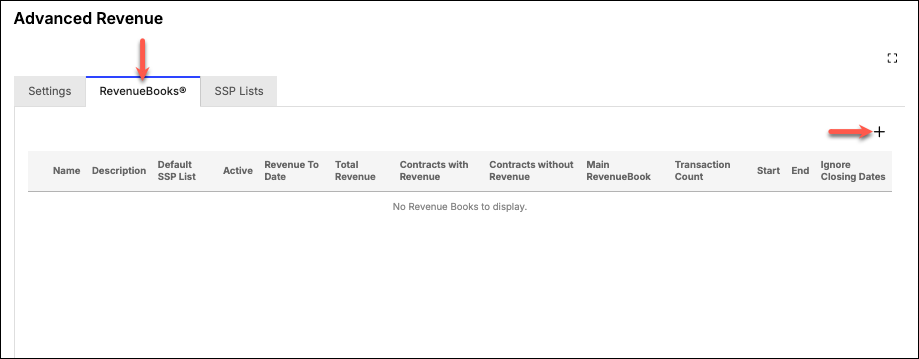
From the RevenueBooks tab, click the Add action ("+").
-
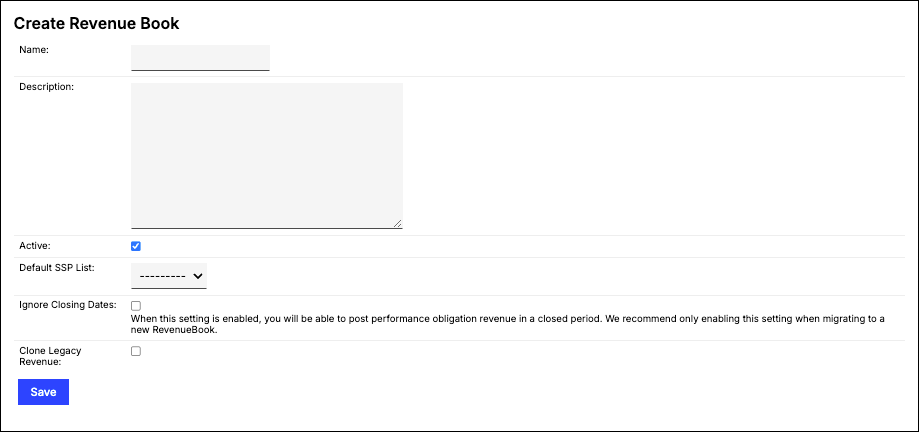
Give your book a Name and Description, and make sure the Active box is selected (checked).
-
(Optional) Select a Default SSP List. See Create and Manage SSP Lists for more information.
-
(Optional) Check Ignore Closing Dates if you want this RevenueBook to be able to post performance obligation revenue in a closed period. We recommend only enabling this setting when migrating to a new RevenueBook.
-
(Optional) Check POB Automated Revenue Generation if you want Maxio to periodically generate performance obligation revenue for contracts in this RevenueBook that have out-of-date POBs.
-
(Optional) If Legacy Revenue is enabled for your account, check Clone Legacy Revenue to copy your existing Legacy Revenue into this RevenueBook.
-
Click Save.
Set the Main Revenue Book
You can have multiple RevenueBooks on each Contract. The Main Revenue Book, however, dictates which RevenueBook to show by default.
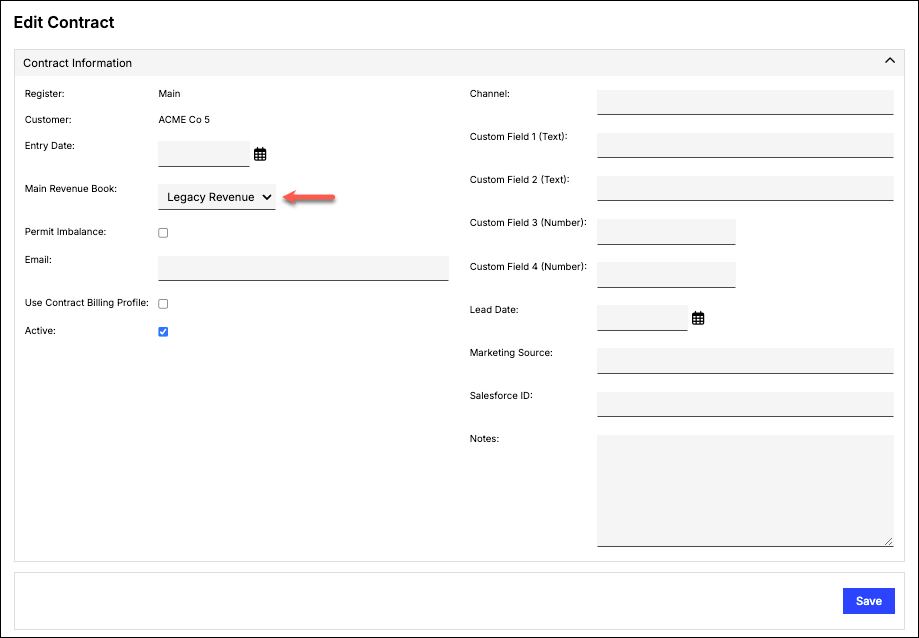
You can also set the Main Revenue Book when bulk editing Contracts.
To set the Main Revenue Book while bulk editing Contracts
- Go to your Contract List.
- Select the contracts for which you want to set the Main Revenue Book by checking the box next to the Contract name.
- From the List toolbar, click Bulk Edit. This opens the Bulk Edit Contracts screen.
- Under Contract Information, check Main Revenue Book and from the drop-down select the RevenueBook to display by default.
- Click Update.
Filter contracts needing POB regeneration
Your Contract list and the Revenue module's Contract Revenue Contracts list both include a POB Out of Date filter. Set it to Yes to find contracts whose performance obligations need to be regenerated because of changes within their transactions.
Related information
Once you have two or more RevenueBooks configured, use the RevenueBooks Comparison Report to see how Scheduled Revenue, Deferred Revenue, and Unbilled AR differ between any two of them for the same period.
For a full index of worked examples showing how each configuration behaves in practice, see Advanced Revenue Allocation Scenarios.
To automatically vary the reallocation formula by transaction attribute instead of applying one formula to every transaction, see Set Conditional Rules for Revenue Reallocation.
When a RevenueBook flags contracts it can't allocate, see Review and Resolve Revenue Issues.
Still need help?
Reach out and our support team will take it from here.