
Configure Automatic Transaction Renewals
Last updated on Aug 24, 2026
Automatic Transaction renewal (Auto-renew) in Maxio uses configurable Auto-Renewal Profiles to determine when and how recurring Transactions are renewed. Set up default renewal rules, apply them to existing Transactions, and confirm the timing and conditions a Transaction must meet to qualify.
Auto-renew runs three times daily at 3 AM, 11 AM, and 7 PM UTC. Because Auto-renew runs periodically over the course of the day, there can occasionally be a delay before the renewal Transaction is actually created for a Transaction that meets the criteria for Auto-renew.
Auto-Renewal Profiles
Auto-Renewal Profiles function as customizable Transaction renewal rules that can be assigned to Transactions, so that when the Auto-renew background process runs, Transactions assigned an Auto-Renewal Profile are automatically renewed according to the rules in that profile. For example, a Transaction with an End Date of 03/15/2017 that's assigned an Auto-Renewal Profile of "1 Month in Advance" is automatically renewed on 02/15/2017. The resulting renewal Transaction has a Start Date of 03/16/2017, has revenue generated for it, and is included in Finance Reports.
Create an Auto-Renewal Profile
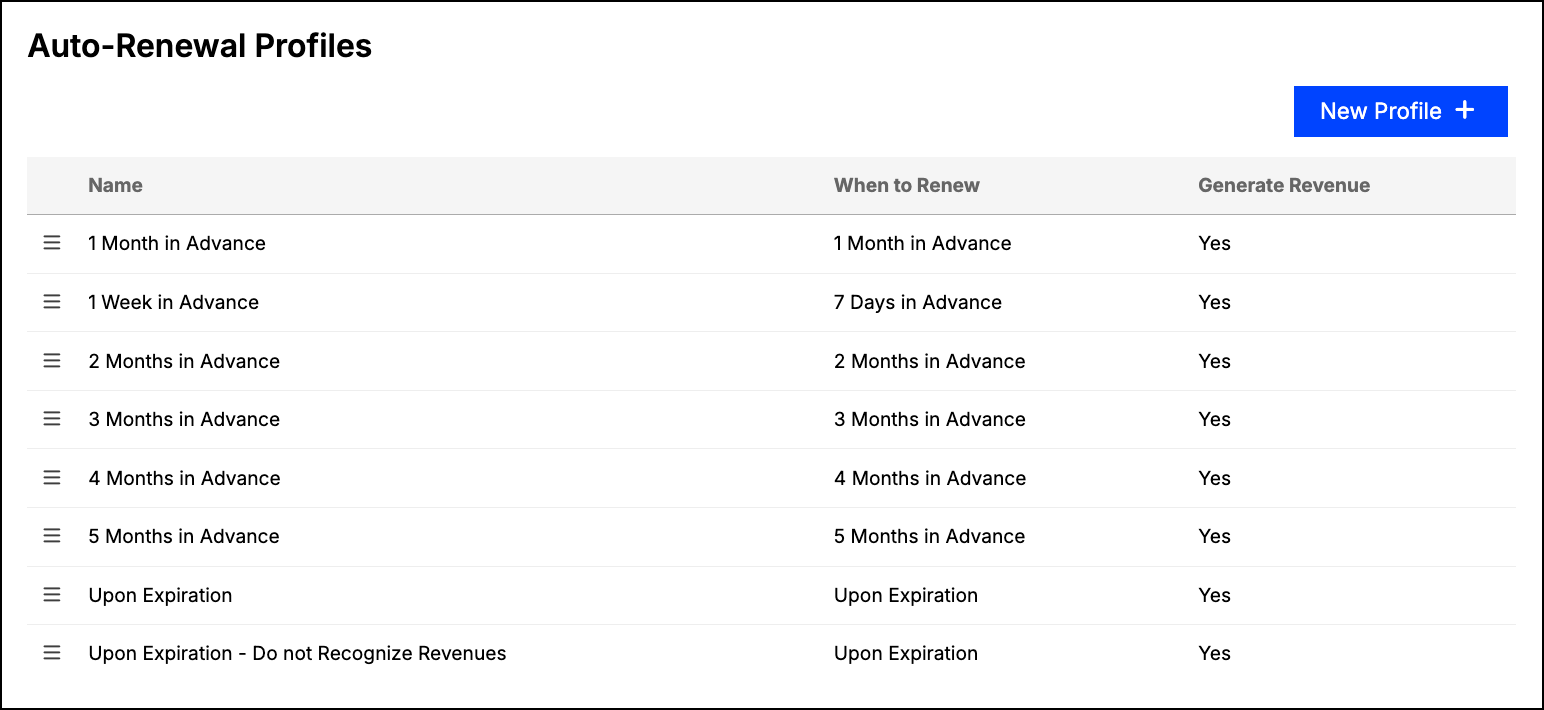
Your Maxio account comes pre-populated with several common Renewal Profiles you can use immediately, no further setup required. However, you may want to add custom Auto-Renewal Profiles that better fit your business model and workflows.
To create an Auto-Renewal Profile
-
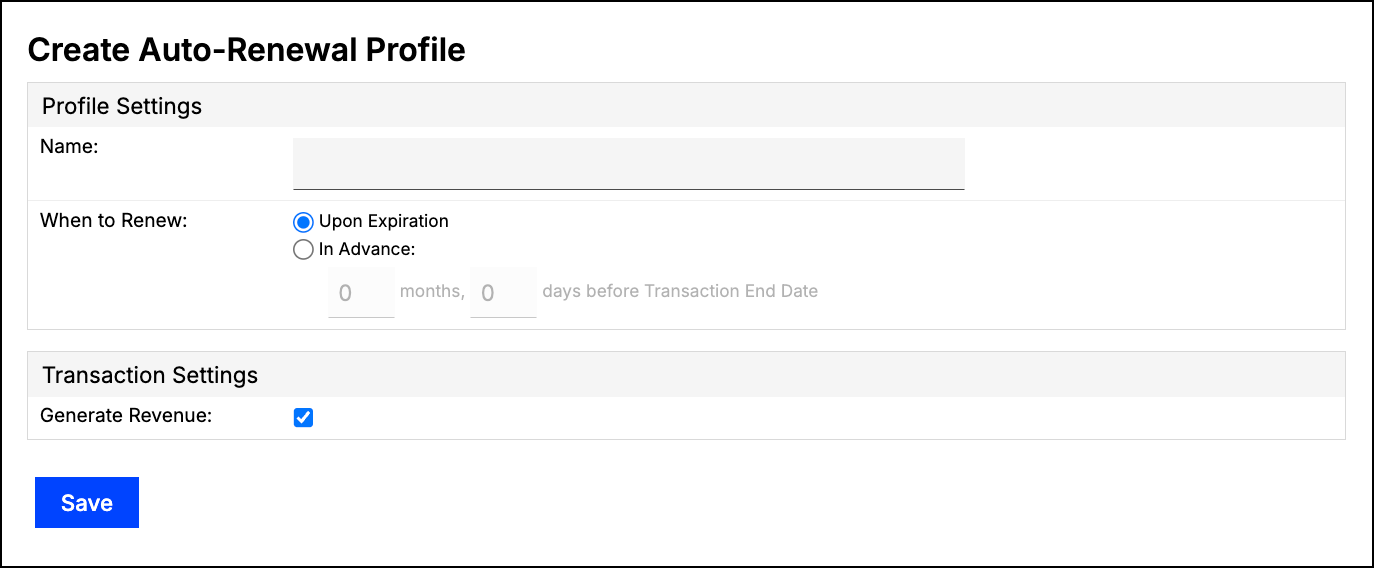
From the Auto-Renewal Profiles list, select New Profile in the top right corner, then configure the following fields:
- Name - Enter a name for your new profile. Make it descriptive enough to distinguish this profile from others in the list when selecting it for a Transaction or as a default for a Customer.
- When to Renew - Select Upon Expiration to have the Transaction auto-renew upon expiration, immediately after the last day of the current subscription period. Select In Advance to have the Transaction auto-renew a specific number of months and days before the Transaction End Date. The renewal Transaction is still created in advance, but its Start Date is always one day after the previous Transaction's End Date, so using In Advance doesn't create overlapping Transactions.
- Generate Revenue - Leave checked so the renewal Transaction generates revenue entries, or uncheck to prevent revenue entries from being created for the renewal.
If you need renewal Transactions to be excluded from Finance Reports, use the pre-built Upon Expiration - Do not Recognize Revenues system profile instead of a custom one.
An Auto-Renewal Profile can also renew a Transaction to a new Contract instead of its original one. Contact Maxio support if you need help setting this up.
-
Once you've configured the fields, click Save.
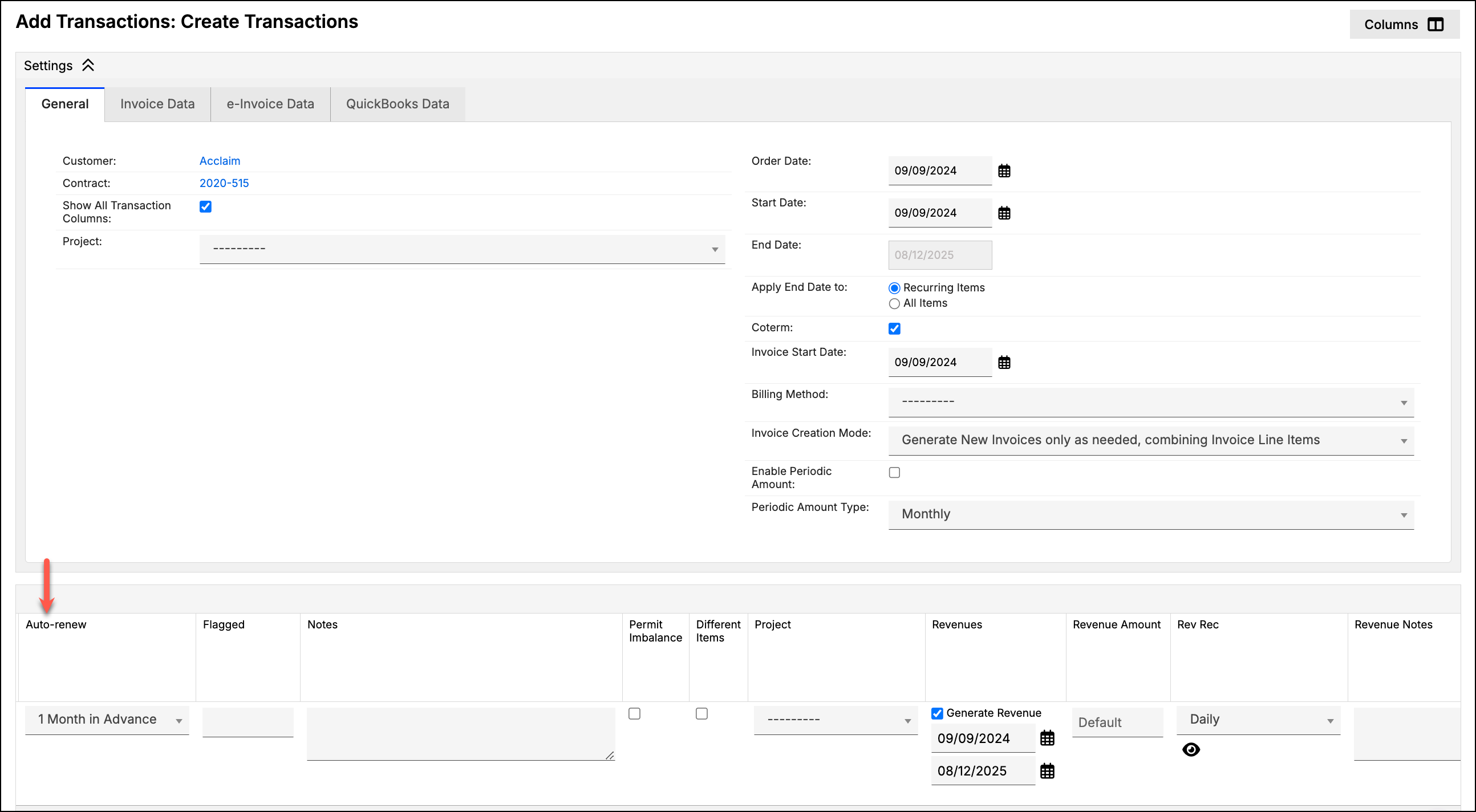
Your new Auto-Renewal Profile is now available for selection in the Auto-renew field of your Transactions. You can also select it as the default Auto-Renewal Profile for a specific Customer, or as the default for all newly created Transactions in your Maxio account.
Criteria for Auto-renew
When enabled, Auto-renew creates a renewal Transaction for any Transaction that meets these criteria:
- The Transaction uses a recurring Item.
- The Transaction is neither renewed nor canceled.
- The Transaction has an Auto-Renewal Profile assigned, and:
- If the Transaction's Renewal Profile is set to Upon Expiration, the Transaction's End Date must already be prior to the current date.
- If the Transaction's Renewal Profile is set to In Advance, the Transaction's End Date must be at least the specified number of months and days after the current date. For example, a Renewal Profile configured for 7 days in advance requires an End Date at least 7 days after the current date to meet the criteria for Auto-renew.
- The Transaction's expiration date (or the date in advance of it, for a profile using In Advance) hadn't already passed at the time the Auto-Renewal Profile was assigned. Auto-renew can't be applied retroactively.
Default Auto-Renewal Profile
To help streamline the Auto-renew process, you can set a default Auto-Renewal Profile for your whole Maxio account, as well as default rules per individual Customer.
Default for new Customers
Go to Admin > Account Settings and locate the Click Efficiency section. In the Customer Settings area, select your preferred profile in the Default Auto-renew field. This profile is used as the default for all new Customers created in Maxio, and by extension, the default for all new Transactions created within those Customers.

Customer default
If you want to use a different Auto-Renewal Profile for a given Customer and its Transactions, edit the Customer and update the Default Auto-renew field in the Transaction Information section. Updating this default only affects newly created Transactions within that Customer. It doesn't update any existing Transactions.

If you have a large number of Customer defaults to update, you can update the field in bulk using the Edit function of the Customer List. If the volume is extremely large, contact support@maxio.com to assist via import (typically a Professional Services engagement).
Applying Auto-renew to existing Transactions
By design, Auto-renew doesn't work retroactively on Transactions that expired without an Auto-Renewal Profile selected. A Transaction that expired with a setting of Don't Auto-renew can't be added to the Auto-renew queue by editing it after expiration to select an Auto-Renewal Profile.
That said, you can update your current, non-expired Transactions to auto-renew when they expire (or in advance of expiration, provided that date hasn't already passed) by editing the individual Transaction's Auto-renew field, or by editing Transactions en masse from the Transaction List. As with Customer defaults, contact support@maxio.com if you have a very high volume of Transactions to update that need to be handled via import.
Related information
For a broader look at how Transactions work, see Understanding Transactions.
Still need help?
Reach out and our support team will take it from here.