
Process Renewals or Cancellations in Bulk
Last updated on Aug 24, 2026
If you have a large batch of expired Transactions to renew or cancel, such as for monthly subscriptions or an account with thousands of renewals each month, use Bulk Renew/Cancel instead of handling them one at a time. It processes all of them at once, without asking you to review each Transaction individually.
Before you begin
Keep in mind that you won't be able to inspect individual Transactions before they're processed, and once you run a bulk action, you can't undo it. If you need to remove Transactions a bulk run created, you'll have to edit each affected Customer record by hand. Maxio still protects your data behind the scenes, though: it skips any Transaction that would need a date before your Transaction Lock Date, and it holds back any revenue or invoices that would land before your Closing Date until after it.
Bulk Renewals/Cancellations vs. Process Renewals/Cancellations
With Bulk Renewals/Cancellations, you process large groups of Transactions without the ability to see, inspect, or edit the individual Transactions. This is the preferred solution for renewing or canceling hundreds to tens of thousands of Transactions at a time.
With Renew or Cancel Transactions, you see the Transactions you're renewing or canceling and can edit data fields for each new renewal Transaction independently. This is the preferred solution for renewing or canceling dozens to a few hundred Transactions at a time.
To process renewals or cancellations in bulk
-
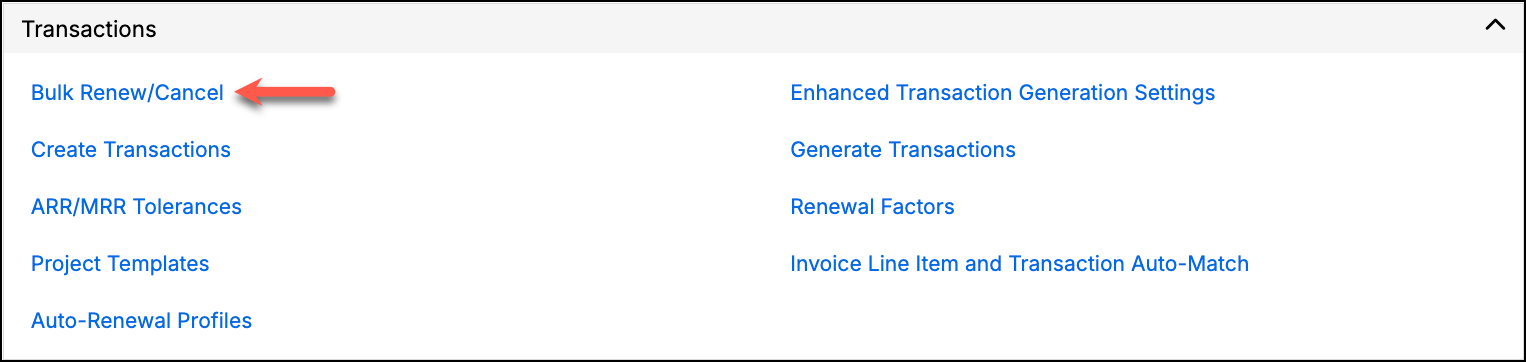
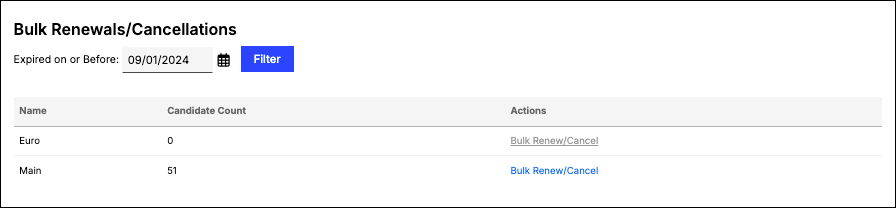
Go to Admin > Transactions > Bulk Renew/Cancel. The system lists each Register in your account. Use the calendar picker to select a date, then click Filter to display the Candidate Count of Transactions that have expired as of that date.
-
Select Bulk Renew/Cancel in the Actions column next to the Register you want to add renewals or cancellations for. A confirmation screen appears.
-
Select an Action:
- Renew at End of Term - Add a renewal Transaction to renew each expired Transaction.
- Cancel at End of Term - Set the Canceled field to true for each expired Transaction.
-
Address the following options:
- Generate revenue - Check to have revenue generated for the Items, using the revenue recognition schedule associated with each Transaction's Item.
- Generate invoices - Check to have Invoices generated for the Items, using the Invoice method associated with each Transaction's Item.
- Invoice start date - Enter a date if you want all Invoices to use the same Invoice date. Otherwise, leave it blank to have the Invoices keyed off the Transaction properties (recommended).
Warning: This action can't be undone.
-
Click Proceed.
Related information
For details on exactly which fields carry over to each renewal Transaction, see Bulk Renewal Field Reference.
Still need help?
Reach out and our support team will take it from here.