
Understanding Offer Actions
Last updated on Aug 28, 2026
Use the Actions menu on an Offer to view its details, create a signup page, clone it, start a Subscription from it, or archive it. For what an Offer is and when to use one instead of a bare Plan, see Understand Offers.
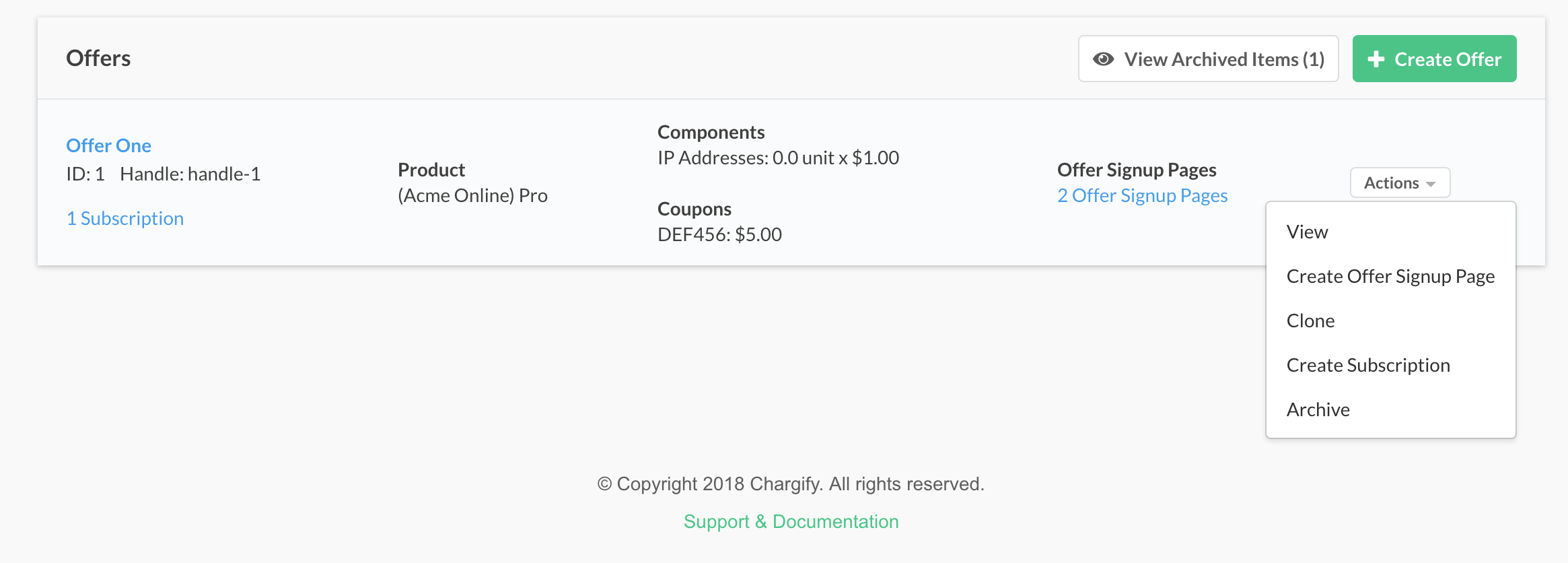
View an offer's details
Select View to open the Offer's details page. This page shows the Plan, Products, and Coupons included in the Offer, when it was created, and a list of Subscriptions signed up for it.
Create an Offer Signup Page
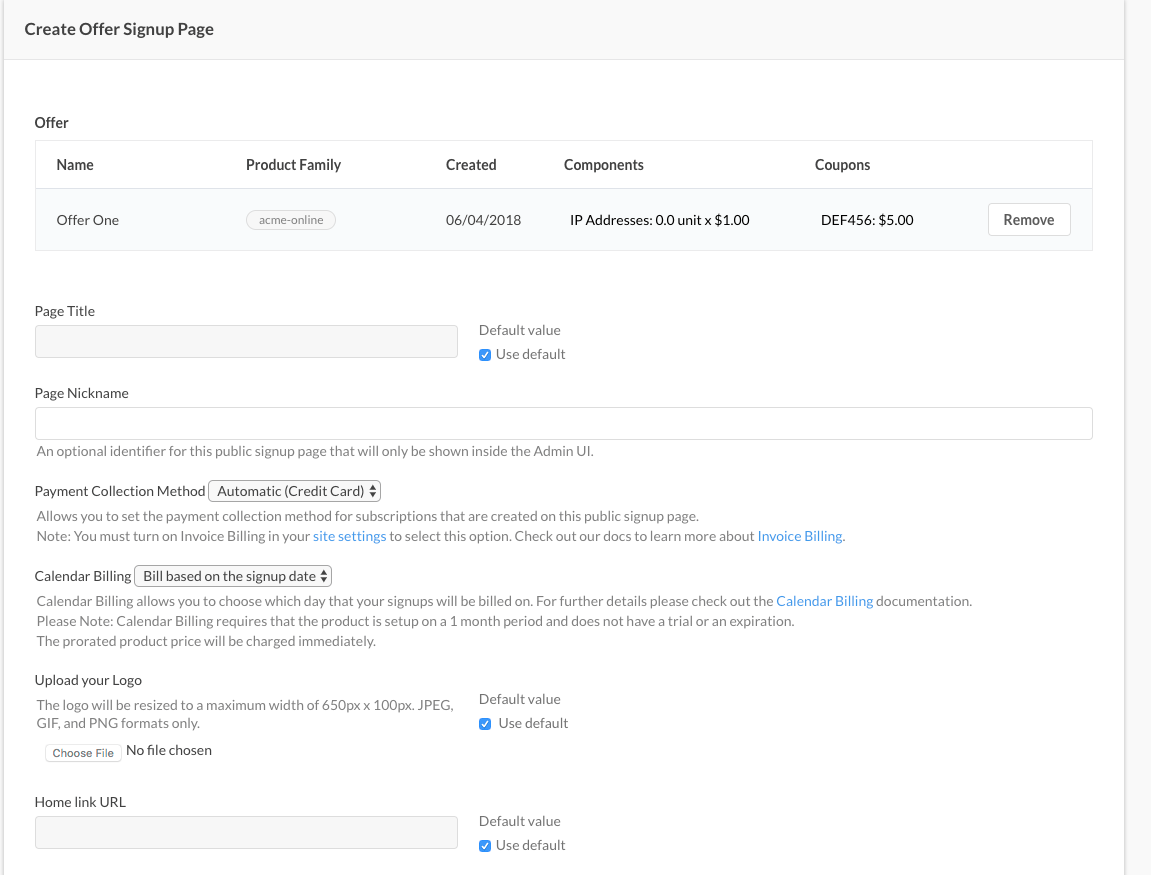
Select Create Offer Signup Page to open the Offer Signup Page create form. Offer Signup Pages are public-facing pages you can share with Customers to let them sign up using that Offer. They work the same as Public Signup Pages, but let Customers sign up for an Offer instead of an individual Plan. See Understand Public Pages for more information.
Offer Signup Pages use your default page settings, though you can override them with specific values on the page itself, the same as with Public Signup Pages. See Configuring Public Page Default Settings for more information.
Clone an offer
Offers can't be edited once created. Select Clone to copy an existing Offer instead. This opens the Offer builder with all options set to match the cloned Offer, so you can make adjustments and create a new Offer quickly. See Create and Configure Offers for more information.
Create a subscription for this offer
Select Create Subscription to start a new Subscription with this Offer preselected. This takes you to Create a Subscription with the Offer already selected.
Archive an offer
Select Archive to soft-delete the Offer. Customers can no longer select it at signup, and any Offer Signup Pages using it become invalid.
Once you archive an Offer, the Offers page gains the ability to show archived Offers.

Select View Archived Items to see both active and archived Offers on your Site. Select Hide Archived Items to go back to viewing only active Offers.
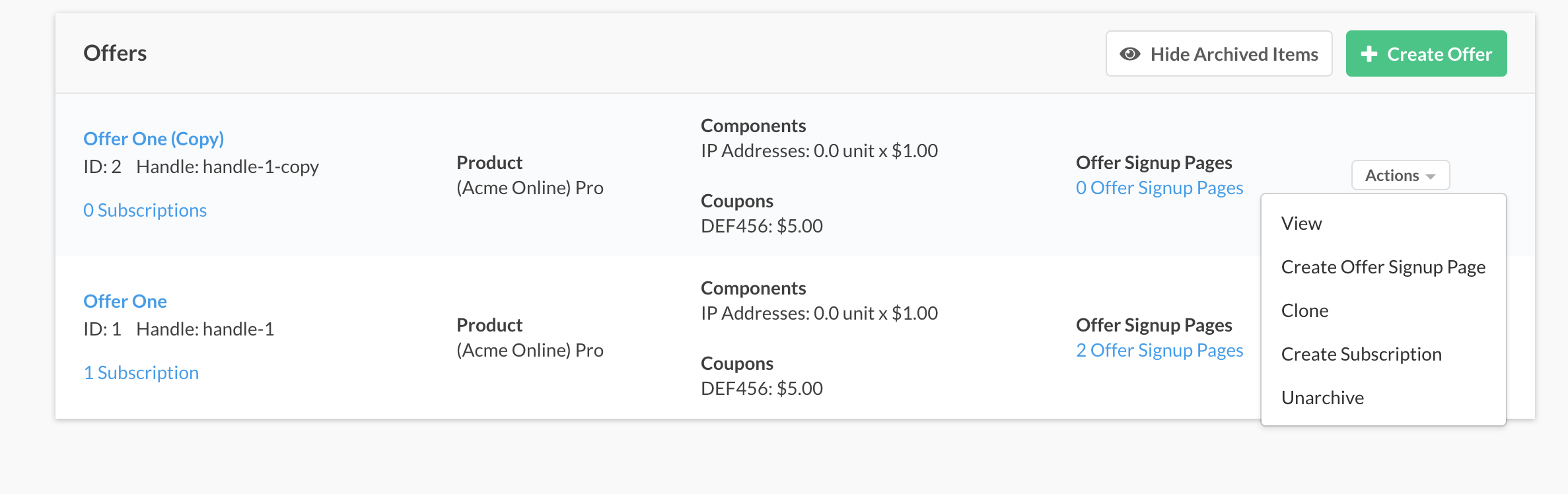
Select Unarchive on an archived Offer to restore it to active status.
Still need help?
Reach out and our support team will take it from here.