
Create and Configure Offers
Last updated on Aug 25, 2026
Find and manage your Offers from the Offers page under Catalog > Offers in the main navigation. Use the Offer builder from this page to package a Plan, Products, and Coupons into a new Offer.
Viewing your offers
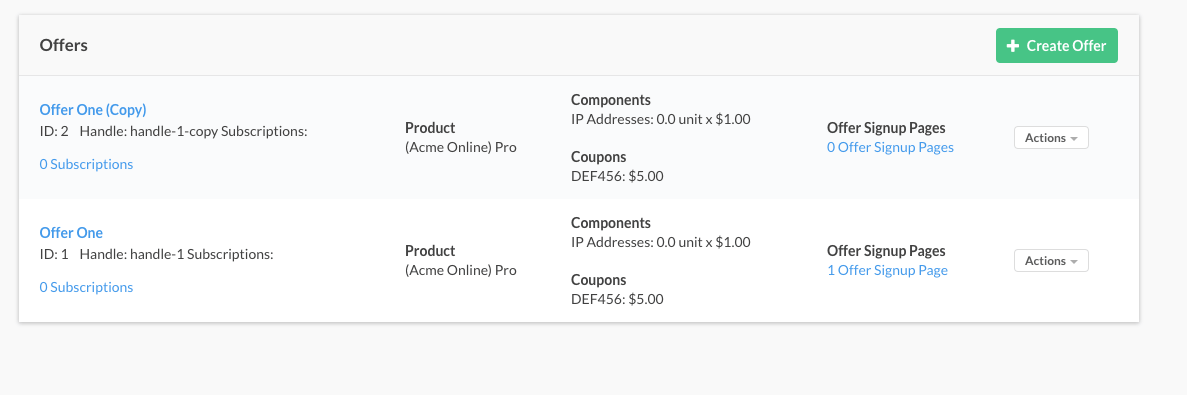
The Offers page lists every Offer configured for your Site. Each Offer shows:
- The Plan, Products, and Coupons included in it
- Any Offer Signup Pages built from it, with a link to each
- The number of Subscriptions created from it
- An Actions menu for managing it. See Understanding Offer Actions for what each action does.
Creating an offer
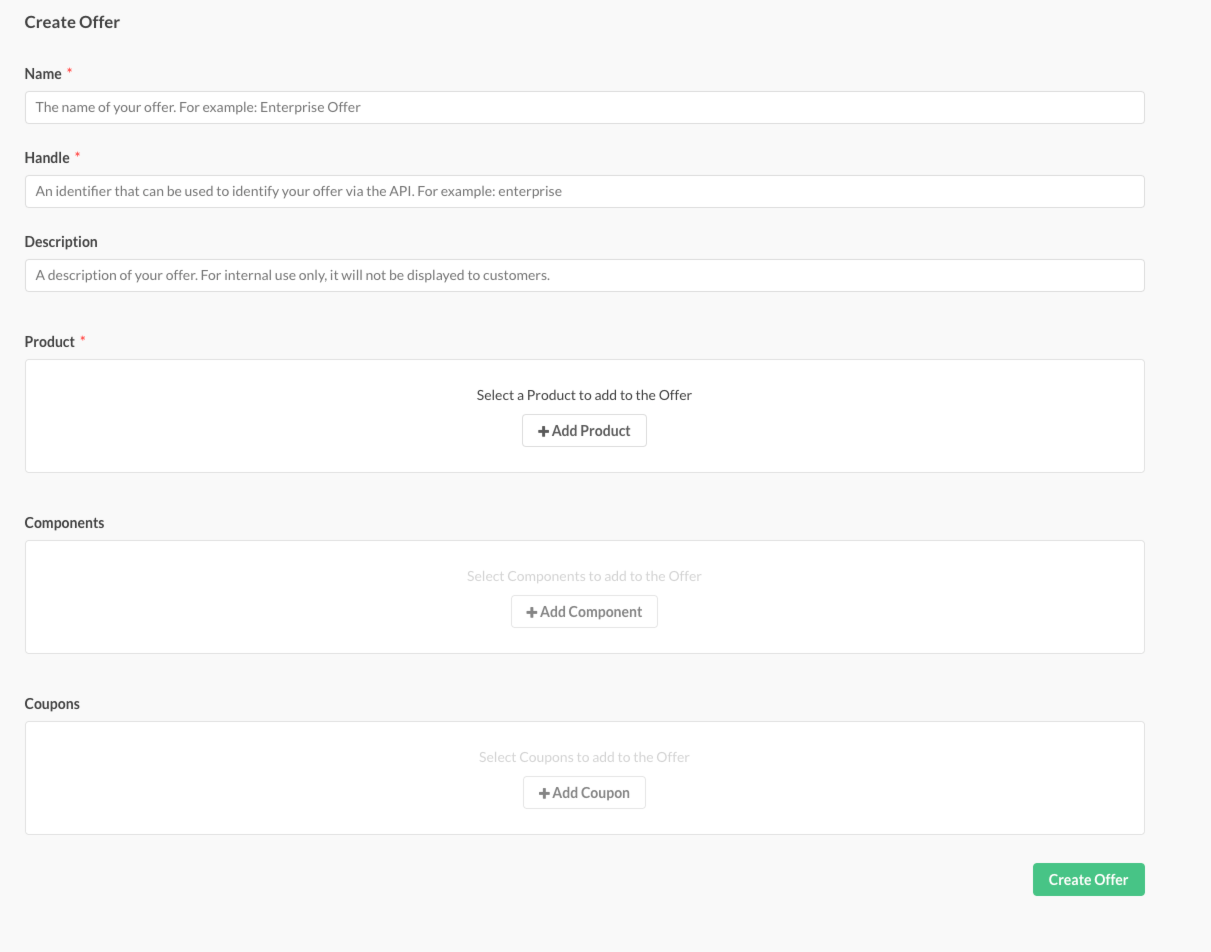
Select the + Create Offer button on the Offers page to open the Offer builder. Use it to build a new Offer from scratch.
Offers can't be edited once saved. To make changes to an existing Offer, clone it instead using the Offer's Clone action, which opens the Offer builder pre-filled with that Offer's settings. See Clone an offer for more information.
The basic parameters of an Offer are:
- Offer Name (Required) The name of your Offer. For example, Enterprise Offer.
- Handle (Required) The unique identifier used in API calls for this Offer. It isn't visible to end users. Valid characters are lowercase alphanumeric characters, dashes, and underscores. Handles must be unique within the Site.
- Description (Optional) A description of your Offer, for internal use only. It isn't shown to Customers.
- Plan (Required) The Plan assigned to this Offer.
- Products (Optional) Additional items you may want to add from your catalog. See Understand Products for more information.
- Coupons (Optional) Discounts you may want to add to this Offer. See Coupons for more information. You're limited to adding ten stackable Coupons to an Offer.
- Available for Offer Migration in Billing Portal (Optional) Whether Customers can select this Offer to migrate an existing Subscription to it from the Billing Portal. This field only appears when Offer Migration is enabled for your Site.
Selecting a plan
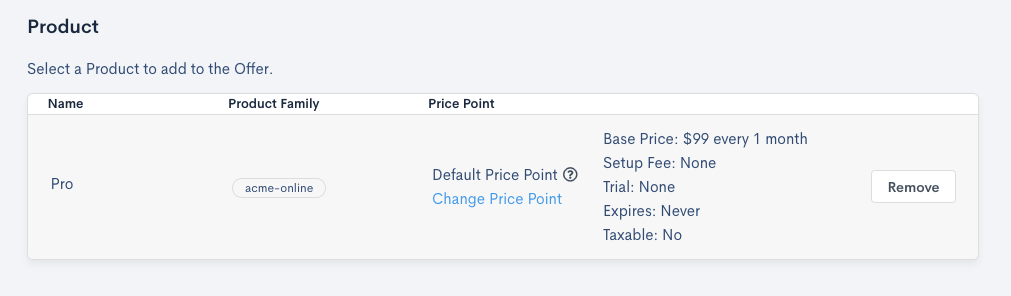
Select the Select Plan button to open a dialog for choosing a Plan.
Only active Plans for your Site appear in this view. The Plan's default price point attaches to the Offer automatically and stays locked to the Offer, even if the default changes later. Select a different price point using the Change Price Point link.
Selecting products
Select the Add Product button to open a dialog for choosing a Product. This button stays disabled until you select a Plan, since only Products relevant to that Plan appear in this view.
Once you select a Product, you have some additional options to set for it:
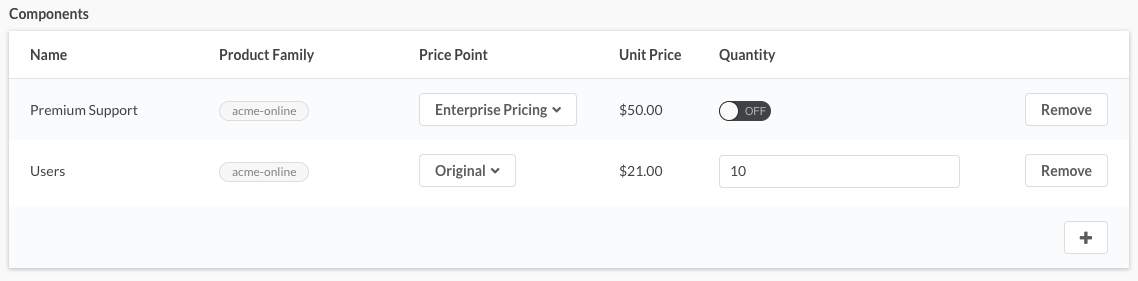
- Price Point Sets the price point used for the Product on this Offer. This lets you set a Product's price point even if you aren't allocating an amount at Offer signup.
- Quantity Sets the default allocated amount for the Product. For quantity-based and metered Products, enter a numeric value. For on/off Products, select whether the default is On or Off.
Selecting coupons
Select the Add Coupon button to open a dialog for choosing a Coupon. This button stays disabled until you select a Plan, since only Coupons relevant to that Plan appear in this view. Stacking restrictions, such as combining stackable and non-stackable Coupons, are also enforced here. Learn more about Coupon behavior in Coupons.
Still need help?
Reach out and our support team will take it from here.