
Display the Purchase Order Number on Invoices
Last updated on Aug 28, 2026
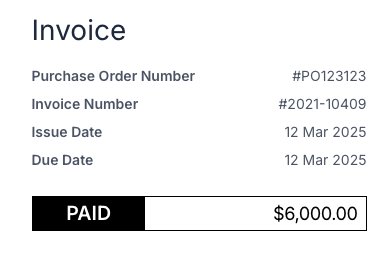
Show your Customers’ Purchase Order (PO) numbers on every Invoice view, including the Invoice preview, online Invoice page, and PDF downloads. This helps streamline procurement, support internal tracking, and improve the accuracy of your billing documents.
Before you begin
Important: The Maxio Billing Portal feature must be enabled to use the Show PO Number option. See Set Up the Billing Portal.
Show the PO number on invoices
-
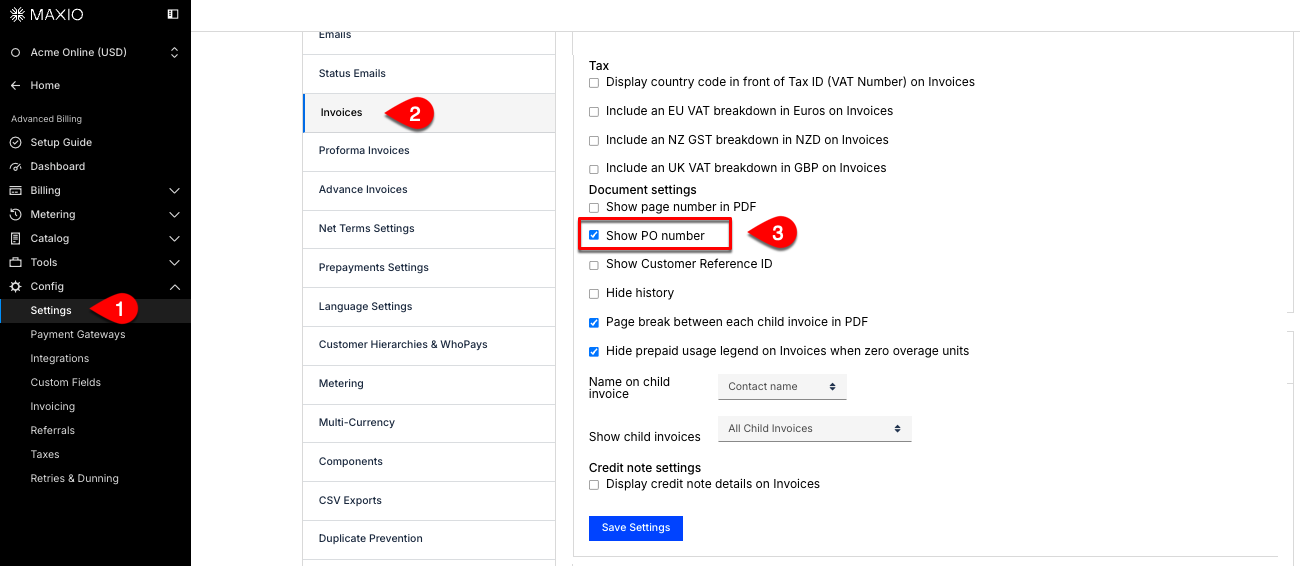
From Advanced Billing, go to Config > Settings > Invoices.
-
Scroll down to the Document settings section and check the Show PO Number box.
-
Click Save.
Customize the label (optional)
The default label is “Purchase Order Number.” Customize the label text under Language Settings if you prefer a different term, such as “PO #” or “Purchase Ref.”
- From the same Settings screen, click Language Settings.
- Find the Purchase Order Number Label row and enter your preferred label in the Customized Value column.
- Click Save.
After turning this on, preview an Invoice to make sure the PO Number appears and is aligned the way you want.
Still need help?
Reach out and our support team will take it from here.