
Setting Business Details and Customer Address
Last updated on Aug 28, 2026
Control which details appear at the top of each Invoice your subscribers receive, from your logo to your Business Name, address, phone number, and Tax ID. Deselect any item to hide it from your Invoices.
Go to Config > Settings > Invoices and scroll down to the Invoice Customization section.
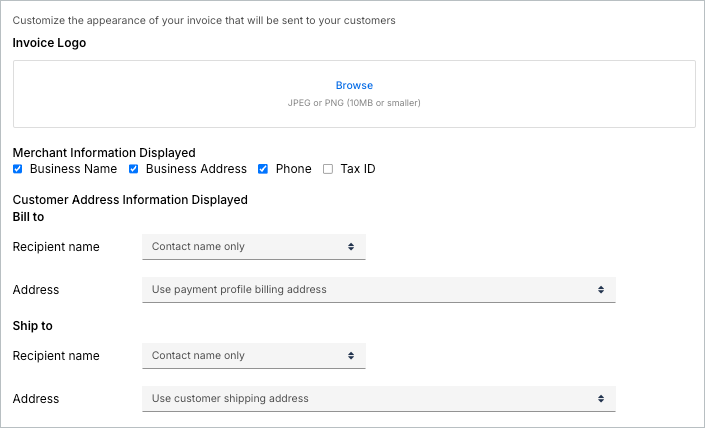
Business details
These settings control what business information appears at the top of each Invoice.
-
Logo
Upload your logo from the Settings screen. It appears in the top-left corner of online Invoices. -
Business Name
The Business Name associated with your merchant account. Check the box to display it on the Invoice.For more information on customizing your Business Name, see Manage My Profile and Account Settings.
-
Business Address
The Business Address associated with your merchant account. Check the box to display it on the Invoice. -
Phone
The phone number entered on your Advanced Billing account. Check the box to display it on the Invoice. -
Tax ID
Check the box to display your Tax ID on the Invoice.
Customer address information
The Bill To and Ship To sections of your Invoice each have their own Recipient Name and Address dropdowns (Bill To Recipient Name, Ship To Recipient Name, Bill To Address, and Ship To Address), so you can configure how each section displays independently. Bill To and Ship To share the same set of options for each dropdown.
Recipient Name options:
- Contact Name Only – Displays only the Customer’s first and last name.
- Organization Name Only – Displays only the Customer’s organization name.
- Contact Name Then Organization Name – Displays the name followed by the organization.
- Organization Name Then Contact Name – Displays the organization followed by the name.
- Hide Recipient Name – Hides the recipient name entirely.
Address options:
- Use Payment Profile Billing Address if it Exists, Otherwise Use Customer Shipping Address – Prioritizes the billing address from the Customer’s Payment Profile. If none is available, the Customer’s shipping address is used instead.
- Use Customer Shipping Address – Displays the shipping address associated with the Customer record.
- Use Payment Profile Billing Address – Always uses the billing address from the Customer’s Payment Profile. If none is available, no address is shown.
- Do Not Display an Address – Omits the address section entirely.
Additional address settings:
- Hide empty "Bill To" section when only a shipping address is provided
Hides the "Bill To" heading on the Invoice when the Customer has no billing address on file, only a shipping address. - Display full country and state names in customer addresses
Shows full country and state names instead of abbreviations in Customer addresses.
Still need help?
Reach out and our support team will take it from here.