
Set Custom Pricing on a Subscription
Last updated on Aug 27, 2026
Custom Pricing overrides a Product's catalog price for a single Subscription. Set it while creating a Subscription, when changing its Product, or by updating an existing Product's price point. You can mix and match Price Points and Custom Prices within the same Subscription; not every Plan and Product on it needs a Custom Price.
Custom Pricing applies only to the given Subscription. It doesn't get saved to the Product Catalog.
Create a subscription with custom pricing
Set a Custom Price on a Product as part of creating the Subscription.
To create a Subscription with Custom Pricing
-
From Advanced Billing, go to Billing > Subscriptions, then click Create Subscription.
-
In the Customer section, select Select Existing Customer or create a new Customer.
-
Complete the Customer details as needed.
-
In the Configuration section, select a Currency.
-
Click Select Product.
-
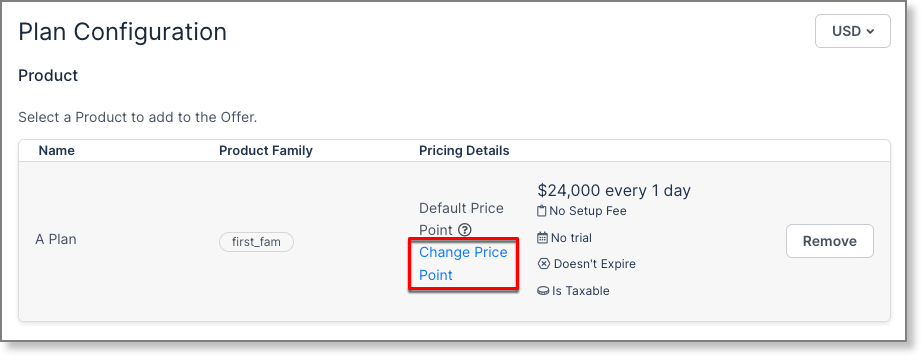
Select the Product to add, then click Change to set a Custom Price.
-
On the Select Product Price Point screen, select Custom Pricing. The Custom Price is only associated with this Subscription and isn't saved to the Product Catalog.
-
Set the Base Price and the Interval, and indicate if tax is included in the price.
-
Optionally add a Trial Period, a Setup Fee, or an Expiration.
-
Click Preview to save your Custom Price and return to the Configuration section.
-
Select any additional Products to add.
-
Optionally add Coupons.
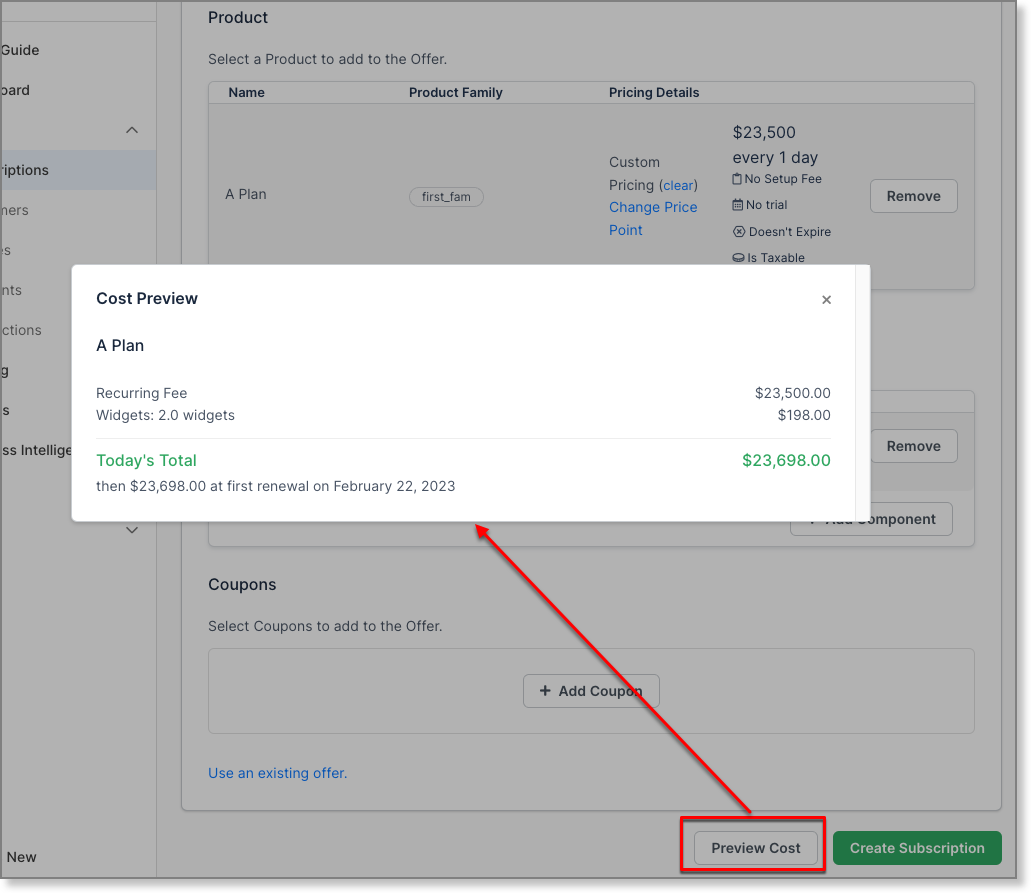
Important: Preview Cost is only available before you click Create Subscription.
-
Click Preview Cost to preview the Subscription with your Custom Prices applied.
-
If the Cost Preview looks correct, click Create Subscription.
Change a subscription's product with custom pricing
When viewing the Subscription, you can change its Product to one with a Custom Price, or modify an existing Custom Price.
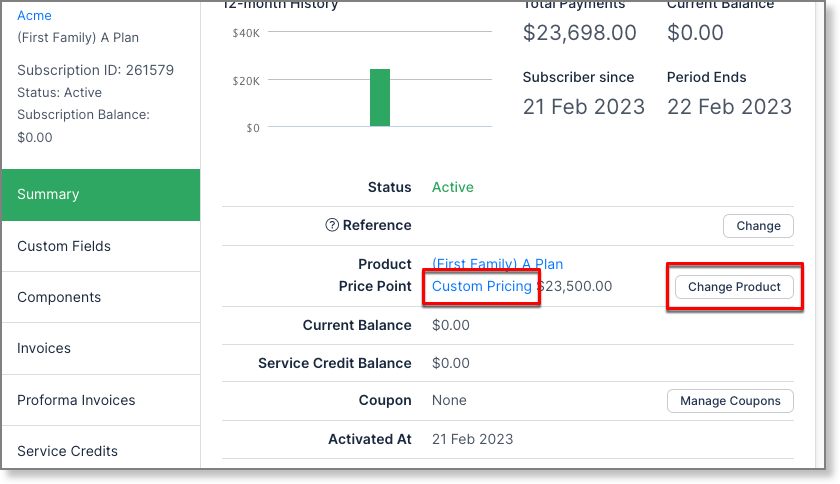
You can also set a Custom Price at the same time you change the Subscription's Product.
To change the Subscription's Product with Custom Pricing
-
Click Change Product.
The Change Product screen lists the effects of changing the Product:
- No proration is done. Your Customer isn't charged or credited at this time. If you want proration, perform an Upgrade or Downgrade a Subscription instead.
- The selected Plan immediately becomes the current Plan in the Advanced Billing API and UI.
- The period isn't affected, except in the case of a trial.
- The new Plan's charges are assessed at the start of the next period.
- Products are unchanged, and Product charges are assessed at the start of the next period.
- If the new Plan belongs to a different Product Family, Product usage no longer shows in the Products (Line-Items) tab, because Products belong to a specific Product Family.
- If the new Plan doesn't have delayed initial charges, any pending initial charges don't apply.
- If the Subscription moves to a Plan that expires, its expiration is calculated from today.
- If the Subscription moves to a Plan that doesn't expire, its expiration date, if any, is removed and the Subscription never expires.
- If the Subscription is trialing and moves to a Plan with a longer trial, its trial is extended.
Important: If the Subscription has a term, its term date isn't affected by this change.
-
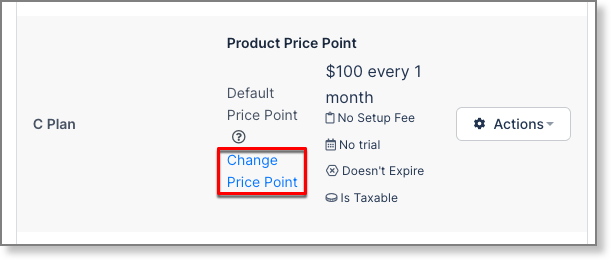
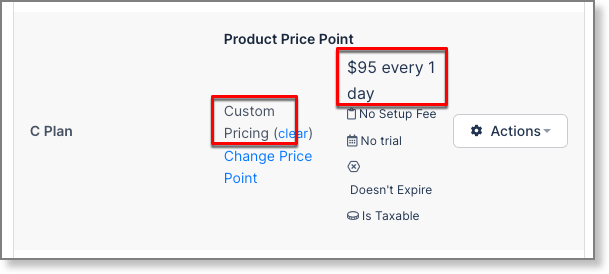
Scroll down to find the Product to change to and click Change Price Point.
-
Set the Custom Price and click Preview.
-
From the Actions drop-down, click Change to Product.
Update a product's price point
Update a Product's existing price to a Custom Price without changing its quantity.
To update a Product's price point
-
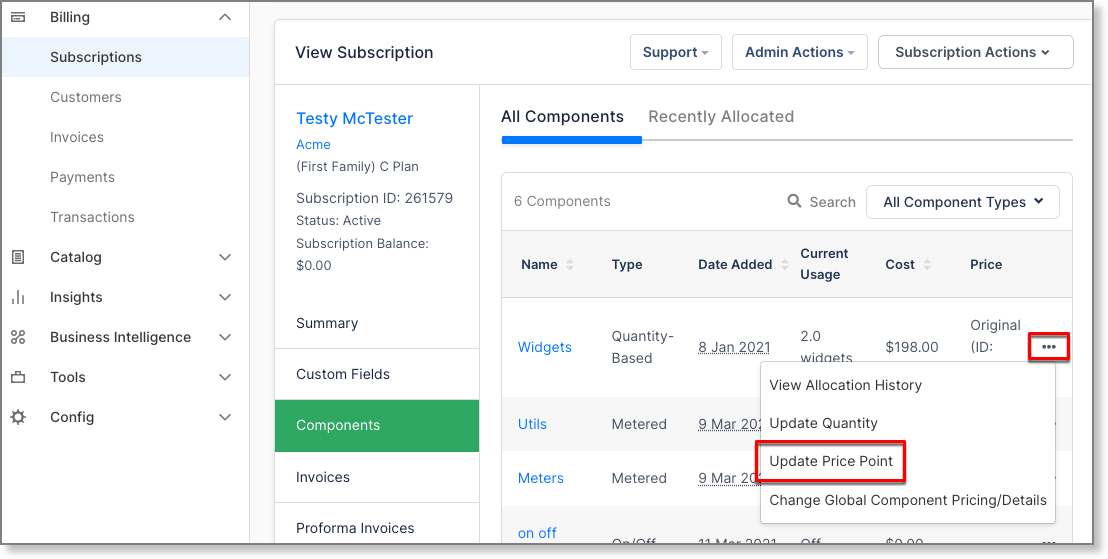
Open the Subscription and select Products in the left navigation panel.
-
For the Product you want to set Custom Pricing for, click its More icon (...) and select Update Price Point.
-
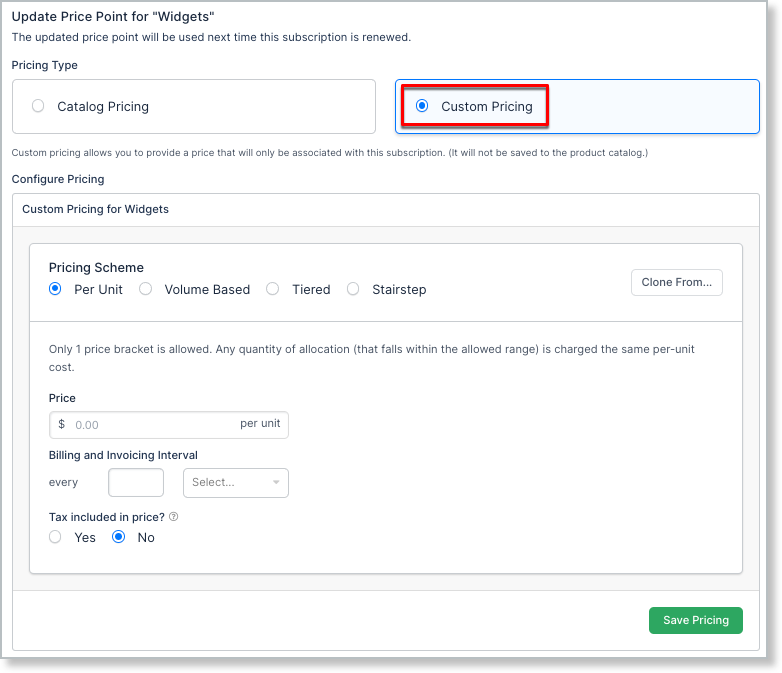
On the Update Price Point screen, select Custom Pricing.
-
Set the Pricing Scheme.
Custom Pricing supports up to 11 decimal places.
-
If Entitlements is enabled for your site, an Override Default Entitlements for this Price Point checkbox appears below the Pricing Scheme.
- Leave it unchecked to have this Custom Price point continue inheriting the Product's default Entitlements.
- Select it to reveal an editable feature set for this Custom Price point, pre-filled from the Product's default Entitlements. Adjust any feature value as needed. The change applies only to this Subscription's price point.
-
Click Save Pricing, then Update.
Related information
For how Custom Pricing behaves once set, see Understand How Custom Pricing Works.
For the Update Quantity, Toggle On/Off, and Purchase Prepaid Units flows for setting Custom Pricing, see Configure Custom Pricing for Products.
Still need help?
Reach out and our support team will take it from here.