
Upgrade or Downgrade a Subscription
Last updated on Sep 9, 2026
Upgrade or downgrade a Subscriber's Plan, and prorate the charges or credits for the difference. If you just want to switch the Subscriber to a new Plan without proration, use a Plan change instead.
See When to Credit or Charge for Plan Changes, Upgrades, or Downgrades for a scenario-by-scenario breakdown of what to credit or charge in each case.
Initiate an upgrade or downgrade
Upgrades and downgrades are initiated from the Subscription's own Actions menu.
To upgrade or downgrade a Subscription
-
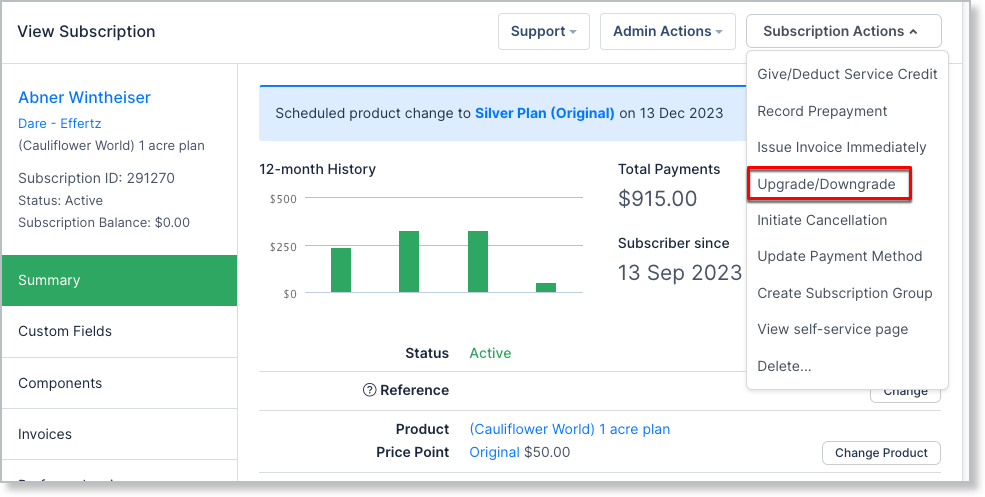
Open the Subscription and select Upgrade/Downgrade from the Subscription Actions.
-
Review the current Plan and prorated credit, if any.
-
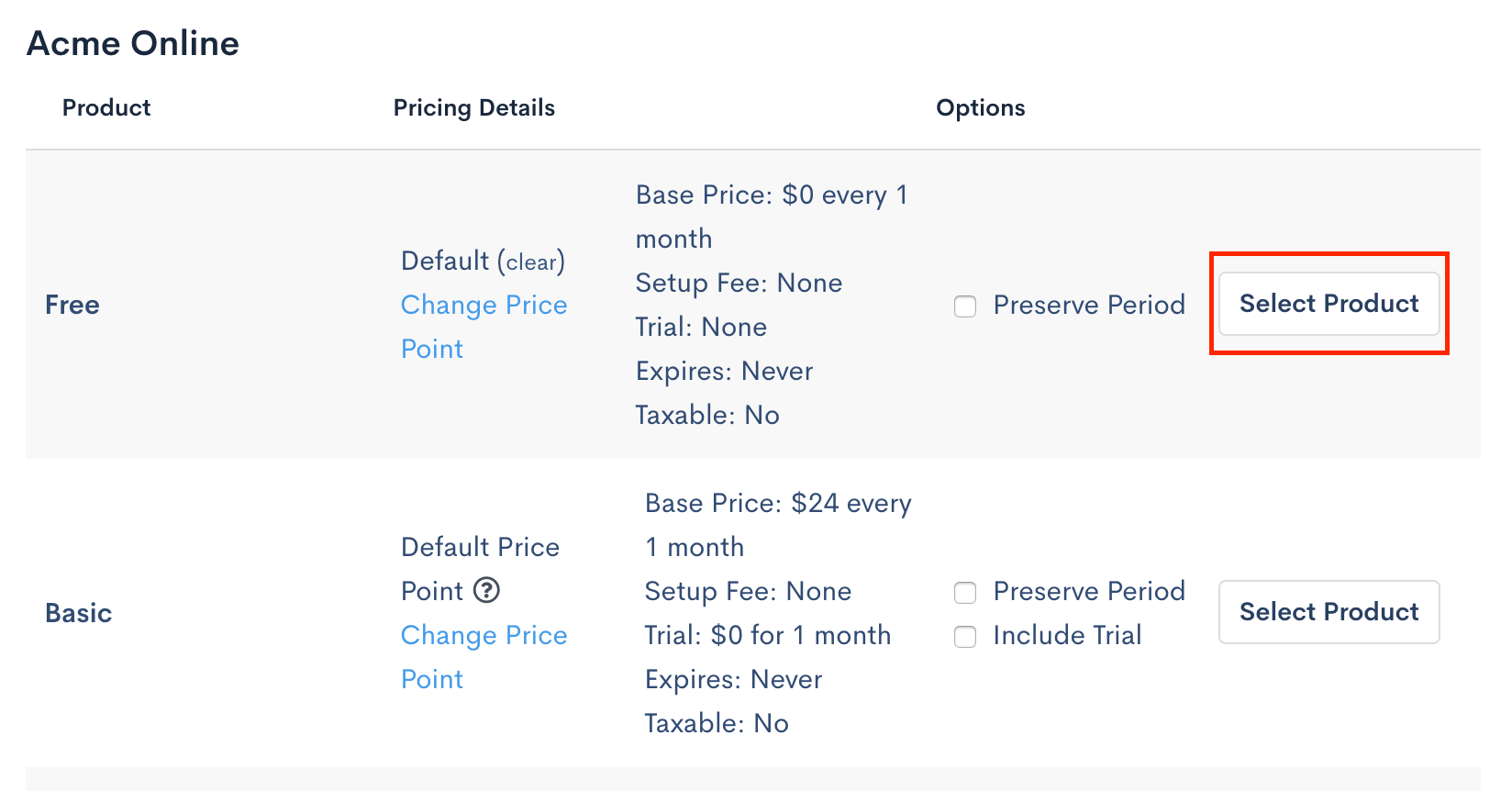
Select Select Product next to the Plan you want to migrate to.
-
Optionally, select Include Coupons to carry over any existing coupons.
-
Confirm the migration.
You'll see a success message once the migration completes. Check the Subscription's Transactions tab for the credits and charges created during the migration.
Proration effects
Upgrading or downgrading a Subscriber's Plan credits them for the unused portion of their current Subscription toward the new one.
- Prorated credit: A prorated credit reimburses the Customer for their current Plan, including any Product charges from that period. This isn't a refund: no money is returned to the Customer, and the credit only affects their balance.
- Charge (new invoice): A charge for the full amount of the new Plan applies, along with the full amount of all Product charges.
- Updated period dates: The period start date resets to today.
- Resets: All metered Products reset to zero. If you're switching to a new Product Family, all Product balances reset.
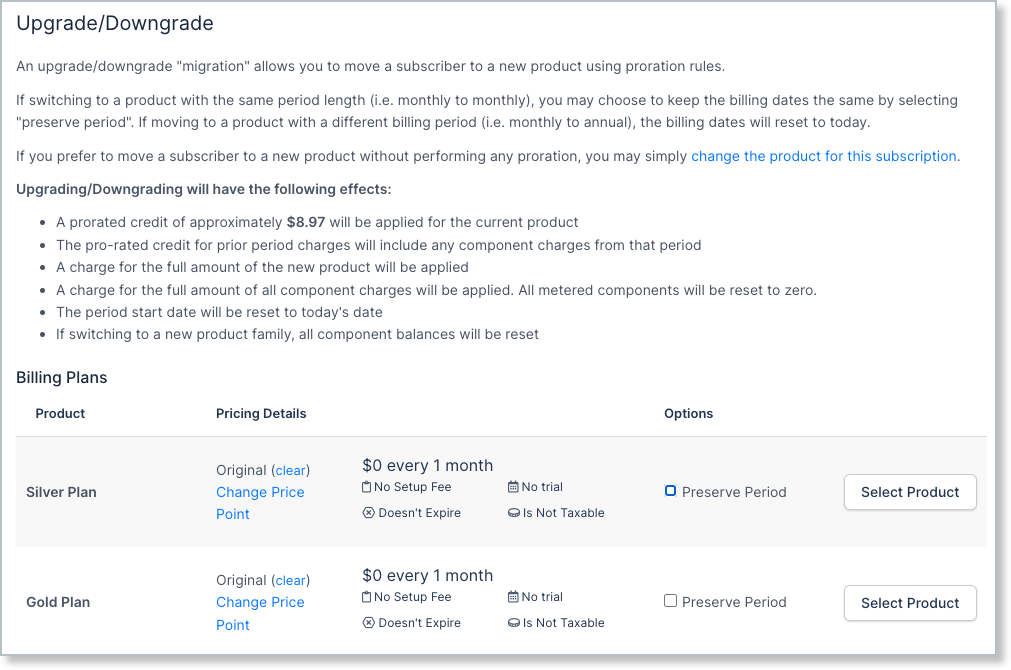
The prorated credit is proportional to the time remaining in the period, rounded to the nearest cent. It's $0 only if no payment was issued toward the current Plan.
Any setup fee on the current Plan is excluded from the proration calculation; it doesn't count as money already spent toward the Plan.
Advanced Billing calculates the credit using the following equation:
(Time left of recurring period / Recurring period) × Cost of a recurring period
Surcharging on a migration
If the site has credit card surcharging enabled and the buyer's card is eligible, the charge for the new Plan includes a surcharge, calculated on the amount still due after the prorated credit is applied rather than on the new Plan's full price.
The prorated credit also returns a proportional share of any surcharge already paid on the amount being credited. For example, crediting back a third of the period returns a third of the surcharge that was paid for it.
See Understand Credit Card Surcharging for how the surcharge itself is calculated and disclosed.
Related information
For Preserve Period, refund handling, coupon behavior, and worked examples of how proration plays out, see Understand Upgrade and Downgrade Scenarios.
For non-prorated Plan changes instead, see Change a Subscription's Plan.
For a scenario-by-scenario breakdown of what to credit or charge, see When to Credit or Charge for Plan Changes, Upgrades, or Downgrades.
For the full list of Subscription actions, see Subscription Actions Overview.
Still need help?
Reach out and our support team will take it from here.