
Give, Deduct, and Apply Service Credits
Last updated on Aug 27, 2026
A Service Credit compensates a Customer for a service issue, such as downtime or a missed service-level objective, by crediting their account instead of refunding a payment.
Give or deduct a Service Credit
You can give or deduct a Service Credit from a Subscription's own Actions menu.
To give or deduct a Service Credit
-
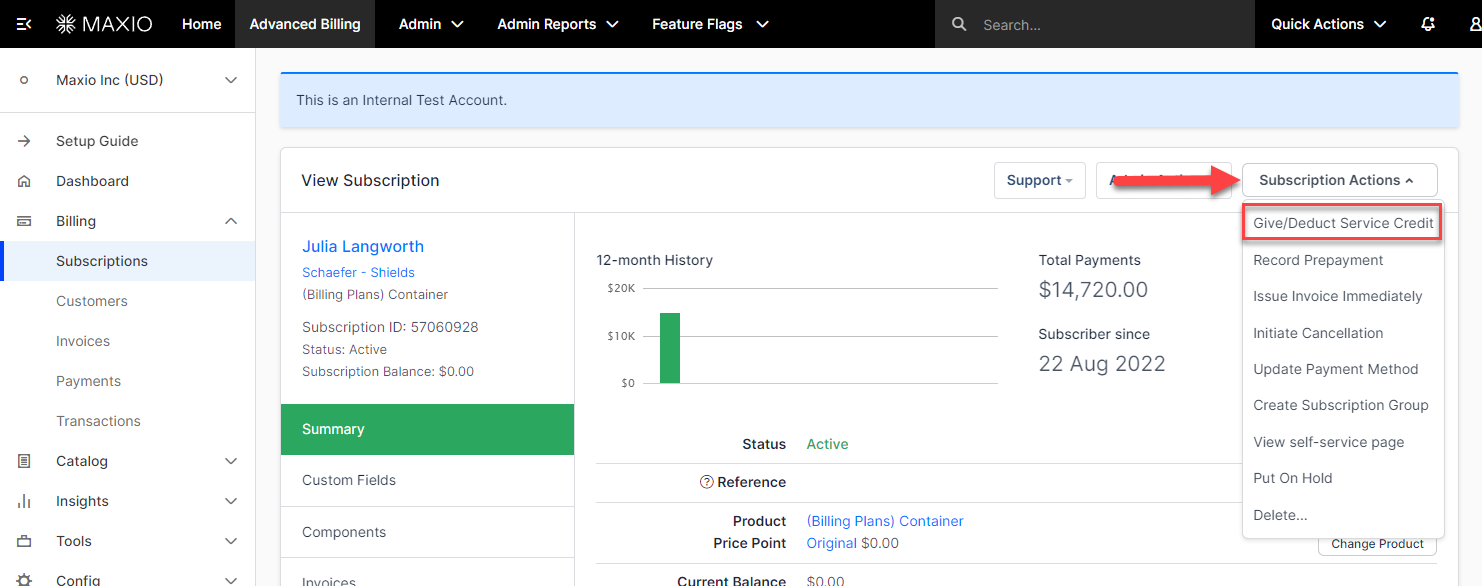
From the Subscription, select Give/Deduct Service Credit from the Subscription Actions menu.
-
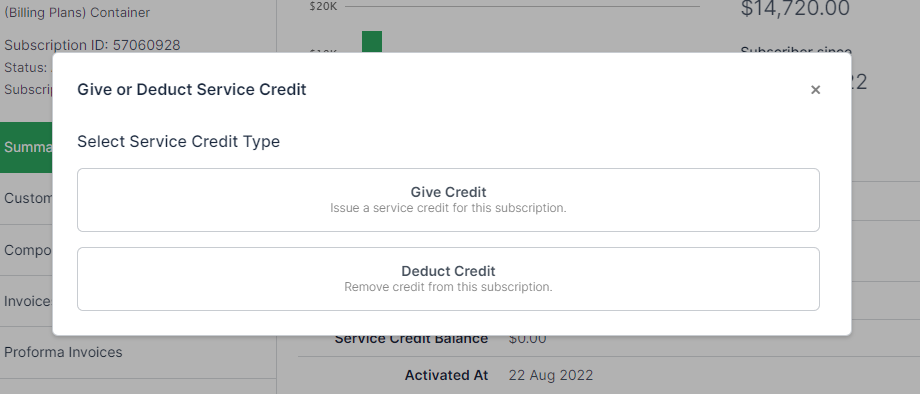
Select Give Credit or Deduct Credit.
Give a Service Credit
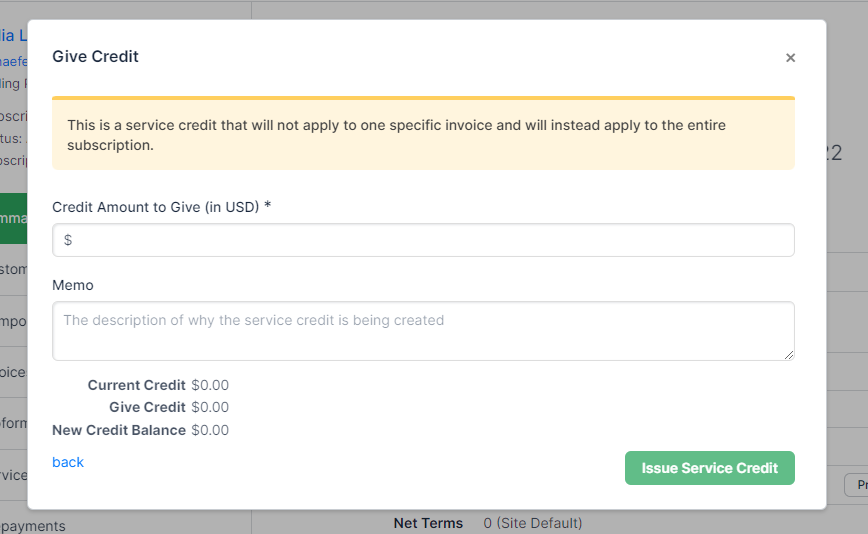
Enter the amount to give, in the Subscription's currency, along with a memo. The credit is added to the Subscription's balance immediately, and the form shows the current and new credit balances as you type.
Deduct a Service Credit
Enter the amount to deduct, along with a memo. The credit is removed from the Subscription's balance immediately, and the form shows the current and new credit balances as you type.
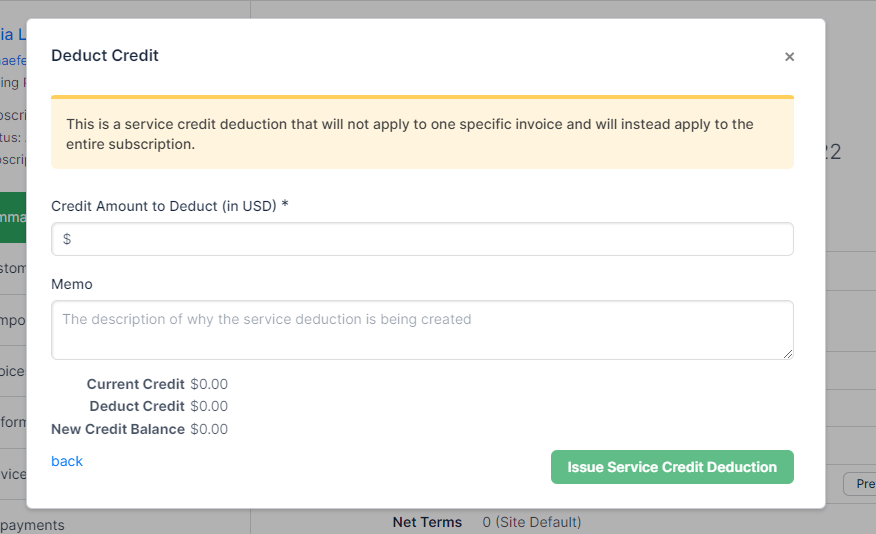
Important: You can't deduct more than the Subscription's current Service Credit balance.
Apply a Service Credit to an invoice
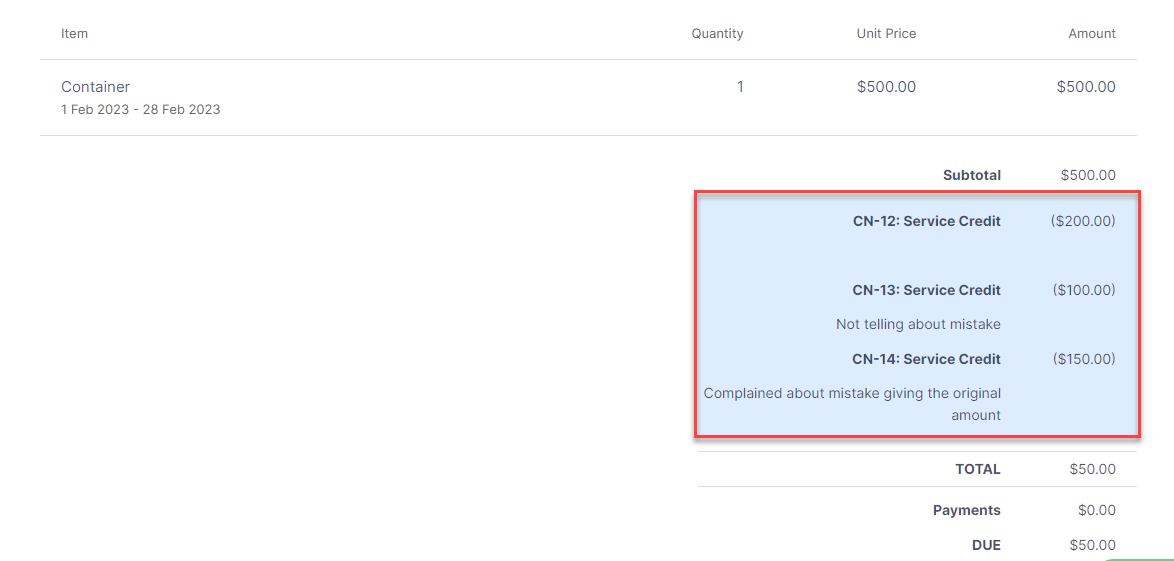
A Service Credit is applied to an invoice as a credit note. How it's applied depends on the type of invoice:
- For a Subscription's regular periodic invoice, generated automatically each billing period regardless of payment method, any available Service Credit is applied automatically as a credit note.
- For an ad hoc invoice, you need to apply the Service Credit manually.
See How Credit Notes Work for more on how credit notes work.
Apply a Service Credit to an ad hoc invoice
Since an ad hoc invoice falls outside the regular billing cycle, you need to apply any Service Credit to it yourself.
To apply a Service Credit to an ad hoc invoice
-
Open the ad hoc invoice from the Subscription's Invoices tab.
-
Select Record Payment.
-
Select Apply Service Credit.
-
Select the credit source and the amount to apply.
-
Select Apply.
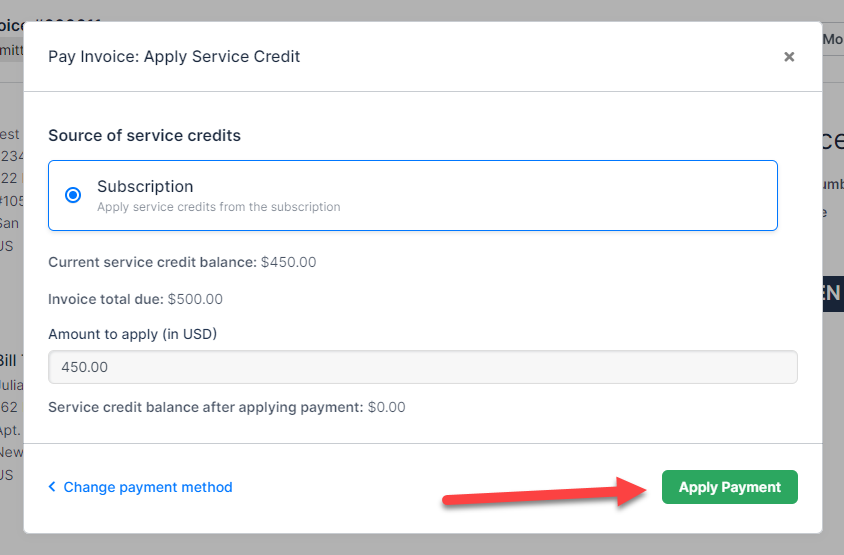
The Service Credit is added to the invoice. If the amount applied covers the full amount due, the invoice moves to a Paid status; otherwise, the Customer still owes the remaining balance.
View a Service Credit
You can view a Subscription's Service Credit balance and history from within Advanced Billing, and Customers can view their own balance from the Billing Portal.
In Advanced Billing
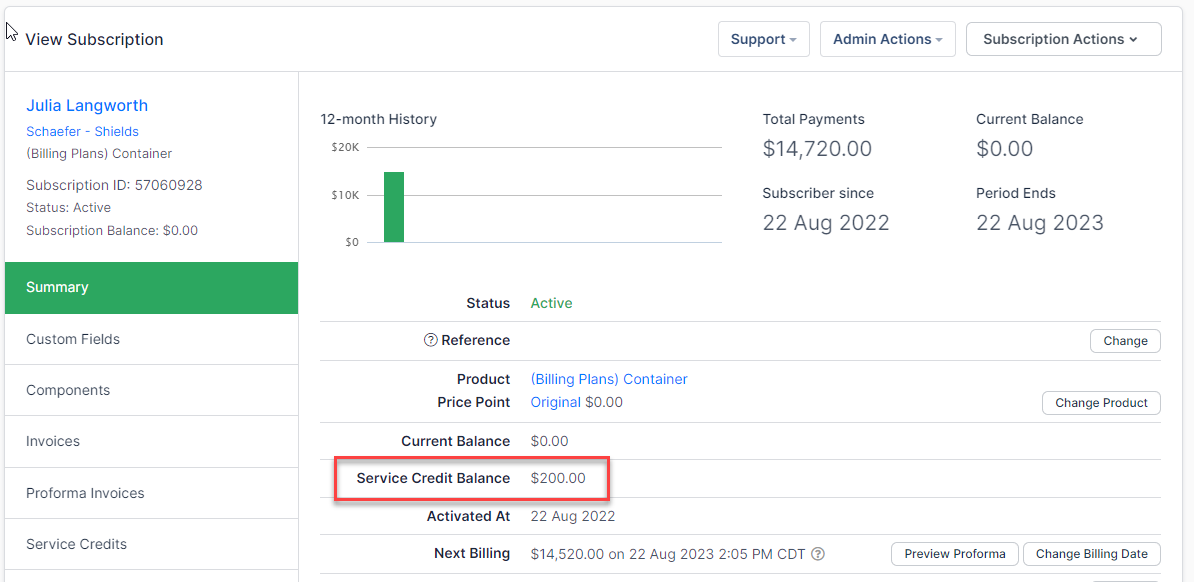
The Subscription's summary shows its current Service Credit balance.
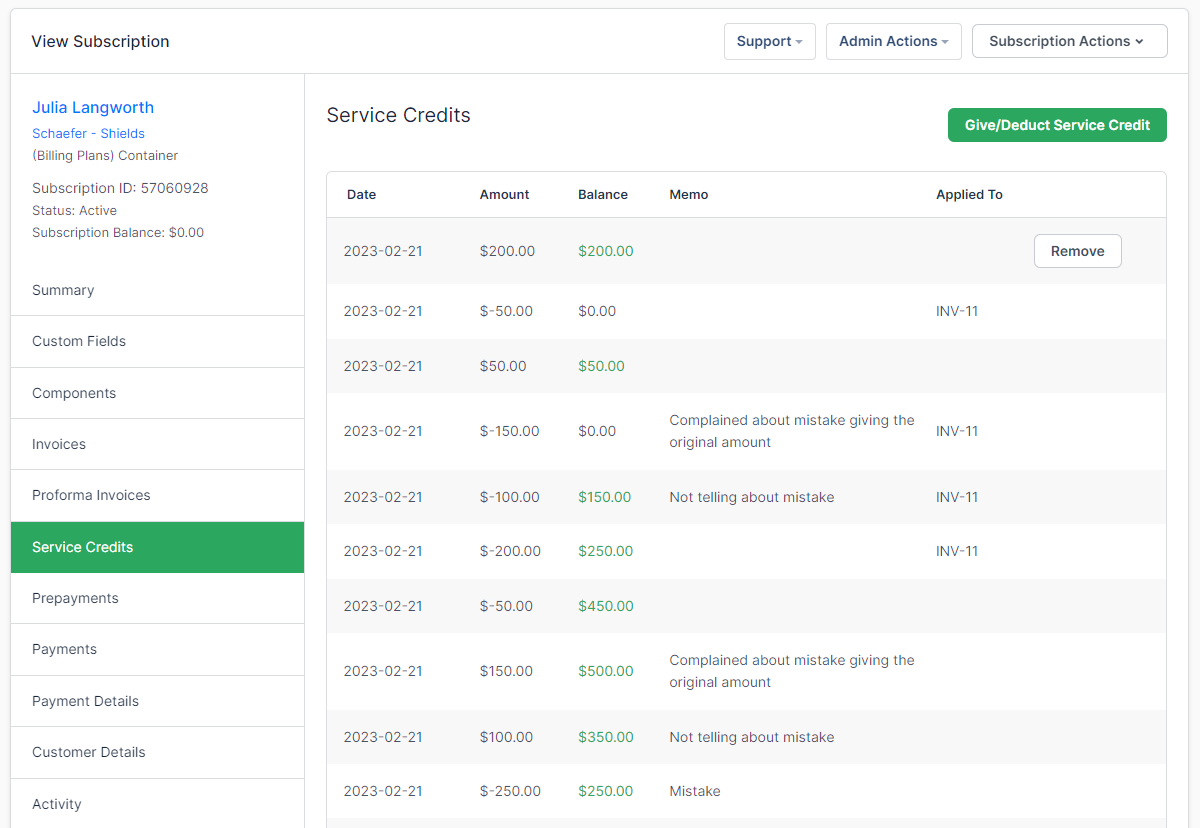
For the full history of given, deducted, and applied credits, open the Subscription's Service Credits tab.
An applied Service Credit also appears as a searchable entry on the Subscription's own Transactions tab.
In Billing Portal
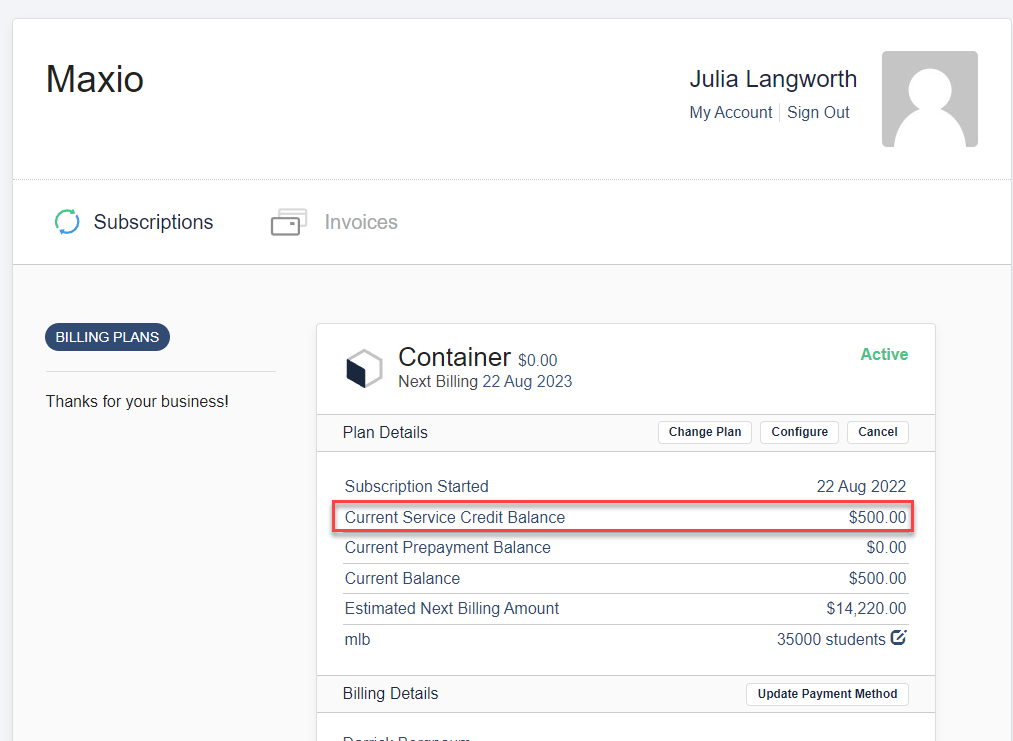
Customers can see their Service Credit balance in their Billing Portal, labeled Current Service Credit Balance.
Related information
For the full list of Subscription actions, see Subscription Actions Overview.
Still need help?
Reach out and our support team will take it from here.