
Update Subscription Payment Method
Last updated on Sep 19, 2026
A Subscription's payment method is the card or bank account Advanced Billing charges at each renewal. When it expires, fails, or the Customer wants to pay with something else, Update Payment Method is the action that changes it.
Update the payment method yourself
You can edit, add, or delete a Subscription's payment method directly.
To update a Subscription's payment method
- From the Subscription, select Update Payment Method from the Subscription Actions.
- On the Payment Details tab, edit the existing payment method, add a new one, or delete one.
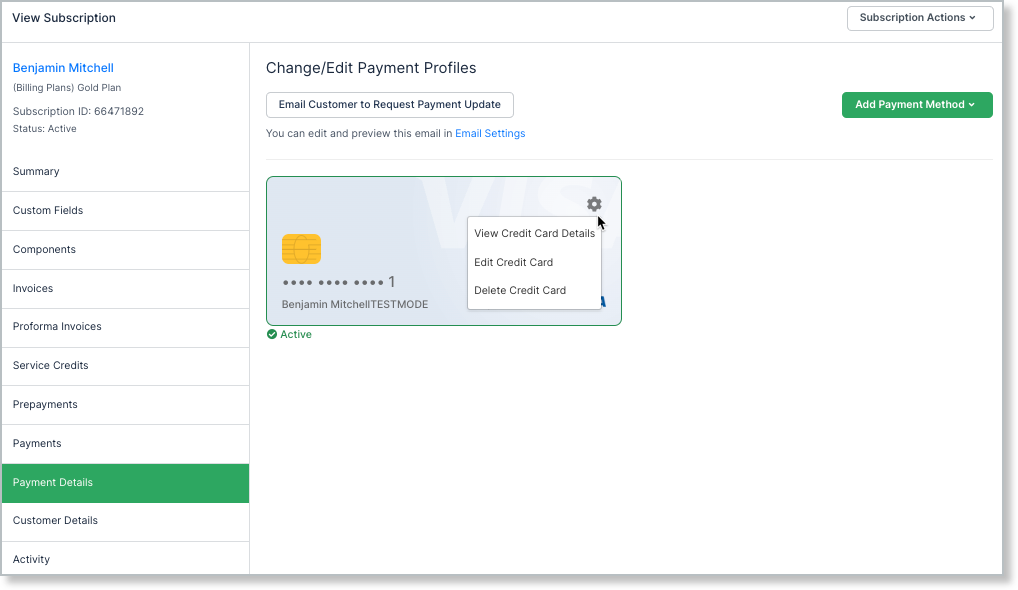
Ask the Customer to update it
From the same Payment Details tab, select Email Customer to Request Payment Update to send the Customer a link to their self-service page, where they can update their own payment method. This is usually the better route for a card that's simply expired: the Customer enters the new details themselves, so you never handle their card data.
See Configure Email Settings for more on this and other Advanced Billing-generated emails.
Why the update matters for dunning
A Subscription in dunning leaves it in one of two ways: a payment succeeds, or the dunning strategy runs out of steps and takes its final action, which, depending on how the strategy is configured, can leave the Subscription Unpaid or Canceled without any payment being made.
Updating to a working payment method is what lets a retry succeed before that final action is reached, so it's normally the first thing to check when a Subscriber is past due.
Related information
Please be aware that this article covers one of the many actions available for managing your subscriptions.
For the full list of Subscription actions, see Subscription Actions Overview.
Still need help?
Reach out and our support team will take it from here.