
Change Billing Date and Billing Time
Last updated on Aug 27, 2026
Change when a Subscription bills next, whether it's an Evergreen or Term Subscription, and even if it includes multifrequency Products that bill on their own schedule.
Change the billing date for an Evergreen Subscription
You can move an Evergreen Subscription's next billing date, its billing time, or both, from the Subscription's summary.
To change the billing date and time for an Evergreen Subscription
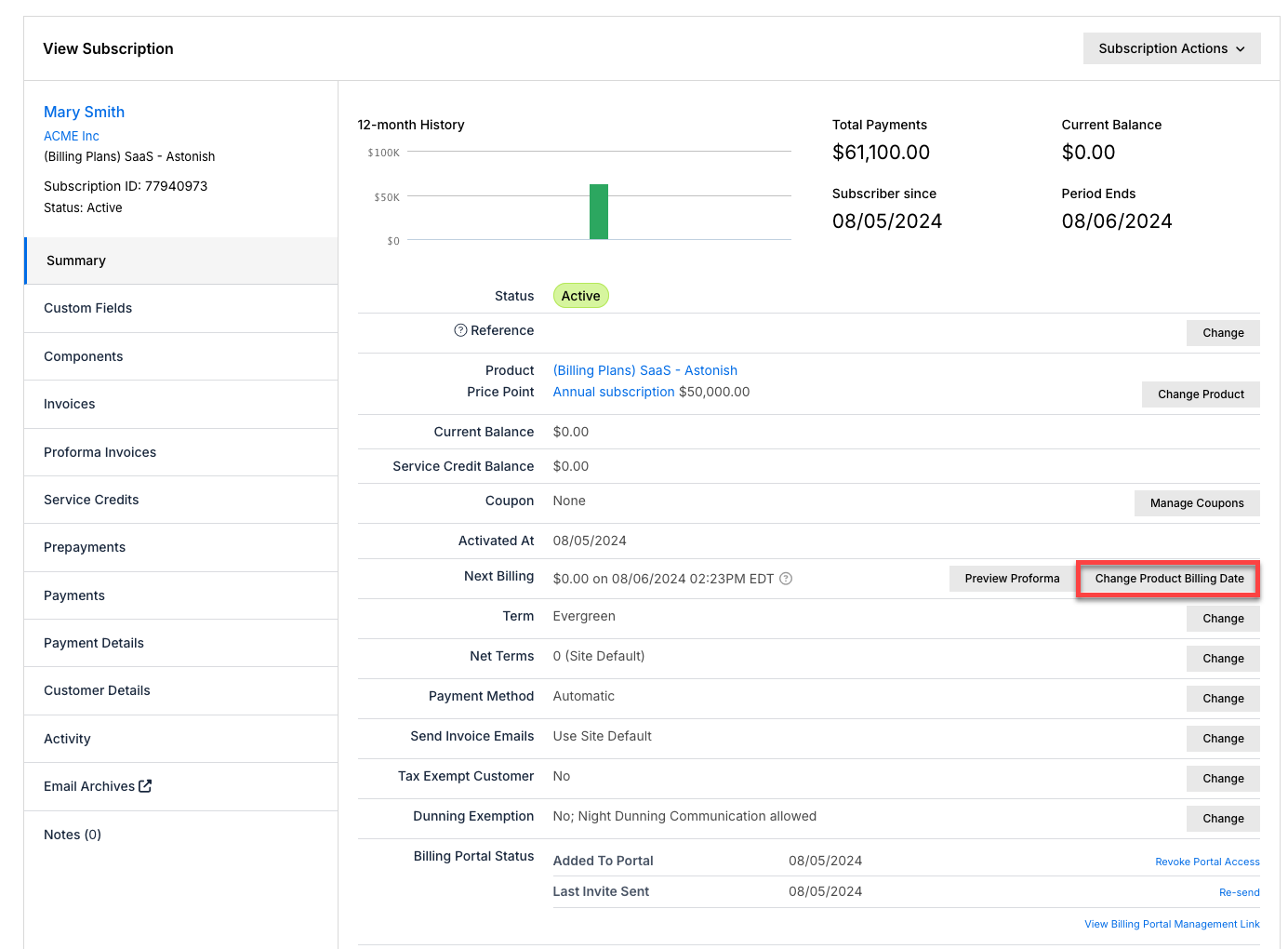
- Navigate to the Subscription and select Change Plan Billing Date.
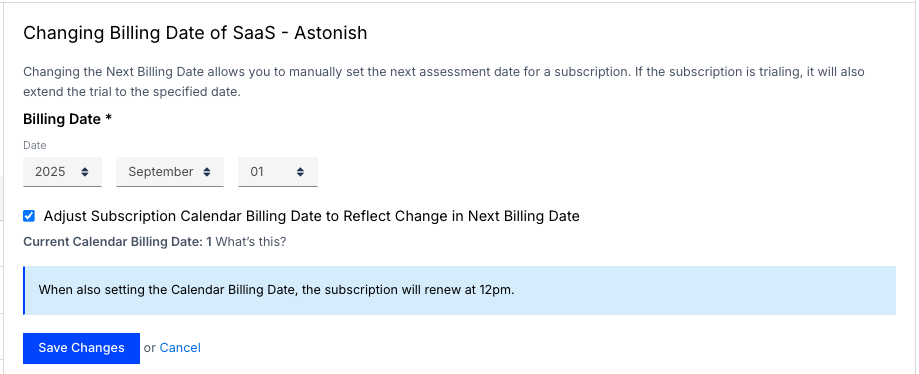
- Set the new billing date.
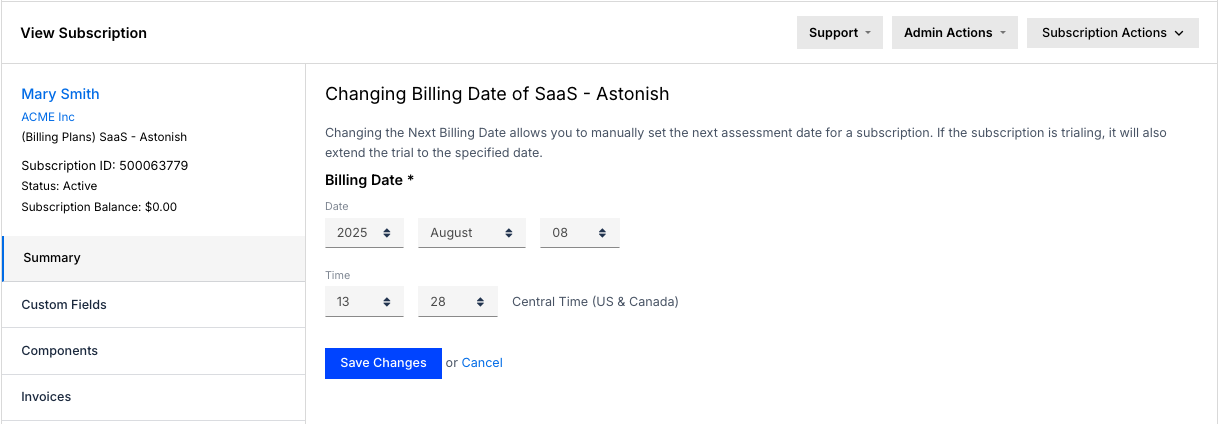
- Optionally, set a new billing time.
- You can select any future time, or up to 2 hours in the past. The change joins the next 15-minute billing processing batch.
- The billing time applies across the whole Subscription: any Products that bill the same day as the Plan use the same time.
- If the Subscription uses calendar billing, select Adjust Subscription Calendar Billing Date to Reflect Change in Next Billing Date to keep the calendar billing date aligned with the new renewal date.
- Save your changes.
Important: If you don't align the calendar billing date, the Subscription reverts to billing on the original calendar billing date at the next renewal, and a prorated charge is assessed for the shorter billing period.
Change the billing date for a Product in a multifrequency Subscription
A multifrequency Subscription has one or more Products with their own billing interval, independent of the Plan's. If you change only the Plan's billing date, the Plan bills on one date and its Products bill on a different date, which can cause confusion for billing managers and Customers. Update each Product's billing date individually to keep them aligned. See Add Multifrequency Billing to a Subscription for more on how these Subscriptions work.
To change a Product's billing date
- Navigate to the Subscription and open the Products tab.
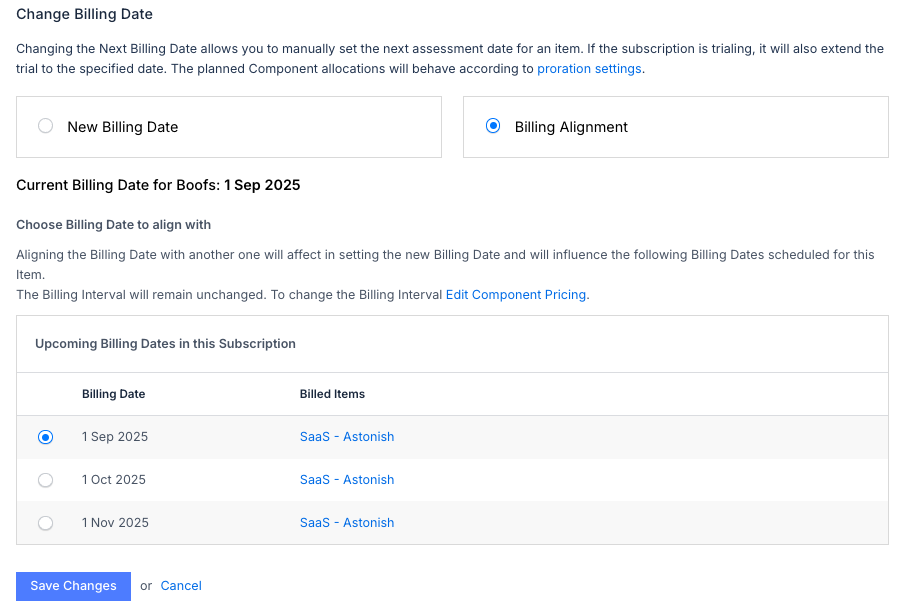
- For the Product you want to update, select Change Billing Date.
- In the date editor, select a specific billing date, or use the alignment option to sync it to the Plan's billing date or another Product's billing date.
- Save your changes.
Change the billing date on a Term Subscription
Advanced Billing doesn't offer a direct way to change the billing date or time on a Term Subscription. Instead, temporarily switch the Subscription to Evergreen, make the change, then switch it back to Term; the billing date and time you set are retained. See Term and Evergreen Subscription Options for more on these Subscription types.
To change the billing date and time on a Term Subscription
- On the Subscription detail page, change the Subscription type to Evergreen.
- Select Change Plan Billing Date and set the new date and time, as described above.
- Change the Subscription back to Term, from Subscription Summary > Term > Change > Edit Term.
The billing date and time you configured while the Subscription was Evergreen carry over once the Term is reapplied.
Related information
For more on Evergreen and Term Subscriptions, see Term and Evergreen Subscription Options.
For how multifrequency Subscriptions and Products work, see Add Multifrequency Billing to a Subscription.
For the full list of Subscription actions, see Subscription Actions Overview.
Still need help?
Reach out and our support team will take it from here.