
Configure Multifrequency Billing for Products
Last updated on Aug 27, 2026
Use the Multifrequency feature in Advanced Billing to define independent billing intervals for individual Products, separate from their Plan. This guide explains how to enable and configure Multifrequency, set billing intervals in days or months, and manage Product billing dates within Subscriptions.
Adding or editing a price point
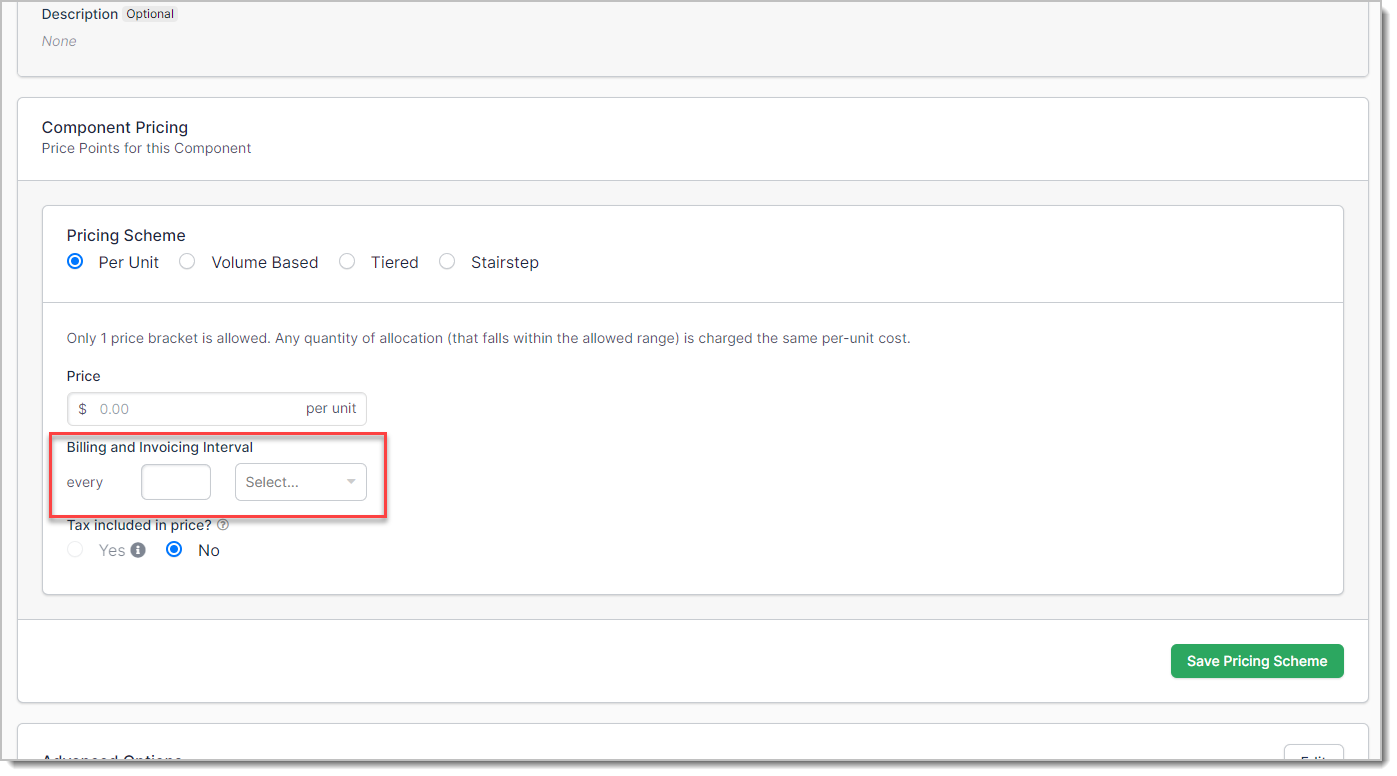
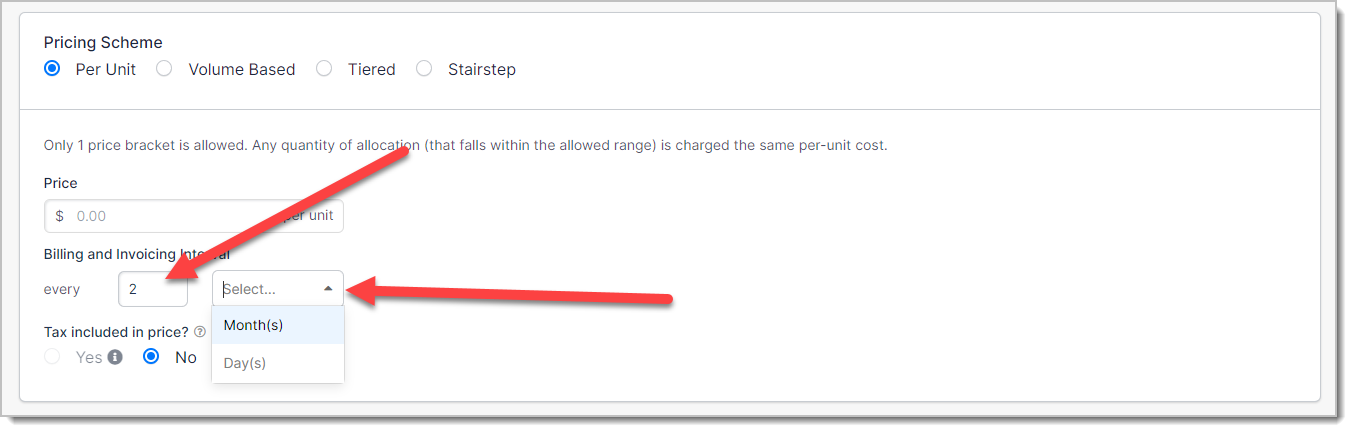
When adding or editing a Price Point for a Product, a new Billing and Invoicing Interval setting appears. This field determines how often the Product bills independently from the Plan. Enter the interval and select Month(s) or Day(s).
If you leave this field blank, the Product follows the same billing frequency as the Plan.
Example: If your Plan bills monthly but you set the Product's interval to 3 months, the Product bills every three months while the Plan continues billing monthly. Leaving the field empty aligns both the Plan and Product to the monthly cycle.
Creating a product with multifrequency
Important: Multifrequency doesn't work with a Quantity Based (One-time) Product.
To create a Product with Multifrequency
-
Create a new Product or edit an existing Product that needs Multifrequency.
-
Edit or create a Price Point. Under Price, select Billing and Invoicing Interval.
-
Set the timing interval for the Product, in days or months, relative to the Plan's own schedule. Leave this blank to align the Product with the Plan.
-
Click Save Pricing Scheme.
Changing the billing date
You can adjust individual Product billing dates for existing Subscriptions with Multifrequency enabled.
The following restrictions apply:
- A Product must have existing allocations.
- The Price Point used must have an interval defined.
- You cannot change the date when an advance invoice is open.
- Term Subscriptions can only change billing dates for Products using arrears billing. Metered and Event Based Products use arrears billing and remain eligible if all conditions are met.
To change the billing date
- Navigate to the Product's Detail page within a Subscription.
- Click the Actions menu (...).
- From the drop-down, select Change Billing Date.
- Select from these options:
- New Billing Date - Enter a specific billing date and time for the Product.
- Billing Alignment - Pick one of the upcoming billing dates already scheduled for other items on the Subscription, to align the Product with that schedule.
Saving the change updates when the next Product assessment occurs. If the Subscription is in a trial, the trial period may be extended to accommodate the new billing date.
Related information
See Add Multifrequency Billing to a Subscription for how Multifrequency works at the Subscription level.
Still need help?
Reach out and our support team will take it from here.