
Create and Manage Products
Last updated on Aug 25, 2026
Add a new Product when you have something new to bill for, update an existing one as your pricing or offering changes, or archive one you no longer sell without disrupting subscribers who already have it.
Creating products
Open a Product Family, select the Products tab, and click Create Product to choose a type.
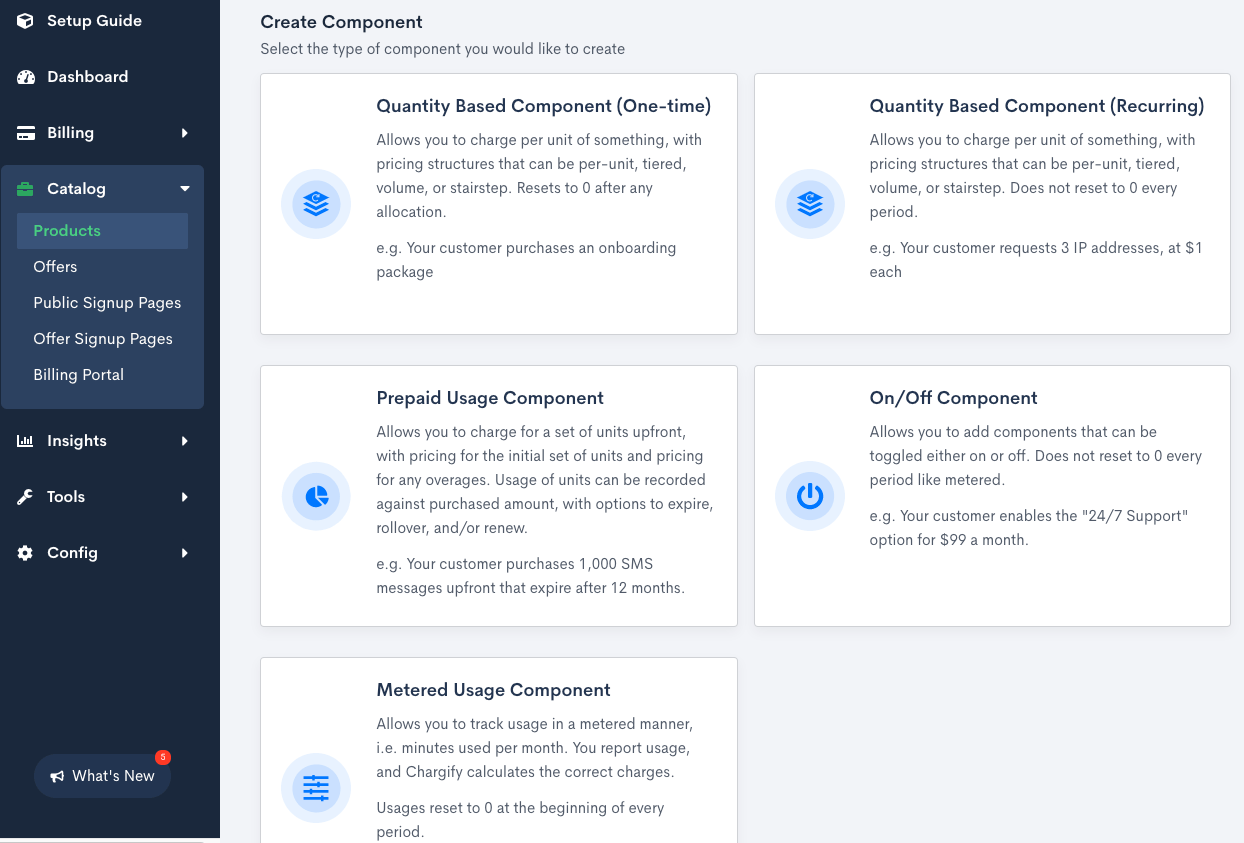
Editing products
Once you've created a Product, it appears on the Products tab within its Product Family. Select the row's Actions menu (...) and choose Edit to make changes.
Archiving a product
You can archive a Product if you no longer want it applied to new Subscriptions. Customers who are currently subscribed to a Product aren't affected.
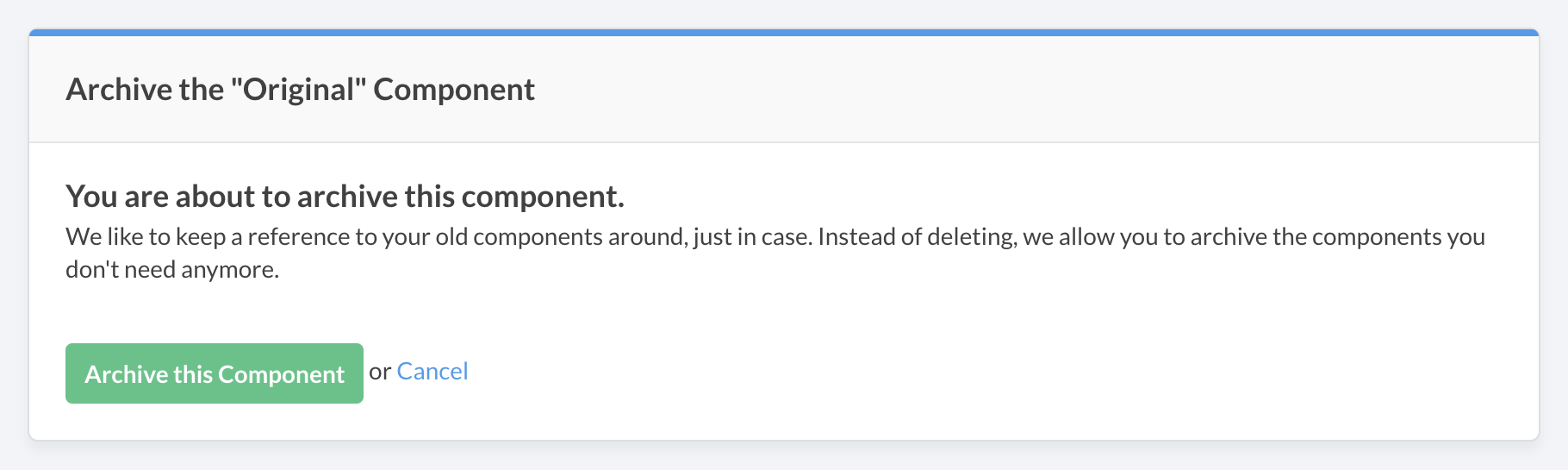
To unarchive a Product, select View Archived Items from the catalog's actions menu, locate the Product, and select Un-archive from its Actions menu to make it available for purchase again.
Related information
See Understand Products for how Products fit into the Catalog overall.
See Choose a Product Type for details on each Product type.
Still need help?
Reach out and our support team will take it from here.