
Change a Subscription's Plan
Last updated on Aug 28, 2026
Change a Subscriber's Plan at any point in the Subscription lifecycle, without prorating any charges or credits. To move when the Subscription bills rather than what it bills for, see Change Billing Date and Billing Time; for the site-wide defaults that govern how new Subscriptions start out, see Customize How New Subscriptions Are Activated, Billed, or Managed. If you want to credit or charge the Subscriber for the difference instead, upgrade or downgrade the Subscription instead.
See When to Credit or Charge for Plan Changes, Upgrades, or Downgrades for a scenario-by-scenario breakdown of what to credit or charge in each case.
Change a Subscription's Plan
You can start a Plan change from the list of Subscribers or from the Subscription's own page.
To change a Subscription's Plan
-
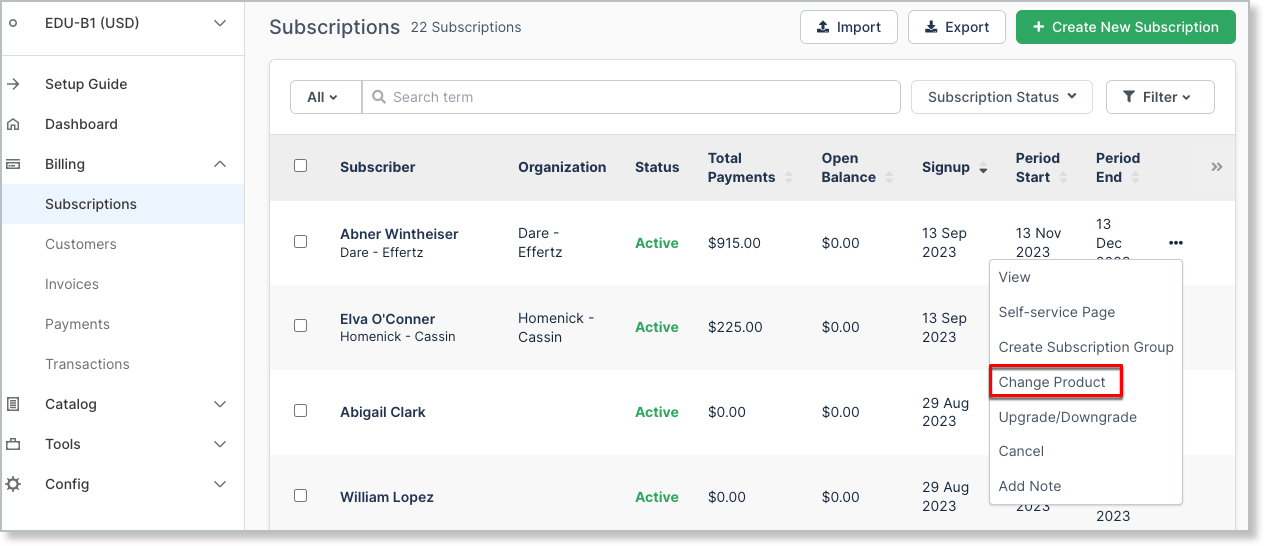
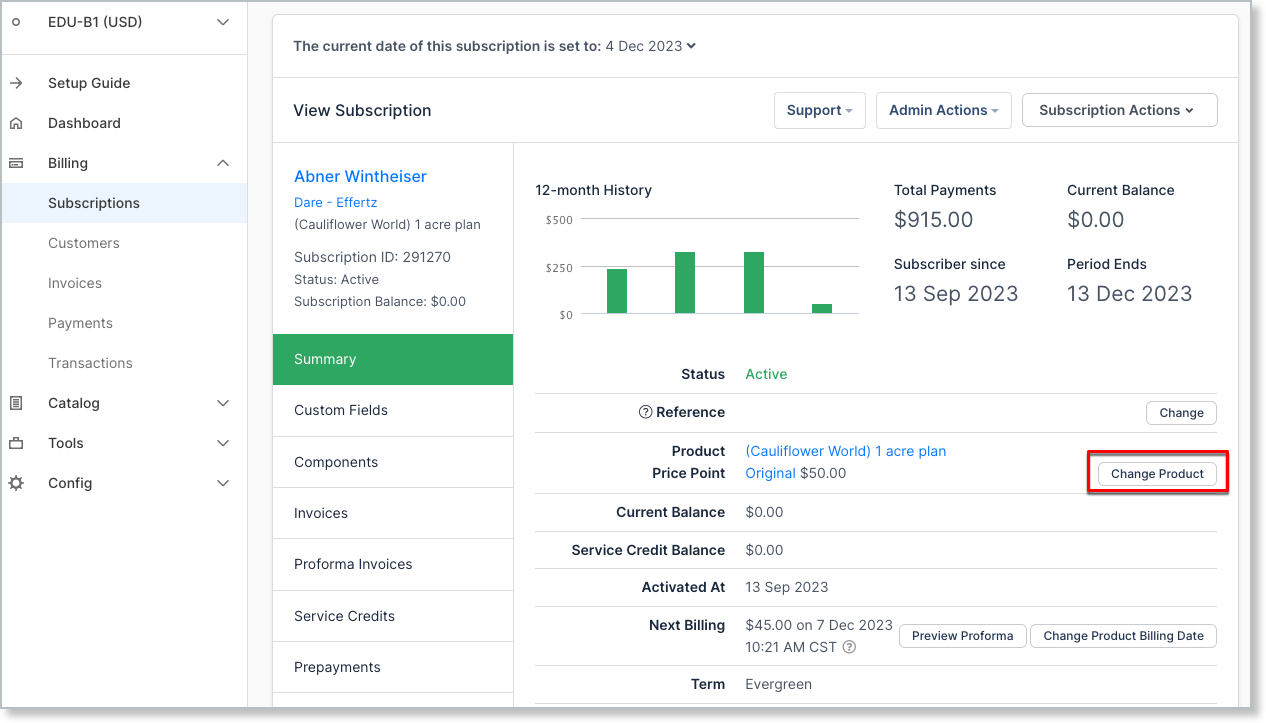
From the list of Subscribers, select the More icon (...) next to the Subscriber, or open the Subscription and select Change Plan next to the Product Price Point.
-
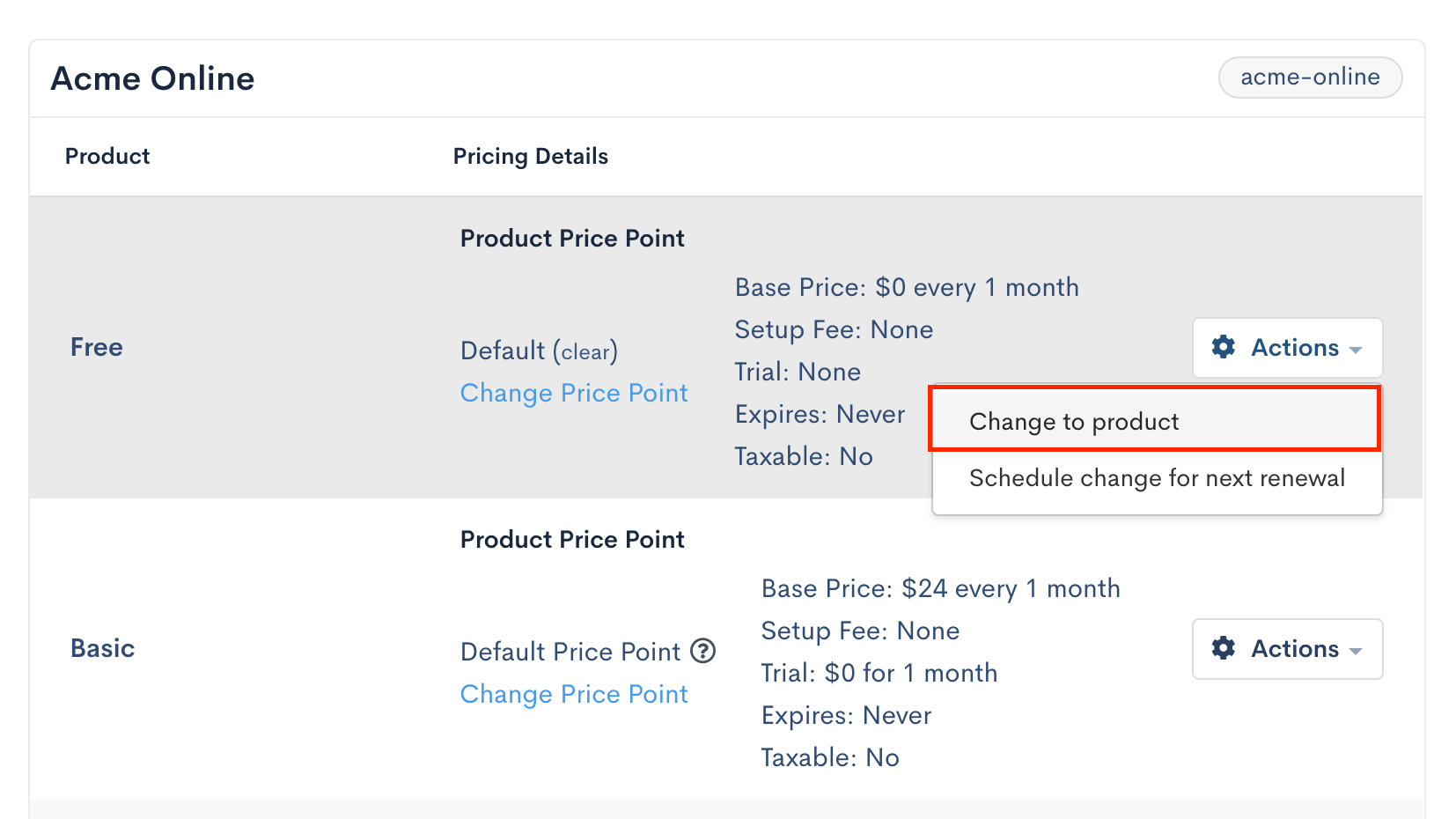
On the Plan change page, find the Plan you want to change to and, optionally, select a price point. If you don't select one, the default price point is used.
-
Select Change to product from the Actions button.
-
Confirm the change.
You'll see a message confirming the Plan change.
Plan changes are also available through the API, by updating the product_handle on the Subscription using the Update (PUT) method for Subscriptions.
Effects of a Plan change
A Plan change has the following effects:
- No proration happens: the Customer isn't charged or credited at the time of the change.
- The selected Plan immediately becomes the Subscription's current Plan.
- The current recurring period isn't affected, except for a Subscription that's trialing (see below).
- The new Plan's charges are assessed at the start of the next period.
- Products are unchanged, and Product charges are assessed at the start of the next period.
- If the new Plan belongs to a different Product Family, Product usage no longer shows in the Products tab, since Products belong to a specific Product Family.
- If the new Plan doesn't have delayed initial charges, any pending initial charges don't apply.
- If the Subscription is moving to a Plan that expires, its expiration is calculated from today.
- If the Subscription is moving to a Plan that doesn't expire, any existing expiration date is removed and the Subscription never expires.
- If the Subscription is trialing and moves to a Plan with a longer trial, the trial is extended.
Delayed Plan changes
A delayed Plan change schedules the change for the Subscription's next renewal. Because the change happens exactly at renewal, no proration is needed, and the full charge for the new Plan applies at the start of the next period.
To schedule a delayed Plan change
-
Open the Subscription and select Change Plan.
-
Next to the Plan, select the Actions button, then Schedule change for next billing cycle.
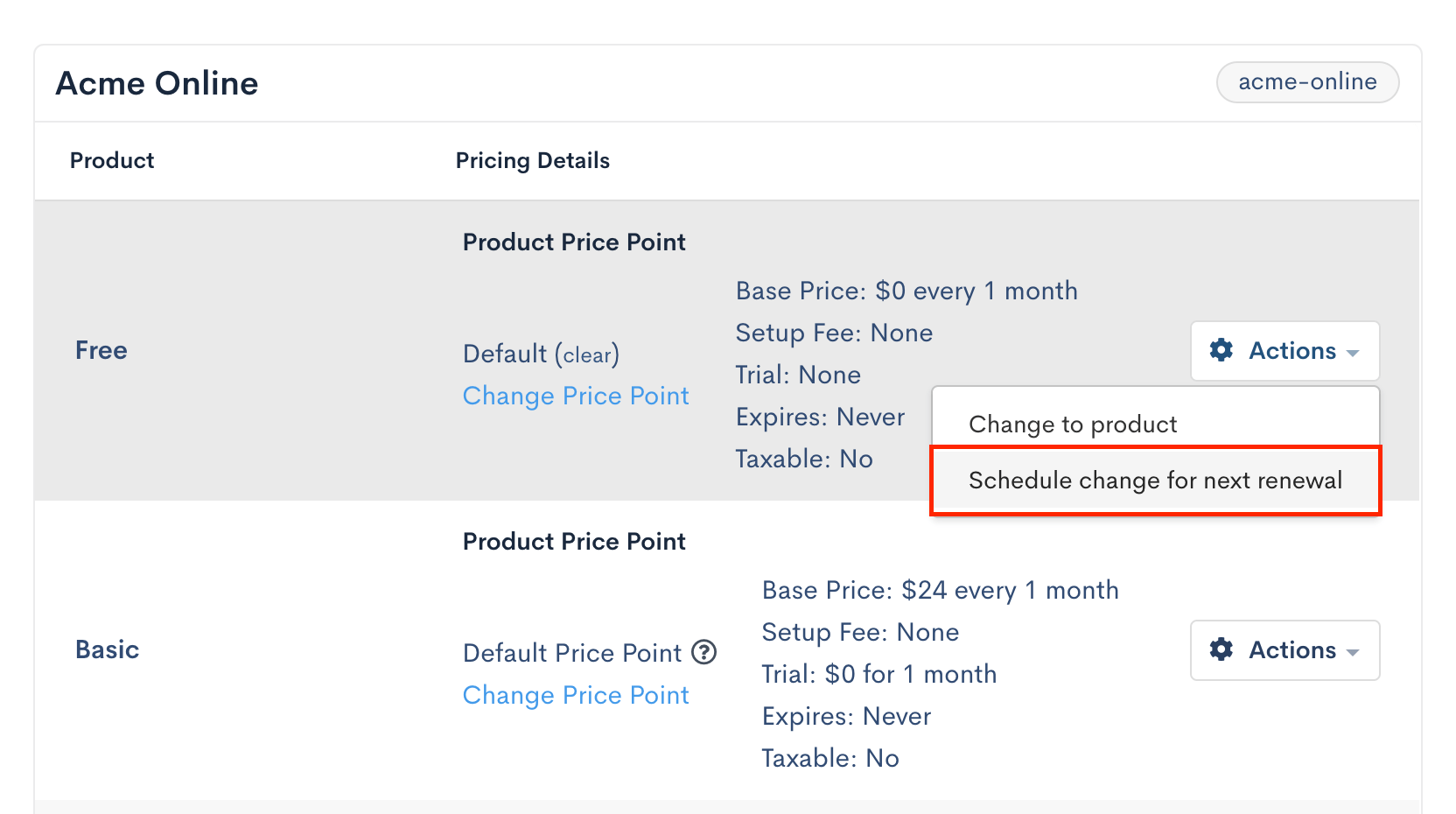
You'll see a message confirming the change is scheduled.
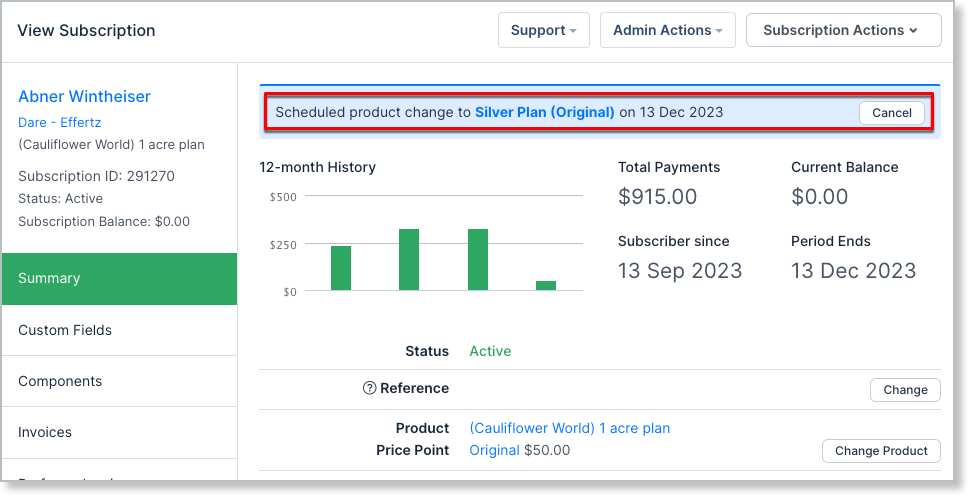
To cancel a scheduled Plan change, select Cancel next to the Scheduled product change bar in the Subscription's header.
Products and Plan changes
If you switch the Subscriber to a new Product Family, all Product balances reset, and you must re-allocate Products manually. If any metered Products use Event-Based Billing (EBB), Advanced Billing automatically deactivates the ones that belonged to the old Product Family so they stop billing; you don't need to deactivate them yourself.
Coupons and Plan changes
There are two coupon scenarios when you make a Plan change. (For clarity, "the coupon is restricted to the product" means the coupon is restricted to the Plan.)
- If the new Plan is eligible for (restricted to) the coupon, the coupon is applied.
- If the new Plan isn't eligible for the coupon, the coupon isn't applied, but it stays on the Subscription. It can still apply in the future if the coupon's restrictions are edited to include the new Plan.
A coupon can only be newly added to a Subscription if it belongs to the same Product Family as the Subscription's Plan. If a Plan change crosses Product Families, an existing coupon can remain on the Subscription even though the new Plan is in a different family; if the coupon has no Plan or Product restrictions, it still applies to charges from the new Product Family.
Setup fees and Plan changes
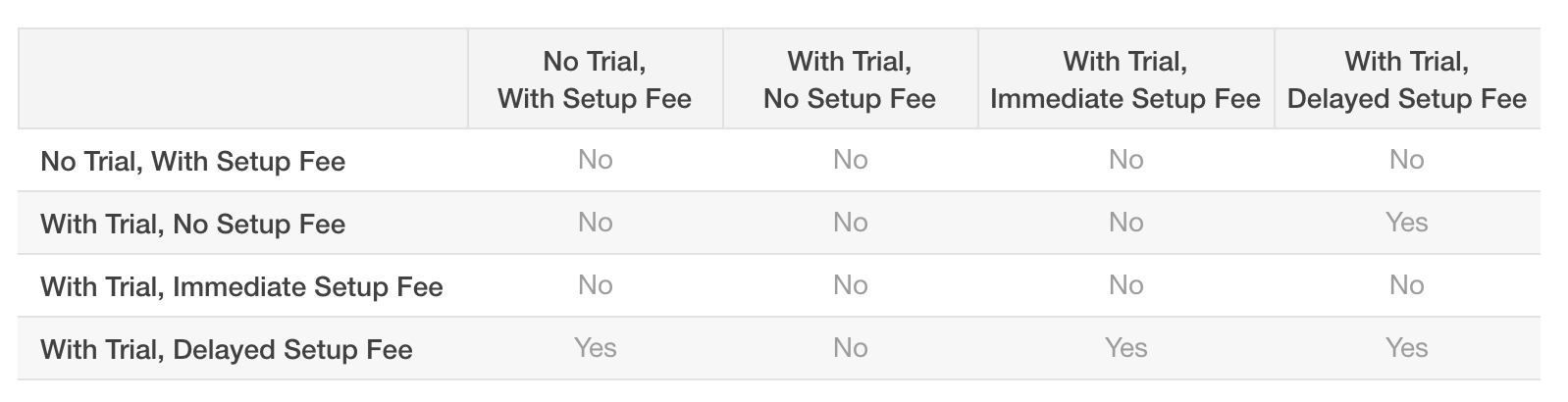
When Plans have different setup fees, use the following matrix to see whether the setup fee is honored when changing from the Plan in Column 1 to a Plan in another column.
Related information
For prorated migrations instead, see Upgrade or Downgrade a Subscription.
For a scenario-by-scenario breakdown of what to credit or charge, see When to Credit or Charge for Plan Changes, Upgrades, or Downgrades.
For the full list of Subscription actions, see Subscription Actions Overview.
Still need help?
Reach out and our support team will take it from here.