
Customize How New Subscriptions Are Activated, Billed, or Managed
Last updated on Sep 3, 2026
Fine-tune how new Subscriptions are handled from activation through billing and financial controls, using the settings under Config > Settings > Subscription Creation. Most of these settings set a default behavior you can still override for an individual Subscription.
Control what happens when Subscription activation fails
Define what happens if a Subscription's activation fails. This is useful for managing edge cases like declined payments or misconfigured Plans.
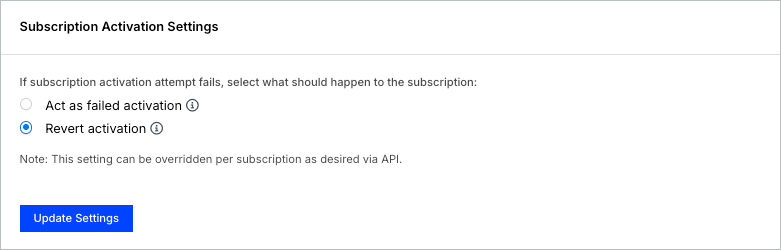
- Act as failed activation - Moves the Subscription to a past-due state, ends its trial, or, if the Subscription was awaiting signup or an awaiting-signup date, cancels it.
- Revert activation - Keeps the Subscription in its current state, with no payment collection attempts.
Depending on your Site's configuration, you may also see At the end of the trial, if no required payment method on file, with a choice of Active or Past Due, Mark as Trial Ended, or Past Due.
To choose what happens when activation fails
- Go to Config > Settings > Subscription Creation > Subscription Activation.
- Select Act as failed activation or Revert activation.
- Click Update Settings.
Set a default billing time for future Subscription signups
Use Awaiting Signup Settings to set the default billing hour for Subscriptions set to activate in the future and for Subscriptions in the Awaiting Signup state, in your Site's timezone. The billing hour uses 24-hour time (0–23), so a value like 17 means 5 p.m., not 5 a.m.
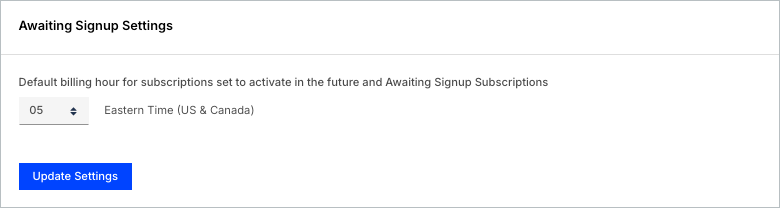
To set a default billing hour
- Go to Config > Settings > Subscription Creation > Awaiting Signup Settings.
- Select the default billing hour (24-hour time).
- Click Update Settings.
Allow custom order dates for Term Subscriptions
If Term Subscriptions is enabled for your Site, you can allow a custom order date per Subscription for better control over invoicing, accounting timelines, and Maxio Core reporting.
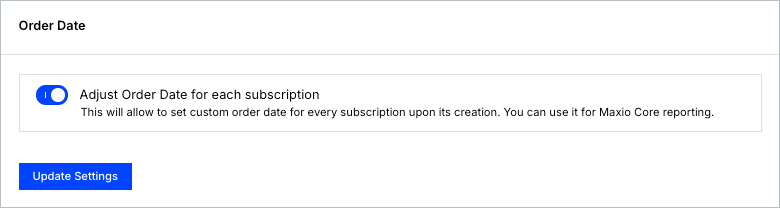
To allow custom order dates
- Go to Config > Settings > Subscription Creation > Order Date.
- Toggle Adjust Order Date for each subscription on.
- Click Update Settings.
Manage calendar billing time and resume charges
For calendar billing Subscriptions, set the time of day Subscriptions renew and how charges are applied when resuming a paused Subscription.
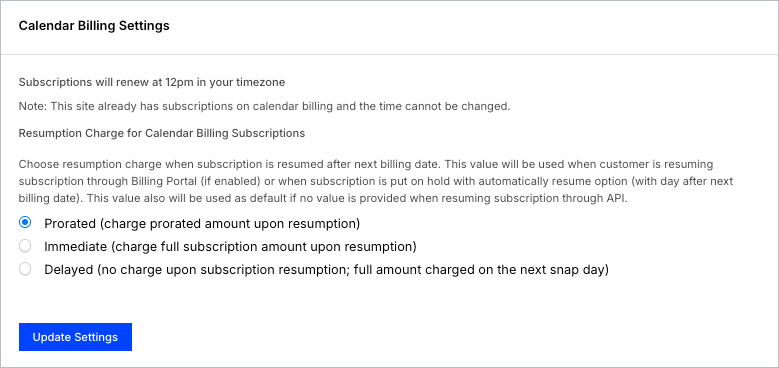
Time of day
Important: You can't change this setting once calendar billing Subscriptions exist on your Site.
Choose What time of day should subscriptions renew?: Noon in your timezone or 5 p.m. in your timezone.
This setting can be overridden for individual Subscriptions through the API.
Resumption charge for calendar billing Subscriptions
Specify how charges are handled when a Subscription is resumed after the next billing date. This applies when:
- A Customer resumes a Subscription through the Billing Portal (if enabled).
- A Subscription on hold with the "automatically resume" option resumes, starting the day after the next billing date.
Choose from the following options:
- Prorated - Resume immediately and charge a prorated amount.
- Immediate - Resume immediately and charge the full amount.
- Delayed - Resume now, but wait to charge until the next time Subscriptions are billed.
Advanced Billing also uses this setting as the default when a resume request through the API doesn't specify a charge option.
To set calendar billing time and resume charges
- Go to Config > Settings > Subscription Creation > Calendar Billing Settings.
- Select a renewal time and a resume charge option.
- Click Update Settings.
Lock financial data with Advanced Finance Settings
Prevent retroactive changes to your financial data by locking invoices and transactions with a manual or dynamic closing and lock date, so changes to Subscriptions only happen within approved timeframes.
These settings also control how far in the past a Subscription's start date can be backdated; see Understand Subscription Backdating for the full rules.
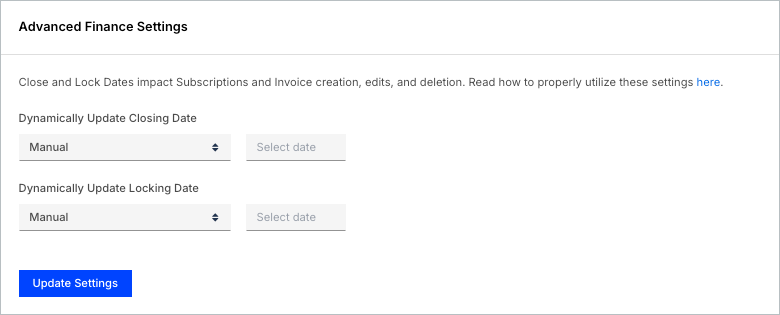
If One Maxio is enabled for your Site, these fields become read-only and show your Maxio Core close and transaction lock dates instead, with a link to edit them in Maxio Core.
Set closing and lock dates
Set a fixed date, or a date that moves relative to today, for both the closing date and the transaction lock date.
To set closing and lock dates
- Go to Config > Settings > Subscription Creation > Advanced Finance Settings.
- Select Manual and set a specific date, or select one of the following dynamic options:
- End of Previous Calendar Month
- 30 Days Prior to Today
- 60 Days Prior to Today
- 90 Days Prior to Today
- Click Update Settings.
Related information
To see how these lock dates interact with Maxio Core's own closing process, see Manage Closing and Transaction Lock Dates.
Still need help?
Reach out and our support team will take it from here.