
Edit Customer Properties in Bulk
Last updated on Aug 27, 2026
Update multiple customer properties at once using bulk editing in Advanced Billing. Apply changes across selected Customer records to maintain consistent data and reduce manual updates.
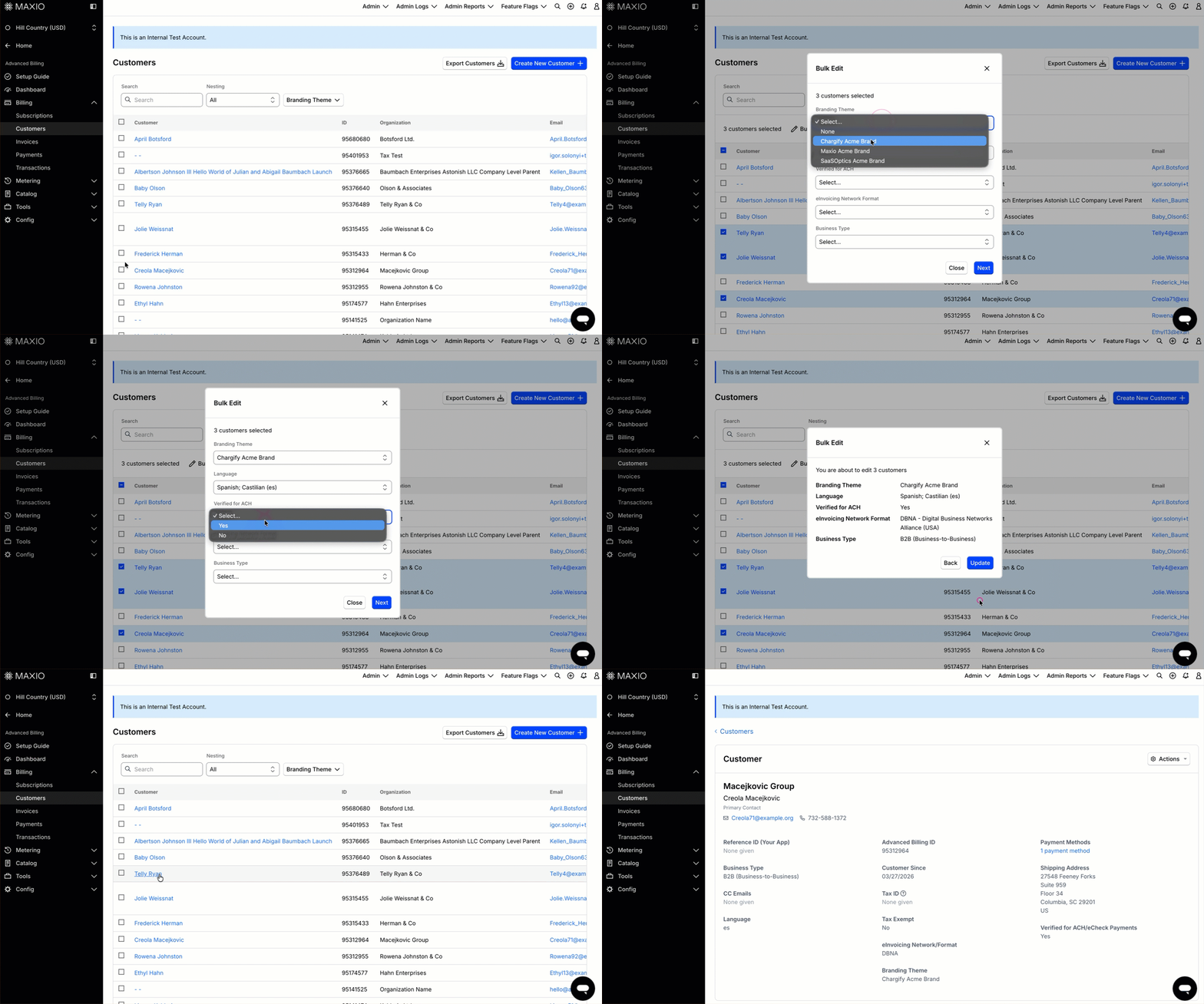
What you can update
Use bulk editing to update one or more of the following properties for the Customers you select:
- Branding Theme
- Language
- Verified for ACH
- Surcharging
- eInvoicing Network Format
- Business Type
Which properties appear depends on your Site's settings. Surcharging only appears if surcharging is enabled for your Site (see Manage Surcharging Preferences per Customer), and Branding Theme only appears if Advanced Billing theming is enabled (see Manage Branding Themes).
Edit customer properties in bulk
Select multiple Customer records, then change any of the properties listed above for all of them in a single action.
Changes apply to every Customer you select, up to 500 at a time. Advanced Billing skips a record that doesn't meet a property's requirements, and lists it as "could not be updated" after you finish.
To edit customer properties in bulk
- Select Customers.
- Select the checkbox for each Customer record you want to update.
- Click Bulk Edit.
- Select a new value for each property you want to change.
- Click Next.
- Review your changes.
- Click Update.
Related information
To edit Subscription-level settings in bulk instead of Customer properties, see Edit Subscriptions in Bulk.
Still need help?
Reach out and our support team will take it from here.