
Understand Upgrade and Downgrade Scenarios
Last updated on Aug 30, 2026
Preserve Period, prior refunds, coupons, Products, and billing all play out differently depending on the details of an upgrade or downgrade. The following sections and worked examples walk through how each behaves in practice. The worked examples below use a downgrade to illustrate the numbers, but the same proration mechanics apply symmetrically to an upgrade; only the direction of the credit and charge reverses.
Preserve Period
The Preserve Period option lets you migrate a Subscription without resetting its billing dates.
Preserve Period is selected by default for Term Subscriptions, though you can still uncheck it unless the migration also includes a trial.
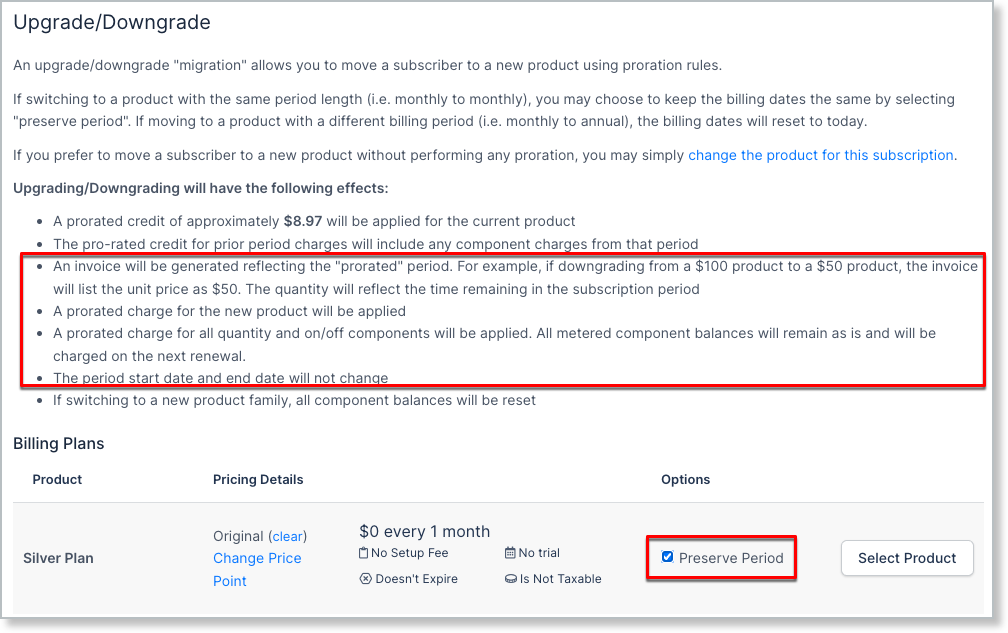
Whether Preserve Period is checked by default or you check it yourself, the following happens:
- An Invoice reflecting the prorated period is generated; its quantity reflects the time remaining in the Subscription period.
- A prorated charge applies for the new Plan.
- A prorated charge applies for all Quantity-based and On/Off Product types. Metered Product balances remain as-is and are charged at the next renewal.
- Period start and end dates don't change.
Important: Preserve Period only works between Plans with the same billing interval, such as monthly to monthly. Migrating between different intervals, like monthly to annual, results in an error. The Include Trial option isn't available when Preserve Period is enabled.
Refunds and proration
If a refund was issued for the current period's charges before an upgrade or downgrade, it affects the prorated credit differently depending on the refund type.
Full refunds
- No prorated credit applies to the migration.
- The migration charges the Subscriber the full cost of the new Plan.
Partial refunds
- The refund amount reduces the prorated credit available.
- The prorated credit still applies to the migration.
- The migration charges the Subscriber the cost of the new Plan minus the reduced credit.
In both cases, preview the upgrade or downgrade first (see Subscription Actions Overview) to see the prorated credit amount, if any, before completing the migration.
Coupons and upgrades or downgrades
You can choose whether to include any coupons already applied to the Subscription when you upgrade or downgrade it, using the Include Coupons checkbox.
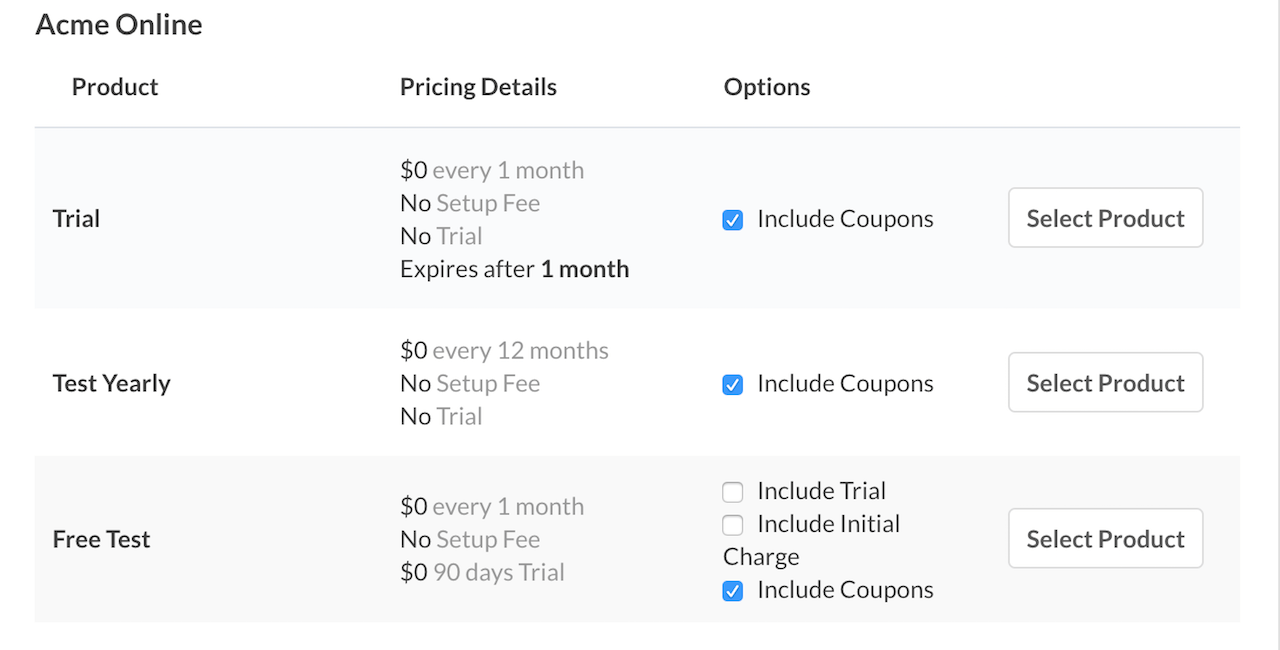
Unchecking Include Coupons prevents the coupon from applying to the amount due for the migration. It doesn't remove the coupon from the Subscription, so it may still apply to future renewals. See Apply Coupons to Subscriptions for more on adding and removing coupons.
Whether a carried-over coupon actually applies depends on whether it's restricted to the new Plan:
- If the coupon is restricted to the new Plan, it applies.
- If the coupon isn't restricted to the new Plan, it doesn't apply, but stays on the Subscription for future use.
This works the same way across a Product Family change: a coupon can only be newly added to a Subscription if it belongs to the same Product Family as the Subscription's Plan, but an existing coupon can remain on the Subscription across a family change and still apply if it has no Plan or Product restrictions. See Plan/Product restrictions for more on how coupon restrictions work.
Statements and Invoices by payment method
How a migration bills the Subscriber depends on their payment method.
Automatic payment method
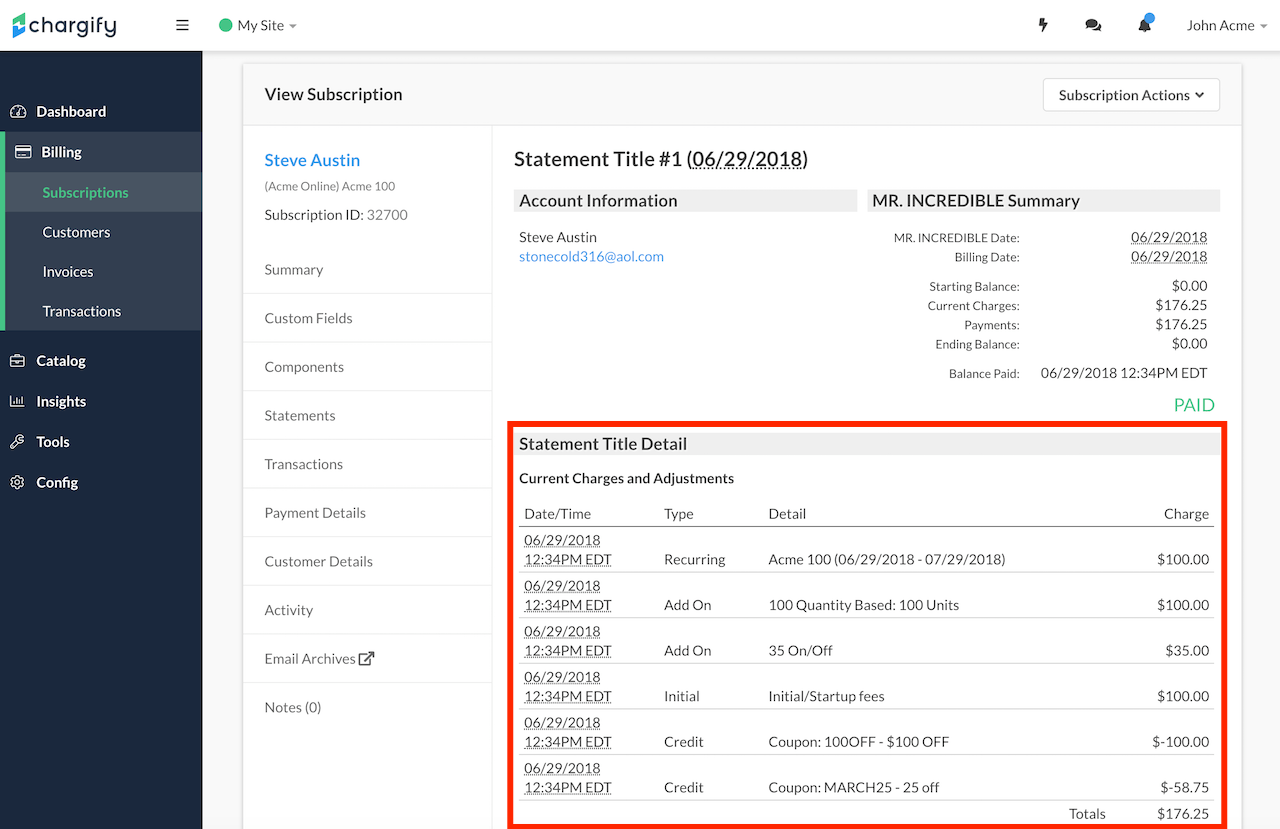
The migration closes the Subscriber's original signup statement and generates a new one with two line items: a credit for the unused portion of the current Plan, and a charge for the new Plan. The total is the difference between the two, and the card on file is charged immediately.
Invoice payment method
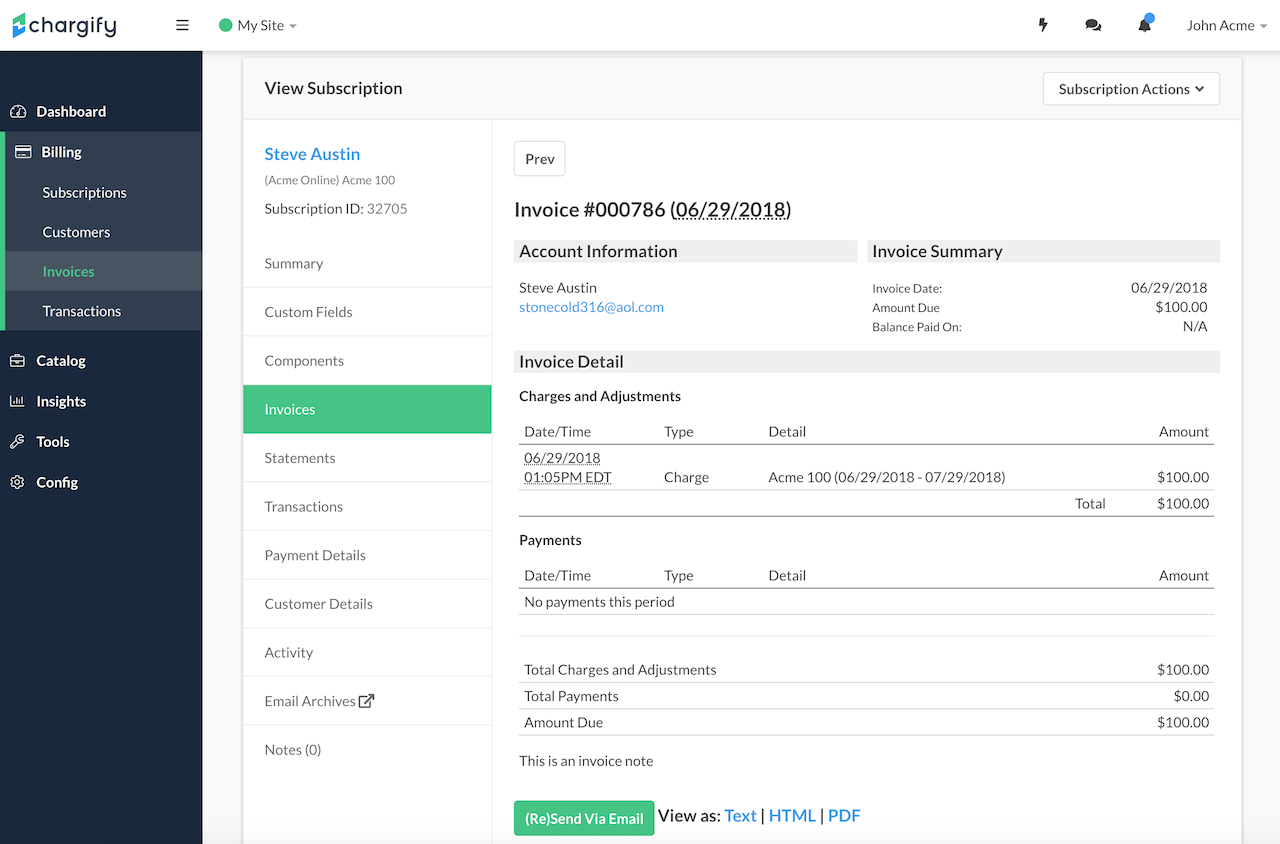
The migration applies a prorated credit, if any, to the Subscriber's current open Invoice for the unused portion of the current Plan, reducing the amount due to just the portion of the Plan they used. A second Invoice is then generated for the new Plan.
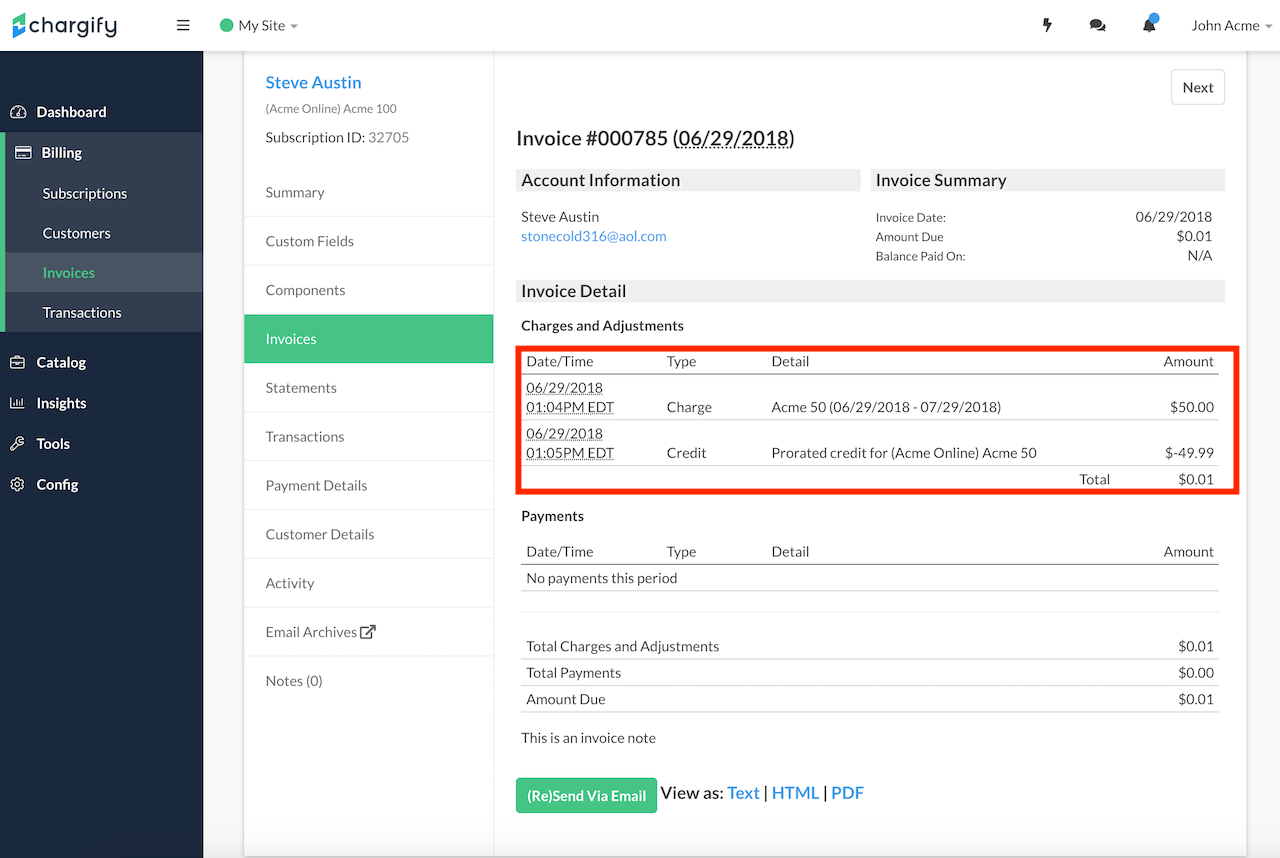
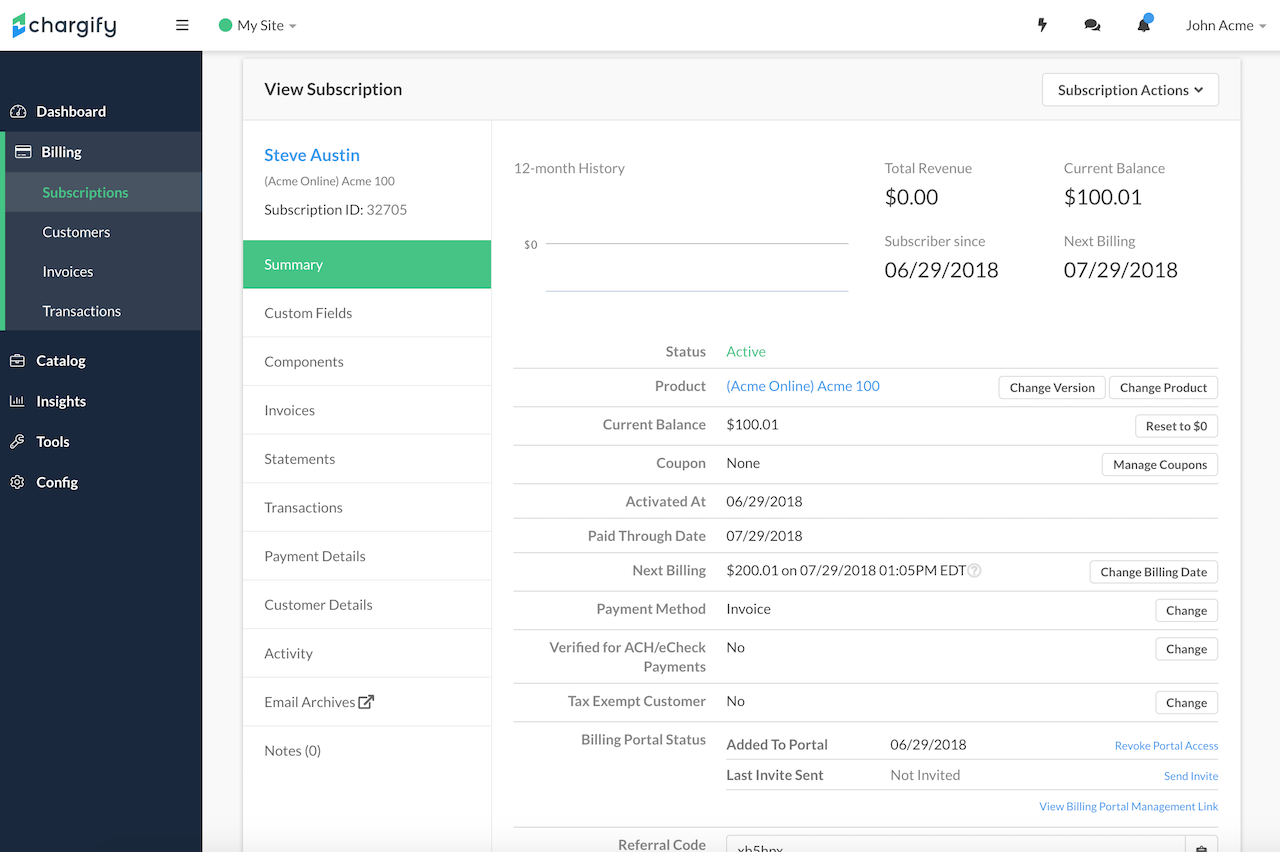
The Subscription summary shows the remainder due across both Invoices as a single total.
Downgrading with a balance
Suppose a Subscriber on a $100/month Plan downgrades to a $50/month Plan.
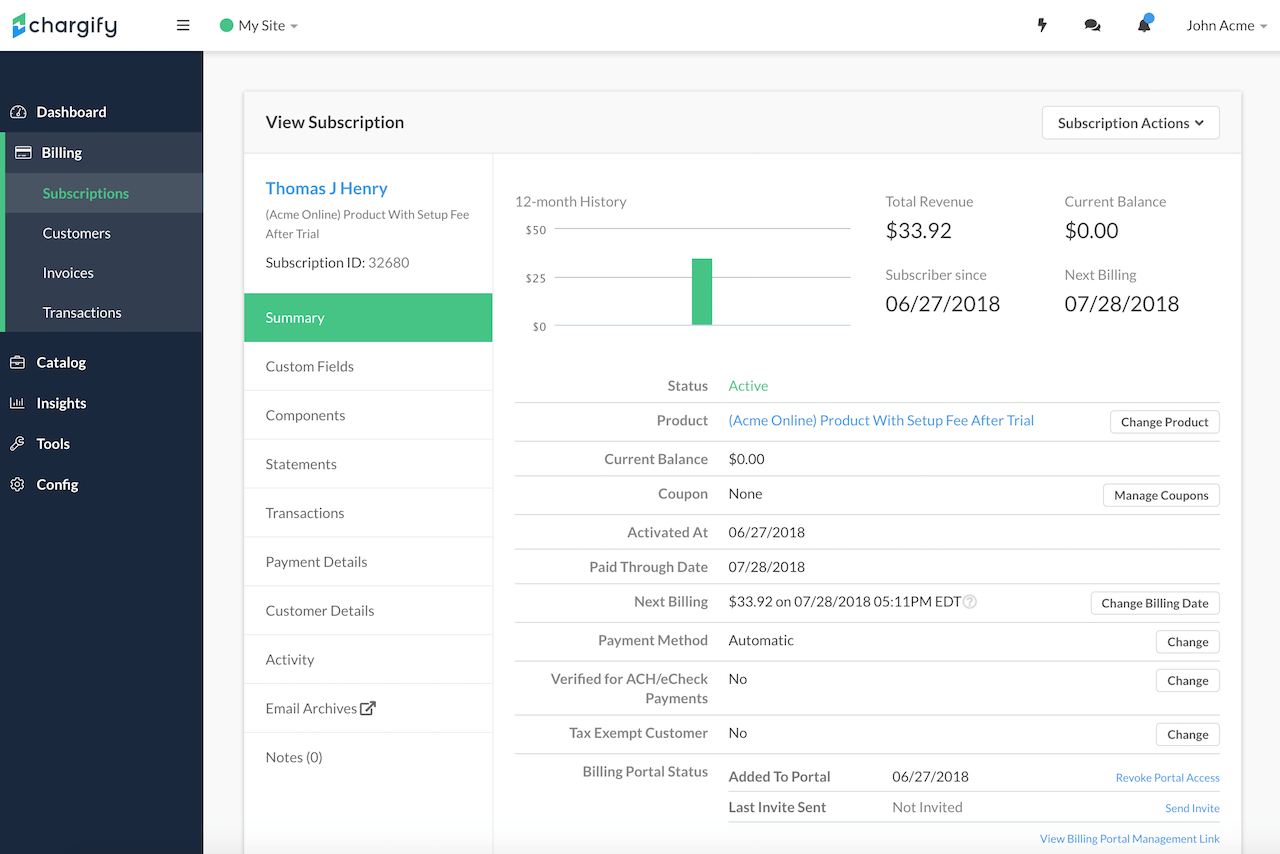
Before the downgrade
- A prorated credit for the unused amount of the current Plan applies, including any Product charges from that period.
- Any leftover amount is added as a credit to the Subscription.
After the downgrade
- A charge for the full amount of the new Plan applies.
- A charge for the full amount of all On/Off and Quantity-based Product charges applies.
- All metered Products reset to zero.
- The period start date resets to today.
- If the Subscriber is switching to a Plan in a new Product Family, all Product balances reset to zero.
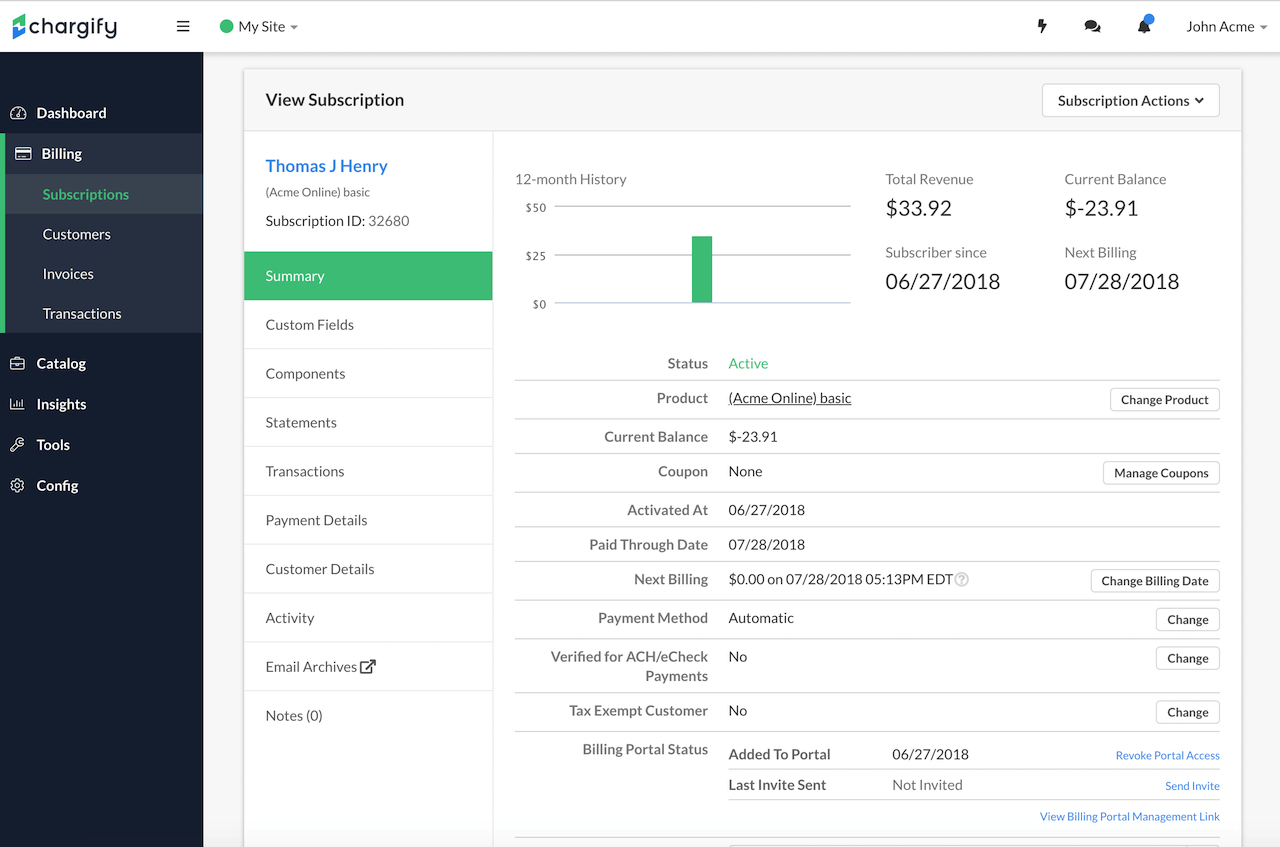
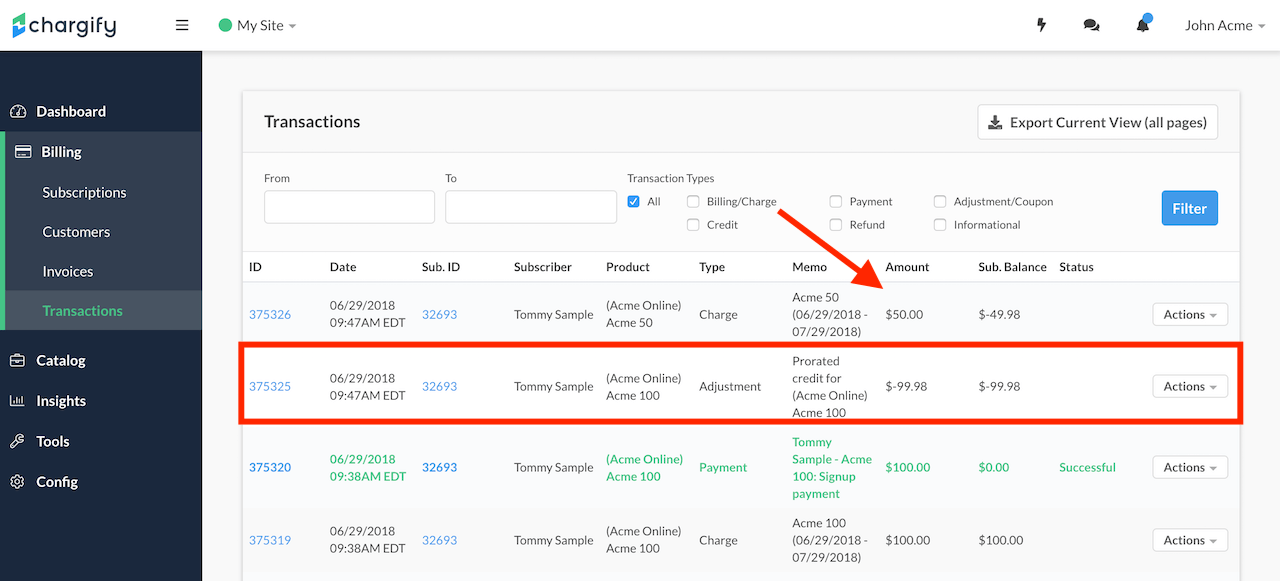
The Subscription's total revenue doesn't change, but a credit of -$23.91 applies. Because the downgrade happened within minutes of the purchase, only a small amount of the Subscription had been consumed, and that usage is reflected in the credit.
Advanced Billing calculates the credit using the following equation:
(Time left of recurring period / Recurring period) × Cost of a recurring period
The Transactions tab shows the detail: an adjustment of -$99.98 for the unused portion of the Plan, and a remaining balance of $23.91.
Products in a downgrade
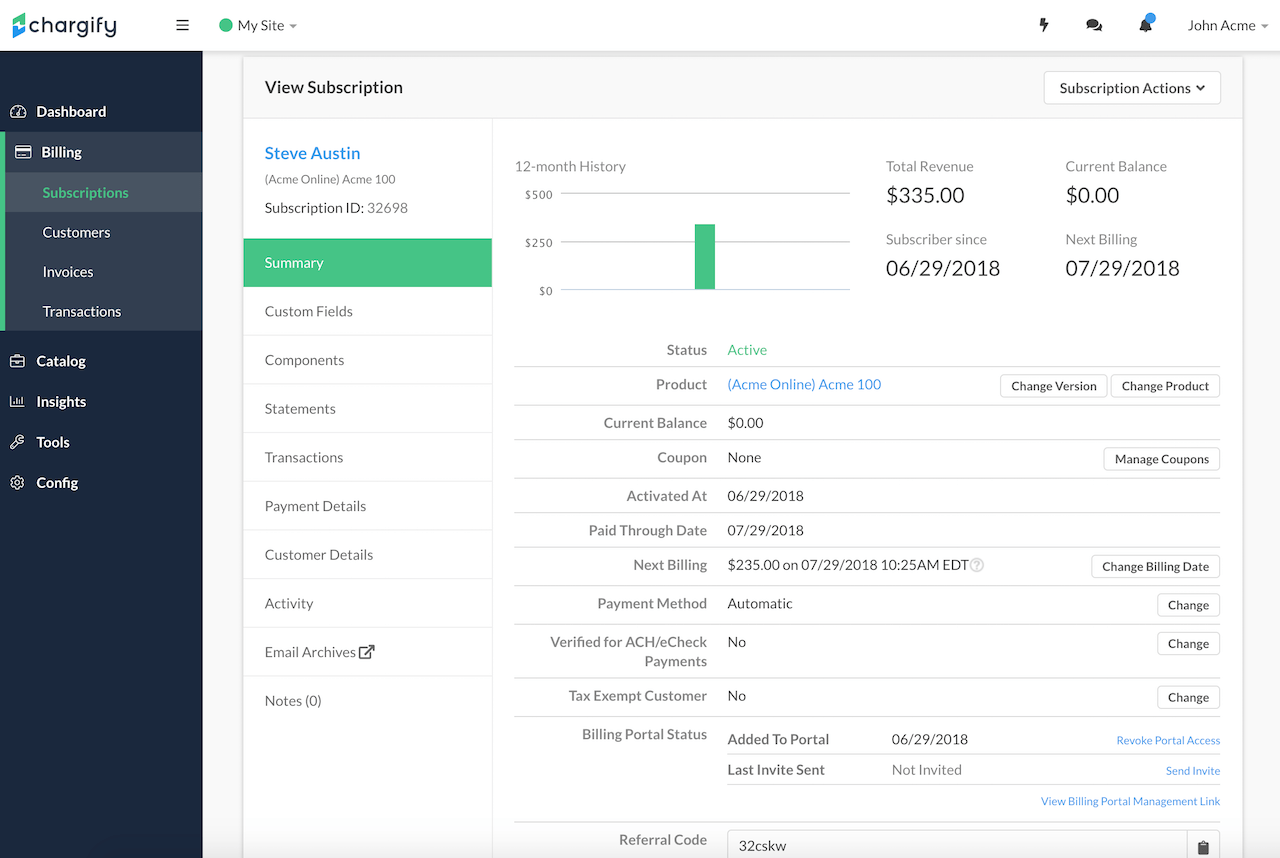
This example builds on the one above: a $100/month Subscription with the following Products, downgrading to $50/month:
- 100 Metered Products, totaling $100.00
- 100 Quantity-based Products, totaling $100.00
- 1 On/Off Product, totaling $35.00
Product charges total $235.00, for a total revenue of $335.00, since revenue includes the $100 Plan cost.
Downgrading to the $50/month Plan results in:
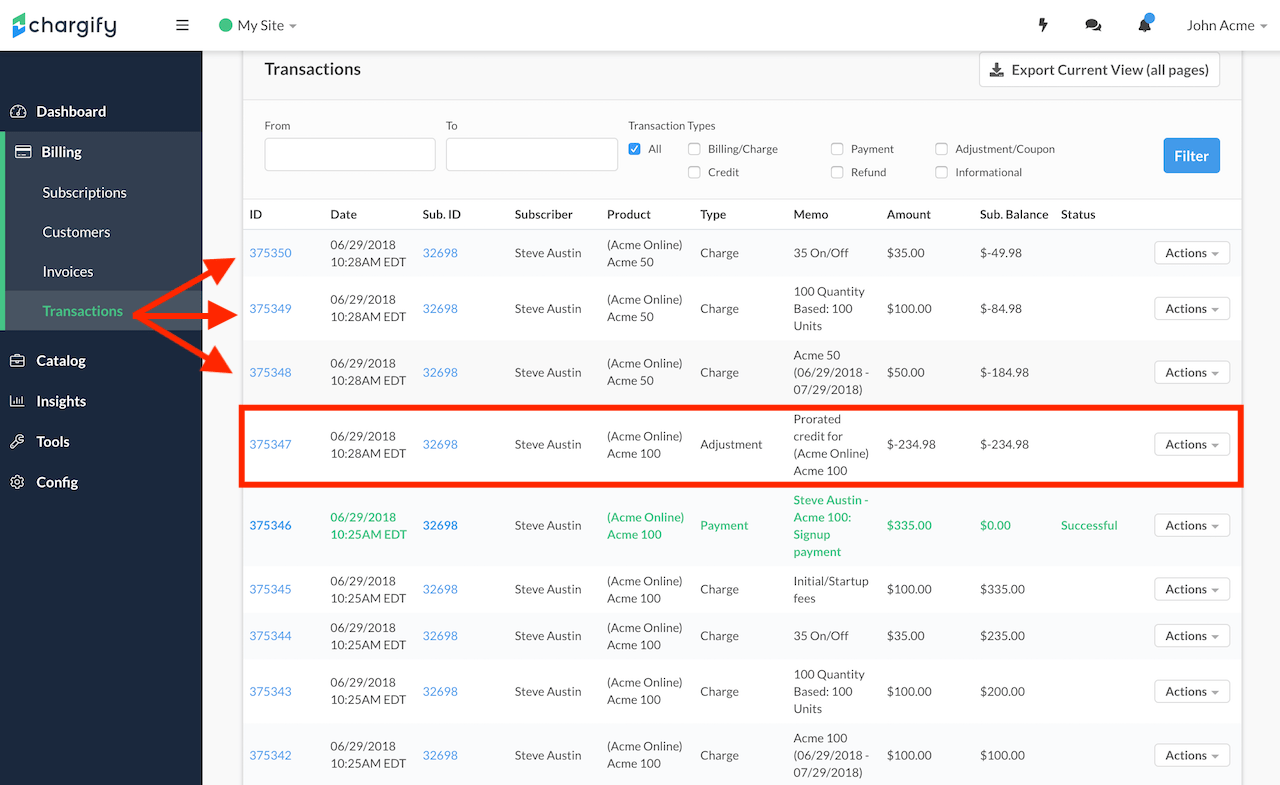
- A credit of $234.48 for the unused portion of the Subscription. The credit doesn't include any costs already prepaid through purchased metered Products.
- A charge of $50.00 for the new Plan.
- New charges for the Quantity-based Products ($100) and the On/Off Product ($35.00 cancellation fee).
- A remaining balance of $23.91.
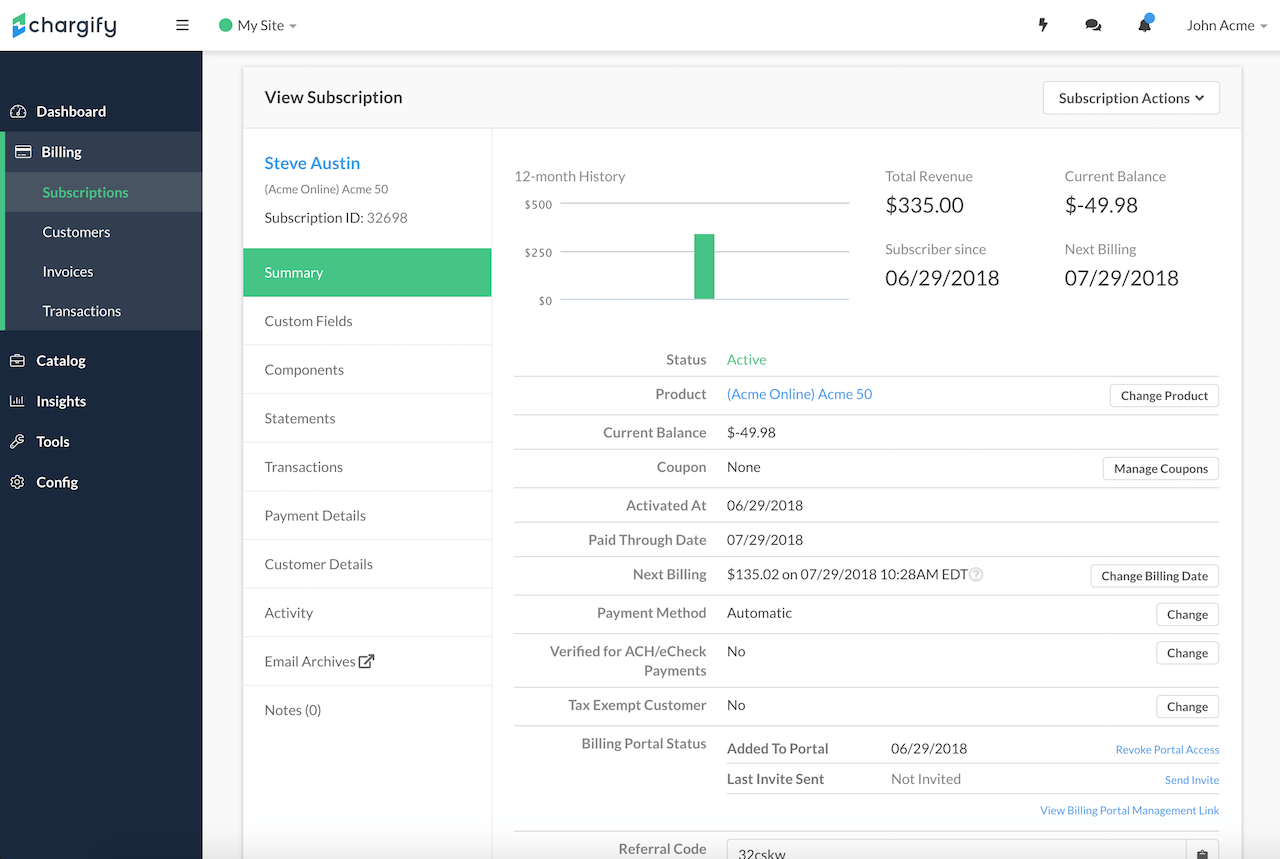
The downgraded Subscription's next billing amount includes the new Plan cost plus the On/Off and Quantity-based Product charges, and its next billing date follows the new Plan's recurring period.
Downgrading across Product Families
This example uses the same Products as above, but downgrades the Subscription to a Plan in a different Product Family.
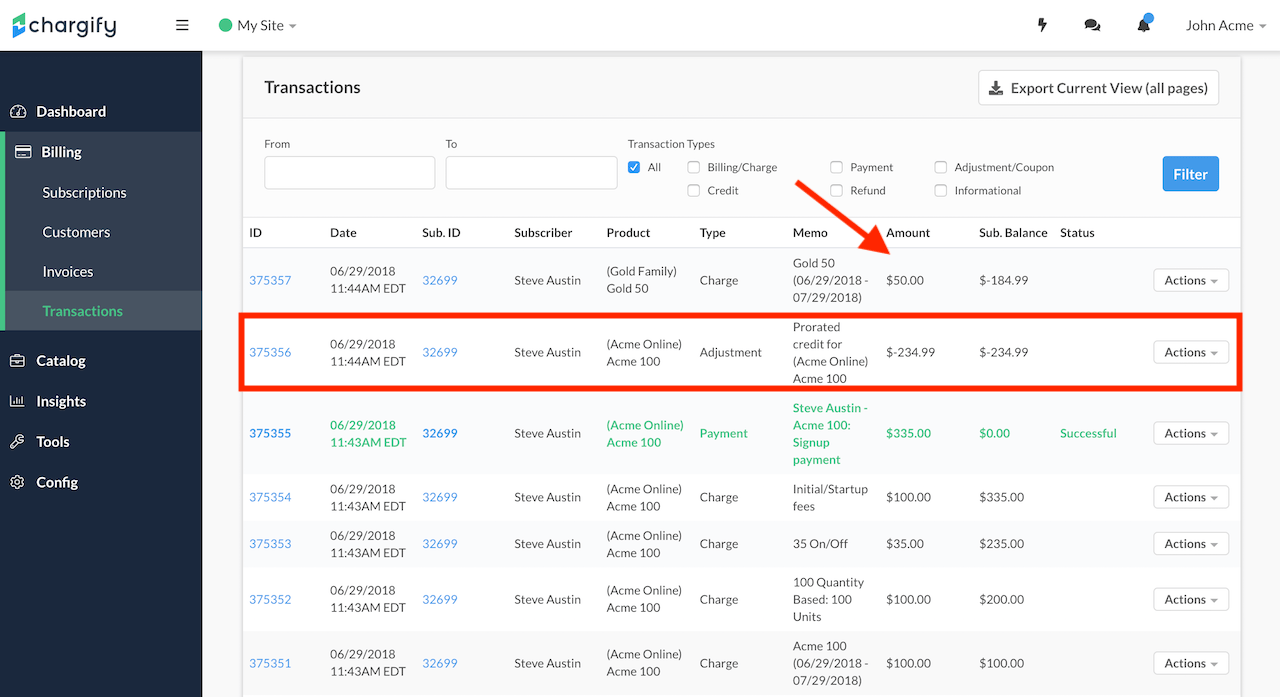
- The prorated credit adjusts for the unused portion of the Plan, the On/Off Product, and the Quantity-based Product, totaling -$234.98.
- A charge of $50.00 applies for the new Plan.
- The remaining balance is -$184.98.
The credit excludes the cost of the metered Products, and no Products carry over to the new Plan; you need to re-allocate Products after a Subscription moves across Product Family lines.
Any Component billed on an event-based (usage-metered) basis is automatically deactivated and its balance cleared as part of the change, the same way quantity-based and on/off Components already are. This prevents a Component from the old Product Family from continuing to accrue and bill usage after the migration.
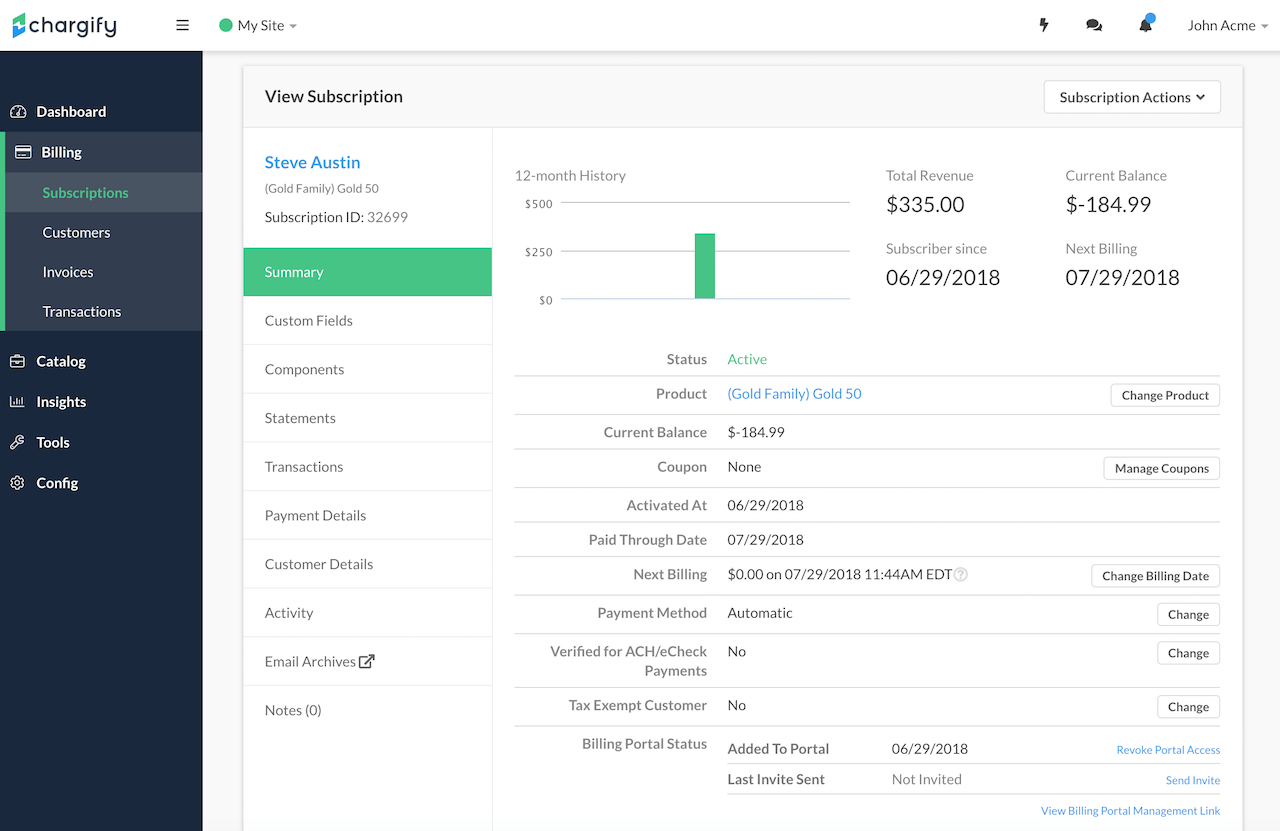
The downgraded Subscription's next billing amount includes only the new Plan cost, and its next billing date follows the new Plan's recurring period.
Related information
For the upgrade and downgrade procedure, see Upgrade or Downgrade a Subscription.
Still need help?
Reach out and our support team will take it from here.