
Understand Subscription Groups
Last updated on Aug 28, 2026
Use a Subscription Group to bill multiple related Subscriptions together on one consolidated invoice.
What is a subscription group?
A Subscription Group combines individual Subscriptions so they bill on one consolidated invoice, issued on the primary group member's billing schedule.
To add a Subscription to a Group, it must be:
- In the Customer hierarchy or on the same Customer record.
- Set to any Payment Collection Method except Prepaid. Subscription Groups and consolidated invoices don't support the Prepaid collection method.
Create a subscription group
Click into a Subscription and select Create Subscription Group. This opens the group management page, showing which Subscriptions can be added to the group.
See Manage a Subscription Group for the actions available from within a Subscription Group.
Access a subscription group
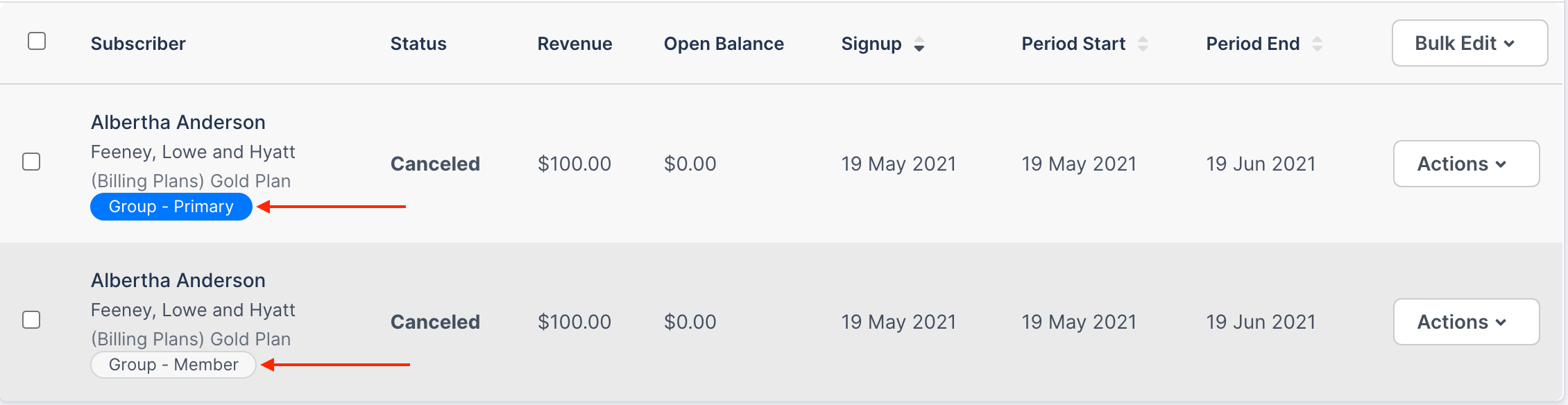
Click either the blue Group - Primary or gray Group - Member tag on a Subscription in the group you want to access.
Review a subscription group's balances and members
Once you're on the Subscription Group page, you can manage the group directly.
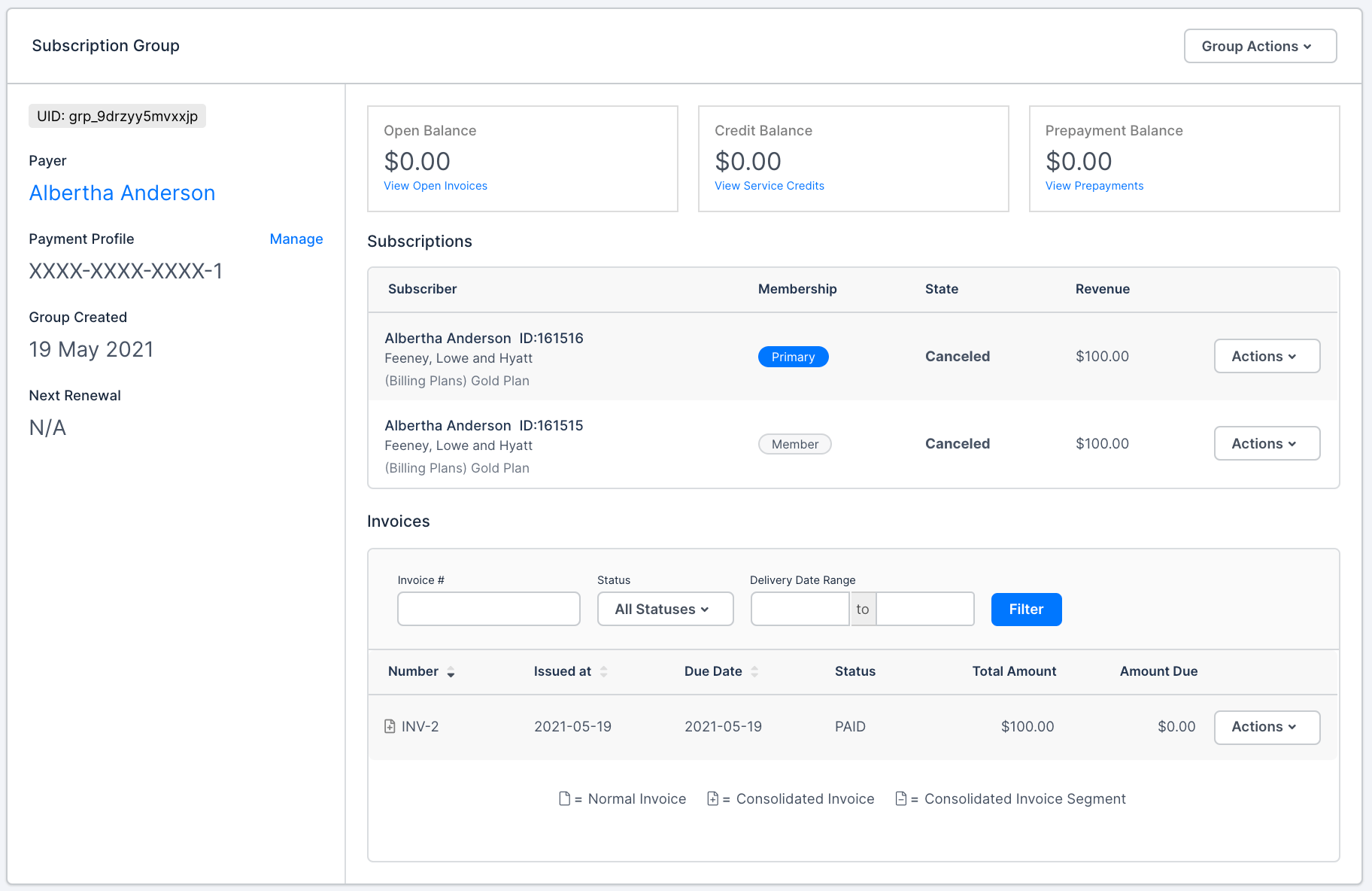
At the top of the page are three balance cards: Open Balance, Credit Balance, and Prepayment Balance. Credit and prepayment balances are automatically consumed at the next billing date. Select View Open Invoices, Manage Service Credits, or Manage Prepayments in each card for more detail on how that balance occurred.
The Subscriptions table lists every Subscription in the group, tagged Primary or Member. Select Manage Group to add or remove members, or select a Subscription to open it directly.
Review invoices for a subscription group
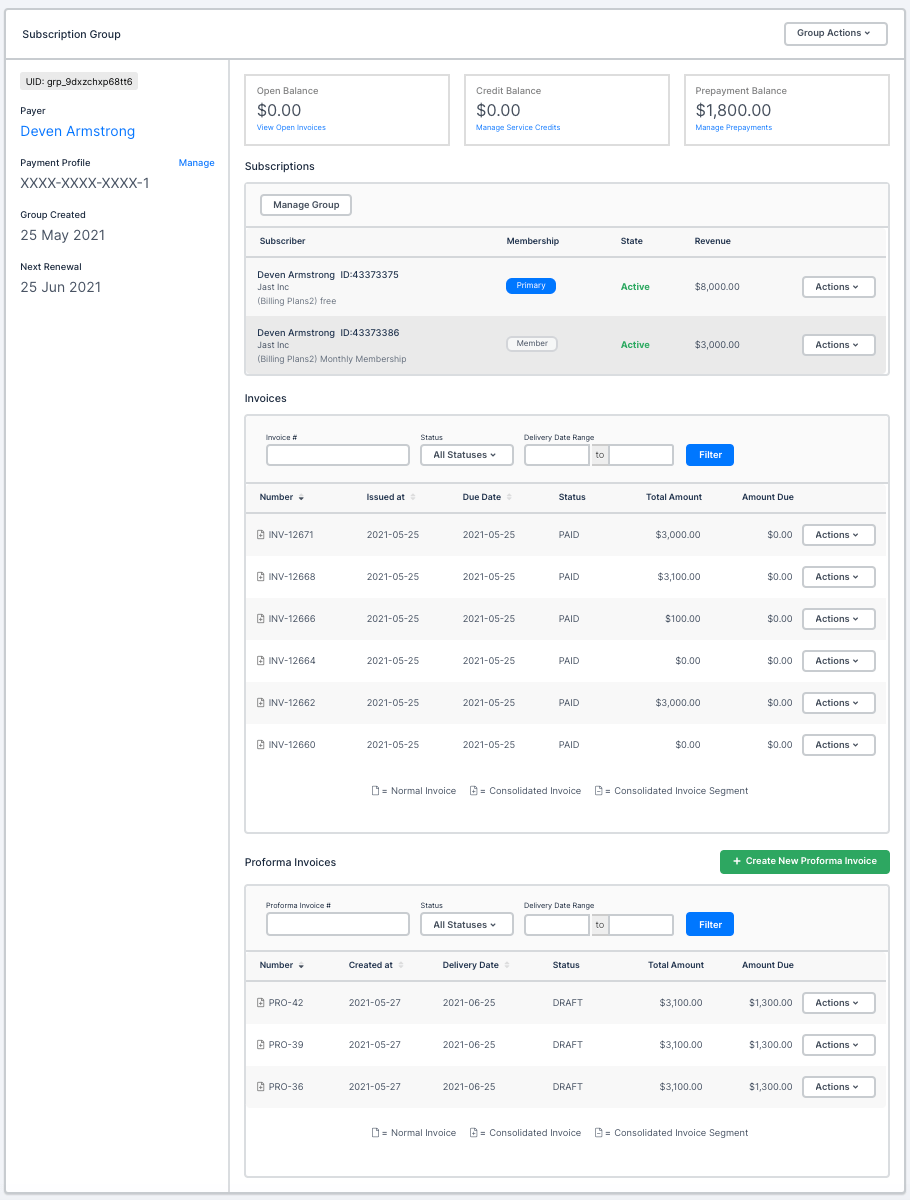
The Invoices table lists every consolidated invoice for the Subscription Group. Select an invoice to open it, or use its Actions menu to select View Invoice or View Public URL.
Each invoice's icon indicates whether it's a Normal Invoice, a Consolidated Invoice, or a Consolidated Invoice Segment.
Create proforma invoices for a subscription group
Below the Invoices table, the Proforma Invoices table lets you create and view consolidated proforma invoices for the entire Subscription Group. See Create and Manage Proforma Invoices for more information.
Migrate a group member
When a Subscription Group member migrates, it always generates a new consolidated invoice for the group, closing any pending consolidated invoice first. If the member already has a pending invoice segment of its own, migration appends to that segment instead of creating a new one.

Accrue mid-period product allocations
When a mid-period Product allocation changes on a Subscription in a Subscription Group, you can choose Accrue to the next billing period instead of Charge immediately. The accrued charge is held until the Subscription's next billing period and folds into the group's next consolidated invoice.
- Accrued charges appear on the next consolidated group invoice.
- Charges set to Charge immediately still generate their own invoice right away.
- This choice isn't available for prepaid usage Products or when you set a custom billing period for the allocation.
Consolidated invoice segments use a dot-suffixed number, such as INV-1234.1 or INV-1234.2.
No additional configuration is required after selecting Accrue to the next billing period.
Related information
For how a Subscription Group determines who's responsible for payment, see Manage a Subscription Group's Payer.
For how Subscription Groups behave when combined with Multifrequency and Term Subscriptions, see Understand Subscription Groups with Multifrequency and Term Subscriptions.
Still need help?
Reach out and our support team will take it from here.