
Set Dunning Email From Address and BCC
Last updated on Aug 27, 2026
Dunning emails are the messages Advanced Billing sends a Subscriber when a payment fails. Before you build a Dunning Schedule, it is worth setting the address those messages come from, and, where you want internal visibility of what Customers are receiving, a BCC address.
Update the dunning email settings
Change the address dunning emails are sent from, or add internal BCC visibility, from the same settings card.
To update the dunning email settings
- Go to Config > Retries & Dunning.
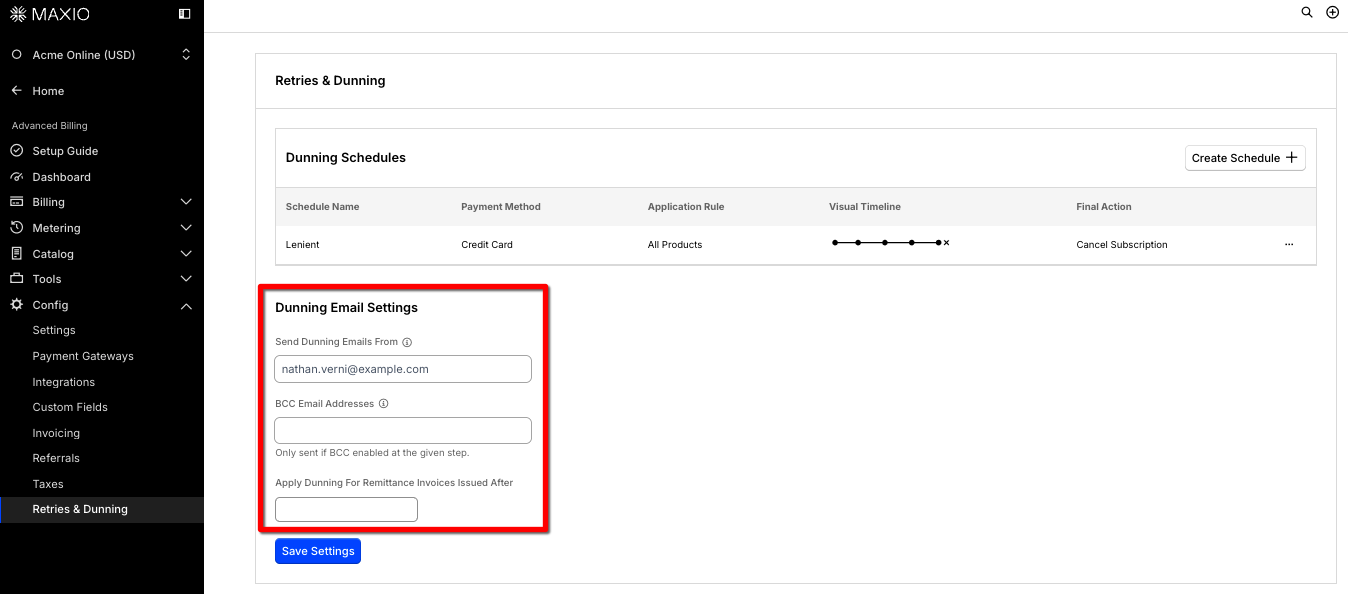
- Under Dunning Email Settings, update Send Dunning Emails From, BCC Email Addresses, or both.
- Select Save Settings.
What each setting does
Dunning Email Settings includes:
- Send Dunning Emails From: an email address, limited to 256 characters. You can also include a display name using the format
Your Name <you@example.com>. - BCC Email Addresses: one or more comma-separated email addresses. BCC is only sent on steps where Email BCC List is checked for that step.
BCC applies per step, not globally
Adding a BCC address does not by itself copy you on every dunning email. BCC is applied per step, so a step that doesn't have Email BCC List checked sends nothing to the BCC address even when one is configured. If you expect internal copies and are not receiving them, check the individual steps of the Dunning Schedule rather than this page.
Related information
To understand how the overall dunning process works, see Understanding How Dunning Works.
To personalize the email content itself with keywords like the Customer's name or balance, see Dunning Email Parameters Reference.
Still need help?
Reach out and our support team will take it from here.